

Hosting a GUI-driven, PowerShell-based application inside a RemoteApp session can solve great problems — it lets non‑Windows clients access Windows-only tools, centralizes administration, and simplifies deployment — but the hidden costs show up fast in authentication behavior, file system access, and database backup semantics that many teams discover the hard way.
RemoteApp (the Remote Desktop Services capability that publishes individual applications rather than full desktops) is a proven method to deliver Windows applications to remote endpoints while keeping execution on server infrastructure. It’s commonly used where centralized control, licensing, or legacy Windows-only dependencies make local installation impractical. Administrators deploying RemoteApp for in-house tools often assume the app simply "runs on the server" and that any server-side integration (databases, fileshares, backups) will behave the same as when the app runs locally. In practice, the interaction between RemoteApp session behavior, Windows authentication, and SQL Server privileges introduces a number of subtle failure modes that must be anticipated.
This article summarizes a real-world account of those pitfalls, verifies the core technical claims against official guidance and community experience, and provides concrete patterns and mitigations for teams that want to publish custom applications (especially PowerShell GUIs) via RemoteApp. Key takeaways are woven throughout and the technical recommendations are backed by independent sources.
Conclusion
RemoteApp can deliver powerful operational benefits for custom GUI tools, but only if the deployment team accepts the platform’s authentication model and server‑centric I/O behavior. Plan for who actually executes privileged operations (the SQL Server), which identity is used (user token vs service account), and how files are transferred and stored (UNC shares or post‑backup transfers). With clear patterns — AD group mappings, server‑side backup jobs, and integrated security best practices — teams will avoid the most painful surprises and gain the centralized control RemoteApp promises.
Source: Redmondmag.com Challenges With Using RemoteApp to Host Custom Applications, Part 1 -- Redmondmag.com
 Background
RemoteApp (the Remote Desktop Services capability that publishes individual applications rather than full desktops) is a proven method to deliver Windows applications to remote endpoints while keeping execution on server infrastructure. It’s commonly used where centralized control, licensing, or legacy Windows-only dependencies make local installation impractical. Administrators deploying RemoteApp for in-house tools often assume the app simply "runs on the server" and that any server-side integration (databases, fileshares, backups) will behave the same as when the app runs locally. In practice, the interaction between RemoteApp session behavior, Windows authentication, and SQL Server privileges introduces a number of subtle failure modes that must be anticipated.This article summarizes a real-world account of those pitfalls, verifies the core technical claims against official guidance and community experience, and provides concrete patterns and mitigations for teams that want to publish custom applications (especially PowerShell GUIs) via RemoteApp. Key takeaways are woven throughout and the technical recommendations are backed by independent sources.
What happened: a short summary of the core issues
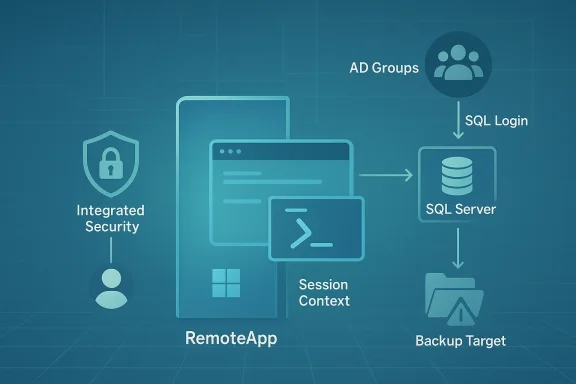
- The author published a custom PowerShell GUI using RemoteApp and found it must use Windows Authentication for SQL Server because the database backup routine required the SQL Server process to write to a filesystem location.
- With Windows Authentication, credentials cannot be embedded in the connection string (Integrated Security means the connection uses the caller’s Windows token). Attempting to place a SQL username/password in a connection string changes authentication mode and does not produce the intended Windows credentials.
- RemoteApp runs the application inside an RDS session for the logged‑on user, so the process adopts the user’s identity — RemoteApp cannot simply be forced to run as a service account under the published session. This requires mapping AD groups and SQL Server permissions to the set of human users who will run the app.
- Database backup commands executed from the app actually execute on the SQL Server instance; unless the SQL Server service account can write to a specified path (or to a reachable network share), the backup will be created on the SQL Server host’s filesystem — forcing the developer to add share-and-copy logic to move the .bak files to the desired location.
Why these behaviors are expected (technical verification)
RemoteApp processes run in the user’s session
RemoteApp programs are session‑hosted applications: when a user launches a RemoteApp, the RD Session Host establishes a session and starts the application in that session under the user’s security token. That means the process environment, privileges, and network access are those of the logged‑on user (unless the user’s token elevates via UAC or other in‑session elevation methods). Practical implications include profile handling, mapped drives, and token‑based access to other resources. Community and Microsoft guidance repeatedly note that RemoteApp processes run in the user’s session and are routed to the session host that already holds the user’s existing session where possible.Windows Authentication (Integrated Security) uses the caller’s token
When you configure a SQL Server connection string to use Windows Authentication (often via Integrated Security=true or Integrated Security=SSPI), SQL Server uses the Windows security subsystem — Kerberos/NTLM — to authenticate the connection. Integrated Security assumes the caller’s Windows identity and does not use any embedded user/password pair in the connection string. If credentials are included in the connection string, the provider will treat them as SQL Authentication credentials instead of Windows credentials. This is why embedding a username/password into the connection string cannot emulate Windows Authentication.BACKUP DATABASE runs on the SQL Server and writes to a path the server can access
A BACKUP DATABASE or equivalent SQL backup initiated via T‑SQL or by a client‑side utility is executed by the SQL Server engine on the instance host. The destination path in the BACKUP command is interpreted relative to the SQL Server machine’s namespace; if that path is local, the file will be written to the SQL Server box. You can specify a UNC path in the backup command, but that location must be reachable and writable by the SQL Server service account (or by the computer account the service runs under). Because the SQL engine is doing the write, client‑side accounts (including the RemoteApp session) do not change where the physical file lands unless you specifically orchestrate a copy. This behavior is commonly observed in Sysadmin and DBA communities and is consistent with SQL Server backup semantics.Practical consequences for administrators and developers
These technical realities combine to create real deployment work for teams that publish custom apps through RemoteApp:- Authentication choices become binary in practice: if the app needs the database server itself to touch the filesystem (backups, bulk export to disk, backups to a network share launched by SQL Server), Windows Authentication is required; using SQL logins will not provide the service‑side filesystem credentials needed for SQL Server to write to server or share paths.
- Because RemoteApp runs as the interactive user, you cannot run the RemoteApp process as a “service account” unless you change how the app is launched (for example, scheduled tasks, service wrappers, or other out‑of‑band jobs). That forces AD-based permissioning: you must create AD groups, add users, and grant group-level SQL Server permissions. The most maintainable pattern is to map a domain group to a SQL login and then create a corresponding user in the application database and add role memberships like db_datareader and db_datawriter. The modern T‑SQL pattern uses ALTER ROLE ... ADD MEMBER which is the recommended approach in recent SQL Server versions.
- Backup operations that you trigger from a RemoteApp GUI will be executed by SQL Server where the database lives. Unless you point the backup to a network share the SQL Server can write to — and ensure the SQL Server service account has write permission to that share — the backup files will remain on the SQL Server host. Many admins therefore add post‑backup tasks that copy the backup file from the SQL Server host to a central archive location (a mapped drive or file server), or use SQL Agent Jobs that run under accounts that have the right share permissions.
Step‑by‑step recommended configuration patterns
Below are practical steps and hardened patterns based on the lessons above. Follow these in order to reduce surprises when publishing a PowerShell GUI or similar app through RemoteApp.1) Decide authentication mode based on server-side filesystem needs
- If your app’s database interactions require SQL Server itself to create or write files (backups, BCP OUT, snapshot metadata), choose Windows Authentication.
- If the app only performs queries, reads, and writes inside the database (no server‑side file access), SQL Authentication can be used, but it carries different security tradeoffs (storing credentials, rotating secrets, etc.). For security and manageability, prefer Integrated Security when feasible.
2) Create and use AD groups for permission mapping (recommended)
- In Active Directory Users and Computers, create a group (example: RDS_SQL_Users) and add the human users who will run the RemoteApp.
- On the SQL Server instance, create a Login mapped to the Windows group:
- In SSMS: Security → Logins → New Login → Search for the domain group → set authentication to Windows.
- In the application database, create a database user for the login:
- USE MyApplicationDB;
- CREATE USER [DOMAIN\RDS_SQL_Users] FOR LOGIN [DOMAIN\RDS_SQL_Users];
- Grant role memberships for typical permissions:
- USE MyApplicationDB;
- ALTER ROLE db_datareader ADD MEMBER [DOMAIN\RDS_SQL_Users];
- ALTER ROLE db_datawriter ADD MEMBER [DOMAIN\RDS_SQL_Users];
3) Backup workflow: make SQL Server the authoritative actor — then copy if you need the file elsewhere
- Preferred: Have SQL Server write backups directly to a network share that is reachable by the SQL Server service account. Grant the SQL Server service account (or the machine account) write permissions on the share. The backup command can reference UNC paths, and SQL Server will write the .bak file there. Ensure this path is secure and access is audited.
- If backups must land on a different server (for example, the RDS server), do not expect a client‑side PowerShell process to make the SQL Server engine write into the RDS server's local path. Either:
- Use a share on the RDS server that is writable by the SQL Server service account and point the BACKUP command to that UNC share; or
- Run the backup so it lands on the SQL Server host local disk and then copy the .bak file out to the desired location using a secondary job (SQL Agent job, Robocopy, scheduled PowerShell run as a privileged account, etc.).
4) If a service account is mandatory for file writes, offload backup logic to a server‑side job
- For operational simplicity, implement backups as scheduled SQL Agent jobs (or server‑side scripts) that run under an account with explicitly granted filesystem rights. Expose only the ability to request a backup from the RemoteApp: the app enqueues a request (in a control table), and the SQL Agent job picks up requests and performs backups under the job account. This pattern avoids troblesome permission delegation and prevents users’ interactive tokens from being required for server-side writes.
5) Handling connection strings inside PowerShell and GUIs
- For Windows Authentication use a connection string without UID/PWD and include Integrated Security (or use the SqlConnectionStringBuilder with IntegratedSecurity = True). Avoid trying to embed domain\user and password values as that effectively switches to SQL authentication semantics (or fails to yield Windows tokens).
- If you must use a stored SQL credential (less secure), isolate it and protect it with proper secrets management (Windows DPAPI, Azure Key Vault, or similar). Avoid hard‑coding credentials in scripts or packaged binaries.
Security, maintainability, and operational risks
Risk: Lateral privilege escalation via Integrated Security
Using Integrated Security grants the database access rights to the Windows identities of those users. If a user has more privileges in AD than intended, they may gain unintended database access. Always apply least privilege at the database role level and audit role memberships.Risk: Backup shares and service account exposure
Pointing SQL Server backups to a network share requires granting the SQL Server service account (or machine account) write access to that share. Giving wide access or using overly privileged accounts risks lateral movement or accidental data exfiltration. Limit share permissions to the minimum necessary and restrict network share scope.Risk: User context assumptions in the app
Developers often assume that mapped drives or local files visible in their RDS session will be visible to SQL Server when that’s not true. Always assume that database‑side filesystem operations occur on the database host unless explicitly designed otherwise. Ensure your app’s UI clearly communicates where backups are stored and present steps (or automation) to move them if needed.Risk: Fragile connection string handling
Incorrectly mixing SQL and Windows authentication parameters will produce authentication failures or, worse, silently cause the app to fallback to less secure modes. Use clear configuration controls, and validate at install time which authentication mode is active.Strengths and opportunities in the RemoteApp approach
Despite the complexity, RemoteApp has strong advantages:- Centralized management: updates, auditing, and tool versioning are simpler when apps run on central servers.
- Cross‑platform reach: non‑Windows endpoints can access Windows‑only applications without full VDI or local installation.
- Session management: RemoteApp and RD Connection Broker routing help ensure a user’s apps run in a consistent session for profile continuity.
Troubleshooting checklist (quick reference)
- Authentication fails when using Integrated Security:
- Confirm the RemoteApp user is a member of the AD group used by SQL Server.
- Verify SQL Server has a login mapped to that AD group (Logins → New Login → Search domain group).
- Ensure connection string uses Integrated Security and does not include UID/PWD.
- Backups do not appear where expected:
- Check the BACKUP DATABASE target path and remember it’s interpreted by SQL Server on the database host.
- If path is UNC, confirm SQL Server service account has write permission to that UNC share.
- If the app triggers the backup but cannot retrieve the file, add a post‑backup copy step running under an account that can access both the SQL Server host and the desired target.
- Users see permissions errors when running a RemoteApp:
- Confirm the application is published to the correct user group in RD Web / RD Connection Broker.
- Validate the AD group has a corresponding SQL login and DB user with appropriate role memberships (db_datareader/db_datawriter or more limited roles).
Case study — Minimal secure design for RemoteApp + PowerShell GUI + SQL backups
- Create AD group RDS_SQL_USERS. Add human users.
- On SQL Server, create login for DOMAIN\RDS_SQL_USERS and create a database user mapped to that login. Grant only db_datareader / db_datawriter for normal operations; restrict backup operations to a controlled process (see step 4).
- Configure PowerShell GUI to use Integrated Security in its connection string; validate connection on first run.
- Implement a server‑side backup service: the GUI writes a "backup request" row to a control table (INSERT into BackupRequests). A SQL Agent job (or a Windows service running under a dedicated domain account) polls the table and runs BACKUP DATABASE to a secure UNC share that the SQL Server account can write to. After backup, the job updates the control table and optionally copies the file to long‑term storage under a hardened service account. This preserves auditability and ensures backups are created with server‑side permissions, not interactive user tokens.
- Log all actions and failures to a central location; expose only status messages to the GUI user (do not reveal service account credentials).
Final analysis and recommendations
Publishing custom applications through RemoteApp can be an excellent operational choice, but teams must design for the server‑side execution model rather than assume client‑side semantics. The most common missteps involve authentication and filesystem semantics — both of which are easily addressed with policies and a solid separation of responsibilities:- Use Windows Authentication when SQL Server must touch the filesystem or when you want centralized identity control, and make sure AD groups are mapped to SQL Server logins and database users.
- Treat backups as server operations. Either let SQL Server write to a location it controls, or implement a controlled post‑backup copy/transfer process. Never assume that a RemoteApp interactive process can cause the SQL Server to write into an arbitrary path on a different host without proper service‑side permissions.
- Favor design patterns that move privileged operations off interactive sessions and into server‑side agents or jobs that run under specially provisioned service accounts. This reduces the attack surface and simplifies auditing.
Conclusion
RemoteApp can deliver powerful operational benefits for custom GUI tools, but only if the deployment team accepts the platform’s authentication model and server‑centric I/O behavior. Plan for who actually executes privileged operations (the SQL Server), which identity is used (user token vs service account), and how files are transferred and stored (UNC shares or post‑backup transfers). With clear patterns — AD group mappings, server‑side backup jobs, and integrated security best practices — teams will avoid the most painful surprises and gain the centralized control RemoteApp promises.
Source: Redmondmag.com Challenges With Using RemoteApp to Host Custom Applications, Part 1 -- Redmondmag.com
