

If you’ve ever stared at a spreadsheet that looks like it was edited by a committee of people who all use different date formats, country codes, and column orders, Python in Excel may feel like a small miracle — and the good news is you don’t have to be a programmer to get value from it. Microsoft’s integration lets you call familiar Python tools (notably pandas) directly from the Excel grid, use natural-language helpers such as Copilot to generate code, and perform common data-cleaning tasks with a few readable lines instead of a thicket of helper columns and fragile formulas. This piece walks through how the feature works, what it actually buys you for everyday data cleanup, the governance and security trade-offs IT teams need to weigh, and practical patterns to adopt when you’re ready to stop fighting messy spreadsheets and start taming them instead.
Python in Excel is Microsoft’s effort to bring the power of the Python data ecosystem — principally the pandas DataFrame model — right into the Excel formula layer so that users can author Python code as a cell formula and return results directly to the sheet. The feature exposes a new on-grid Python function (PY) and a helper function, xl(), which converts Excel ranges, tables, and named objects into Python objects (typically DataFrames) so you can operate on them with standard pandas methods. Microsoft provides a curated, secure runtime and a bundled set of libraries (pandas, NumPy, Matplotlib, Seaborn and others) so users don’t need to install Python locally.
This capability has matured quickly since its public debut: Microsoft documents how Python cells calculate (row-major order), how to call Excel objects from Python formulas (xl()), and which libraries and security controls apply. Enterprises get feature controls and administrative options; consumers receive a low-friction experience that removes the usual installation and configuration roadblocks associated with Python.
Python in Excel changes the workflow in three practical ways:
 500", headers=True) returns a DataFrame you can assign to a Python variable in the cell and transform with standard pandas methods.
Practical activation example:
Third-party tooling from Anaconda complements that no-code angle. Anaconda’s recent add-ins (Anaconda Code and Anaconda Toolbox) provide additional local runtime options and UI helpers — for example, curated visualization templates and an “Anaconda Assistant” targeted at users who want guided code generation without leaving Excel. These augmentations are particularly useful for teams that want more control over environment behavior or local execution characteristics.
Key governance and security points for IT teams:
Community reporting and forum threads indicate experimental features — like image objects in cells for direct processing — are being trialed and discussed. If your team is experimenting with visual checks or simple image-quality tasks inside a sheet, it’s worth piloting carefully because those capabilities change the threat model and data types Excel traditionally held.
It’s not perfect: local-file access, arbitrary package installs and massive compute jobs remain outside the ideal use cases, and teams must avoid treating Python-in-Excel like a substitute for a reproducible codebase. But for the everyday pain of inconsistent country names, awkward dates, missing sales figures, and duplicate rows, Python in Excel can convert hours of clerical work into a few readable lines that you can review, reuse, and share — without having to call yourself a programmer.
Source: MakeUseOf You don't need to be a coder to use Python in Excel for data cleaning
 Background / Overview
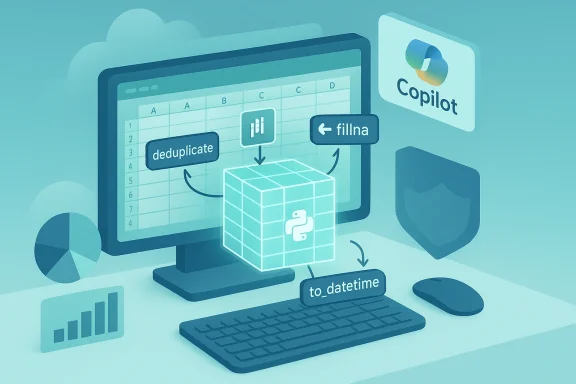
Python in Excel is Microsoft’s effort to bring the power of the Python data ecosystem — principally the pandas DataFrame model — right into the Excel formula layer so that users can author Python code as a cell formula and return results directly to the sheet. The feature exposes a new on-grid Python function (PY) and a helper function, xl(), which converts Excel ranges, tables, and named objects into Python objects (typically DataFrames) so you can operate on them with standard pandas methods. Microsoft provides a curated, secure runtime and a bundled set of libraries (pandas, NumPy, Matplotlib, Seaborn and others) so users don’t need to install Python locally.This capability has matured quickly since its public debut: Microsoft documents how Python cells calculate (row-major order), how to call Excel objects from Python formulas (xl()), and which libraries and security controls apply. Enterprises get feature controls and administrative options; consumers receive a low-friction experience that removes the usual installation and configuration roadblocks associated with Python.
Why Python in Excel matters for data cleaning
Excel is where messy reality lives: exports from CRMs, ERP dumps, ad-hoc survey results and manually compiled lists. Cleaning that data with native Excel techniques can be done — but it often requires many intermediate columns, fragile nested formulas, and repetitive manual Find & Replace actions that are slow to scale and hard to audit.Python in Excel changes the workflow in three practical ways:
- It treats ranges as first-class DataFrames, allowing column-oriented transformations that are both concise and explicit. That makes operations like deduplication, imputation, and multi-replacement straightforward and readable.
- It ships with the pandas toolset, which is designed for data wrangling: methods such as drop_duplicates(), fillna(), replace(), to_datetime(), and describe() map directly to everyday spreadsheet chores. Those methods are well-documented and widely used in analytics, so the learning curve is smaller for the tasks themselves than you might expect.
- It integrates with Copilot and other assistants to generate or suggest Python code from natural language prompts, allowing non-coders to accomplish sophisticated cleanups while exposing the underlying code for learning and review. This lowers the barrier further: you’re not expected to memorize Python — you can inspect it and tweak it.
Getting started — the practical first steps
If you have a qualifying Microsoft 365 plan (consumer, business, enterprise or education versions that include Microsoft 365 connected experiences and the right channel), Python in Excel appears as a native part of Excel; there’s no separate local Python install or package manager to maintain. You enable it in a cell in one of three simple ways:- Click Formulas → Insert Python → Custom Python Formula; or
- Type =PY into any cell and press Tab to enter Python mode; or
- Use the keyboard shortcut that toggles Python mode in the formula bar (platform-dependent).
500", headers=True) returns a DataFrame you can assign to a Python variable in the cell and transform with standard pandas methods.Practical activation example:
- Select the header row and data range in the sheet.
- In a cell type:
df = xl("A1500", headers=True)
df.drop_duplicates() - Commit with Ctrl+Enter (or the Excel commit behavior) and watch the cleaned result spill back into the sheet.
Common data-cleaning tasks and idiomatic Python in Excel
Below are real, minimal examples that map directly to what many Excel users already try to do with menus and helper formulas.Duplicate removal
- Python:
df = xl("A1500", headers=True)
df.drop_duplicates() - Why it’s better: you get a transparent, repeatable operation that you can adjust (subset columns, keep first/last, etc.) without redoing manual menu clicks. This is a standard pandas method and maps well to Excel workflows.
Filling missing values
- Python:
df['Sales'].fillna(df['Sales'].median(), inplace=True) - Why it’s better: one readable line that replaces helper columns and nested IFs. You can easily swap median→mean→0 or perform group-based imputations. pandas’ fillna is flexible and well-tested.
Normalizing inconsistent text entries
- Python:
df['Country'].replace(['U.S.A.', 'United States', 'US'], 'USA', inplace=True) - Why it’s better: you can handle dozens of substitutions in one place. For more complex normalization use mapping dictionaries, regex, or methods like str.lower() combined with replace. This pattern eliminates repeated Find & Replace steps.
Standardizing dates
- Python:
df['Date'] = pd.to_datetime(df['Date']) - Why it’s better: pandas’ to_datetime recognizes a wide variety of input formats and converts columns to dtype datetime64 for consistent sorting and time-based analysis. You can add errors='coerce' or specify format= where helpful.
Quick statistical summary
- Python:
df.describe() - Why it’s better: the single describe() command returns counts, means, std, min/max and quartiles across numeric columns — a compact sanity check that helps surface outliers and missingness quickly.
Copilot and “no-code” entry paths: real help for non-programmers
One of the most important practical benefits of Microsoft’s approach is that Copilot and companion assistants can translate plain-English requests into Python formulas placed directly into your worksheet. For a non-coder this matters: the assistant can generate working code like a df.replace chain or a to_datetime call, and you can open the formula to inspect or tweak the code. That creates a learn-by-doing path: you run Copilot, see the Python, make minor edits, and your understanding grows while your spreadsheet improves. Analysts who fear the “programming” label can treat Copilot as a trusted co-pilot for mundane cleanups.Third-party tooling from Anaconda complements that no-code angle. Anaconda’s recent add-ins (Anaconda Code and Anaconda Toolbox) provide additional local runtime options and UI helpers — for example, curated visualization templates and an “Anaconda Assistant” targeted at users who want guided code generation without leaving Excel. These augmentations are particularly useful for teams that want more control over environment behavior or local execution characteristics.
Security, governance, and enterprise controls — what IT should know
Python in Excel is not “Python running on the desktop.” Microsoft executes Python code in hypervisor‑isolated containers in the Microsoft Cloud, with policies that restrict network access and file-system access, and limit what Python code can reference. The environment uses an Anaconda-supplied, curated set of libraries and enforces isolation to meet enterprise compliance requirements. Microsoft documents that common file/network access functions such as pandas.read_csv and pandas.read_excel are not supported in the runtime to protect data boundaries — instead, external data must be brought into Excel via Power Query so the Python runtime only sees workbook or Power Query data.Key governance and security points for IT teams:
- Python cells run in isolated containers within the tenant’s compliance boundary and do not persist data to cloud disk; containers are destroyed when not needed.
- The Python runtime is curated and updated centrally (Microsoft coordinates updates and Anaconda supplies the library distribution), reducing local dependency headaches.
- Administrators can control whether Python functions run, configure security prompts, and use group/registry settings to block Python formulas in high-risk environments. These controls let organizations balance productivity and risk.
Limitations, sharp edges, and when this is not the right tool
No technology is a silver bullet. Python in Excel is extremely useful for many cleanup tasks, but it has practical and governance limits you must understand.- Cloud execution constraints: because code executes in Microsoft‑managed containers, you cannot run arbitrary network requests, access the local filesystem, or use native OS-level integrations from the Python cell. If your workflow requires reading protected network shares or invoking local services, the feature will not suffice without additional architecture.
- Library and feature constraints: Microsoft ships a curated set of libraries. Most common data tools are included, but you can’t pip-install arbitrary packages from inside the cloud runtime. For more control, Anaconda’s local alternatives (Anaconda Code) offer a separate different experiences and, in some cases, still beta.
- Performance and compute tiers: standard compute is available with qualifying Microsoft 365 plans, but heavy workloads or manual/partial recalculation modes may require a paid add-on or administrative provisioning for premium compute. In other words, Excel+Python is not a substitute for a dedicated data-engine cluster when you need large-scale, repeated transforms.
- Reproducibility and auditing: unlike a versioned script in a code repository, Python formulas embedded as cells require careful workbook discipline — comments, consistent worksheet layout, and clear row-major calculation ordering — to avoid subtle dependency bugs. The workbook becomes the artifact; standard software engineering practices still matter.
New capabilities and the future: images, local runtimes, and ecosystem partners
Microsoft and partners are expanding the feature set rapidly. Recent evolutions include in-cell image processing hooks (treating images as first-class inputs for Python formulas) and tighter Copilot/AI workflows that can generate multi-step transformations. Third parties, led by Anaconda, are shipping toolboxes and local runtimes to address users who want local control or additional GUI helpers. These trends point to an ecosystem where Excel becomes a hybrid workspace: quick cloud computations for standard tasks, and optional local or third-party tools for advanced needs.Community reporting and forum threads indicate experimental features — like image objects in cells for direct processing — are being trialed and discussed. If your team is experimenting with visual checks or simple image-quality tasks inside a sheet, it’s worth piloting carefully because those capabilities change the threat model and data types Excel traditionally held.
Practical patterns, templates and tips for safe, repeatable use
Adopt these patterns to make Python in Excel a practical, maintainable weapon in your data-cleanup toolkit.- Start small and then refactor: replace one painful Excel routine at a time (e.g., deduplication or date-normalization), verify results, then move to the next task.
- Keep code visible and commented: prefer short, explicit Python cells with docstrings or inline comments. Make the transformation steps easy to follow for non-coders who will inherit the sheet.
- Return values as Excel values for downstream workbook use: when a Python result will feed pivot tables or charts, output Excel values rather than Python objects so the rest of the workbook can consume them without Python cells. Use Python objects when you intend to perform further Python-only analysis.
- Use Power Query for external feeds: to bring CSVs, databases or web data into the workbook, use Power Query as the controlled ingress path rather than trying to import via Python code. This preserves audit trails and fits Microsoft’s security stance.
- Track versioning and environment expectations: note in the workbook metadata what Python-in-Excel environment (date, library versions) you expected when you created the formulas. Microsoft will update environment images; being explicit helps prevent surprise recalculation results later.
- Provide a “readme” worksheet: include a sheet that explains each Python cell’s purpose, input range, and expected output. This reduces accidental edits to cells that downstream assets rely on.
Real-world adoption scenarios and team workflows
- Finance and FP&A: monthly reconciliations and messy GL exports are classic examples where a few pandas operations can replace dozens of fragile formulas, making month-end processes faster and more transparent.
- Marketing/data ops: normalize campaign naming conventions, merge multiple lists, and standardize UTM parameters with a few replace() rules instead of manual find/replace across tabs.
- Shared analyst workbooks: when a team needs a canonical cleanup routine applied to repeated exports, embed the transformation as Python cells and document them; the next analyst just drops in a new export and recalculates.
- Governance-first deployments: IT teams can allow Python in Excel but require data ingestion via curated Power Query sources, combined with tenant settings that prompt users when opening workbooks that contain Python formulas. That balance preserves agility without compromising compliance.
Critical analysis — strengths, risks, and where to be cautious
Strengths:- Speed of iteration. For many common cleanups you’ll go from problem-to-solution in minutes versus hours of formula surgery.
- Readability and maintainability. Short pandas chains are usually easier to reason about than sprawling helper columns and hidden named ranges.
- Enterprise-friendly execution model. Microsoft’s containerized, Anaconda-backed runtime reduces the classic IT headaches that come with ad-hoc Python installs.
- False sense of zero-risk. The cloud runtime is isolated, but embedding Python in shared workbooks still creates a new class of artifact that can be misused. Treat Python cells like any programmable artifact: version, review, and restrict when needed.
- Hidden performance and licensing traps. Heavy workloads may push you into premium compute or paid add-ons; the free “standard compute” tier has limits. Plan for scale early if your workflows will process large datasets repeatedly.
- Tooling fragmentation. The rise of partner tools (Anaconda Code and Toolbox) and local runtime options means teams must pick a consistent operating model or risk incompatible workbooks. If one analyst uses the cloud runtime and another uses a local Anaconda add-in, behavior and performance may diverge.
How to learn enough Python to be effective (without becoming a developer)
You don’t need to become a software engineer to use Python in Excel effectively. Focus on a small, pragmatic skill set:- Learn the DataFrame mindset (columns as first-class objects).
- Master a handful of pandas methods: drop_duplicates, fillna, replace, to_datetime, describe, groupby-agg.
- Use Copilot / Anaconda Assistant to generate and explain code; read the generated code and try minor edits.
- Practice with real dirty exports and create a library of reusable snippets you can copy into new projects.
Conclusion
Python in Excel changes the calculus of spreadsheet cleanup: it gives Excel users the expressive, column-oriented power of pandas without forcing a full shift into developer workflows. For analysts, finance teams, and data ops professionals, it reduces repetitive manual work, produces auditable transformations, and provides a gentle ramp into programmatic data wrangling through Copilot and curated assistants. For IT and governance teams, the containerized execution model and curated library set strike a reasonable balance between productivity and security — provided organizations follow clear data-ingestion and auditing rules.It’s not perfect: local-file access, arbitrary package installs and massive compute jobs remain outside the ideal use cases, and teams must avoid treating Python-in-Excel like a substitute for a reproducible codebase. But for the everyday pain of inconsistent country names, awkward dates, missing sales figures, and duplicate rows, Python in Excel can convert hours of clerical work into a few readable lines that you can review, reuse, and share — without having to call yourself a programmer.
Source: MakeUseOf You don't need to be a coder to use Python in Excel for data cleaning
