

Outlook and Microsoft now make it possible to sign in using QR codes — whether you want to add your Outlook account to the mobile app quickly, enable passwordless sign‑ins with Microsoft Authenticator, or pair companion devices with Windows — and understanding the different QR workflows, their limitations, and the security trade‑offs will save time and prevent headaches during setup.
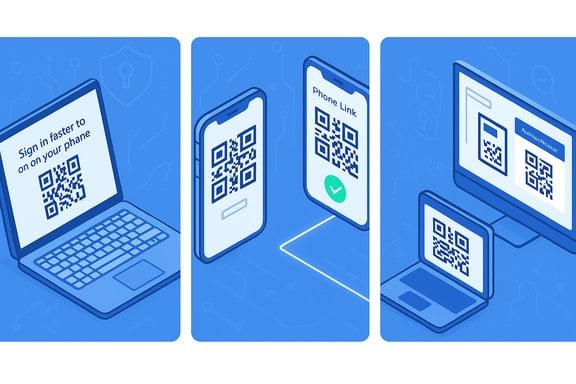
QR-based sign-in for Microsoft services is not a single, unified feature — there are three common QR workflows that users encounter:
Important note: depending on your tenant policy, corporate accounts may require additional verification steps (device registration, Conditional Access, or Intune/Company Portal), so the exact steps can vary for work/school accounts.
Phone Link notes you should know:
Follow the correct flow for your goal, keep apps and OS up to date, enable MFA or passkeys, and treat QR-based enrollments with the same caution you would any new device enrollment. When in doubt — especially in managed corporate environments — consult your IT team before scanning a QR code to avoid accidental exposure or misconfiguration.
Source: Windows Report https://windowsreport.com/sign-in-outlook-qr-code/
 Background / Overview
QR-based sign-in for Microsoft services is not a single, unified feature — there are three common QR workflows that users encounter:- QR codes shown from an Outlook web settings page that you scan with the Outlook mobile app to add an account quickly. This is the mobile add-account flow that Outlook exposes under its settings.
- QR codes generated by the Microsoft account / Security pages (or during Authenticator setup) that you scan with Microsoft Authenticator to add an account, enable two‑step verification, or go completely passwordless. Microsoft documents this as the supported Authenticator setup flow.
- QR pairing shortlinks (aka.ms/linkphoneqr, aka.ms/linkpc) and device activation flows for linking phones to Windows or other devices (Phone Link / Link to Windows, and device activation using microsoft.com/link). These are separate QR handshakes for device pairing rather than direct OAuth-style sign-ins inside Outlook.
Why QR sign‑in exists (and when it helps)
QR sign‑in solves practical friction points:- Speed: scanning a QR with a phone is much faster than manually typing a long email/password plus MFA code on a small keyboard.
- Accuracy: QR encoding eliminates human typos when provisioning accounts or pairing devices.
- Passwordless migration: QR + Authenticator is often the onboarding route for passwordless sign‑in (passkeys / device‑bound authentication). Microsoft encourages move to passwordless sign‑in via Authenticator and passkeys.
Quick decision guide: Which QR flow do you need?
- You want to add your Outlook.com or Microsoft 365 account to the Outlook mobile app: use the Outlook web “Sign in faster to Outlook on your phone” QR flow.
- You want to make your Microsoft account passwordless or add the account into Microsoft Authenticator: use the Microsoft account / Authenticator QR setup pages (account.microsoft.com/security and the Manage how I sign in options).
- You’re linking a phone to a Windows PC for continuity (Phone Link / Link to Windows): use the aka.ms pairing shortlink and the QR scanner inside Link to Windows. This is a different QR handshake and delivers device‑pairing features (notifications, SMS on PC, app streaming) rather than account sign‑in to Outlook.
How to sign in to Outlook with a QR code — step‑by‑step
Below are two fully detailed, verified flows: (A) add Outlook account to the Outlook mobile app using the Outlook web QR, and (B) use Microsoft Authenticator to add or make your account passwordless (then use Outlook).A — Add your Outlook account to Outlook mobile by scanning the Outlook web QR
This is the most common “I want Outlook on my phone quickly” flow.- On a PC or laptop, sign in to Outlook on the web (Outlook.com or your organization’s Outlook Web App).
- Open Settings → View all Outlook settings.
- Navigate to General → Mobile devices (or look for the option labelled Sign in faster to Outlook on your phone). When available, Outlook will display a QR code you can scan.
- On your phone, open the Outlook app (install it first if needed). From the Add Account flow or Settings → Accounts → Add account, choose the Scan QR code option (tap the QR icon next to the email/password fields).
- Use the Outlook app scanner to scan the code on your PC. Approve any prompts and complete any additional MFA the tenant requires. The Outlook app will be provisioned with the account and, in many cases, appropriate OAuth tokens will be stored for seamless re‑sign‑ins.
- If you don’t see the QR on Outlook web, your administrator may have disabled the feature or your account may require a different setup path; check with IT.
- If the mobile scanner won’t read the code, grant camera permission to the Outlook app and raise screen brightness.
- If you can’t scan, add the account manually with your email and follow the app prompts for MFA.
B — Add your account in Microsoft Authenticator (or go passwordless), then use Outlook
This flow is the standard Microsoft account / Authenticator onboarding and is the recommended path for passwordless sign‑ins.- On a PC, open your Microsoft account Security page (account.microsoft.com/security) and sign in.
- Select Manage how I sign in (or the equivalent security/setup area). Choose Add a new way to sign in or verify → Use an app (or choose the Passwordless / Authenticator setup option). The site will show instructions and a QR code to scan.
- On your phone, open the Microsoft Authenticator app and tap Add account → Work or school / Personal (choose the appropriate account type), then Scan QR code. Scan the QR shown on your PC.
- Approve the registration from the Authenticator app. For passwordless, follow the prompts to turn on passwordless sign‑in for the account. After that, future Outlook.com or Microsoft 365 sign‑ins can be approved with the Authenticator push or by using the passkey on your device.
Important note: depending on your tenant policy, corporate accounts may require additional verification steps (device registration, Conditional Access, or Intune/Company Portal), so the exact steps can vary for work/school accounts.
Phone Link and device pairing via QR (different problem — different QR)
If you’re scanning a QR shown in the Windows Phone Link app or seeing an aka.ms/linkphoneqr shortlink, you’re not signing in to Outlook — you’re pairing your phone and PC so Windows can mirror notifications, messages, and even run mobile apps in a window. Phone Link uses a QR handshake to make onboarding faster; that QR pairing flow is documented and separate from Outlook/Authenticator sign‑in flows.Phone Link notes you should know:
- Phone Link pairing requires the same Microsoft account on both devices (recommended).
- Some features are OEM-dependent (Samsung and some vendors get deeper integration).
Troubleshooting: common problems and fixes
- No QR shown in Outlook web: your account or tenant may not have the feature enabled, or you’re in a version of Outlook that doesn’t show it. Consult account security settings or your admin, and try the Microsoft account security page if you want Authenticator setup.
- QR expires or won’t scan: refresh the page to regenerate the code, grant camera permission to the scanning app, or try a different browser / incognito window.
- Authenticator won’t scan: check camera permission, update the Authenticator app, or choose the manual-entry path if available.
- Company-managed devices: corporate Conditional Access, Intune enrollment, or admin policy may require you to use the Company Portal or a different provisioning method — contact IT if the QR flows are blocked.
- Phone Link pairing problems: verify both devices are on the same Wi‑Fi, disable aggressive battery optimization for Link to Windows on Android, and ensure Bluetooth LE support if calls are failing.
Security and risk analysis
QR sign‑ins are extremely convenient, but they change the threat model. Important security considerations:- QR codes are short-lived tokens linking a device to an account or a device pair. When scanned legitimately they create a secure binding; scanned on a malicious page, they can hand an attacker access if they trick you into scanning. Always verify the page URL and the context before scanning.
- Attackers can exploit QR fallback in some FIDO / passkey deployments to mount man‑in‑the‑middle attacks: research and reporting show attackers may coerce victims to scan QR codes on malicious pages to complete cross‑device sign‑ins. For this reason, organizations should monitor unusual QR‑based sign‑ins and consider proximity checks or allow‑lists for devices.
- Admin controls matter: an organization can disable QR or passwordless enrollment, require device compliance, or block unknown devices — these are sensible protections for regulated environments.
- Keep MFA enabled and prefer passwordless approaches (passkeys / Authenticator) when possible — they reduce phishing and credential re-use risk.
- Don’t scan QR codes from emails or popups unless you intentionally initiated the pairing or sign‑in. Confirm the site is legitimate (secure domain, expected flow).
- When using Authenticator, register recovery methods (alternate email / phone) and keep a physical recovery key for critical accounts.
- For enterprise accounts, enable device compliance checks and Conditional Access policies that require device registration before allowing new devices to enroll.
- Some community reports and guides differ in where the QR appears (Outlook web vs. Microsoft account security page). This depends on account type and rollout timing; if the QR doesn’t appear in Outlook web, try the Microsoft account Security settings and consult your admin. Treat any single definitive statement that the QR always appears inside Outlook as incomplete — availability varies.
Advanced tips and power‑user workflows
- If you plan to migrate to passwordless, set up Microsoft Authenticator and passkeys now; Microsoft is encouraging passkeys as the long‑term, phishing‑resistant path. Migrate saved passwords if your workflow requires it before any planned deprecation of password storage features.
- For organizations: whitelist trusted device fingerprints where possible, and use detailed telemetry to detect unusual QR enrollments or cross‑device sign‑ins.
- If you use multiple phones, add a secondary Authenticator device or a hardware security key for recovery.
- Keep the Outlook app and Microsoft Authenticator updated; new features and fixes (including security updates) arrive frequently.
When QR sign‑in will not be available
- Your tenant or account administrator has disabled the feature.
- You’re using an older or unsupported Outlook client that lacks the QR provision flow.
- Your account type requires additional enrollment steps (for example, some federated work/school setups require Company Portal).
- Sign in to account.microsoft.com/security and check Manage how I sign in.
- Update your Outlook and Authenticator apps to the latest versions.
- Contact your IT admin to confirm tenant policies.
Summary checklist — get it done in under 10 minutes
- Decide which QR flow you need: Outlook web QR (mobile add), Microsoft Authenticator (passwordless), or Phone Link (device pairing).
- On your PC, open the relevant page: Outlook settings for the mobile QR, or account.microsoft.com/security for Authenticator setup.
- On your phone, open the Outlook app or Microsoft Authenticator, choose Add account → Scan QR, and scan. Approve as prompted.
- Verify sign‑in and, for enterprise users, confirm any device compliance prompts (Company Portal, Intune).
- Harden the account: enable MFA, register recovery options, and avoid scanning unsolicited QR prompts.
Conclusion
QR sign‑in for Outlook and related Microsoft services is a practical, modern convenience that reduces friction — but it comes in multiple flavors. The Outlook web QR streamlines adding an account to the Outlook app; the Microsoft Authenticator QR is the gateway to passwordless sign‑ins and stronger anti‑phishing posture; and separate QR shortlinks exist for device pairing like Phone Link. Each flow has specific prerequisites, and administrators retain the power to enable or disable these capabilities.Follow the correct flow for your goal, keep apps and OS up to date, enable MFA or passkeys, and treat QR-based enrollments with the same caution you would any new device enrollment. When in doubt — especially in managed corporate environments — consult your IT team before scanning a QR code to avoid accidental exposure or misconfiguration.
Source: Windows Report https://windowsreport.com/sign-in-outlook-qr-code/
