

Sometimes the fix for random PC audio crackle is not a new DAC, a fresh driver, or a better cable, but a firmware-level CPU power setting that stops the processor from diving into deep sleep states during ordinary Windows use. The uncomfortable lesson is that modern PCs can be fast enough for gaming, streaming, and production work while still being bad at the tiny timing guarantees that clean audio requires. This is not really an audio story. It is a story about power management becoming aggressive enough that the machine occasionally forgets that “idle” and “ready right now” are not the same thing.
The most misleading thing about audio latency problems is that they sound like audio hardware problems. A pop in the speakers invites a familiar troubleshooting ritual: swap the cable, reinstall the Realtek package, unplug the DAC, change the USB port, blame Discord, blame the game, blame Windows Update, and then do all of it again in a different order.
That instinct is understandable, but often wrong. A failing speaker tends to fail with some regularity. A bad analog cable usually crackles when moved, buzzes when grounded poorly, or behaves consistently enough to indict itself. Latency-driven audio glitches are more slippery because the noise is not the fault; the noise is the alarm bell.
The pattern is the clue. The system sounds fine for minutes or hours, then produces a click when a browser tab opens, a stutter when a game loads assets, or a small burst of robotic distortion during a voice call. The CPU is not pinned, the GPU is not necessarily overloaded, temperatures may be ordinary, and the audio device may work perfectly on another machine.
That randomness is what pushes this problem out of the usual “audio troubleshooting” bucket and into the less comfortable world of real-time scheduling. Windows is good at throughput. It is not a hard real-time operating system. Most of the time, that distinction does not matter; when an audio buffer runs dry, it suddenly matters very much.
Digital audio moves in small chunks. The operating system, drivers, USB controller, audio stack, and device all cooperate to keep a buffer fed before the listener notices anything. If the buffer is filled on time, the result is boringly clean sound. If the system misses its window, even briefly, the result is a pop, click, dropout, or crackle.
That distinction explains why expensive hardware can still stumble. A Ryzen 9 or Core i9 system has far more raw compute than a music player needs, but raw compute does not guarantee that the right driver routine runs at the right microsecond. Audio does not care that the machine could complete the work easily; it cares that the work arrived too late.
This is where deferred procedure calls, interrupt handling, and kernel drivers enter the story. These are not terms most gamers or home users should need to think about, but they shape whether Windows can handle real-time audio cleanly. When a driver or firmware path blocks the system long enough, the result can be visible as high DPC latency and audible as crackle.
The cruel part is that the most efficient machines can be the most aggressive about the behavior that triggers it. A PC tuned to sip power at idle may constantly shift cores, clocks, and package states. That is rational engineering for battery life and idle efficiency. It is less ideal when the system must respond instantly to small, recurring audio deadlines.
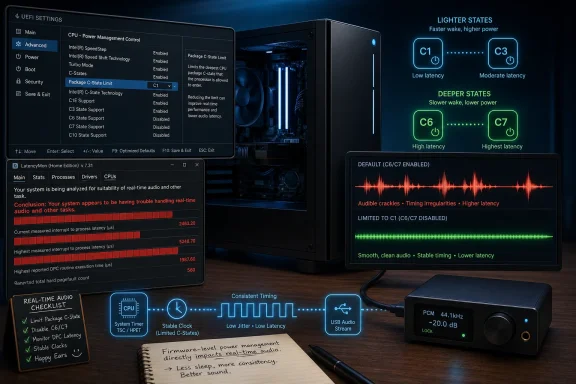
At a shallow idle state, the processor can wake quickly. At a deeper state, it may save more energy but take longer to return to full responsiveness. Those delays are commonly measured in microseconds, which sounds absurdly small until you remember that real-time audio is also governed by very small windows.
This is not a bug in the concept of C-states. Power management is one of the reasons modern laptops last longer, desktops idle cooler, and systems avoid wasting energy while doing nothing. The problem appears when the machine is “doing nothing” from a CPU utilization perspective but still has a latency-sensitive stream that cannot tolerate a poorly timed pause.
Motherboard firmware and Windows power policy work together here, but they do not always expose the same levers. Windows can steer power behavior through power plans and processor policies, yet firmware still decides which low-power states exist, how they are advertised, and how aggressively the platform uses them. That is why a Windows-only tweak may reduce the symptoms without eliminating the cause.
On many enthusiast boards, the relevant control appears as CPU C-State Control, Global C-State Control, Package C-State Limit, or a similar vendor-specific phrase. On some laptops and prebuilt systems, it may not appear at all. That inconsistency is one reason this fix feels like folklore: the setting is real, the symptom is real, but the path to the toggle depends heavily on the motherboard maker.
A DAC relies on a steady stream of data from the host system. If the PC briefly stalls the delivery path, the device has little room for interpretation: the stream is late, the buffer empties, and the artifact becomes audible. The better and more revealing the downstream audio chain is, the less forgiving it may feel.
USB audio can also drag more of the platform into the problem. The CPU, chipset, USB controller, ACPI firmware, audio driver, and Windows scheduler all become part of the route. A tiny delay in one layer may be harmless in isolation, but several small inefficiencies can stack into a glitch.
This is why users often report that the same headphones sound fine from a phone, console, or laptop but crackle on a powerful desktop. The desktop is not too weak. It is busy negotiating performance, power, devices, interrupts, and drivers in a way that occasionally violates the timing demands of the audio stream.
The diagnosis becomes even more confusing because changing the audio device may alter the symptoms without fixing the system. A different DAC, buffer size, driver model, or USB port can mask the problem. That can be useful, but it should not be mistaken for proof that the original audio device was defective.
The important phrase is under real use. Running a latency test on a perfectly idle desktop may produce a clean result that collapses the moment you open a game, join a voice chat, start a browser video, or trigger a GPU overlay. The goal is not to create a lab-perfect result; it is to reproduce the conditions under which the crackle happens.
If LatencyMon repeatedly points toward ACPI.sys, CPU throttling, or power-management-related behavior, the investigation moves away from the speakers and toward the platform. ACPI.sys is the Windows driver involved in Advanced Configuration and Power Interface support, which means it sits close to the line between Windows and firmware-level power behavior. Seeing it near the top does not automatically prove C-states are guilty, but it makes the theory plausible.
That distinction matters. LatencyMon is a diagnostic aid, not an oracle. Network drivers, GPU drivers, storage drivers, USB controllers, Wi-Fi adapters, Bluetooth stacks, and security software can all contribute to high latency. The tool gives you suspects; it does not absolve every other part of the machine.
Still, a repeatable pattern is powerful. If the crackle happens during mixed workloads, LatencyMon shows spikes, and ACPI or power management keeps appearing in the report, there is a coherent explanation. The PC is not failing to produce enough performance. It is failing to stay awake in the right way at the right time.
A better first move is to limit the deepest package C-states rather than abolish idle behavior altogether. In practice, that often means allowing lighter states such as C1 or C3 while preventing deeper states such as C6, C7, or platform-specific equivalents. The goal is not to keep the CPU burning power at full alert forever; it is to stop it from entering the deepest sleeps that create the longest wake latencies.
The exact setting depends on the firmware. AMD boards may expose Global C-State Control. Intel boards may surface package C-state limits or CPU power management menus. Laptop vendors may hide the whole thing, either to simplify support or because the thermal and battery assumptions of the device depend on those settings staying under vendor control.
Changing firmware settings deserves caution. Users should note the original value, change one variable at a time, and test after each adjustment. A BIOS update can also rename, reset, or move these options, so the fix may need to be revisited after a firmware upgrade.
The trade-off is real but often modest on desktops. Preventing deep sleep states can increase idle power draw and temperatures. Fans may spin slightly more often. Laptops may lose battery life. Those costs are not imaginary, but neither is the benefit for users whose machines stop crackling during games, calls, or music production.
But the operating system cannot fully overrule what the firmware advertises and enforces. If the platform is designed to make deep idle states available and attractive, Windows may use them unless instructed otherwise. Conversely, if the BIOS hides or locks down the setting, Windows may give users only partial control.
This division of responsibility is one reason PC troubleshooting feels worse than it should. Microsoft, Intel, AMD, motherboard vendors, laptop OEMs, USB controller makers, audio vendors, and driver developers all own a piece of the chain. The user experiences the failure as “my speakers crackle,” but the root cause may sit several abstraction layers below the volume slider.
It also explains why a clean Windows install can fail to solve the issue. Reinstalling the OS may remove bad drivers or misconfigured software, but it does not necessarily change platform firmware behavior. A machine with the same BIOS, same chipset behavior, and same power-state policy may reproduce the same latency spikes on a fresh desktop.
That does not make Windows irrelevant. It means Windows is only one participant. For practical troubleshooting, the best approach is layered: update firmware and chipset drivers, test with LatencyMon, simplify USB and audio paths, adjust Windows power policy, and then consider firmware C-state limits if the evidence points there.
Those goals are not always aligned. Power saving rewards delay if the delay is small enough not to matter for ordinary tasks. Real-time audio punishes delay even when the delay is tiny by human standards. The same microsecond-scale compromise that looks elegant in a power chart can become audible in a headset.
Vendors generally optimize for the median user. Most people prefer cooler idle behavior, lower fan noise, and longer battery life. They may never notice a rare audio pop, or they may blame the app and move on. Enthusiasts, musicians, streamers, competitive gamers, and anyone using a picky external audio chain are less forgiving because their workloads expose the timing cracks.
That is why this problem has the strange quality of being both niche and common. Not every system has it. Not every user notices it. But once you know the pattern, the forum posts, support threads, and “I tried everything” complaints start to rhyme. The details vary, but the shape is familiar: powerful PC, random crackle, LatencyMon warning, ACPI or driver spikes, and a fix that lives somewhere between Windows power policy and BIOS firmware.
The industry could do better here. Firmware interfaces could expose clearer latency-oriented profiles. Windows could make power and real-time audio trade-offs more intelligible. Motherboard vendors could document which C-state controls affect wake latency instead of burying them behind cryptic menu labels. Audio device vendors could offer better troubleshooting paths that do not begin and end with “reinstall the driver.”
That matters because latency troubleshooting can easily become superstition. Users collect tweaks from scattered forum posts, disable half the platform, and end up with a hotter, louder, less efficient machine whose original problem remains. The right standard is not whether a tweak sounds technical; it is whether the symptoms and measurements support it.
Start with the physical layer. Test another cable, another port, and another device if available. Remove unnecessary hubs. Update chipset, BIOS, GPU, network, and audio drivers from reputable sources. Then run LatencyMon during the actual workload that triggers the issue, not during a sterile idle test.
If the evidence points to DPC latency and power management, the C-state fix becomes rational rather than ritual. If the evidence points to a network driver, GPU driver, storage controller, or Wi-Fi adapter, chasing BIOS sleep states may waste time. The lesson is not “always disable power saving.” The lesson is that latency is a system property, and audio is often the first place users hear the system failing to coordinate itself.
“Package C-State Limit” does not tell a musician that the setting may affect crackles in a USB interface. “Global C-State Control” does not tell a gamer that it may change the timing behavior behind a Discord audio glitch. “ACPI.sys” in a latency report does not tell a home user whether they should update the BIOS, adjust Windows power settings, or stop using a particular USB controller.
This opacity is not just a consumer annoyance. It affects IT pros and admins who must support fleets of laptops where users complain about Teams audio distortion, Bluetooth headset dropouts, or intermittent call quality. In enterprise environments, firmware settings may be locked down, power profiles may be centrally managed, and users may not have the rights to test the obvious fix.
It also complicates support for creators. A Windows laptop sold as a performance machine may still be tuned primarily for battery life and thermals. If the BIOS hides power-state controls, the user may be trapped between unacceptable audio behavior and a vendor support script that treats the issue as an app problem.
The better product design would be explicit profiles: balanced efficiency, low-latency audio, maximum performance, and battery saver, each with transparent trade-offs. Some systems gesture in that direction, but the implementation is inconsistent. Until that improves, the burden falls on users to understand settings that were never named for them.
A short checklist is enough to keep the investigation sane:
That is the bargain modern Windows PCs keep making on our behalf: save power unless someone proves latency matters. For most users, most of the time, the bargain works. For gamers, creators, streamers, and anyone who notices the smallest crackle in an otherwise high-end setup, the next frontier of PC tuning may not be more performance at all, but fewer invisible delays hiding between the notes.
 The Crackle Was Only the Symptom
The most misleading thing about audio latency problems is that they sound like audio hardware problems. A pop in the speakers invites a familiar troubleshooting ritual: swap the cable, reinstall the Realtek package, unplug the DAC, change the USB port, blame Discord, blame the game, blame Windows Update, and then do all of it again in a different order.That instinct is understandable, but often wrong. A failing speaker tends to fail with some regularity. A bad analog cable usually crackles when moved, buzzes when grounded poorly, or behaves consistently enough to indict itself. Latency-driven audio glitches are more slippery because the noise is not the fault; the noise is the alarm bell.
The pattern is the clue. The system sounds fine for minutes or hours, then produces a click when a browser tab opens, a stutter when a game loads assets, or a small burst of robotic distortion during a voice call. The CPU is not pinned, the GPU is not necessarily overloaded, temperatures may be ordinary, and the audio device may work perfectly on another machine.
That randomness is what pushes this problem out of the usual “audio troubleshooting” bucket and into the less comfortable world of real-time scheduling. Windows is good at throughput. It is not a hard real-time operating system. Most of the time, that distinction does not matter; when an audio buffer runs dry, it suddenly matters very much.
Windows Can Be Fast and Still Be Late
A modern desktop can render complex scenes, decompress assets, shuffle network traffic, and run background security tasks while barely breaking a sweat. But audio playback is not asking for heroic performance. It is asking for punctuality.Digital audio moves in small chunks. The operating system, drivers, USB controller, audio stack, and device all cooperate to keep a buffer fed before the listener notices anything. If the buffer is filled on time, the result is boringly clean sound. If the system misses its window, even briefly, the result is a pop, click, dropout, or crackle.
That distinction explains why expensive hardware can still stumble. A Ryzen 9 or Core i9 system has far more raw compute than a music player needs, but raw compute does not guarantee that the right driver routine runs at the right microsecond. Audio does not care that the machine could complete the work easily; it cares that the work arrived too late.
This is where deferred procedure calls, interrupt handling, and kernel drivers enter the story. These are not terms most gamers or home users should need to think about, but they shape whether Windows can handle real-time audio cleanly. When a driver or firmware path blocks the system long enough, the result can be visible as high DPC latency and audible as crackle.
The cruel part is that the most efficient machines can be the most aggressive about the behavior that triggers it. A PC tuned to sip power at idle may constantly shift cores, clocks, and package states. That is rational engineering for battery life and idle efficiency. It is less ideal when the system must respond instantly to small, recurring audio deadlines.
C-States Are the Efficiency Feature Hiding in Plain Sight
The obscure setting at the center of this problem is usually some variation of CPU C-state control. In plain English, C-states are processor idle states. The deeper the state, the more power the CPU can save when it has little to do.At a shallow idle state, the processor can wake quickly. At a deeper state, it may save more energy but take longer to return to full responsiveness. Those delays are commonly measured in microseconds, which sounds absurdly small until you remember that real-time audio is also governed by very small windows.
This is not a bug in the concept of C-states. Power management is one of the reasons modern laptops last longer, desktops idle cooler, and systems avoid wasting energy while doing nothing. The problem appears when the machine is “doing nothing” from a CPU utilization perspective but still has a latency-sensitive stream that cannot tolerate a poorly timed pause.
Motherboard firmware and Windows power policy work together here, but they do not always expose the same levers. Windows can steer power behavior through power plans and processor policies, yet firmware still decides which low-power states exist, how they are advertised, and how aggressively the platform uses them. That is why a Windows-only tweak may reduce the symptoms without eliminating the cause.
On many enthusiast boards, the relevant control appears as CPU C-State Control, Global C-State Control, Package C-State Limit, or a similar vendor-specific phrase. On some laptops and prebuilt systems, it may not appear at all. That inconsistency is one reason this fix feels like folklore: the setting is real, the symptom is real, but the path to the toggle depends heavily on the motherboard maker.
The DAC Can Make the Problem Easier to Hear
There is a particular insult in buying an external DAC or USB audio interface and then hearing more glitches, not fewer. That does not necessarily mean the DAC is faulty. In some setups, the external device simply makes timing instability more obvious.A DAC relies on a steady stream of data from the host system. If the PC briefly stalls the delivery path, the device has little room for interpretation: the stream is late, the buffer empties, and the artifact becomes audible. The better and more revealing the downstream audio chain is, the less forgiving it may feel.
USB audio can also drag more of the platform into the problem. The CPU, chipset, USB controller, ACPI firmware, audio driver, and Windows scheduler all become part of the route. A tiny delay in one layer may be harmless in isolation, but several small inefficiencies can stack into a glitch.
This is why users often report that the same headphones sound fine from a phone, console, or laptop but crackle on a powerful desktop. The desktop is not too weak. It is busy negotiating performance, power, devices, interrupts, and drivers in a way that occasionally violates the timing demands of the audio stream.
The diagnosis becomes even more confusing because changing the audio device may alter the symptoms without fixing the system. A different DAC, buffer size, driver model, or USB port can mask the problem. That can be useful, but it should not be mistaken for proof that the original audio device was defective.
LatencyMon Turns Folklore Into Evidence
The sensible way to approach this problem is to stop guessing. LatencyMon remains one of the common first-line tools for Windows users trying to determine whether a machine is suitable for real-time audio. It watches interrupt service routines, deferred procedure calls, and related kernel activity while the system is under real use.The important phrase is under real use. Running a latency test on a perfectly idle desktop may produce a clean result that collapses the moment you open a game, join a voice chat, start a browser video, or trigger a GPU overlay. The goal is not to create a lab-perfect result; it is to reproduce the conditions under which the crackle happens.
If LatencyMon repeatedly points toward ACPI.sys, CPU throttling, or power-management-related behavior, the investigation moves away from the speakers and toward the platform. ACPI.sys is the Windows driver involved in Advanced Configuration and Power Interface support, which means it sits close to the line between Windows and firmware-level power behavior. Seeing it near the top does not automatically prove C-states are guilty, but it makes the theory plausible.
That distinction matters. LatencyMon is a diagnostic aid, not an oracle. Network drivers, GPU drivers, storage drivers, USB controllers, Wi-Fi adapters, Bluetooth stacks, and security software can all contribute to high latency. The tool gives you suspects; it does not absolve every other part of the machine.
Still, a repeatable pattern is powerful. If the crackle happens during mixed workloads, LatencyMon shows spikes, and ACPI or power management keeps appearing in the report, there is a coherent explanation. The PC is not failing to produce enough performance. It is failing to stay awake in the right way at the right time.
The BIOS Fix Is a Scalpel, Not a Sledgehammer
The tempting advice is to disable C-states entirely. That may work, and some users do it, especially on dedicated audio workstations where power efficiency matters less than stability. But as a general recommendation, it is too blunt.A better first move is to limit the deepest package C-states rather than abolish idle behavior altogether. In practice, that often means allowing lighter states such as C1 or C3 while preventing deeper states such as C6, C7, or platform-specific equivalents. The goal is not to keep the CPU burning power at full alert forever; it is to stop it from entering the deepest sleeps that create the longest wake latencies.
The exact setting depends on the firmware. AMD boards may expose Global C-State Control. Intel boards may surface package C-state limits or CPU power management menus. Laptop vendors may hide the whole thing, either to simplify support or because the thermal and battery assumptions of the device depend on those settings staying under vendor control.
Changing firmware settings deserves caution. Users should note the original value, change one variable at a time, and test after each adjustment. A BIOS update can also rename, reset, or move these options, so the fix may need to be revisited after a firmware upgrade.
The trade-off is real but often modest on desktops. Preventing deep sleep states can increase idle power draw and temperatures. Fans may spin slightly more often. Laptops may lose battery life. Those costs are not imaginary, but neither is the benefit for users whose machines stop crackling during games, calls, or music production.
Windows Power Plans Help, but They Do Not Own the Whole Machine
Windows users often reach first for the power plan, and that is not wrong. Moving from a balanced profile to a high-performance or ultimate-performance-style configuration can reduce some latency problems by discouraging aggressive throttling. Adjusting minimum processor state, USB selective suspend, PCI Express link-state power management, and related settings can also help in some systems.But the operating system cannot fully overrule what the firmware advertises and enforces. If the platform is designed to make deep idle states available and attractive, Windows may use them unless instructed otherwise. Conversely, if the BIOS hides or locks down the setting, Windows may give users only partial control.
This division of responsibility is one reason PC troubleshooting feels worse than it should. Microsoft, Intel, AMD, motherboard vendors, laptop OEMs, USB controller makers, audio vendors, and driver developers all own a piece of the chain. The user experiences the failure as “my speakers crackle,” but the root cause may sit several abstraction layers below the volume slider.
It also explains why a clean Windows install can fail to solve the issue. Reinstalling the OS may remove bad drivers or misconfigured software, but it does not necessarily change platform firmware behavior. A machine with the same BIOS, same chipset behavior, and same power-state policy may reproduce the same latency spikes on a fresh desktop.
That does not make Windows irrelevant. It means Windows is only one participant. For practical troubleshooting, the best approach is layered: update firmware and chipset drivers, test with LatencyMon, simplify USB and audio paths, adjust Windows power policy, and then consider firmware C-state limits if the evidence points there.
The Real Villain Is the Modern PC’s Split Personality
The deeper story is that the PC has been asked to become two machines at once. It must be an energy-efficient appliance that idles quietly, sleeps aggressively, and stretches laptop battery life. It must also be a low-latency workstation that never misses a beat during audio playback, calls, gaming, streaming, and production workloads.Those goals are not always aligned. Power saving rewards delay if the delay is small enough not to matter for ordinary tasks. Real-time audio punishes delay even when the delay is tiny by human standards. The same microsecond-scale compromise that looks elegant in a power chart can become audible in a headset.
Vendors generally optimize for the median user. Most people prefer cooler idle behavior, lower fan noise, and longer battery life. They may never notice a rare audio pop, or they may blame the app and move on. Enthusiasts, musicians, streamers, competitive gamers, and anyone using a picky external audio chain are less forgiving because their workloads expose the timing cracks.
That is why this problem has the strange quality of being both niche and common. Not every system has it. Not every user notices it. But once you know the pattern, the forum posts, support threads, and “I tried everything” complaints start to rhyme. The details vary, but the shape is familiar: powerful PC, random crackle, LatencyMon warning, ACPI or driver spikes, and a fix that lives somewhere between Windows power policy and BIOS firmware.
The industry could do better here. Firmware interfaces could expose clearer latency-oriented profiles. Windows could make power and real-time audio trade-offs more intelligible. Motherboard vendors could document which C-state controls affect wake latency instead of burying them behind cryptic menu labels. Audio device vendors could offer better troubleshooting paths that do not begin and end with “reinstall the driver.”
The Risk Is Turning One Fix Into a Ritual
There is a danger in elevating any single BIOS setting into magic. Disabling deep C-states may solve a particular class of crackle, but not every audio glitch is caused by CPU idle behavior. A bad USB hub is still a bad USB hub. A broken driver is still a broken driver. A ground loop still hums like a ground loop.That matters because latency troubleshooting can easily become superstition. Users collect tweaks from scattered forum posts, disable half the platform, and end up with a hotter, louder, less efficient machine whose original problem remains. The right standard is not whether a tweak sounds technical; it is whether the symptoms and measurements support it.
Start with the physical layer. Test another cable, another port, and another device if available. Remove unnecessary hubs. Update chipset, BIOS, GPU, network, and audio drivers from reputable sources. Then run LatencyMon during the actual workload that triggers the issue, not during a sterile idle test.
If the evidence points to DPC latency and power management, the C-state fix becomes rational rather than ritual. If the evidence points to a network driver, GPU driver, storage controller, or Wi-Fi adapter, chasing BIOS sleep states may waste time. The lesson is not “always disable power saving.” The lesson is that latency is a system property, and audio is often the first place users hear the system failing to coordinate itself.
The Setting That Should Not Be This Hard to Explain
The most frustrating part of the C-state fix is not that it exists. Enthusiast PCs have always required some amount of tuning. The frustrating part is that the language around it remains almost deliberately hostile to ordinary users.“Package C-State Limit” does not tell a musician that the setting may affect crackles in a USB interface. “Global C-State Control” does not tell a gamer that it may change the timing behavior behind a Discord audio glitch. “ACPI.sys” in a latency report does not tell a home user whether they should update the BIOS, adjust Windows power settings, or stop using a particular USB controller.
This opacity is not just a consumer annoyance. It affects IT pros and admins who must support fleets of laptops where users complain about Teams audio distortion, Bluetooth headset dropouts, or intermittent call quality. In enterprise environments, firmware settings may be locked down, power profiles may be centrally managed, and users may not have the rights to test the obvious fix.
It also complicates support for creators. A Windows laptop sold as a performance machine may still be tuned primarily for battery life and thermals. If the BIOS hides power-state controls, the user may be trapped between unacceptable audio behavior and a vendor support script that treats the issue as an app problem.
The better product design would be explicit profiles: balanced efficiency, low-latency audio, maximum performance, and battery saver, each with transparent trade-offs. Some systems gesture in that direction, but the implementation is inconsistent. Until that improves, the burden falls on users to understand settings that were never named for them.
The Practical Lesson From a Crackling DAC
The useful takeaway is not that everyone should rush into firmware and start disabling CPU features. It is that random audio crackle on a modern Windows PC is often a timing failure, and timing failures require a different troubleshooting model than broken hardware.A short checklist is enough to keep the investigation sane:
- Random pops, clicks, and micro-crackles during mixed workloads are more consistent with latency spikes than with a permanently faulty speaker or cable.
- LatencyMon is most useful when it runs during the game, call, browser session, or production workload that actually triggers the problem.
- Repeated ACPI.sys or power-management warnings make CPU power states and firmware behavior plausible suspects, but they do not prove every other driver is innocent.
- Limiting the deepest CPU package C-states is usually a more measured first attempt than disabling every idle feature outright.
- The fix can raise idle power use, temperatures, and fan activity, especially on laptops, so it should be treated as a trade-off rather than a free upgrade.
- If the BIOS hides C-state controls, Windows power settings, firmware updates, chipset drivers, USB topology, and audio buffer settings become the next practical levers.
That is the bargain modern Windows PCs keep making on our behalf: save power unless someone proves latency matters. For most users, most of the time, the bargain works. For gamers, creators, streamers, and anyone who notices the smallest crackle in an otherwise high-end setup, the next frontier of PC tuning may not be more performance at all, but fewer invisible delays hiding between the notes.
References
- Primary source: MakeUseOf
Published: 2026-06-07T15:01:11.095008
I fixed my PC’s high audio latency with this one obscure power setting
Tiny power-saving delays can create surprisingly audible glitches. www.makeuseof.com
- Related coverage: helpdesk.flexradio.com
Using LatencyMon to collect DPC Latency Data – FlexRadio
Deferred Procedure Call (DPC) latency refers to the time your PC waits for a hardware device to complete a request for service (data)...helpdesk.flexradio.com - Related coverage: support.ionaudio.com
Troubleshooting DPC Latency : ION Audio
DPC (Deferred Procedure Call) is the operation that Windows uses to assign a priority to processes/drivers that run at the same time in the same system.support.ionaudio.com
- Related coverage: puresignal.blog
DPC Latency: Fix Windows Audio Crackling - puresignal
Fix Windows audio crackling caused by DPC latency: find bad drivers, reduce spikes, and stabilize real-time audio playback.puresignal.blog - Official source: learn.microsoft.com
Problem with the operation of any external audio interfaces using WIN11 Laptop (Cracks, clicks, audio-drops) - Microsoft Q&A
Problem with the operation of external audio interfaces (Motu M2, Focusrite Scarlett Solo 3rd Gen, Behringer) on the Colorful Evol P15 TA 24 laptop! Good afternoon! I am the owner of a Colorful Evol P15 TA 24 laptop (configuration: RTX 4070, Intel Core…learn.microsoft.com - Related coverage: windowsforum.com
Dell XPS Audio Dropouts - ACPI.sys Latency | Windows Forum
The thread primarily addresses high DPC latency and audio dropouts on a Dell XPS 15 9550, with the original poster seeking advice on whether disabling c...windowsforum.com
- Related coverage: optilag.com
How to Fix High DPC Latency Causing Audio Pops and Game Stutters in 2026 - OptiLag
High DPC latency causing audio pops, crackling, or game stutters? Follow this step-by-step 2026 guide to diagnose and fix DPC latency issues on Windows 10 and 11 for good.optilag.com - Related coverage: pchardwarepro.com
LatencyMon: How to measure the latency of your audio hardware
Discover how to use LatencyMon to detect and fix latency problems in audio and games on your Windows PC quickly and easily.www.pchardwarepro.com
