

If you find Windows Search slow, inconsistent, or more distracting than helpful, Raycast’s Windows beta offers a compelling, keyboard‑first alternative that isn’t just about finding files — it’s about finding things and immediately acting on them, and that shift in mindset is worth a serious look.
Raycast arrived on macOS as a polished, keyboard‑centric command palette and has since migrated that model to Windows in a beta that reframes the launcher as an action surface rather than a passive finder. Its Windows build brings together a fast launcher, integrated clipboard history, extensible actions and automations, and built‑in AI capabilities — features that, taken together, make Raycast feel less like a Start‑menu replacement and more like a productivity hub for keyboard‑first workflows.
This article summarizes the key strengths of Raycast for Windows, validates technical claims and limits where possible, and provides a practical, critical analysis for both individual power users and IT professionals evaluating adoption across teams.
What sets Raycast apart is ambition: it tries to consolidate clipboard management, snippets, window control, third‑party integrations, and AI into one command bar so you can search, act, and move on — no context switching required. That pivot from “search” to “search + act” is central to Raycast’s value proposition.
Strength in practice:
Practical benefit:
Notable technical specs you can verify in the app or documentation:
Source: How-To Geek If you hate Windows Search, try Raycast for these 3 reasons
 Overview
Raycast arrived on macOS as a polished, keyboard‑centric command palette and has since migrated that model to Windows in a beta that reframes the launcher as an action surface rather than a passive finder. Its Windows build brings together a fast launcher, integrated clipboard history, extensible actions and automations, and built‑in AI capabilities — features that, taken together, make Raycast feel less like a Start‑menu replacement and more like a productivity hub for keyboard‑first workflows.This article summarizes the key strengths of Raycast for Windows, validates technical claims and limits where possible, and provides a practical, critical analysis for both individual power users and IT professionals evaluating adoption across teams.
Background: why alternatives to Windows Search matter
Windows Search has evolved into a multipurpose surface that mixes local app and file results with web suggestions and promoted content. That versatility introduces latency, noise, and frequent context switches — friction that frustrates users who want instant, keyboard‑driven actions. The market responded with specialized tools: Everything for near‑instant filename lookups, Flow Launcher and PowerToys Command Palette for keyboard‑first launching, and now Raycast, which combines several productivity primitives into a single, extensible interface.What sets Raycast apart is ambition: it tries to consolidate clipboard management, snippets, window control, third‑party integrations, and AI into one command bar so you can search, act, and move on — no context switching required. That pivot from “search” to “search + act” is central to Raycast’s value proposition.
What Raycast actually does on Windows
A command palette, not just a search box
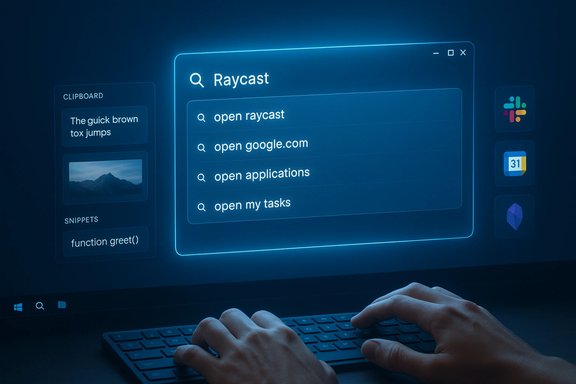
Raycast’s primary interface is a command palette invoked by a hotkey (default Alt+Space, customizable). Type a query and you can:- Open apps or documents
- Trigger system actions (lock, shut down, toggle Wi‑Fi)
- Run scripts or custom automations
- Use third‑party extensions (Slack, Google Calendar, Obsidian, and more)
- Invoke AI prompts or chat directly from the palette
Built‑in productivity utilities
Raycast bundles a set of utilities that would normally require multiple separate apps:- Clipboard history with searchable previews, image support, and retention that exceeds Windows’ built‑in Win+V buffer.
- Snippets (text expansion) with a high documented limit (a 65,536‑character cap for long templates).
- Window management tools for arranging and moving windows across displays.
- Quicklinks and shortcuts for parameterized searches or frequently used URLs/actions.
- An extension store that lets you add integrations and community‑created commands.
Integrated AI (free during beta)
During the Windows beta Raycast exposes AI features without immediate charge, letting users experiment with AI commands and chat inside the palette. Raycast supports multiple providers and offers options for enterprises to bring their own API keys (BYOK). While intriguing, AI remains an optional layer for users; many will gain the most productivity from Raycast’s keyboard workflows and clipboard features, not necessarily AI.Three practical reasons to try Raycast (and what they actually mean)
1) The command palette makes search actionable
Raycast reframes search as a first step in a flow: find a file or app, then act on it immediately (rename, move, open in a specific app, pipe to another action). That reduces context switching and mouse hunting, especially for users who live on the keyboard. The command palette’s design is intentionally minimal so your hands stay on the keyboard and your attention stays on the task.Strength in practice:
- Invoke the palette, type, then press a single keystroke to run a script or kill a stray process — no switching to Task Manager, no hunting through menus. The Kill Process example is a concise illustration of the “search → act → done” model.
2) Extensions and automations let you fold work into the palette
Extensions convert the launcher into a workspace that executes remote or local actions: create a calendar event, send a Slack message, query Obsidian notes, or run Git commands. You don’t need to memorize complex workflows up front; add extensions as needs arise and Raycast integrates them into the same surface you already use. The Windows extension catalog is growing but not yet as deep as macOS; nonetheless, the model scales well for individuals and teams that standardize a few core workflows.Practical benefit:
- Instead of opening Slack, finding a channel, composing a message, and switching contexts, you can trigger an extension, type the message, and send — all from the command bar.
3) A genuinely useful clipboard manager built in
Raycast’s clipboard history is more capable than Win+V: it stores text, images, colors, and links in a searchable history, preserves items across sessions, and offers quick actions like re‑copying or pasting directly from the palette. This single feature alone often justifies adding Raycast to a daily toolkit for writers, developers, support agents, and anyone who frequently transfers content between apps. The clipboard retention policy differs by plan (free tier is limited; Pro offers longer or unlimited retention).Installation, first run and quick setup
Getting Raycast for Windows is straightforward: install from the Microsoft Store, download the installer from Raycast’s site, or use WinGet if you prefer command line provisioning. The beta supports Windows 10 and Windows 11. During first run, configure these essentials:- Choose an activation hotkey (Alt+Space is the default).
- Limit indexing scope to only necessary folders to reduce disk and CPU impact during initial scanning.
- Test clipboard capture with the kinds of content you use (formatted text, images, code blocks).
- Install Raycast via Store, installer, or WinGet.
- Set or confirm the hotkey.
- Limit indexed folders (Documents, Projects) and exclude system/OneDrive folders you don’t want indexed.
- Try the Clipboard command and paste a few items to verify behavior.
- Explore the extension store for integrations you rely on.
Hotkey mapping and the Windows key problem
Raycast’s hotkey system typically requires a modifier (e.g., Alt+Space) and does not natively allow claiming the raw Windows key (single‑tap Win) for activation. If you want single‑tap Win behavior, the common workaround is to use AutoHotkey to remap a Win key tap to Raycast’s activation shortcut. This method works but introduces a third‑party dependency and is unofficial; treat such remaps cautiously in enterprise images. For most users, a stable modifier combo (Alt+Space, Ctrl+Space) is a lower‑risk approach.Performance and comparisons: Raycast vs Everything and others
- Everything (Voidtools) remains the fastest tool for pure filename/path searches because it indexes NTFS metadata directly and returns results in milliseconds. If your daily work is dominated by hunting filenames across huge datasets, keep Everything in your toolbox. Raycast’s file search is fast and predictable, but it is broader in scope (actions, AI, clipboard) rather than optimized solely for raw filename lookups.
- PowerToys Command Palette and Flow Launcher are worthy alternatives: PowerToys is Microsoft‑backed and lower‑risk for enterprises; Flow Launcher is highly extensible. Raycast distinguishes itself by combining a polished UI, built‑in productivity utilities, and an extension marketplace — with the trade‑off that some features are behind a Pro subscription.
- Use Everything when you need millisecond filename searches.
- Use Raycast when you want a consolidated, keyboard‑first workspace that handles snippets, clipboard, and quick actions.
- Consider PowerToys for a conservative, supported option without subscription costs.
Pricing, limits and verifiable technical details
Raycast follows a freemium model. The free tier includes the core launcher, limited clipboard history, snippets, and many built‑in extensions. Pro unlocks cloud sync, unlimited clipboard retention, unlimited notes/snippets, and expanded AI usage; pricing has historically been in the single‑digit dollar per month range when billed annually (review current pricing during signup). The Advanced AI add‑on expands available models and usage caps. These terms are subject to change and should be confirmed on Raycast’s official pages before budgeting for large teams.Notable technical specs you can verify in the app or documentation:
- Snippet character limit: documented at 65,536 characters (useful for long templates and code blocks).
- Default hotkey: Alt+Space (customizable).
- Clipboard retention on free tier: limited window (commonly cited as three months in plan summaries), with Pro offering unlimited retention — verify current retention windows before relying on long‑term storage.
Security, privacy and enterprise concerns
Raycast aims for a local‑first model: indexing and most processing run locally by default. However, enabling cloud sync or Advanced AI can send data off‑device to third‑party providers, changing the privacy profile. For organizations, Raycast provides enterprise controls including BYOK for AI providers, SAML/SCIM support, and admin toggles, but adopting Raycast at scale requires careful governance:- Audit and whitelist extensions before enabling them across a fleet.
- Limit indexing scope on corporate devices to avoid scanning protected or sensitive directories.
- Use BYOK or approved AI providers to control model selection and data flow.
- Treat AutoHotkey-based remapping and user scripts cautiously; they can violate admin policies or DLP controls.
Limitations, rough edges and the beta caveat
Raycast’s Windows client is powerful but still maturing. Reported caveats include:- Occasional clipboard capture failures and hotkey registration issues on early beta builds.
- Extension parity gap compared with the macOS ecosystem; some integrations available on Mac are missing or less featureful on Windows.
- The inability to natively claim the raw Win key without third‑party remapping.
- Subscription fences for advanced features (cloud sync, extended clipboard retention, Advanced AI).
Practical rollout checklist and best practices
For individual users:- Start with Alt+Space as your hotkey and give Raycast two weeks of daily use before changing deeper system behavior.
- Limit indexing to folders you actively use to avoid prolonged first‑run scans.
- Keep Everything installed if you require blazing filename search performance alongside Raycast’s action surface.
- Pilot Raycast on a subset of users with representative workflows.
- Inventory required extensions and confirm Windows parity before approving them.
- Define policies for cloud sync and AI usage; prefer BYOK for sensitive data.
- Whitelist vetted extensions and disable community store access where necessary.
- Avoid AutoHotkey remaps on corporate images unless explicitly authorized and managed.
Final analysis: who should try Raycast and why
Raycast for Windows is a strong candidate for anyone who values a keyboard‑first workflow and wants to collapse multiple small utilities into one well‑designed command surface. It’s particularly compelling for:- Developers, writers, and support staff who frequently reuse snippets and clipboard content.
- Users who want quick app launching plus immediate actions (scripts, window management, service integrations).
- Cross‑platform teams that benefit from parity between macOS and Windows workflows.
- Users who need absolute millisecond filename searches across massive datasets (Everything remains best for that niche).
- Enterprises that cannot or will not accept third‑party extensions or cloud AI without thorough governance (Raycast can work in such environments, but requires planning).
Conclusion
Raycast’s Windows beta brings a mature, keyboard‑first command palette to a platform that has long suffered from search noise and context switching. Its combination of actionable search, extensions, and a searchable, persistent clipboard delivers tangible productivity improvements for keyboard‑centric users. The Windows beta still has rough edges — extension parity, occasional clipboard quirks, and hotkey limitations among them — and some advanced features are gated behind a Pro/Advanced AI subscription, so evaluate with a short pilot before wider adoption. For anyone who spends the day switching contexts and hunting for things, Raycast offers a different philosophy: search as the first step in doing, not the last step in finding. Try it on a test machine, tune indexing and hotkeys, and you’ll quickly see whether Raycast’s focused workflow is the productivity upgrade your Windows setup has been missing.Source: How-To Geek If you hate Windows Search, try Raycast for these 3 reasons
