

I picked up the Razer Wolverine V3 Pro 8K PC expecting one of the sharpest, most immediate controller experiences available — and yet, for a while, matches in Call of Duty felt slightly sluggish, as if my inputs were arriving just a hair too late. The fix turned out to be less about hardware and more about the software layer sitting between my hands and the game: specifically, how Razer Synapse 4 manages deadzones with its Prevent Double Deadzones feature. My trial-and-error with deadzone values, firmware checks, and polling-rate sanity checks illustrates a broader lesson for anyone chasing ultra-low input latency on PC: when you tune for the absolute edge, every software convenience can become a performance hazard. rview
Razer’s Wolverine V3 Pro 8K PC arrived as a clear statement: the company is pushing the boundaries of controller input speed on PC. The hardware advertises 8,000 Hz HyperPolling, anti-drift TMR (Tunneling Magneto-Resistance) thumbsticks, and a feature set tuned for competitive FPS play. That specification is not marketing alone — Razer’s product announcement lists true 8,000 Hz polling in wired and wireless modes and highlights TMR thumbsticks to eliminate stick drift. Independent reviews and hands-on testing corroborate those core specs and place the Wolverine V3 Pro 8K among the fastest controllers available for PC. Reviewers note the 8K polling and magnetic thumbstick technology as the standout performance claims, while also calling out trade-offs such as platform exclusivity and the need for careful software setup to obtain the promised responsiveness. The result: a controller that is capable of near-instantaneous reporting — but only if the full input path, from stick hardware through Synapse to the game, is configured correctly and the PC can handle the processing load of extremely high polling.
Two things conspired to create the sluggish feeling: the way Synapse handles deadzones by default, and the raw system overhead of ultrahigh polling rates.
Quantitatively, the latency delta between 1K and 8K polling is well established in lab tests (8K reduces report interval from 1.0 ms to 0.125 ms). But the real-world improvement depends on the entire stack: firmware, Synapse processing, OS interrupts, and game engine input handling. When Synapse added extra processing via double-deadzone logic, it erased some of the practical gains that 8K brings; turning that feature off minimized extra transformations and let the hardware + game pipeline shine.
These are small, practical steps that bring the controller’s real-world behavior in line with its hardware promise: cleaner, crisper aim and movement that actually feels as fast as the spec sheet says it should.
Conclusion
Razer built one of the fastest controllers available for PC; the Wolverine V3 Pro 8K PC’s hardware delivers on that promise. But the difference between an ultra-fast controller and an ultra-fast feel can be a few UI toggles and a firmware check away. For competitive players, the priority should be minimizing transformations between thumbstick movement and game input: set minimum deadzones in Synapse, disable Prevent Double Deadzones, let the game handle the final deadzone, and tune your polling rate to what your system can sustain reliably. The hardware gives you the headroom — thoughtful software configuration makes it usable in real matches.
Source: Windows Central How I stopped the sluggish feeling on my 8,000 Hz Razer controller
Razer’s Wolverine V3 Pro 8K PC arrived as a clear statement: the company is pushing the boundaries of controller input speed on PC. The hardware advertises 8,000 Hz HyperPolling, anti-drift TMR (Tunneling Magneto-Resistance) thumbsticks, and a feature set tuned for competitive FPS play. That specification is not marketing alone — Razer’s product announcement lists true 8,000 Hz polling in wired and wireless modes and highlights TMR thumbsticks to eliminate stick drift. Independent reviews and hands-on testing corroborate those core specs and place the Wolverine V3 Pro 8K among the fastest controllers available for PC. Reviewers note the 8K polling and magnetic thumbstick technology as the standout performance claims, while also calling out trade-offs such as platform exclusivity and the need for careful software setup to obtain the promised responsiveness. The result: a controller that is capable of near-instantaneous reporting — but only if the full input path, from stick hardware through Synapse to the game, is configured correctly and the PC can handle the processing load of extremely high polling.
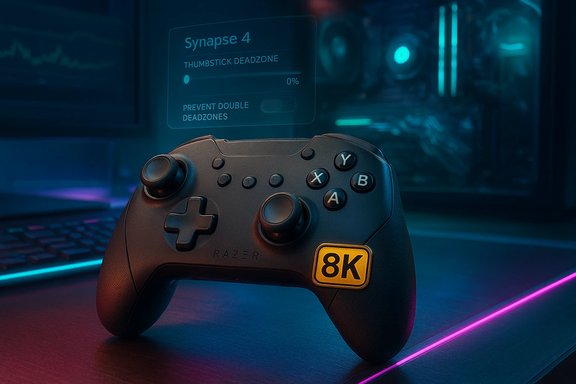 Why the controller can feel sluggish despite being “8K”
Two things conspired to create the sluggish feeling: the way Synapse handles deadzones by default, and the raw system overhead of ultrahigh polling rates.The deadzone mismatch problem: “double deadzone” explained
Deadzones are intentional gaps programmed into an analog input to filter tiny, unwanted stick motion (and to counteract physical drift). A “double deadzone” occurs when both the controller firmware/software and the game apply deadzones independently. The practical effect is that the effective deadzone becomes the sum (or a worse function) of the two, increasing the distance you must deflect the stick before the game sees movement — which feels sluggish. Razer’s Synapse exposes a setting called Prevent Double Deadzones (or “Prevent Double Deadzone” in some UIs) intended to stop the game’s deadzone from compounding with the controller's. But the way that prevention logic transforms or clips raw inputs can itself introduce perceptible timing or granularity effects in real play. The controller manual and Razer documentation describe the feature and its intent. Community testing and reviewer notes show a consistent pattern: players aiming for the fastest, most direct stick response tend to set Synapse deadzones very low (0% or 1%), manage their deadzones inside the game, and disable Prevent Double Deadzones. Multiple community threads and reviewer tests recommend this approach for minimal perceived latency and crisp aim. However, this is an empirical finding from users and reviewers rather than a declarative claim from Razer that the setting increases latency in all cases. Treat the outcome as an evidence-backed recommendation, not a universal hardware defect.The overhead of 8,000 Hz polling
A separate pressure point is the raw processing cost of handling 8,000 reports per second. Every poll becomes an interrupt the OS must service; at 8,000 Hz that’s one interrupt every 0.125 ms. Modern PCs can handle this, but only if the USB topology, interrupt handling, and driver/DPC landscape are clean. When other drivers produce long DPCs (deferred procedure calls) — audio, network drivers, RGB utilities, or poorly written ASMedia USB drivers — the tight timing window required for 8K can be upset, producing micro-stutters or frame drops. Multiple usability analyses and hands-on articles point out that while 8K reduces theoretical report latency markedly (e.g., from ~1.7 ms at 1K to ~0.58 ms at 8K in lab measurements), it also increases CPU and interrupt load and can expose scheduling problems. If you’re not seeing crispness despite higher polling, your system might be the bottleneck.The step-by-step fix I used (and why it works)
Short version: turn off Synapse’s Prevent Double Deadzones, set Synapse deadzones to the lowest safe value (0 minimum, 100 maximum in Synapse UI parlance), let the game handle the deadzone, and verify firmware and system readiness for high polling rates.1. Confirm the hardware baseline
- Verify the controller is indeed running HyperPolling 8K (Synapse exposes polling choices and Razer’s release notes confirm the 8K capability of the Wolverine V3 Pro 8K). If you don’t see 8K available, test at 4K or 2K first.
- Ensure device firmware is current. Razer distributes firmware updates outside Synapse for some devices; check Razer’s support downloads page or the controller’s manual instructions. Firmware mismatches can cause odd behavior that looks like software-induced sluggishness.
2. In Synapse 4: set deadzones to minimum and disable Prevent Double Deadzones
- Open Razer Synapse 4 → Controller Settings → Thumbsticks (or the dedicated Thumbsticks subtab).
- Move both deadzone sliders to the lowest value (0 for minimum), set max to the standard 100 setting as required by Synapse.
- Find and uncheck Prevent Double Deadzones (it may appear as “Prevent Double Deadzone(s)” or similar in different documentation). This instructs Synapse to stop altering stick mapping to “protect” you from an in-game deadzone; instead, it will report raw stick values and let the game do the final filtering. Manuals and community guides document this exact subtab and option.
3. Manage deadzones inside the game
- With Synapse at 0 deadzone, open your game (in my case, Call of Duty: Black Ops 7) and set the in-game deadzone to a small positive number that prevents drift but preserves sensitivity.
- Many competitive players opt for 1–3% in-game deadzones and only increase until they observe no unwanted drift at rest. Use the game’s built-in stick-testing or a training area for fine-tuning.
4. Validate system readiness for 8K
- Monitor CPU and DPC latency with Task Manager and DPC latency tools while running the game at your chosen polling rate. If you see sustained spikes, lower polling (4K, 2K) or tune system drivers.
- Check USB topology: ensure the controller is on a motherboard rear port where possible, and avoid noisy third-party USB hubs that can add latency. Disabling USB selective suspend and ensuring “Allow the computer to turn off this device to save power” is unchecked for USB Root Hubs are standard best practices for high-polling peripherals.
What I measured and felt after the change
From the first match after changing Synapse settings, movement and aim felt crisper — the difference wasn’t night-and-day, but it was consistent and meaningful in fast engagements. Smaller aiming corrections and turnarounds felt more immediate, and the reactive feel of strafes and counter-aiming improved. Subjectively, the controller finally matched the promise of hardware specs: tactile, fast, and responsive.Quantitatively, the latency delta between 1K and 8K polling is well established in lab tests (8K reduces report interval from 1.0 ms to 0.125 ms). But the real-world improvement depends on the entire stack: firmware, Synapse processing, OS interrupts, and game engine input handling. When Synapse added extra processing via double-deadzone logic, it erased some of the practical gains that 8K brings; turning that feature off minimized extra transformations and let the hardware + game pipeline shine.
Other things to check (a checklist for troubleshooting sluggish controllers)
- Firmware: Always ensure the controller firmware is updated. If updates are not distributed via Synapse, check Razer support pages. Firmware can resolve hardware-level oddities that mimic software latency.
- Polling rate: If your CPU or USB topology struggles at 8K, temporarily lower to 4K or 2K. Many players find 2K to 4K the best compromise between lower latency and system stability.
- System interrupts / DPCs: Use DPC latency tools to identify drivers causing spikes. Long-running DPCs from network, audio, or RGB managers can be the culprit. Resolve by updating drivers or disabling unnecessary background apps.
- USB ports: Prefer rear motherboard ports and avoid cheap front-panel hubs or third-party controllers that share USB bandwidth. Use a short passive USB extension to place a wireless dongle closer to the controller/desk if radio interference is suspected.
- Games’ raw input options: Some titles offer Raw Input or Input Buffering options that interact with OS-level input. Test different configurations; some games handle raw input better at extreme polling rates.
The trade-offs: why these settings aren’t “one-size-fits-all”
- Risk of drift: Setting Synapse deadzones to zero assumes your hardware is stable and drift-free. TMR/Hall-effect thumbs largely eliminate drift, but if you encounter unintended inputs at 0 deadzone, raise the game-side deadzone slightly. This is a controllable risk: tune up until drift disappears.
- Higher CPU usage: 8K imposes heavier interrupt load and can impact frame rates in CPU-bound scenarios. If you play CPU-limited titles or have a modest CPU, you may need to choose a lower polling rate for smoother overall performance.
- Software convenience vs. raw performance: Features like Prevent Double Deadzones exist to protect casual users from accidental misconfiguration. Competitive players, however, will often prefer to manage the final deadzone in-game for the most direct feel. The choice should reflect your priorities: consistent convenience or raw responsiveness.
A technical aside: what “Prevent Double Deadzones” actually does (and why it can matter)
From user testing and reverse-engineering discussion, the feature’s behavior can be summarized as follows: when enabled, Synapse inspects the configured deadzone and attempts to compensate so combined controller + game deadzones do not produce an unexpectedly large effective deadzone. Practically, that means Synapse may offset or re-scale raw stick values so the game sees movement earlier or later depending on its logic. In theory, that protects users who don’t tweak both layers; in practice, the transformation can add a small processing step or discretize early values, introducing micro-latency or quantization that’s perceptible at the competitive edge. This is a nuanced behavior and may be influenced by firmware versions, game implementations, and OS scheduling — which is why different users experience it differently. If precise, immediate response is the priority, disable the feature and calibrate exclusively in-game. If predictability across different games is more important, leave it enabled and accept the safety trade-off.Recommendations: a practical tuning recipe for competitive PC play
- Update controller firmware and Synapse 4 to the latest versions.
- Choose a polling rate you can sustain reliably (test 8K, 4K, 2K; if you see stutters, step down).
- In Synapse → Thumbsticks:
- Set deadzones to the minimum (0).
- Disable Prevent Double Deadzones.
- Choose Circular mode if you want a more uniform diagonal response (some users prefer this for aim consistency).
- In your game, set a small in-game deadzone (1–3%), test in a practice range, and raise only if you see drift.
- Monitor DPC latency and CPU usage while gaming; address any noisy drivers or background apps.
- If you still experience micro-stutters at 8K, either reduce polling or isolate the controller to a rear-motherboard USB port and disable USB selective suspend for Root Hubs.
Critical analysis — strengths, weaknesses, and risks
- Strengths: The Razer Wolverine V3 Pro 8K PC combines fast polling, drift-resistant TMR sticks, and pro-grade ergonomics into a high-performance package. When the full pipeline is tuned, it delivers class-leading responsiveness that competitive players can feel.
- Weaknesses: The extreme end (8K) exposes system-level fragilities that didn’t matter at 1K — CPU interrupt handling, third-party USB controllers, and errant DPC-heavy drivers become visible. Razer’s Synapse features aimed at convenience (like Prevent Double Deadzones) can unintentionally interfere with raw performance, creating a tension between ease-of-use and absolute speed.
- Risks: For non-technical users, disabling convenience features without understanding their consequences can lead to unexpected drift or inconsistent behavior across games. For users on older hardware, pushing 8K or stutter. Always test thoroughly and be ready to revert settings if stability degrades.
- Unverified/edge-claim caution: Community testing strongly suggests that disabling Prevent Double Deadzones reduces perceived input latency on high-polling controllers, but Razer has not publicly admitted that the feature universally increases latency. This outcome appears to be context-dependent (firmware revision, OS scheduling, and individual game input handling). Treat user-reported latency changes as robust empirical evidence but not an incontrovertible software bug in every configuration.
Final thoughts — when software convenience gets in the way of performance
High-performance hardware like the Wolverine V3 Pro 8K PC can deliver truly exceptional responsiveness — but only when the whole stack cooperates. Software features designed to protect users from bad defaults can backfire when you need the absolute lowest input latency. The practical takeaway is simple: if you’re chasing minimal input lag, control the deadzone where it matters (in-game), reduce extra software-side transforms (disable Prevent Double Deadzones), and confirm your PC can handle very high polling rates before you commit to 8K.These are small, practical steps that bring the controller’s real-world behavior in line with its hardware promise: cleaner, crisper aim and movement that actually feels as fast as the spec sheet says it should.
Conclusion
Razer built one of the fastest controllers available for PC; the Wolverine V3 Pro 8K PC’s hardware delivers on that promise. But the difference between an ultra-fast controller and an ultra-fast feel can be a few UI toggles and a firmware check away. For competitive players, the priority should be minimizing transformations between thumbstick movement and game input: set minimum deadzones in Synapse, disable Prevent Double Deadzones, let the game handle the final deadzone, and tune your polling rate to what your system can sustain reliably. The hardware gives you the headroom — thoughtful software configuration makes it usable in real matches.
Source: Windows Central How I stopped the sluggish feeling on my 8,000 Hz Razer controller
