

Apple doesn’t offer a native iBooks (Apple Books) app for Windows, but there are several practical, legal, and technical routes that let Windows users access some Apple Books content or replicate the iBooks experience on a PC — each with important trade‑offs around DRM, parity, and convenience. This guide lays out every realistic method to “download iBooks on Windows,” verifies the technical details against official sources, explains why many purchases won’t work outside Apple’s ecosystem, and recommends the safest, most user‑friendly approaches for different types of readers.
Apple Books (formerly iBooks) is Apple’s native ebook and audiobook ecosystem: a reading app and a bookstore that ships on iPhone, iPad, and Mac. The app is tightly integrated with iCloud for syncing reading position, highlights, and purchases across Apple devices. Apple documents the scope of Apple Books and the supported platforms on its product pages and support site, which list iPhone, iPad, Mac (and Apple Vision Pro) as the primary endpoints for the experience — there is no Windows client in Apple’s platform list. Two technical realities govern how easily you can read Apple Books content on Windows:
Step‑by‑step (quick):
Practical options:
If you need, the next practical steps are installation instructions for any of the recommended Windows apps (Calibre, Adobe Digital Editions, Kindle for PC) and a short checklist to verify whether a specific Apple Books title you own is DRM‑protected (so you’ll know whether an export/import approach will work). The official Apple support pages and the app vendor pages linked above are the authoritative references for verification.
Source: PrioriData iBooks for PC: Download ibooks on windows | Priori Data
 Background / Overview
Apple Books (formerly iBooks) is Apple’s native ebook and audiobook ecosystem: a reading app and a bookstore that ships on iPhone, iPad, and Mac. The app is tightly integrated with iCloud for syncing reading position, highlights, and purchases across Apple devices. Apple documents the scope of Apple Books and the supported platforms on its product pages and support site, which list iPhone, iPad, Mac (and Apple Vision Pro) as the primary endpoints for the experience — there is no Windows client in Apple’s platform list. Two technical realities govern how easily you can read Apple Books content on Windows:- Platform availability: Apple provides the Books app only for Apple platforms — there’s no official Windows “iBooks” app.
- Digital Rights Management (DRM): Many titles sold through Apple Books are protected by DRM (Apple’s partner DRM for EPUB/.ibooks formats). DRM restricts how, and on which devices, purchased files can be opened — and Apple’s DRM is designed to tie protected content to Apple’s ecosystem.
How Apple Books (iBooks) works — the crucial technical facts
Apple’s own help pages explain that Apple Books syncs library and reading settings via iCloud, and that Books is designed for iPhone/iPad/Mac — not Windows. That means purchases and sync are first‑class inside Apple hardware and only partially accessible elsewhere. On DRM: Apple’s Books partner documentation confirms DRM is applied to EPUB and iBooks files sold through the store; publishers can choose DRM options and Apple retains a DRM scheme to prevent unauthorized copying. DRM can block non‑Apple apps from opening purchased files. That is the single most common reason an Apple Books purchase will not open on Windows. Key takeaway: If a book you bought from Apple is DRM‑protected, you generally cannot open it in a plain Windows EPUB reader. The only exception is if the publisher sold a DRM‑free EPUB or you have a non‑DRM file exported from Apple Books on a Mac or iOS device.Method 1 — Use iCloud.com and Apple’s web tools (what works, what doesn’t)
Overview: Apple lets you sign into iCloud.com and access some iCloud data from a browser. For Apple Books specifically, Apple documents iCloud integration as a way to keep Books libraries and settings in sync across Apple devices. In practice, a limited web view of purchases and library items is available in iCloud and can sometimes let you open or preview purchased items in a browser. What you can do:- Sign in to iCloud.com with your Apple ID and review Books or purchases where Apple exposes them in web UI. This can be used to read some content or at least access links to downloads in limited cases.
- Use the web interface for quick access to samples or to manage purchases where Apple has enabled web access.
- Apple’s documentation focuses on iCloud sync between Apple devices; it does not promise full book reading parity in a web browser on Windows. Apple’s primary platform is Apple hardware, so web access is a limited fallback rather than a full client replacement.
- If a title is DRM‑protected, iCloud/web access will not circumvent DRM limitations; the browser cannot magically bypass DRM tied to Apple’s app ecosystem. Expect limited functionality for protected titles.
Step‑by‑step (quick):
- Open your preferred browser on Windows and go to iCloud.com.
- Sign in with your Apple ID and look for a Books or Purchases entry.
- Open available items or samples. If a book fails to open or download, it is likely DRM‑protected or only downloadable inside Apple apps.
Method 2 — iTunes for Windows and buying audiobooks (limitations)
Overview: Apple still offers iTunes for Windows as a hub for certain digital media. You can download iTunes for Windows and use it to buy and manage some content from Apple’s stores (music, movies, and audiobooks). However, iTunes for Windows does not provide a full Apple Books reading UI equivalent, and the reading experience for regular ebooks still relies on Apple Books on Apple platforms. What works:- Buying and managing audiobooks on iTunes for Windows is supported: you can purchase and play audiobooks through iTunes. For ebooks, iTunes historically handled some book store functions, but the modern Books experience and reading UI remain Apple‑platform centric.
- iTunes on Windows does not give a native ebook‑reading experience comparable to Apple Books on macOS/iOS.
- Audiobooks are a better candidate for Windows via iTunes, but EPUB/ebook reading remains constrained by DRM and Apple’s platform choices.
Method 3 — Export DRM‑free files from your Apple devices and read them on PC
Overview: If you own DRM‑free EPUB or PDF files (for example, files you imported into Apple Books yourself or files publishers sold without DRM), you can export those from an Apple device and open them on Windows in a native EPUB reader. Official Apple documentation explains iCloud and Books sync but does not offer a Windows reader; this export approach is an owner‑driven workaround when DRM isn’t present. Common Windows readers for DRM‑free files:- Calibre — a full ebook management and conversion suite that runs on Windows, macOS, and Linux. It can organize libraries, convert formats, and send books to devices. Calibre is the go‑to tool when you want full control of your ebook collection on Windows.
- Adobe Digital Editions — widely used for reading library loans and DRM‑protected books using Adobe’s DRM system (not Apple’s DRM). ADE is the standard tool for ACSM/Adobe DRM workflows and library checkouts.
- Sumatra PDF — lightweight reader that supports EPUB, MOBI, PDF and more; excellent for simple, fast reading.
- On your Mac or iOS device export the original EPUB/PDF files you imported or obtained DRM‑free. (The process depends on how the files got into Books; files you manually added are usually exportable.
- Transfer the files to your Windows PC (AirDrop to a Mac then copy, or use cloud storage).
- Open them in Calibre, Sumatra, or any EPUB reader you prefer. If you want to convert formats (e.g., EPUB → MOBI), Calibre can convert while preserving metadata.
Method 4 — Third‑party EPUB readers and library apps on Windows
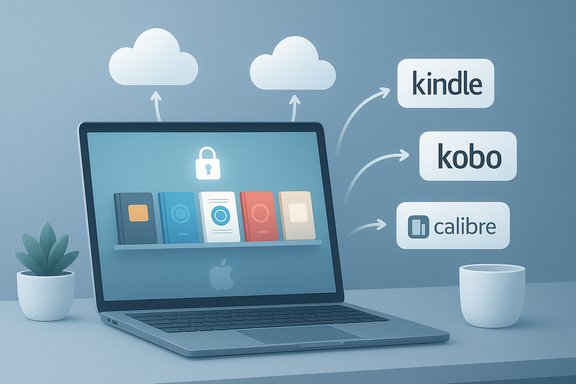
Overview: Windows has solid ebook apps that can replace Apple Books for everyday reading, especially when you have non‑DRM EPUB or PDF files or when you use other stores (Kindle, Kobo). Popular choices include Kindle for PC, Adobe Digital Editions, Calibre, and lightweight viewers like Sumatra. Each has different strengths; pick based on whether you need library borrowing, format conversion, or tight syncing. Short feature rundown:- Kindle for PC — deep bookstore with Whispersync syncing between devices; best when your library is from Amazon rather than Apple. Amazon provides free desktop readers for Windows.
- Adobe Digital Editions — standard for library loans and Adobe DRM workflows; required by many public library systems to borrow ebooks.
- Calibre — powerful management, conversion, and metadata editing; not a polished store front but unbeatable for organization and conversion.
- Sumatra PDF — tiny, fast reader for people who want minimal UI and support for EPUB, MOBI, and PDFs.
- Microsoft officially removed built‑in EPUB support in Edge and recommends dedicated EPUB apps from the Microsoft Store; Edge’s historical experiments with EPUB readers do not guarantee ongoing support. If you previously read EPUB files in Edge, you should migrate to a dedicated reader.
- Choose Kindle for PC if you buy most ebooks from Amazon or want cross‑device synchronization of notes and location.
- Choose Adobe Digital Editions if you borrow books from libraries that use ACSM/Adobe DRM.
- Choose Calibre if you value conversion, backup, and advanced library management.
- Choose Sumatra PDF for a fast, light reader for local files.
Method 5 — Emulation or virtualization (run iOS/Mac apps inside a VM)
Overview: If you need the actual Apple Books experience on Windows — including the native rendering, sync behavior, and note handling — the only fully faithful way is to run an Apple platform (macOS) or iOS environment and use the Books app there. That means either a Mac (native), a macOS virtual machine, or a remote Mac instance. Running macOS in virtualization on non‑Apple hardware has legal and support implications; running iOS apps in emulators is limited in capability. This is a higher‑effort route and often not practical for casual readers.Practical options:
- Use a Mac on the network (real hardware) and share files or remote desktop to it for reading. This is the most legitimate and simple approach if you own a Mac.
- Use a macOS virtual machine on your Windows PC — technically possible, but be aware of Apple’s licensing terms which restrict macOS virtualization to Apple hardware. Many users use remote Mac hosting services to stay legal.
- Do not use shady “iBooks for Windows” installers from third‑party sites that claim to be the official app; such packages are often repackaged or bundled with unwanted software and should be treated as untrusted. Community analyses repeatedly warn against unverified “native Windows” ports of mobile apps unless publisher verification exists.
DRM, legal, and Terms of Service — what you must know
- DRM is not a mere inconvenience — it’s the core blocker for reading Apple Books on Windows. Apple and its publishing partners can apply DRM to EPUB and .ibooks purchases so that only authorized apps can open them; Apple’s partner documentation explains DRM policies and controls. Attempting to strip DRM or use tools that circumvent DRM can violate copyright law and vendor terms of service.
- Library loans and Adobe DRM: Many public libraries use Adobe Content Server (ACSM) and Adobe Digital Editions for loans. ADE will handle Adobe DRM‑protected files, but not Apple Books’ FairPlay DRM. If you want library access on Windows, Adobe Digital Editions is the standard route — not Apple Books.
- Don’t trust random “iBooks for Windows” standalone installers. Some third‑party sites advertise a native iBooks port for Windows — these are typically repackaged Android or macOS apps or adware‑bundled installers. Community and security writeups routinely flag unverified “PC” installers for mobile apps as untrusted.
Practical recommended workflows (pick one depending on your goals)
Best for readers who already own mostly Apple Books purchases and want occasional Windows access
- Use iCloud.com to view books and read samples where possible. This is the zero‑install fallback.
- If you need more, use a Mac (loaned/borrowed) to export DRM‑free copies if they exist; transfer to Calibre/Sumatra for Windows reading. If a book is DRM‑protected, this will not work.
Best for library borrowers
- Use Adobe Digital Editions on Windows for library loans that come as ACSM/Adobe DRM files. ADE is the supported client for most public library systems.
Best for future purchases and long‑term Windows reading
- Consider switching future purchases to a Windows‑friendly store: Amazon Kindle, Kobo, or store formats that allow downloads into Calibre or other Windows readers. Kindle offers a mature desktop app with Whispersync across platforms.
Best for advanced users who want full library control
- Use Calibre to manage, convert, and back up non‑DRM books. This is the most flexible management workflow for Windows.
Step‑by‑step: How to read an Apple‑bought book on Windows (if it’s DRM‑free)
- Confirm the book is DRM‑free. If you can download an EPUB file from your Apple Books purchases and it’s not flagged as protected, proceed. (If it’s protected, stop here — the methods below won’t work unless you remove DRM, which is likely illegal/against TOS.
- Transfer the EPUB file to your Windows PC via cloud storage or USB.
- Open the file in Calibre or Sumatra:
- Calibre: Import the book into your library and use the built‑in viewer or convert formats.
- Sumatra: Right‑click → Open With → Sumatra for a fast reader.
Critical analysis — strengths, risks, and the practical reality
Strengths of the available approaches- The web/iCloud fallback gives quick access to some data without installs. It’s the safest path for casual access.
- Windows has excellent native ebook tools (Calibre, Kindle for PC, Adobe Digital Editions) that together cover almost every reading scenario outside the Apple ecosystem. These tools are mature and well‑supported.
- DRM locks are the fundamental constraint. Purchases made in Apple Books that are DRM‑protected often cannot be moved to Windows readers. The single most important technical fact is that DRM, not format, stops cross‑platform reading for many titles.
- Third‑party installers and repackaged apps claiming to be “iBooks for PC” present supply‑chain and malware risks; community investigations caution users to avoid them unless the publisher confirms an official Windows release.
- Browser readers (Edge) are unreliable as a long‑term EPUB strategy: Edge removed ePub support and Microsoft recommends dedicated EPUB apps. That eliminates a formerly convenient path and pushes users toward dedicated readers.
- Any third‑party site claiming to offer an “official” iBooks for Windows app should be treated with caution unless an Apple press release or official Apple support page corroborates it. Apple’s platform list and support pages remain the authoritative references on app availability. If you see a new claim, verify on Apple.com first.
Quick FAQ roundup (concise, verified)
- Can I officially download iBooks for Windows?
No — Apple Books is offered for iPhone, iPad, and Mac; Apple does not provide a native Windows Books app. Use iCloud or other Windows readers for access where possible. - Will my Apple Books purchases work on PC?
Only if the files are DRM‑free. Most Apple Books purchases may have DRM that prevents opening in non‑Apple apps. Apple’s partner DRM documentation confirms publishers can apply DRM to purchases. - What’s the best alternative to Apple Books on Windows?
It depends: Kindle for PC for Amazon purchases and syncing; Adobe Digital Editions for library loans; Calibre for personal library management. Each covers distinct needs. - Can Microsoft Edge read EPUB files anymore?
Microsoft has officially removed ePub support from Edge and recommends dedicated EPUB apps in the Microsoft Store. Use dedicated readers like Sumatra or Calibre instead.
Final recommendation — pragmatic, safe choices for Windows users
- If you already own Apple Books purchases and need occasional access on Windows, start with iCloud.com and then fall back to a Mac or authorized device for full features. iCloud is the least risky, zero‑install option.
- If you borrow books from libraries, install Adobe Digital Editions for the standard library workflow on Windows.
- If you want a long‑term Windows reading solution, move future purchases to a Windows‑friendly store (Amazon Kindle or Kobo) and use Calibre to manage local files and backups. This future‑proofs your library and gives you full control without fighting DRM tied to another vendor.
If you need, the next practical steps are installation instructions for any of the recommended Windows apps (Calibre, Adobe Digital Editions, Kindle for PC) and a short checklist to verify whether a specific Apple Books title you own is DRM‑protected (so you’ll know whether an export/import approach will work). The official Apple support pages and the app vendor pages linked above are the authoritative references for verification.
Source: PrioriData iBooks for PC: Download ibooks on windows | Priori Data
