

Windows 11 ships with more than a few convenience features — it also ships with built‑in telemetry, targeted recommendations, and advertising‑oriented behaviours that are enabled by default. Paul Thurrott’s “De‑Enshittify Windows 11” thesis is blunt: Microsoft’s defaults push users toward more data collection, and while the OS exposes some surface controls, you must dig deeply (or use a community tool) to reclaim meaningful privacy. This feature unpacks what’s actually happening, verifies the key technical claims, and gives a conservative, safety‑first roadmap for restoring control — including a practical, audited way to use the widely adopted Win11Debloat tool to remove telemetry and UI clutter while protecting system stability. verview
Windows telemetry didn’t appear overnight. The operating system’s data collection model gradually expanded across releases: from per‑device advertising identifiers in the Windows 8 era to the layered telemetry model in Windows 10 and the more integrated tracking and recommendation surfaces in Windows 11. Microsoft provides some controls — advertising ID, privacy toggles in OOBE, and diagnostic settings — but those controls are intentionally spread across different Settings pages and the Out‑Of‑Box Experience (OOBE), which makes comprehensive auditing difficult for non‑technical users.
Two practical factsis article and must be understood up front:
& ([scriptblock]::Create((irm "https://debloat.raphi.re/")))
This command downloads and runs the script; the GitHub README documents both the quick and manual download methods and strongly recommends reviewing the script before running it. The project is transparent about the changes it makes and includes options to revert many changes.
Windows should respect your privacy by default. Until that becomes reality, users have the tools and the community knowledge to push back — carefully, deliberately, and with an eye to recoverability.
Source: Thurrott.com De-Enshittify Windows 11: Make Windows 11 Respect Your Privacy
Windows telemetry didn’t appear overnight. The operating system’s data collection model gradually expanded across releases: from per‑device advertising identifiers in the Windows 8 era to the layered telemetry model in Windows 10 and the more integrated tracking and recommendation surfaces in Windows 11. Microsoft provides some controls — advertising ID, privacy toggles in OOBE, and diagnostic settings — but those controls are intentionally spread across different Settings pages and the Out‑Of‑Box Experience (OOBE), which makes comprehensive auditing difficult for non‑technical users.
Two practical factsis article and must be understood up front:
- Microsoft documents a “required” minimum diagnostic data level that cannot be turned off through the normal Settings UI. That required data is described as necessary to keep Windows reliable and secure. Microsoft publishes the events and fields classified as required diagnostic data.
- Community tools like Win11Debloat provide a pragmatic route to neutralize many telemetry and advertising surfaces that Settings won’t remove. Win11Debloat is an actively maintained, open‑source PowerShell script that offers both automated defaults and granular control to remove preinstalled apps, disable telemetry/tracking, and strip advertising and AI surfaces from Windows and Edge. Its repo and releases show active development and clearly state the script’s purpose and mechanics.
 Why Windows 11 feels “enshittified”
Dark patterns and default bias
Microsoft’s design decisions around setup prompts, curated recommendations, and advertorial placements in Settings and the Start menu create a default bias: most users accept the defaults. The OOBE now presents high‑level privacy switches, but those screens are not a substitute for the many telemetry‑adjacent services that are enabled by default once the OS is running. Paul Thurrott calls these screens “pri they give the appearance of choice while leaving significant data collection intact.Surface tracking vs. deep telemetry
Windows exposes several distinct tracking surfaces:- Advertising ID (per‑user identifier used by apps for personalized ads).
- Telemetry / Diagnostic data (device, configuration, and usage metrics; tiered by required vs optional).
- Tailored experiences / recommendations (tips, ads, and personalized suggestions surfaced in Windows and Settings).
- Search highlights and online search integration (Bing / Microsoft services integrated into Windows Search).
- Inking & typing / input data (to improve handwriting and text prediction models).
- Presence sensing and AI features (sensors and camera‑based features that change device behaviour).
What you can (and should) do with built‑in Windows 11 controls
Before introducing third‑party tools, you should absolutely set Windows’ own privacy controls to the least data‑exposing configuration that still supports the features you want.OOBE and initial configuration
- During OOBE (the Setup experience), take the time to read and choose each privacy item deliberately. Many of the OOBE options are enabled bhem during setup helps but is not exhaustive.
Core Settings to check right now
Open Settings and review these pages carefully. Short, conservative recommendations follow; adapt them to devices where features (Find my device, presence sensing, location‑aware apps) are genuinely useful.- Privacy & security > Location
- Master toggle: turn off if you don’t need location services. Leaving it on for weather/widgets is a reasonable tradeoff.
- *Let apps access your precise locat location for most apps.
- Privacy & security > Find my device
- Useful if you rely on it to recover a stolen device. Keep enabled only if you understand the tradeoff of associating device location with your Microsoft account.
- Privacy & security > Diagnostics & feedback (Telemetry)
- Set Diagnostic data to the minimum (“Required only”) and turn off Tailored experiences and optional inking & typing telemetry. Microsoft does not expose a “never send any diagnostic data” option here; the minimal setting is the only supported option in Settings.
- Privacy & security > Recommendations & offers
- Turn off Personalized offers, Improve Start and search results, and Recommendations and offers in Settings. These toggle off advertising and recommendation surfaces in the OS.
- Privacy & security > Presence sensing
- If you don’t use presence sensing features (wake on approach, presence‑based screen dim), disable bothess and the presence features.
- Privacy & security > Search permissions
- Turn off Show search highlights and restrict Search from indexing your online (OneDrive) files if you don’t want Microsoft services to surface cloud results.
Why Win11Debloat matters — and what it actually does
If you need to go further than Settings let you — for example, to fully suppress telemetry and advertising surfaces — a host of community tools exist. Win11Debloat has emerged as the most prominent, actively maintained choice because it combines a GUI with a conservative default mode and extensive documentation. The tool is open source and available on GitHub; its maintainers document features and provide a release history that shows ongoing development.Key capabilities (short list)
- Disable telemetry, tracking, and targeted ads (registry changes, service disables, and other mitigations).
- Remove or hide preinstalled apps and UI elements (Spotlight, Widgets, recommended apps).
- Remove or reduce AI and Copilot integrations (Bing search integration, AI features in system apps and browser).
- Disable Windows features that surface recommendations (lock screen tips, Start menu promoted content).
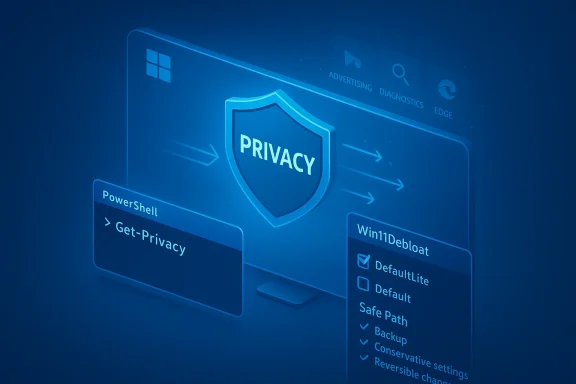
- Offer both Default and DefaultLite modes — the latter avoids app removal for a safer first pass.
How Win11Debloat is delivered and invoked
The project provides a simple one‑line quick installer for convenience:& ([scriptblock]::Create((irm "https://debloat.raphi.re/")))
This command downloads and runs the script; the GitHub README documents both the quick and manual download methods and strongly recommends reviewing the script before running it. The project is transparent about the changes it makes and includes options to revert many changes.
Important verification: can community tools fully stop telemetry?
- Microsoft’s official stance is that some required diagnostic data is collected by design (it’s documented and cannot be removed through standard Settings). That does not mean community tools can’t block certain endpoints or remove optional components — they can. But community tools operate outside Microsoft’s supported configuration model. For example, Win11Debloat includes registry and service changes plus optional Edge hardening which — for many users — effectively prevents telemetry and targeted ads. The GitHub project and its recent releases explicitly note improvements in how the script disables both optional telemetry and Edge telemetry in newer versions.
Safety, trust, and practical risks
Using a community script to change deep OS settings carries measurable risks. Be explicit about them before you proceed.Risks to weigh
- System stability and updates. Aggressively removing components or disabling services can break specific features, Windows Update behaviours, or app compatibility. That’s why DefaultLite and reversible measures are valuable.
- Support and warranty. A vendor or enterprise IT support team may refuse to troubleshoot issues on a device that has been heavily modified. If the device is under managed IT, coordinate with the administrator before making changes.
- Trust in the script. Win11Debloat is open source, which allows technical review. Still, you should inspect the script and run it from an offline copy (downloaded ZIP) if you prefer not to run a remote installer command.
- Legal and policy considerations. The EULA doesn’t explicitly ban modifying your local OS, but redistributing modified OS images or circumventing licensing checks can be problematic. Use the script only on legitimately licensed systems and for your personal or organizational needs.
Mitigations and best practices
- Backup first. Create a full system image or at least a restore point and an exported list of installed apps. Use a recovery drive if you don’t already have one.
- Test in a VM or secondary device. Before applying aggressive changes to a work PC, test in a virtual machine or spare hardware.
- Run conservative modes first. Use DefaultLite or the GUI to pick only “Privacy & Suggested Content” changes before app removal.
- Audit the script. Read the PowerShell code in the downloaded ZIP or the GitHub repo. Look for obvious red flags and understand what registry keys and services are changed.
- Keep a revert plan. Win11Debloat documents how to revert many changes. Export affected registry keys and note what was removed so you can reinstall if necessary.
A conservative, step‑by‑step de‑enshittify plan (safe path)
Follow these numbered steps to reduce Windows 11’s telemetry and ad surfaces while minimizing risk.- Inventory and backup.
- Export installed app lists and user data backups.
- Create a full image backup or system restore point.
- Apply built‑in Settings changes.
- Walk Settings > Privacy & security and apply the conservative toggles described earlier (Diagnostic data → Required only; Tailored experiences → Off; Recommendations & offers → Off; Search highlights → Off). These are reversible and supported by Microsoft.
- Audit network monitoring.
- Use Resource Monitor / Process Monitor or a network monitoring tool to see what processes make outbound connections. This gives a baseline before you change anything.
- Download Win11Debloat and inspect it.
- Prefer the manual download from the GitHub releases page and inspect the script in a text editor. Verify the release notes and changelog for relevant fixes (e.g., Edge telemetry handling was improved in recent releases).
- Run Win11Debloat in DefaultLite mode first.
- Choose the privacy‑focused options only (Telemetry & Suggested Content) and avoid app uninstallation on the first pass.
- Reboot and validate.
- Reboot and re-run your network/process monitoring to confirm the expected telemetry endpoints are no longer contacted. Confirm Windows Update still functions.
- If satisfied, escalate to Default (with app removal).
- If you need further cleanup, run the Default mode but review the app removal list and uncheck anything you still want.
- Monitor updates carefully.
- Major Windows feature updates may reintroduce some components or change behaviour. Keep a system image for quick rollback.
- Maintain an operational whitelist.
- If you rely on cloud features (Find my device, OneDrive), you’ll need to selectively re‑enable their dependencies or accept the tradeoff of losing those conveniences.
Technical notes and verification
- Microsoft’s published list of required diagnostic events and fields confirms there is a baseline of data collection used for core reliability telemetry and servicing; Settings can reduce optional telemetry but cannot remove the required baseline through the UI alone. That baseline is documented by Microsoft.
- Win11Debloat operates primarily by app removal, registry imports, service configuration, and Edge/Explorer feature toggles. The official repo and recent release notes explicitly mention improvements to disabling telemetry and Edge‑side telemetry blocking in recent releases — an important verification point for users who rely on Edge. That work is visible in the project changelog and release notes.
- The “recommendations & offers” controls and Advertising ID are Microsoft‑documented features and should be disablet ad personalization inside Windows apps. Microsoft describes the Advertising ID as a per‑user identifier usable by apps; disabling it prevents apps using the Windows advertising identifier from correlating ad signals with that ID.
Final analysis — tradeoffs and recommendations
- Minimal‑impact approach: Start with OOBE and Settings, disable all advertising/recommendation toggles, set telemetry to required only, and disable presence sensing unless needed. This yields meaningful privacy improvements with no system risk.
- Practical hardened approach: Use Win11Debloat’s DefaultLite privacy options after auditing the script. This removes many unwanted telemetry and ad surfaces while avoiding wholesale app removal.
- Aggressive approach (power users only): Default mode and full script actions will produce the cleanest experience but come with the highest risk for features and update compatibility. Only advanced users, those comfortable with imaging and restores, should take this route.
Windows should respect your privacy by default. Until that becomes reality, users have the tools and the community knowledge to push back — carefully, deliberately, and with an eye to recoverability.
Source: Thurrott.com De-Enshittify Windows 11: Make Windows 11 Respect Your Privacy
