

Accidentally pressing Shift + Delete doesn't always mean your files are gone forever — but time, storage type, and the recovery method you choose will determine whether you can get them back.
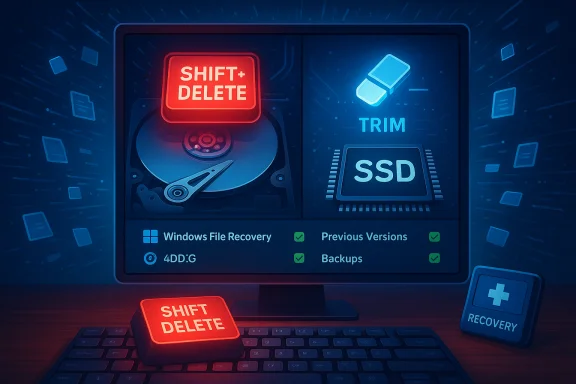
Every Windows user has a moment of cold dread: an important file disappears after an errant keystroke. Unlike a standard Delete, which moves items to the Recycle Bin, Shift + Delete removes the directory pointer immediately, making the file appear permanently removed. On traditional spinning hard drives (HDDs) the underlying data frequently remains intact until the operating system writes new data to those same sectors, which means recovery is often possible if you act quickly. On modern solid-state drives (SSDs), however, the TRIM command normally instructs the drive to clear the freed blocks — and when TRIM runs the deleted data is typically erased at the flash level, greatly reducing recovery chances. This article presents the four most practical recovery approaches used in 2025, explains when each method is likely to work (and when it won’t), verifies key technical claims, flags unverifiable or risky assumptions, and gives a defensible, step-by-step workflow you can follow. The guide cross-checks official Microsoft guidance, vendor product pages, and independent recovery specialists to make sure the advice is accurate and actionable.
Act fast, avoid writing to the affected disk, and adopt a robust backup routine — those three actions are the most practical ways to turn a near-disaster into a recoverable event.
Source: UrbanMatter [Fixed] How to Recover Shift Deleted Files in Windows 10/11 - UrbanMatter
 Background / Overview
Every Windows user has a moment of cold dread: an important file disappears after an errant keystroke. Unlike a standard Delete, which moves items to the Recycle Bin, Shift + Delete removes the directory pointer immediately, making the file appear permanently removed. On traditional spinning hard drives (HDDs) the underlying data frequently remains intact until the operating system writes new data to those same sectors, which means recovery is often possible if you act quickly. On modern solid-state drives (SSDs), however, the TRIM command normally instructs the drive to clear the freed blocks — and when TRIM runs the deleted data is typically erased at the flash level, greatly reducing recovery chances. This article presents the four most practical recovery approaches used in 2025, explains when each method is likely to work (and when it won’t), verifies key technical claims, flags unverifiable or risky assumptions, and gives a defensible, step-by-step workflow you can follow. The guide cross-checks official Microsoft guidance, vendor product pages, and independent recovery specialists to make sure the advice is accurate and actionable. Why Shift + Delete behaves differently on HDDs and SSDs
HDDs: deletion is a pointer change, not immediate erasure
When you delete a file on an HDD, Windows typically removes the file’s entry from the file system directory and marks the sectors as free — but the data blocks remain on the disk until overwritten. That’s why undelete tools can scan the disk and reconstruct files by reading the raw sectors and piecing data back together. Recovery success depends largely on how soon you stop using the drive and whether the deleted sectors have been reused.SSDs and TRIM: why recovery often fails
Most modern SSDs and Windows 10/11 installations use TRIM. When a delete happens, the OS tells the SSD controller which logical blocks are no longer used; the controller can then erase or mark those blocks so they won’t keep stale data, which improves performance and endurance. Because TRIM often leads to immediate or fast erasure of the deleted data at the flash level, deleted files on TRIM-enabled SSDs are frequently unrecoverable by consumer tools. This is corroborated by vendor and recovery-expert documentation. If the SSD’s TRIM was disabled or hasn’t run yet, recovery remains possible — which is why the immediate-stop-using-drive rule is even more critical for SSDs. How to check TRIM status on Windows:- Open an elevated Command Prompt (Run as administrator).
- Run: fsutil behavior query DisableDeleteNotify
- If the result is 0, TRIM is enabled; if 1, TRIM is disabled.
Immediate triage: stop, don’t save, and prepare
If you discover a Shift + Delete mistake, follow this triage checklist immediately:- Stop using the affected drive — do not save, install, or download anything to it. Every write increases the risk of overwriting deleted data.
- If possible, shut down the PC and remove the drive. Attach it to another machine as a secondary disk or connect it through a USB adapter to perform scans from a different OS image.
- Do not recover files to the same physical drive — always recover to a separate target (external drive or another internal disk). Windows File Recovery and GUI tools will warn about this; deliberately ignoring it can destroy recoverable data.
- If the drive is an SSD and TRIM is enabled, accept that consumer recovery may not work; contact a professional recovery lab only if the data is mission-critical and justify the cost.
Top 4 proven ways to recover Shift-deleted files in Windows (2025)
The four approaches below range from built-in and free to paid, and from non-technical to advanced. Each method is accompanied by realistic expectations, step-by-step instructions, and practical tips.Option A — Use Tenorshare 4DDiG (graphical, strong for HDDs and some SSD cases)
Why it’s on the list:- 4DDiG is a mainstream commercial recovery tool with a modern GUI, a wide file-type signature library, and both quick and deep scanning modes.
- The vendor offers a free tier that allows scanning and previewing — and free recovery up to 2 GB in recent builds, after which you must upgrade to a paid license to recover more. Verify the free-recovery cap before relying on it.
- You prefer a point-and-click interface.
- The deleted files are on an HDD or a non-TRIM SSD, and the data blocks likely haven’t been overwritten.
- You want rapid preview and selective restore.
- Download 4DDiG from the official site and install it on a separate drive (not the drive you’re recovering from). The free edition lets you scan and preview files; expect a free recovery limit on most releases.
- Launch the app, choose the affected drive, and start a Quick Scan. If you don’t find files, switch to Deep Scan (this reads raw sectors and takes longer).
- Preview recoverable items — most modern GUI tools let you open thumbnails or partial previews so you can confirm file integrity before restoring.
- Recover selected files to a different drive. If the free limit blocks restoration, consider upgrading (weigh the cost vs the file’s value).
- Strength: friendly UI, good file-type support, preview before recovery.
- Limit: free version recovery cap (commonly ~2 GB); success still depends on whether data was overwritten or TRIM executed. Vendor documentation confirms the free-tier limit and feature differences between free and pro builds.
Option B — Windows File Recovery (official Microsoft CLI tool)
Why choose it:- It’s free, maintained by Microsoft, and designed to recover deleted files from NTFS, exFAT, and ReFS. It supports metadata-driven (fast) and signature-based (deep) modes, making it the first choice before paying for commercial tools on many cases.
- The deleted data was on an NTFS volume and deletion was recent (Regular mode).
- You are comfortable copying/pasting a few command examples.
- You have a second drive to save recovered files.
- Requires Windows 10 version 2004 (build 19041) or later, or Windows 11.
- Always run from an elevated Command Prompt.
- Destination must be a different physical drive than the source.
- Install from the Microsoft Store (search “Windows File Recovery”).
- Open an elevated Command Prompt (right-click → Run as administrator).
- Basic syntax:
winfr <sourceDrive:> <destinationDrive:> /mode /n <filters> - Example (recent NTFS file): winfr C: D: /regular /n \Users\YourUserName\Documents\Important.docx
- Example (extensive signature search): winfr G: D: /extensive /n *.jpg
- Modes:
- /regular: fast, uses MFT metadata — best for recently deleted NTFS files.
- /extensive: scans raw sectors and can use /segment or /signature for files missing metadata. Slower, but necessary for formatted or corrupted volumes.
- If Regular finds nothing, retry with /extensive and add file-type filters to speed scanning.
- If you’re unfamiliar with the command line, copy-paste example commands and adapt paths and drive letters.
- Review the Recovery_ folder on the destination drive when the scan completes; a recovery log is typically written.
- Not a silver bullet — if sectors were overwritten or TRIM cleared them, even the extensive scan can’t reconstruct the data. Also, the CLI interface is less friendly than GUI tools for some users.
Option C — Previous Versions / File History (built-in snapshot-based recovery)
Why this matters:- If you had File History, System Restore’s Previous Versions, or another snapshot/backup solution enabled before deletion, restoring from a prior copy is almost always the safest and fastest way to retrieve intact files. These are not raw recovery attempts — they restore an earlier snapshot, so recovered files are clean and complete.
- Navigate to the folder that held the deleted file.
- Right‑click → Properties → Previous Versions tab. If File History or Shadow Copies were active, you’ll see snapshots you can open or restore.
- With File History: Control Panel → System and Security → File History → Restore personal files — browse the timeline and restore.
- You had enabled File History or scheduled backups before the deletion.
- The backup target (external drive or network location) is available and has the required snapshots.
- These features must have been configured beforehand. If they weren’t enabled, there are no previous snapshots to retrieve.
Option D — Backup and Restore (Windows 7 backup utility still present)
Why it’s useful:- The legacy Backup and Restore (Windows 7) control panel remains available on modern Windows builds; if you used it to create a system image or file backup, you can extract files from the backup. This method restores official backups rather than reconstructing raw sectors. It’s reliable but depends on having created backups in advance.
- Open Control Panel → System and Security → Backup and Restore (Windows 7).
- Click Restore my files → browse or search the backup → select files and choose a safe restore location (again, not the source drive).
- You made full backups previously and want to restore exact versions rather than attempting undelete heuristics.
What to do if these four options fail
If consumer tools and snapshots don’t find your files and the data is business-critical:- Consider a professional data recovery lab. Labs can perform controller-level or chip-off recovery for SSDs in rare cases, which is expensive but sometimes the only remaining option. Expect high costs and no guarantees.
- For partially damaged files, specialized repair tools (for video, photo, or document formats) can sometimes reconstruct truncated or corrupted items, but these are second-line measures.
Practical comparisons and what to expect (quick guide)
- Best first step for casual users: Check Recycle Bin, then Previous Versions/File History.
- Best free technical tool: Windows File Recovery for NTFS/exFAT/ReFS with the /regular and /extensive modes.
- Best GUI experience with preview: 4DDiG or comparable commercial tools; note the free recovery caps.
- If the drive is an SSD and TRIM is enabled: treat recovery chances as low and consider a professional lab for mission-critical data.
Preventive measures to avoid future Shift + Delete disasters
Prevention is always cheaper and more reliable than recovery. Establish this habit stack:- Backup strategy: “3-2-1” rule — three copies of your data, on two different media, with one copy off-site (cloud). File History, OneDrive, or third-party cloud backups can automate this.
- Versioning: Use services that keep version history (OneDrive, Google Drive) for documents that change frequently.
- SSD awareness: If you use an SSD, assume TRIM is on. Keep backups up-to-date because recovery post-TRIM is unlikely. Learn to check TRIM status with fsutil and configure backups accordingly.
- Avoid recovery software installation on the source drive: install recovery tools on a different drive or run them from a USB rescue environment.
- Secure deletion for sensitive data: when you need irrecoverable deletion, use a vetted secure-erase tool (Sysinternals SDelete for Windows) or the drive vendor’s cryptographic-erase utility. Note: secure erase behaviors and reliability differ on SSDs and HDDs; consult vendor guidance.
Common misconceptions and risky behaviors (what not to do)
- “Shift + Delete is a secure erase” — false. On HDDs, it usually is not; the data can be recovered until overwritten. On SSDs, TRIM may effectively clear data, but this is not guaranteed to be an irreversible secure wipe in every scenario. Treat both with care.
- “GUI tools can always do what labs do” — false. Consumer tools read logical sectors and use signature matching; only labs can attempt chip‑off or controller-level recovery, and those procedures are invasive and costly.
- “If a scan finds files, they’re guaranteed healthy” — false. Preview files where available; recovered files may be corrupted or truncated, especially when partial sectors were overwritten.
Final checklist (quick, actionable)
- Immediately stop writing to the source drive.
- Determine drive type (HDD vs SSD) and TRIM status (fsutil behavior query DisableDeleteNotify).
- Try built-in recovery: Recycle Bin → Previous Versions/File History → Backup and Restore.
- Use Windows File Recovery: /regular for recent NTFS deletions; /extensive for formatted/corrupted disks. Save recovered files to a different drive.
- If comfortable with GUI tools, scan with a reputable recovery app (note free-recovery caps like 2 GB on some vendors). Weigh vendor claims against independent reviews.
- If recovery fails and the data is essential, consult a professional recovery lab. Expect quotes, no guarantees, and an expensive bill.
Conclusion
Shift + Delete removes the directory pointers that let Windows find your files, but deletion is not always final — particularly on HDDs or on SSDs where TRIM hasn’t yet cleared the blocks. The right recovery path depends on your storage type, how quickly you act, and whether you had snapshots or backups in place. Start with built-in options (File History, Previous Versions) and Microsoft’s Windows File Recovery; if those fail, a reputable GUI tool like Tenorshare 4DDiG can help (remember the usual free-tier limits). For mission‑critical data that resists consumer methods, professional recovery labs are the last resort.Act fast, avoid writing to the affected disk, and adopt a robust backup routine — those three actions are the most practical ways to turn a near-disaster into a recoverable event.
Source: UrbanMatter [Fixed] How to Recover Shift Deleted Files in Windows 10/11 - UrbanMatter
