

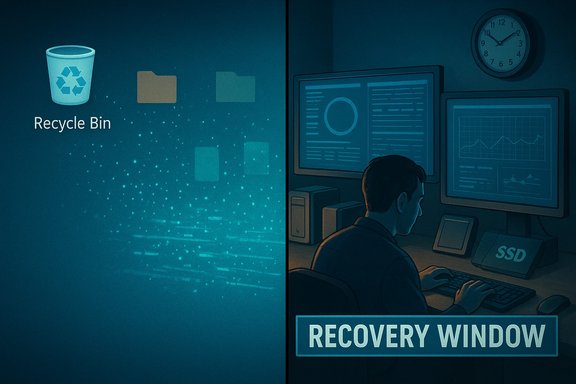
When the Recycle Bin is emptied it feels final, but deleted files often survive long enough to be rescued—if you act quickly, choose the right method, and understand the limits imposed by your storage hardware and Windows itself.
Background / Overview
Recovering files after the Recycle Bin has been emptied is a common scenario for Windows users, and the practical reality is a mixture of optimism and constraint: Windows typically marks deleted data blocks as free rather than instantly overwriting them, which leaves a window for recovery; however, modern SSDs and system activity can close that window fast. The user-supplied guide we reviewed lays out the practical options most consumers will encounter—commercial recovery tools (4DDiG), built-in Windows utilities (Backup & Restore, File History), cloud recovery (OneDrive), and professional labs—and offers a short decision table comparing speed, difficulty, cost and expected success.This feature unpacks those methods, verifies technical claims with authoritative documentation, highlights strengths and pitfalls, and provides a prioritized, practical playbook for recovering data after the Recycle Bin is emptied.
Why files can still be recovered (and when they cannot)
When you empty the Recycle Bin Windows removes the pointers to files but does not immediately erase the file data from disk; the sectors are flagged free and become candidates for reuse. This is why undelete tools can often reconstruct files—provided those sectors have not been overwritten by new data. The supplied guide explains that very point and correctly instructs users to stop using the affected PC to avoid overwrites.A critical caveat: SSD behavior and TRIM matter. On SSDs, the operating system commonly issues TRIM commands that tell the drive which blocks are no longer needed; the drive’s controller then erases or prepares those blocks for reuse, which makes recovery far less likely or effectively impossible in many real-world cases. This is not a vendor myth—storage vendors and data-recovery specialists document TRIM’s near-immediate effect on recoverability. Key practical takeaway:
- If data was on an HDD, immediate recovery attempts have a much higher chance of success.
- If data was on an SSD and TRIM is enabled, chances drop sharply; specialized labs may still attempt controller-level or chip-off techniques, but these are costly and not guaranteed.
Quick summary of the suggested recovery options
The guide presents several routes—some fast and free, some slower or paid. The most consumer-friendly methods are:- Use a third‑party data‑recovery tool (example: Tenorshare 4DDiG) to scan the disk and restore found files.
- Use Windows built‑in backups: Backup and Restore (Windows 7), File History, or Previous Versions if you had them enabled before deletion.
- Recover from OneDrive if files were synced to the cloud; personal OneDrive keeps deleted items for 30 days by default.
- Use Microsoft’s Windows File Recovery (CLI) for NTFS/exFAT/ReFS-based recoveries when metadata still exists.
- Send the drive to a professional data recovery service for forensic work when the files are mission-critical and other methods fail.
Method A — Third‑party recovery tools (GUI): why they work and how to use them
Commercial GUI recovery apps provide a friendly, point‑and‑click experience that’s ideal for most home users. Tools like Tenorshare 4DDiG let you scan a selected volume, preview recoverable files, and restore to a different drive. The original guide recommends 4DDiG for its ease of use and preview features.Why use a GUI tool?
- Ease of use: no command line required.
- Preview: many apps show thumbnails or partial previews so you can verify recovered files.
- Wide file-type support: signature databases allow recovery of thousands of file formats.
- Immediately stop writing to the affected drive. Power down nonessential apps and avoid creating files on the same volume.
- Install the recovery app on a different physical drive (or run from a USB drive). Never install recovery software onto the source volume.
- Select the source volume and run a Quick scan first, then a Deep or Deep Scan if nothing shows.
- Preview recovered results, select the files you need, and restore them to a separate drive.
- Verify file integrity before deciding to reuse or reformat the source drive.
- Strengths: user-friendly and effective for many HDD recoveries; previews reduce wasted effort.
- Limits: cannot recover data that has been overwritten or trimmed on SSDs; free versions often limit the amount of data you can actually export.
Method B — Microsoft’s Windows File Recovery (CLI): when to use it
For technically comfortable users, Microsoft’s free Windows File Recovery command-line tool is a powerful option. It is expressly designed to recover from NTFS, exFAT, and ReFS volumes using Regular (metadata‑driven) and Extensive (signature/raw) modes. Microsoft documents official syntax, mode recommendations, and the requirement that the source and destination must be different physical drives. Why this tool is important:- It’s maintained by Microsoft and optimized for NTFS metadata recovery.
- It supports both fast metadata-based and deep signature scans for formatted or corrupted disks.
- Install the app from the Microsoft Store and run it from an elevated Command Prompt.
- Basic format: winfr <source-drive:> <destination-drive:> /regular|/extensive /n <filter>
- Use /regular when deletion is recent and the volume is NTFS; use /extensive for older deletions, formatted volumes, FAT/exFAT, or corruption.
- Always recover to a different physical disk.
- Start with /regular; if nothing appears, move to /extensive with file-type filters (e.g., .jpg, .docx) to narrow searches and reduce runtime.
- If the disk is an SSD with TRIM enabled, warn the user: success is unlikely. Microsoft’s guidance explicitly notes the chance of overwritten space on SSDs can make recovery impossible.
Method C — Built‑in Windows backups: File History, Backup & Restore, and Previous Versions
The cleanest, lowest‑risk recoveries come from snapshots and backups that were created before the deletion. File History, Previous Versions, and Backup & Restore (Windows 7 legacy) let you restore intact copies rather than attempt low-level undelete heuristics. The Microsoft support pages explain how to open File History or the Previous Versions tab and restore older folder states. When to use them- You had File History or backups enabled before the deletion.
- You want an intact, verifiably good copy rather than a possibly fragmentary undelete.
- In File Explorer, navigate to the parent folder that contained the deleted files.
- Right‑click → Properties → Previous Versions, or use Control Panel → System and Security → File History → Restore personal files.
- Browse the timeline of snapshots, preview, and select Restore (or Restore to… to avoid overwriting current content).
- These tools are preventive—they only work if you enabled them ahead of time. If they weren’t active, there’s nothing to restore.
Method D — OneDrive and cloud sync: quick wins when configured
If files were being synced to OneDrive, recovery is often easiest from the cloud. OneDrive’s Recycle Bin holds personal-account deletions for 30 days by default (longer for work or school accounts under organizational policies). The OneDrive web Recycle Bin and the “Restore” action let you recover synced items quickly—note the Personal Vault behavior: files in the Vault will appear only after you unlock it. Steps for OneDrive recovery- Sign into OneDrive.com with the same Microsoft account.
- Open Recycle bin in the left panel and locate the deleted files.
- Select the items and click Restore.
- Fast, web-based, and often recovers files deleted from several devices that sync to OneDrive.
- Version history for Office documents is available from the online file’s Version History pane.
- Requires prior sync; items not uploaded to OneDrive won’t be present.
- Retention windows are finite (default 30 days for personal accounts), so you must act within that window.
Method E — Professional data recovery services: last resort for critical files
When the file is irreplaceable and consumer techniques fail—especially on SSDs with TRIM enabled or physically damaged disks—professional recovery labs offer advanced techniques like controller repair, firmware analysis, and chip‑off extraction. These procedures are specialized, invasive, expensive, and still not guaranteed. The consumer guide and community analyses both point to labs as a valid final option for mission‑critical data.What to expect
- Turnaround: days to weeks.
- Cost: variable—often hundreds to thousands of dollars depending on complexity.
- Guarantee: no lab can promise 100% success; insist on a transparent estimate and success criteria.
Cross‑checking and verification of technical claims
Several load‑bearing technical points were verified against authoritative sources:- Windows File Recovery modes, syntax, and source/destination rules are documented on Microsoft’s support pages; the tool supports Regular (metadata) and Extensive (signature/raw) modes and requires a different destination drive for recovered files.
- OneDrive retention policy is official: personal OneDrive items in the Recycle Bin are retained for 30 days by default (work/school accounts often use a 93‑day default policy unless admins change it). This affects cloud recovery windows.
- TRIM’s effect on SSD recoverability is corroborated by storage vendors and recovery specialists: TRIM instructs the SSD to mark and (eventually) erase blocks, which dramatically reduces or eliminates the possibility of software- or consumer-level recovery. Multiple authoritative vendor and recovery pages confirm this reality.
- Commercial tool limits: Tenorshare’s product pages and support material indicate free‑tier recovery caps and preview features (advertised up to 2 GB free in many packaging scenarios); verify the vendor’s current offering directly before purchase.
- Any vendor‑level percentage success claims (e.g., “99% recovery”) should be treated with skepticism—they depend on drive type, elapsed time, overwrite activity, and file type. The only reliable truth is that success varies by case and is time‑sensitive.
A prioritized, practical recovery checklist (what to do immediately)
- Stop using the computer. Rebooting, installing software, or saving files can overwrite recoverable sectors.
- Identify the storage type: HDD or SSD. If it’s an SSD, assume reduced recoverability and prioritize cloud backups or professional advice. (Check TRIM status with: fsutil behavior query disabledeletenotify.
- If the file was synced to OneDrive, check the OneDrive web Recycle Bin immediately.
- If you have File History or another backup, restore from snapshot (safe and clean).
- If no backups, attach a separate external drive and either:
- Run a GUI recovery tool installed on that external drive, or
- Use Windows File Recovery from an elevated prompt with a different destination drive.
- If the drive shows physical problems or contains highly sensitive/valuable data, stop and consult a professional lab.
Preventing future data loss: an actionable plan
Prevention is the strongest tool. Combine automated local snapshots with cloud sync and versioning to reduce the chance that accidental deletes become disasters.Key steps:
- Enable File History or a full backup schedule to an external drive and confirm it’s running. File History will retain previous versions of files and folders for easy restores.
- Use OneDrive, Google Drive, or another cloud provider with version history for actively edited documents. OneDrive also provides a Recycle Bin and version history for many files.
- Follow the 3‑2‑1 backup rule: three copies of important data, on two different media, with one copy off‑site (cloud).
- If you must make data irrecoverable, use vendor‑recommended secure‑erase procedures for SSDs or proven tools like Sysinternals SDelete for HDD free‑space wiping; on SSDs prefer manufacturer cryptographic-erase or secure-erase utilities.
- Periodically test restores from your backups—backups that can’t restore are worthless.
Practical scenarios and recommended first‑moves
- Accidentally deleted a work document last hour, drive is HDD: try Windows File Recovery (/regular) if comfortable with CLI, or a GUI tool that previews results; recover to an external drive.
- Deleted weeks ago, disk is SSD with TRIM likely enabled: check cloud backups and snapshots first; if none, consider professional recovery only if data is critical—the consumer success odds are low.
- Files were synced to OneDrive: log into OneDrive.com, look in the Recycle Bin and Personal Vault (unlock if necessary) and restore from there—fastest route if available.
Final assessment: strengths, risks, and realistic expectations
Strengths of the consumer recovery ecosystem:- Combined tools (backups + cloud + recovery apps) mean most accidental deletions on HDDs or recently deleted files can be recovered without lab work. The guide’s practical steps and choice matrix are broadly accurate for consumer scenarios.
- SSD + TRIM is the single biggest limiter; assume reduced odds unless the drive was powered off immediately and untouched.
- Vendor success claims should be tested; free tiers often limit recoverable data and GUI tools may encourage installation on the wrong drive—never install on the source drive.
- Professional labs are expensive and never 100% guaranteed—use them only for irreplaceable data after weighing cost vs value.
Conclusion
Emptying the Recycle Bin does not always mean permanent loss—but the clock starts immediately. The combined strategy that offers the best chance of recovery is: stop using the affected drive, verify cloud and snapshot backups first, then attempt safe recovery with a GUI tool or Microsoft’s Windows File Recovery (saving recovered files to a different disk). If the storage medium is an SSD and TRIM is active, set expectations low and consider professional services only for irreplaceable data. The consumer guide you provided outlines these practical routes and is largely accurate; the technical constraints and vendor caveats highlighted here are essential context for making a prudent choice.An immediate action checklist (one last, printable summary):
- Stop writing to the drive.
- Check OneDrive and cloud backups right away.
- If you had File History or backups, restore from snapshots.
- If not, attach an external drive and run a GUI recovery (or Windows File Recovery) with the destination set to that external drive.
- If the drive is physically failing or the data is critical and other methods fail, consult a professional recovery lab.
Source: TheGWW.com How to Recover Deleted Files from Recycle Bin After Empty: 6 Proven Ways
