

iToolab’s latest update, RecoverGo Windows Data Recovery V1.3.0, arrives with a bold promise: recover “permanently deleted files” with a success rate of up to 99% — a claim that demands technical unpacking, practical testing, and a dose of healthy skepticism before anyone treats it as a guarantee.
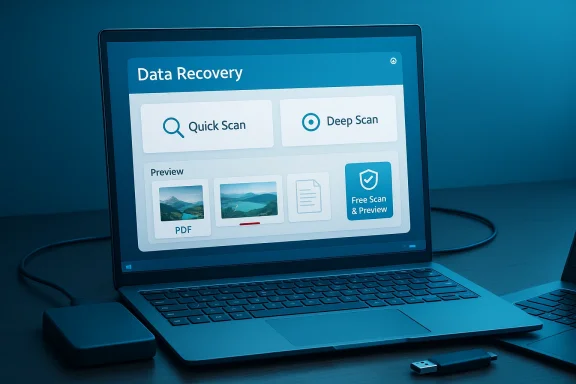
iToolab positions RecoverGo V1.3.0 as an easy-to-use recovery tool for Windows 11/10/8/7 that supports internal drives, external HDDs/SSDs, SD cards, USB sticks, and cameras. The vendor emphasizes a user-friendly interface, free scan and preview, optimized scanning modes, and advanced filters to speed identification of lost files. Licenses are sold in three tiers — 1 month, 1 year, and lifetime — at price points the vendor lists as $39.99, $49.99, and $69.99 respectively.
That marketing summary matches what consumers expect from modern recovery GUIs: a guided workflow (select drive → quick scan → deep scan → preview → recover), built-in previews so you can confirm file integrity before buying, and device-wide compatibility. What separates typical marketing from operational reality are the underlying hardware and filesystem conditions under which recovery actually succeeds.
iToolab’s RecoverGo V1.3.0 is a useful addition to the recovery toolkit for everyday Windows users, offering sensible UX features and a freemium preview model that reduces purchase risk. Its marketing promises deserve scrutiny — and independent validation — but its practical strengths make it worth testing when you need to recover deleted photos, documents, or other common file types from HDDs and removable media. Act quickly when data loss occurs, avoid writes to the affected drive, validate previews before purchase, and treat vendor percentages as starting points for your own verification rather than absolute guarantees.
Source: StorageNewsletter iToolab RecoverGo Windows Data Recovery V1.3.0 Released to Recover Permanently Deleted Files
 Background
iToolab positions RecoverGo V1.3.0 as an easy-to-use recovery tool for Windows 11/10/8/7 that supports internal drives, external HDDs/SSDs, SD cards, USB sticks, and cameras. The vendor emphasizes a user-friendly interface, free scan and preview, optimized scanning modes, and advanced filters to speed identification of lost files. Licenses are sold in three tiers — 1 month, 1 year, and lifetime — at price points the vendor lists as $39.99, $49.99, and $69.99 respectively.That marketing summary matches what consumers expect from modern recovery GUIs: a guided workflow (select drive → quick scan → deep scan → preview → recover), built-in previews so you can confirm file integrity before buying, and device-wide compatibility. What separates typical marketing from operational reality are the underlying hardware and filesystem conditions under which recovery actually succeeds.
Overview of What’s New in V1.3.0
iToolab’s release narrative centers on several enhancements described as the core differentiators for V1.3.0:- Optimized scanning modes — tuned quick and advanced scans intended to improve detection in severe data-loss scenarios.
- Higher claimed recovery rate — marketing language that cites “up to 99%” success in certain cases.
- Free scan and preview — ability to run both quick and deep scans and preview recoverable files at no cost.
- Advanced filtering — file type, name, and path filters to reduce time-to-find.
- Wide device compatibility — support for internal and external HDDs/SSDs, memory cards, USB drives, and digital cameras.
How File Recovery Tools Really Work (A Technical Primer)
To evaluate any recovery claim, you must understand the two primary approaches consumer tools use and why certain devices are far easier to recover than others.Metadata-driven recovery (quick scan)
- Relies on file-system metadata — for NTFS this means the Master File Table (MFT) and directory records.
- When metadata is intact (recent deletion, no format), a tool can reconstruct file entries quickly and with high fidelity.
- This approach is fast and typically produces complete, usable files when it succeeds.
Signature or raw (deep) recovery
- Scans raw disk sectors to find file headers and footers (file signatures) when metadata is missing or corrupted.
- Works after formats or severe metadata loss, but is slower and can return fragmented, partial, or misnamed results.
- Deep scans can produce many recoverable artifacts but require careful manual or automated reassembly for fragmented files.
Why drive type matters — HDD vs SSD and the TRIM effect
- On mechanical hard drives (HDDs) deleted sectors are typically left unchanged until overwritten; software recovery tools often have a longer window to recover usable data.
- On solid-state drives (SSDs), the TRIM command allows the OS to tell the SSD which blocks are free. SSD controllers will often erase those blocks, sometimes immediately, making software recovery ineffective in many cases.
- The presence or absence of TRIM, the SSD controller’s firmware behavior, and whether the device uses encryption or secure erase routines are decisive variables for recoverability.
Overwrites and secure erasure
- If deleted data has been overwritten, or a secure erase (zeroing, cryptographic erase) has been performed, software-level recovery is effectively impossible.
- Forensic chip-off techniques exist but are costly, specialized, and not guaranteed to succeed. Consumer-grade GUI tools cannot substitute for lab work in these cases.
The 99% Claim — What It Means and Why It’s Not the Whole Story
iToolab’s “up to 99%” recovery rate for severe data-loss scenarios is a headline-grabbing number. But without transparency on test conditions, it’s meaningless for users trying to estimate their odds in real-world incidents. Important, unreported questions include:- Which media types were included in the tests (HDD only? SSD? SD cards?) and what proportion?
- Were TRIM-enabled SSDs included — and if so, how was TRIM handled during testing?
- Were the deletions recent or older? Immediate recovery chances differ dramatically from recovery weeks later.
- What file types and fragmentation states were tested?
- What sample size and variance were used to compute the figure?
Step-by-step: How RecoverGo Says Users Should Recover Permanently Deleted Files
According to the product guidance, the RecoverGo workflow is straightforward and aimed at non-technical users. Here’s a condensed, practical version of the vendor’s recommended steps — annotated with best-practice safety notes.- Free download and install RecoverGo on a separate drive (do not install on the affected volume).
- Launch the program and choose the location or device that contained the lost data.
- Run a Quick Scan first. If results don’t appear, run an Advanced (Deep) Scan.
- Preview recoverable items using the built-in preview pane.
- Select files to recover and export them to a different physical drive (never the source drive).
- Always stop writing to the affected drive the moment you detect data loss. Continued use increases the chance of overwrites.
- If the affected drive shows hardware symptoms (clicks, disconnects), do not run software recovery; consult a professional.
- Verify recovered files by opening a sample before deleting the source or committing to a backup.
Security, Privacy, and Vendor Hygiene
Running any recovery tool requires trust in the vendor and caution about privacy:- Verify the installer’s digital signature and scan it with reputable antivirus engines before running. The vendor’s store claims digital signing, but users should confirm for themselves.
- Confirm whether recovery is performed locally or if any data is uploaded to vendor servers; the press material does not explicitly clarify cloud involvement. If the tool uploads file fragments or metadata without explicit, informed user consent, that creates privacy and compliance issues for sensitive data. Request explicit documentation from the vendor on this point before recovering confidential files.
- Read licensing and refund policy details: free previews are useful, but many vendors restrict free export sizes or leave final recovery behind a paywall. Know the limits before you rely on a trial.
How to Evaluate RecoverGo Before You Buy
If you’re considering paying for a license, do the following checks first:- Run the free scan and preview. If the tool displays intact previews of your missing files, that strongly indicates the software can recover usable copies.
- Confirm whether the free edition limits how much data you can actually export without a paid license.
- Ask the vendor for test methodology behind their “99%” claim — a responsible vendor will disclose whether that figure applies to a specific drive class or set of controlled conditions.
- Compare previews from RecoverGo to previews from other recovery tools (Recuva, EaseUS, Stellar, Disk Drill, PhotoRec, or Microsoft’s Windows File Recovery CLI) to see which gives better fidelity for your scenario.
Alternatives and When to Use Them
RecoverGo is one option among many. Here’s how it fits the landscape and when other approaches make sense.- Windows File Recovery (Microsoft CLI) — Free, robust for NTFS/exFAT/ReFS when metadata exists; best for technical users comfortable with command line. Use /regular first (metadata-driven) then /extensive for raw signature searches. This tool is a good first choice before paying for commercial software.
- Open-source utilities (PhotoRec/TestDisk) — Powerful signature-based recovery and partition repair tools. PhotoRec excels at raw file signature recovery; TestDisk can often recover partitions and metadata. They are less polished but transparent and free.
- Commercial GUI suites (Stellar, EaseUS, Disk Drill, Tenorshare 4DDiG) — Offer guided workflows, previews, and paid licensing models similar to iToolab’s RecoverGo. Evaluate by running free scans to compare previews.
- Professional forensic labs — Required when drives show physical failure, when SSDs likely had TRIM enabled, or when forensically validated recovery is needed for legal or high-value data.
Independent Testing: What a Credible Validation Program Looks Like
If iToolab or any vendor expects the community to accept a headline recovery percentage, a credible validation program should include:- A detailed test matrix covering HDDs and SSDs, multiple file systems (NTFS, exFAT), and a range of file types and fragmentation levels.
- Explicit handling of TRIM in SSD tests: whether TRIM was on/off, and whether tests simulate real-world OS behavior.
- Sample sizes with statistical variance reporting and disclosure of the time window between deletion and recovery.
- Reproducible test scripts and raw data, ideally audited by a neutral third‑party laboratory.
Practical Checklist — If You’ve Just Deleted Files
- Immediately stop using the affected drive. Power down or disconnect it if you can.
- Install recovery software on a separate machine or external drive; do not install it to the source volume.
- Run a free quick scan, then a deep scan if needed. Use preview to check file integrity before paying.
- Recover files to a different physical disk or network storage.
- Validate recovered files by opening them before relying on them as the final copy.
- If the drive shows hardware symptoms or the files are mission-critical and unrecoverable by software, escalate to a reputable professional lab.
Strengths, Risks, and Final Verdict
Strengths
- User-friendly workflow and preview capability — valuable for non-technical users who need an approachable GUI and immediate feedback.
- Support for multiple device types — helpful for camera cards, USB media, and external HDDs.
- Free scanning and preview — the ability to see recoverable data before paying minimizes buyer’s remorse.
Risks and Limitations
- The 99% claim is unverifiable as presented — the vendor has not published a transparent testing methodology or breakdown by media type. Treat this figure as a marketing claim until independent lab validation is available.
- SSDs remain a weak point — if TRIM was active, consumer software recovery tools commonly fail and users should expect possibly zero recoverability.
- Installer and privacy hygiene — users must validate installers, check for digital signatures, and confirm whether data processing is local-only before recovering sensitive files.
Final verdict
iToolab RecoverGo Windows Data Recovery V1.3.0 looks and behaves like a mainstream consumer recovery product: it bundles the expected UI conveniences, preview features, and multi-device support into a single package that will help many everyday users recover files from HDDs, USB sticks, and memory cards. However, the headline figure of “up to 99%” must be treated cautiously and tested in your own environment with the free preview before you commit to a purchase. For SSD-based losses, professional lab consultation should be considered if the data is valuable.Practical Recommendations for Windows Users
- If you’ve lost files on an HDD or removable media and the data isn’t mission-critical, try RecoverGo’s free scan and preview first to gauge recoverability.
- For technical users or repeated recoveries, learn Microsoft’s Windows File Recovery CLI as a zero-cost baseline before buying commercial tools.
- Always recover to separate media and validate recovered files. If recovered files open correctly and appear intact in preview, the tool has achieved its primary technical objective.
- For SSDs, check whether TRIM is enabled and set realistic expectations. If TRIM likely ran, consider professional services for high-value data.
- Demand transparency from vendors advertising high success rates: publish test methodology, disclose media breakdowns, and provide reproducible metrics. Vendors that publish this information earn greater trust.
iToolab’s RecoverGo V1.3.0 is a useful addition to the recovery toolkit for everyday Windows users, offering sensible UX features and a freemium preview model that reduces purchase risk. Its marketing promises deserve scrutiny — and independent validation — but its practical strengths make it worth testing when you need to recover deleted photos, documents, or other common file types from HDDs and removable media. Act quickly when data loss occurs, avoid writes to the affected drive, validate previews before purchase, and treat vendor percentages as starting points for your own verification rather than absolute guarantees.
Source: StorageNewsletter iToolab RecoverGo Windows Data Recovery V1.3.0 Released to Recover Permanently Deleted Files
