

If you’ve ever watched Chrome quietly consume large chunks of your system RAM while you flit between tabs, you’re witnessing a consequence of modern browser design — and the good news is: you don’t have to live with it. While Google’s long-term architecture choices and incremental Memory Saver features only partially address the problem, a set of mature extensions and disciplined workflows can dramatically reduce Chrome’s footprint and restore usable system memory for the apps that really need it.
Modern Chromium-based browsers (Chrome included) favor isolation: tabs, renderers, plugins, and extensions run in separate processes to protect stability and security. That design makes browsers fast and resilient, but it also multiplies memory allocations across dozens of processes when you hoard tabs or run many extensions simultaneously. In practical terms, real-world tests and community traces show browsers often use roughly 1 GB per 10 simple tabs as a baseline, with media-rich pages, long-lived single-page apps, and heavy extensions pushing that number much higher. That’s why a session with dozens of tabs can easily consume several gigabytes of RAM.
This is not merely cosmetic: when system RAM is saturated, Windows begins to page, hard faults rise, and the whole machine feels sluggish. The most effective first steps are diagnostic — find the real culprits with Task Manager, Resource Monitor or Process Explorer — and then apply measured mitigations rather than blind “memory booster” tools.
Caveat: statements about Google “not planning to fix” Chrome’s memory habits are often editorial. It’s verifiable that Google prioritizes stability and security and ships incremental memory features, but the company’s roadmap and resource allocation are not public in a way that guarantees or disproves longer-term architectural shifts. Treat any claim about Google’s intentions as informed interpretation unless substantiated by explicit public product roadmaps.
Strengths:
Chrome will likely continue to prioritize stability and the developer-friendly architecture that made it dominant. For now, that means memory-conscious users must rely on better habits, smarter settings, and vetted extensions to tame the browser’s appetite. Those steps restore breathing room to your system and deliver the two things every power user wants: responsive foreground performance and the ability to keep the tabs they actually need — without letting Chrome quietly swallow the rest.
Source: MakeUseOf Google won’t fix Chrome’s memory hogging, but these extensions do
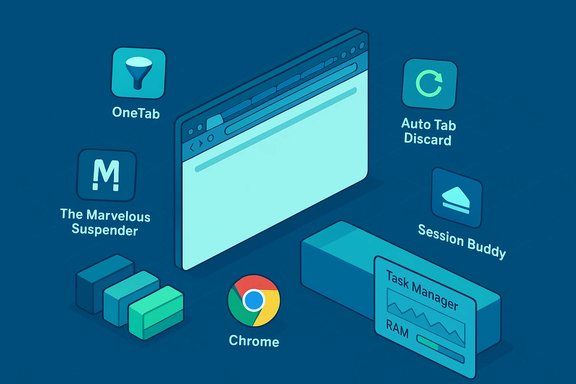 Background / Overview
Modern Chromium-based browsers (Chrome included) favor isolation: tabs, renderers, plugins, and extensions run in separate processes to protect stability and security. That design makes browsers fast and resilient, but it also multiplies memory allocations across dozens of processes when you hoard tabs or run many extensions simultaneously. In practical terms, real-world tests and community traces show browsers often use roughly 1 GB per 10 simple tabs as a baseline, with media-rich pages, long-lived single-page apps, and heavy extensions pushing that number much higher. That’s why a session with dozens of tabs can easily consume several gigabytes of RAM.This is not merely cosmetic: when system RAM is saturated, Windows begins to page, hard faults rise, and the whole machine feels sluggish. The most effective first steps are diagnostic — find the real culprits with Task Manager, Resource Monitor or Process Explorer — and then apply measured mitigations rather than blind “memory booster” tools.
Why Chrome eats RAM (technical snapshot)
- Multi-process model: Each tab and extension often has its own process or sub-process. That improves isolation at the cost of more per-process overhead.
- Aggressive caching and in-memory heaps: Modern web apps retain large JavaScript heaps, multimedia buffers, and cached DOM state to stay responsive — and those caches are kept in memory for long periods.
- Bundled runtimes and wrappers: Many desktop apps use Electron or WebView2; each of these runs a Chromium engine and can add several hundred megabytes to your baseline memory usage when multiple such apps are open. This compounds the problem for users who run Slack, Discord, Teams, and other WebView2/Electron apps alongside Chrome.
What Google has (and hasn’t) done: Memory Saver and the limits
Google has introduced features like tab discarding and a Memory Saver mode that attempts to reduce background resource usage. Those features help in typical consumer scenarios but stop short of an aggressive, automatic tab-eviction strategy suited to power users who routinely keep dozens of tabs open. Built-in approaches are conservative by design: they must balance conserving memory against breaking active background functionality (media playback, real-time collaboration tools, or background scripts). If you need more aggressive, immediate savings without changing your browsing habits, extensions are the practical route. Some of Chrome’s features can help, but they are not a comprehensive fix for persistent high-memory sessions.Caveat: statements about Google “not planning to fix” Chrome’s memory habits are often editorial. It’s verifiable that Google prioritizes stability and security and ships incremental memory features, but the company’s roadmap and resource allocation are not public in a way that guarantees or disproves longer-term architectural shifts. Treat any claim about Google’s intentions as informed interpretation unless substantiated by explicit public product roadmaps.
The real-world numbers you need to know
- Typical baseline: community and lab traces show roughly ~1 GB for every 10 simple tabs — this is an indicative average, not a fixed rule. Media-rich or script-heavy pages raise the per-tab number significantly.
- Edge/Chromium “sleeping tabs” style savings: vendor telemetry and tests indicate tens of megabytes saved per tab on average when sleeping/idle tabs are suspended. That indicates a meaningful aggregate reduction for dozens of tabs, even if individual savings vary by site.
- Electron/WebView2 costs: a handful of WebView2/Electron apps can fill several gigabytes of memory, particularly on 8–16 GB machines where each instance compounds baseline usage. This is a critical factor to include when you evaluate total system memory footprint.
Tested extensions that tame Chrome’s appetite (what they do, why they work)
Below is a practical look at the extensions MakeUseOf highlighted and how they behave in daily work. Each entry explains the mechanics, the real trade-offs, and a recommended use case.OneTab — the manual, bulletproof memory saver
- What it does: Converts all open tabs into a single, shareable list on one page. The original tabs are closed, freeing most of the memory they were consuming.
- Why it works: Closing tabs removes renderer processes and releases memory immediately. OneTab trades active tab convenience for an ultra-low-memory state and provides easy restoration.
- Pros: Simple, reliable, privacy-friendly (data stored locally unless you export/share), extremely low overhead.
- Cons: Manual step — you must remember to invoke OneTab when tabs proliferate. Restoring many tabs simultaneously can trigger a load spike as Chrome reloads multiple pages.
- Best for: Users who periodically archive entire sessions (end-of-day cleanup, project switches).
Auto Tab Discard — granular, configurable suspensions
- What it does: Uses Chrome’s native tab discarding API to automatically unload or “discard” idle tabs on configurable conditions (e.g., idle timeouts, battery state, media presence).
- Why it works: Discarded tabs remain visible in tab strip but have no memory-resident renderer; Chrome reloads them when you return, which keeps workflow intact while cutting memory usage.
- Pros: Highly configurable; uses native discard behavior so compatibility is robust; suspended tabs don’t run background scripts or consume CPU.
- Cons: Tab state that depends on in-memory data may be lost unless the site persists state server-side; configuring many rules can be fiddly.
- Best for: Power users who want fine control over when and how tabs are unloaded without changing browsing patterns.
The Marvelous Suspender — privacy-focused suspension (a fork with safer history)
- What it does: A modern, privacy-focused fork of older “suspend tab” extensions. It suspends tabs after inactivity and supports whitelists, session saves, and quick reload-on-click behavior.
- Why it works: Suspended tabs remain visible but don’t consume resources until reactivated; it replaces older, problematic extensions with a safer codebase.
- Pros: Set-and-forget; session saving; updated for Manifest V3 compatibility to keep working as Chrome changes extension rules.
- Cons: As with any extension, trust and code transparency matter; verify the extension’s permissions and origin before installing.
- Best for: Users who want automatic suspension with privacy assurances and session management.
Tab Suspender — aggressive trimming for extreme tab hoarders
- What it does: Aggressively suspends or even auto-closes long-unused tabs, with options for native discard support and auto-close behavior to keep tab counts manageable.
- Why it works: By combining suspension and optional automatic closure, this approach keeps both memory footprint and tab clutter low.
- Pros: Very effective at keeping the browser lean for users who accumulate dozens or hundreds of tabs over time.
- Cons: Aggressive policies may surprise you by closing tabs you expected to keep; whitelist carefully.
- Best for: People who want the browser to police their tab hoard automatically.
Session Buddy — session management and crash recovery
- What it does: Saves and organizes window/tab sessions for reuse later. It’s less about real-time memory savings and more about enabling radical cleanup by letting you re-open entire groups of tabs on demand.
- Why it works: You can close windows or entire sessions to free memory, then restore only what you need when you need it.
- Pros: Excellent for project-based workflows and crash recovery; stores sessions locally and lets you search past sessions.
- Cons: Not focused purely on memory reduction; relies on the user to close and reopen sessions as needed.
- Best for: Multi-project users who want reliable session snapshots and organized tab restoration.
Safety, privacy, and extension hygiene
Extensions that manipulate tabs and memory need broad permissions. Historically, some “tab manager” extensions behaved poorly or were sold and repurposed; The Great Suspender is a cautionary example of an extension that was later associated with malicious updates, which is why forks like The Marvelous Suspender emphasize privacy and open code. Always do the following before installing:- Check manifest permissions and reviews.
- Prefer extensions with transparent codebases or reputable authors.
- Verify Manifest V3 compatibility (Chrome’s extension platform has moved to MV3, which changes background behavior and APIs).
- For serious risk-averse environments, consider enterprise policies that restrict third-party extensions.
Practical, measured workflow to reduce Chrome RAM (step-by-step)
- Diagnose first.
- Open Chrome’s Task Manager (Shift + Esc) and sort by Memory to find heavy tabs and extensions.
- Use Windows Task Manager and Resource Monitor to check system-level memory and paging. These diagnostics tell you whether one runaway tab or many small consumers are the problem.
- Apply low-friction fixes.
- Disable or remove rarely-used extensions.
- Turn on Chrome’s built-in Memory Saver / tab discarding features if not already enabled. Expect modest, conservative improvements.
- Add a tab-manager extension to match your workflow.
- Use OneTab for manual archiving when you want to close whole sessions quickly.
- Use Auto Tab Discard or The Marvelous Suspender for automatic suspension with whitelists.
- Use Tab Suspender only if you accept more aggressive auto-close behavior.
- Use session managers for project switching.
- Save window groups with Session Buddy and close the windows to free memory. Restore only the session you need at a given time.
- Monitor results and iterate.
- Measure memory before and after changes. If swapping continues or your working set stays high, revisit which sites or apps you keep open.
- If multiple Electron/WebView2 apps are stacked alongside a tab-heavy Chrome, consider using web clients inside a single browser instance (and then suspend those tabs) rather than multiple separate native apps. That can reduce duplication of engines.
- If persistent pressure remains: consider hardware or platform changes.
- More RAM is the only permanent cure for workflows that legitimately need many active heavy tabs, VM instances, or content creation tools. If you consistently hit paging on an 8–16 GB machine, upgrading to 16–32 GB is reasonable.
Cross-checking claims and verifiable takeaways
- Claim: “Tabs consume ~1 GB per 10 tabs.” Verifiable? This is an empirical average from community traces and lab tests; it’s a practical heuristic rather than a strict rule. Actual per-tab usage depends on site complexity and installed extensions. Use Task Manager to measure your workload.
- Claim: “Sleeping/suspended tabs save tens of MB per tab.” Verifiable? Vendor telemetry and hands-on tests for sleeping-tab features show typical per-tab savings in the tens of megabytes range, which becomes meaningful in aggregate for many tabs. Expect variance by site.
- Claim: “Electron and WebView2 apps can consume several GB.” Verifiable? Community traces and reproducible experiments show that modern WebView2/Electron clients (Discord, Slack, WhatsApp, etc. often have baseline footprints in the hundreds of MBs to 1+ GB depending on workload, and a few running together can saturate 8–16 GB systems. This is a documented contributor to perceived memory bloat.
- Claim: “Extensions like The Marvelous Suspender are MV3-compatible and privacy-focused.” Verifiable? Many modern suspender forks explicitly updated for Manifest V3; however, verify each extension’s current manifest and source before trusting it, because the extension ecosystem changes. Flag any claim about “safe” or “privacy-focused” as conditional on the current code and the developer’s transparency.
Enterprise and advanced-user notes
- Admin controls: Browsers like Edge expose Resource Controls and enterprise policies to cap browser memory centrally, which is useful in managed environments where a single app’s runaway memory could affect business workloads. Chrome’s central management features are more limited in this regard, so enterprise teams often pair endpoint policies with user education and extension controls.
- For IT: instrument memory telemetry (p95/p99) and prioritize fixes that reduce long-lived memory retention in apps. If an application shows monotonic memory growth, schedule vendor-side debugging and consider short-term restarts as a mitigation while waiting for patches.
- For developers: consider shared runtimes, stricter eviction of in-memory caches, and explicit low-memory modes for heavy web apps. These engineering choices reduce per-client cost and improve user experience on constrained devices.
Final analysis — strengths, risks, and a clear path forward
Extensions that suspend or discard tabs are a pragmatic, low-risk way to reduce Chrome RAM usage without abandoning the browser. They come in flavors that support manual archiving (OneTab), granular discard policies (Auto Tab Discard), privacy-minded automatic suspension (The Marvelous Suspender), and aggressive auto-trimming (Tab Suspender). For project-based workflows, Session Buddy gives you controlled cleanup and fast restoration. Collectively, these tools let users match browser behavior to their own tolerance for reloads, lost in-memory state, and automation.Strengths:
- Immediate, measurable memory reductions when tabs are suspended or closed.
- Wide variety of options — manual to automatic — so users can choose behavior that fits their workflow.
- Many modern suspender forks updated for Manifest V3, which extends longevity.
- Extension trust and permissions matter; poorly maintained or compromised extensions can introduce privacy or security risks.
- Aggressive suspension/auto-close can disrupt workflows if you rely on in-memory state in web apps.
- Built-in browser features (Memory Saver, tab discarding) are modest and cautious by design — extensions fill the gap but require user judgment.
- Diagnose (Task Manager/Resource Monitor).
- Prune extensions and startup apps.
- Choose a tab-management strategy that fits your tolerance for reloads:
- Manual archiving with OneTab for tidy sessions.
- Automatic suspension (Auto Tab Discard or Marvelous Suspender) for steady-state low memory.
- Session Buddy for project workflows.
- Measure results and, if necessary, increase physical RAM for workloads that genuinely need many active heavy tabs or multiple WebView2/Electron apps.
Chrome will likely continue to prioritize stability and the developer-friendly architecture that made it dominant. For now, that means memory-conscious users must rely on better habits, smarter settings, and vetted extensions to tame the browser’s appetite. Those steps restore breathing room to your system and deliver the two things every power user wants: responsive foreground performance and the ability to keep the tabs they actually need — without letting Chrome quietly swallow the rest.
Source: MakeUseOf Google won’t fix Chrome’s memory hogging, but these extensions do
