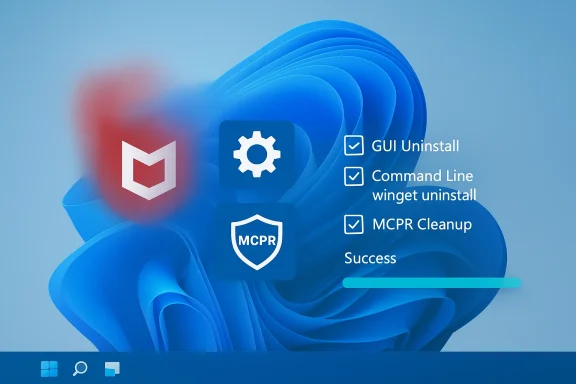
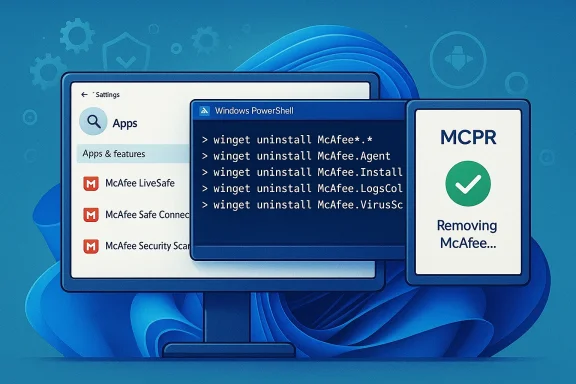
If McAfee arrived on your new laptop as a trial or factory-installed security bundle and you’re ready to remove it, there are three reliable paths to a clean uninstall on Windows 11: the built‑in Settings (GUI) flow, a fast command‑line removal with Microsoft’s winget package manager, and a deep cleanup sweep with McAfee’s official MCPR removal tool. Each method has its place: Settings is the easiest for beginners, winget is the fastest and most precise for power users, and MCPR is the guaranteed “final pass” that eliminates stubborn leftovers. This article walks through all three methods step‑by‑step, explains how to verify a complete removal, highlights common failure modes and fixes, and covers the security implications of uninstalling a third‑party antivirus on Windows 11. The guidance below synthesizes hands‑on testing and vendor documentation to give you a safe, repeatable process to remove McAfee completely. m]
McAfee frequently ships as trialware on machines from Dell, HP, Lenovo, ASUS and other OEMs. That preinstalled copy may be branded as McAfee Total Protection, McAfee LiveSafe, McAfee AntiVirus Plus, McAfee WebAdvisor, or other component packages. These bundles create recurring renewal prompts and can remain deeply integrated with the OS via drivers, services, scheduled tasks, and registry keys. Uninstalling the visible app often leaves residual files behind; for that reaa dedicated removal utility (MCPR) to complete the job.
Before you start, understand two important facts:
Removing McAfee from Windows 11 is straightforward when you choose the right tool for the job: Settings for simplicity, winget for speed and precision, and MCPR for the final, thorough cleanup. Follow the verification checklist, confirm Windows Security or a replacement AV is active, and use the troubleshooting tips above if you hit a stubborn service or a stuck removal tool. With the steps in this guide you can remove McAfee completely and safely, restore a cleaner system state, and return to a protected, predictable Windows 11 experience.
Source: H2S Media How to Uninstall McAfee on Windows 11 (3 Methods Including winget)
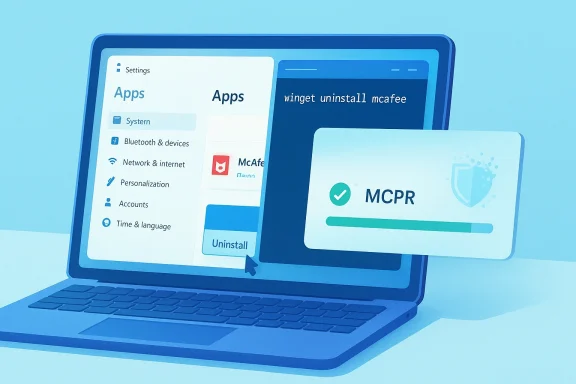 Background / Overview
McAfee frequently ships as trialware on machines from Dell, HP, Lenovo, ASUS and other OEMs. That preinstalled copy may be branded as McAfee Total Protection, McAfee LiveSafe, McAfee AntiVirus Plus, McAfee WebAdvisor, or other component packages. These bundles create recurring renewal prompts and can remain deeply integrated with the OS via drivers, services, scheduled tasks, and registry keys. Uninstalling the visible app often leaves residual files behind; for that reaa dedicated removal utility (MCPR) to complete the job.Before you start, understand two important facts:
- Removing McAfee will leave the system without that specific third‑party protection. Windows Security (Microsoft Defender) typically reactivates automatically when a third‑party AV is removed or expires, but you should confirm Defender (or another replacement) is active afterward.
- McAfee installs kernel‑level drivers and background services that require a restart to fully unload; many uninstall flows will prompt or force a reboot. Plan for a saved workspace and a brief downtime window.
Preparation — Safety & housekeeping checklist
Do these simple preparatory steps before removing McAfee. They take five minutes and save a lot of troubleshooting time.- Confirm you are signed into an administrator account (all methods below require admin rights).
- Create a System Restore point (Start → search “Create a restore point” → System Protection → Create). Label it clearly (for example “Before McAfee removal”).
- Save open work and close all apps. Right‑clickee icon (if present) and exit/close the UI before running an uninstall.
- Note the exact McAfee product name you see in Settings → Apps → Installed apps — you’ll need the exact string or package ID for winget. Typical OEM names: McAfee LiveSafe or McAfee Total Protection.
Method 1 — Remove McAfee via Settings (GUI)
This is the most accessible approach and works for most users.Steps (GUI)
- Press Win + I to open Settings.
- Go to Apps → Installed apps.
- Type “McAfee” into the search box; the product entries will appear (Total Protection, LiveSafe, WebAdvisor, Security Scan Plus, etc.).
- Click the three‑dot menu (⋯) next to each McAfee entry and choose Uninstall. Confirm the prompts.
- The McAfee uninstall wizardYes** to remove all components when asked. Follow on‑screen prompts.
- Reboot when prompted. This reboot is required to unload kernel drivers and services.
- After restart, return to Settings → Installed apps and repeat until no McAfee entries remain.
Strengths and limitations
- Strengths: Simple, visual, suitable for nontechnical users.
andard uninstaller uses McAfee’s own removal routine and can leave registry keys, scheduled tasks, empty folders, or orphaned services behind. McAfee itself recommends a follow‑up run of its MCPR removal tool to ensure complete cleanup.
Method 2 — Uninstall McAfee using winget (CLI)
For speed, repeatability, and automation across multiple machines, use Windows Package Manager (winget). winget lists installed packages (even those not originally installed via winget) and can call the underlying uninstaller by package ID — ideal for OEM‑preloaded apps.Why winget?
- Precise: you can target exact package IDs rather than guessing product names.
- Fast: run a single command instead of multiple GUI clicks.
- Scriptable: suitable for sysadmins and power users removing bloatware across many devices.
Steps (winget)
- Open an elevated terminal: right‑click Start → Terminal (Admin) (PowerShell or Command Prompt is fine).
- List McAfee packages:
winget list --name McAfee
This scans installed applications for matches and shows the Name and Id columns. If nothing appears, run a broader search:
winget list | findstr /i mcafee
or look for product aliases like “livesafe”. - Uninstall by package ID: once you have the exact ID from the list’s Id column, run:
winget uninstall --id "McAfee.TotalProtection"
Replace the ID with the one shown on your machine. Use--source wingetif you want to restrict the source (this also avoids Microsoft Store agreement prompts). The--idflag is supported by winget uninstall and avoids ambiguous matches. - Repeat the uninstall command for each McAfeey
winget list(WebAdvisor, Security Scan, etc.). - Reboot to complete driver and service removal:
shutdown /r /t 30 /c "Restarting to complete McAfee removal"
Notes and troubleshooting (winget)
- If winget shows no McAfee packages, the product may be registered under a GUID or the OEM used a custom installer. In that case, use the Settings GUI or run MCPR directly.
- If the uninstaller prompts the Microsoft Store EULA, add
--source wingetto avoid the prompt.
Method 3 — Deep cleanup with McAfee MCPR (McAfee Consumer Product Removal)
When the regular uninstall doesn’t fully remove McAfee, or the uninstaller fails, MCPR is the official removal tool McAfee provides to scrub leftover files, drivers, tasks, and registry entries. Treat MCPR as the second pass after a standard uninstall, or use it as a fallback if the standard uninstall won’t run.What MCPR does
- Scans system for McAfee product traces and removes leftover files, drivers, scheduled tasks, and registry remnants.
- Requires a restart to finalize removal.
- McAfee updates MCPR periodically — always download a fresh copy before running.
How to run MCPR (step‑by‑step)
- Download the latest MCPR executable from McAfee’s support site (save it to Desktop or Downloads). Always fetch a fresh copy before use.
- Double‑click MCPR.exe. Approve the UAC prompt.
- Click Next, accept the license, then type the CAPTCHA (case‑sensitive) and click Next.
- MCPR will scan and remove remnants (typically 2–5 minutes). Wait until it reports Cleanup Successful.
- Reboot when prompted. After the reboot, verify McAfee is gone.
When to use MCPR
- After a normal uninstall to catch leftovers.
- If the McAfee uninstaller s.
- If you find orphaned McAfee services, scheduled tasks, or folders after uninstall.
Common Ms
- MCPR stuck on a product removal step: community reports show MCPR can hang if McAfee processes remain running. Kill McAfee tasks in Task Manager or reboot to Safe Mode and retry. Some users resolved hanging by terminating a worker process like
sediag.exeor similar before rerunning MCPR. Use Task Manager or an elevatedtaskkill /IM <processname> /F. Community threads document these workarounds — use caution and verify process names before killing them. - MCPR reports “Access Denied” when deleting files: take ownership of the folder (Properties → Security → Advanced → Change owner) and retry delet modify boot‑critical files due to Early Launch Anti‑Malware (ELAM): boot to Advanced Startup and disable “Early launch anti‑malware protection”, then run MCPR and reboot.
Verify McAfee is completely removed — checklist
After any uninstall path, don’t assume the job’s done — verify systematically:- Settings → Apps → Installed apps: search for “McAfee” → nothing should remain. Optionally run:
Code:winget list --namlist should return no McAfee entries. - Services: Press Win + R → services.msc → look for services with “McAfee” in the name (common ones: McAfee Application Installer, McAfee WebAdvisor, mcapexe, McAWFwk, mccspsvc). None should be present. If you find remnants, note the short service name and delete with:
sc delete <service-short-name>
Use this only if you verified the service is orphaned. - Task Manager: Ctrl + Shift + Esc → Processes & Startup apps tabs → no McAfee processes or startup entries should be present.
- Folders: check these paths and delete any leftover McAfee directories (you may need elevated permissions or to take ownership first):
- C:\Program Files\McAfee
- C:\Program Files (x86)\McAfee
- C:\ProgramData\McAfee
If folders persist after MCPR, take ownership and remove them manually. - Task Scheduler: open Task Scheduler → Task Schte any McAfee tasks.
- Windows Security (Defender): Settings → Privacy & security → Windows Security → Virus & threat protection. Confirm that Microsoft Defender Antivirus is listed as the active pr re‑enable Defender if no other valid AV is active. If you prefer Defender, check Real‑time protection is On. If you plan to install a third‑party replacement, install it now; Defender will defer to it.
Troubleshooting common uninstall failures
Problem: Uninstaller hangs or freezes- Likely caused by active McAfee real‑time services locking files. Boot to Safe Mode (hold Shiftrt → Troubleshoot → Advanced options → Startup Settings → Restart → choose Safe Mode) and run the uninstall or MCPR there. Safe Mode prevents many services from loading.
- OEM installersroducts under GUIDs or nonstandard names. Try broader winget list commands and string matches, or use the GUI or MCPR.
- Identify the service short name in Services → Properties, then delete it with:
sc delete <service-short-name>
Reboot after deleting services. Use caution and confirm the service belongs to McAfee before deleting.
- ELAM or other boot‑time protections could be blocking MCPR. Boot to Advanced Startup → Troubleshoot → Advanced options → Startup Settings and disable Early Launch Anti‑Malware protection temporarily, then rerun MCPR.
After removal — what to run next
- Confirm Windows Security (Microsoft Defender) is active if you don’t plan to install another AV. Defender provides real‑time protection out of the box and will activate automatically when third‑party protection is absent. If you prefer a third‑party product, install it now and allow it to register as the active provider.
- Run a full system scan with Defender or your chosen AV to ensure no threats remain.
- If you removed McAfee because of performance or privacy concerns, consider auditing other OEM trial apps and services; removing unnecessary bloatware can simplify alerts and reduce background resource use.
Alternative antivirus options (brief comparison)
If you don’t want to rely on Defender, here are three widely used options across different needs (not endorsements — evaluate for your environment):- Windows Security (Microsoft Defender) — Free, integrated into Windows 11, minimal setup, suitable for most home users. Activates automatically once third‑party AV is removed.
- Bitdefender Antivirus Free — Lightweight third‑party free option with strong detection scores and low system impact.
- Kaspersky Free / Kaspersky Security Cloud (free tier) — Good detection and additional web protection features; regional availability may vary.
Risk analysis & final recommendations
Uninstalling a factory‑installed AV like McAfee is low risk if you follow the steps above, but there are a few potential pitfalls to watch for:- Temporary exposure: During the uninstall and reboot process you may be without third‑party protection; Windows Defender typically steps in, but confirm it’s enabled. If you plan to be offline or to visit risky sites during the process, postpone until you can verify Defender or another AV is active.
- Leftover artifacts: Registry keys, scheduled tasks, and orphaned services can remain and may cause Windows to still show “another antivirus” installed, or create performance oddities. Running MCPR after the GUI or winget uninstall is the simplest way to eliminate these traces.
- Aggressive cleanup risks: Manually deleting files or services without verifying their ownership can break other software. Use MCPR first; only remove files or delete services manually if you’re confident they’re McAfee‑related and you have a restore point or backup.
- Corporate/managed devices: If your PC is managed by an organization, company policies may enforce a managed AV. Removing McAfee on a corporate device may violate policy and can trigger management actions. Check with IT before proceeding.
- Use Settings or winget for the visible uninstall. winget is recommended for power users and administrators for speed and scripting.
- Run MCPR afterward to catch leftovers or use it as the primary tool if the standard uninstall fails.
- Verify Defender or a replacement AV is active immediately after removal.
Quick reference — essential commands
- List McAfee entries (winget):
winget list --name McAfee - Broad search if not found:
winget list | findstr /i mcafee - Uninstall by package ID (example):
winget uninstall --id "McAfee.TotalProtection" - Reboot from command line:
shutdown /r /t 30 /c "Restarting to complete McAfee removal" - Delete orphaned Windows service (use only if verified):
sc delete <service-short-name> - Take ownership of a folder (GUI recommended; use Properties → Security → Advanced → Change owner)
Removing McAfee from Windows 11 is straightforward when you choose the right tool for the job: Settings for simplicity, winget for speed and precision, and MCPR for the final, thorough cleanup. Follow the verification checklist, confirm Windows Security or a replacement AV is active, and use the troubleshooting tips above if you hit a stubborn service or a stuck removal tool. With the steps in this guide you can remove McAfee completely and safely, restore a cleaner system state, and return to a protected, predictable Windows 11 experience.
Source: H2S Media How to Uninstall McAfee on Windows 11 (3 Methods Including winget)