

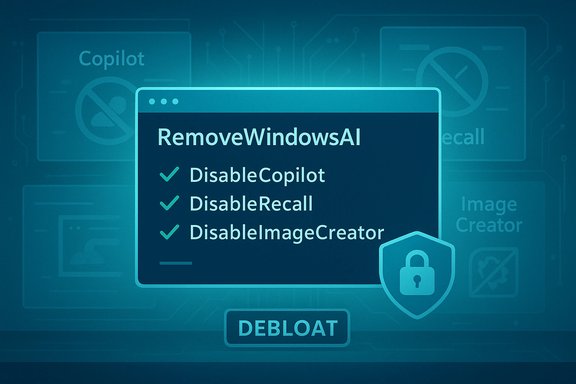
A compact, community-built PowerShell project called RemoveWindowsAI has rapidly become the go-to tool for Windows 11 users who want to disable or remove built‑in AI features such as Copilot, Recall, Image Creator/Studio Effects, and a raft of background services — and its rise underscores a growing tension between Microsoft’s push to make Windows an “AI PC” and a sizable segment of users who prefer a minimal, privacy‑first desktop.
Windows 11’s recent releases, particularly the 25H2 baseline and later cumulative updates, have layered in multiple generative and inference‑based features across the shell and inbox apps. Branded features like Copilot (an integrated assistant) and Recall (a local snapshot and indexing feature) now appear in the taskbar, Settings, File Explorer, Paint, Notepad and other system surfaces. Microsoft documents some protections for certain features (local processing, Windows Hello protections for specific data access), but many of these AI surfaces are delivered as modular packages and servicing metadata that can be re‑provisioned by Windows Update. Against this backdrop, a GitHub project under the handle zoicware — RemoveWindowsAI — packages a PowerShell script and optional GUI wrapper that automates the community’s manual opt‑out techniques. The repository’s README describes a layered approach to disabling or removing AI features: registry/policy flips, Appx/MSIX uninstalls (user and provisioned), scheduled‑task and data wipes (for Recall), and optional edits to Windows’ Component‑Based Servicing (CBS) inventory including installing a custom blocker package intended to prevent reinstallation. The repo explicitly targets stable Windows 11 builds (25H2 and later) and warns that Insider preview features are not included until they reach stable channels.
For experienced Windows enthusiasts and administrators prepared to test in VMs, maintain full backups, and accept upgrade fragility, RemoveWindowsAI is a legitimate tool in the toolbox — use it deliberately and incrementally. For enterprise fleets or users without robust recovery plans, the safer route remains supported administrative controls, documented Microsoft policies, and conservative change management.
Ultimately, RemoveWindowsAI is less a single‑line cure and more a community‑forged statement of demand: that users want agency over the AI features that are now woven into the OS. The practical response for anyone considering the tool is the same as for any powerful system modification: read the code, test before you touch production, back up everything, and proceed with an explicit rollback plan.
Source: Emegypt Script Empowers Users to Disable Built-In AI Features in Windows 11
 Background
Windows 11’s recent releases, particularly the 25H2 baseline and later cumulative updates, have layered in multiple generative and inference‑based features across the shell and inbox apps. Branded features like Copilot (an integrated assistant) and Recall (a local snapshot and indexing feature) now appear in the taskbar, Settings, File Explorer, Paint, Notepad and other system surfaces. Microsoft documents some protections for certain features (local processing, Windows Hello protections for specific data access), but many of these AI surfaces are delivered as modular packages and servicing metadata that can be re‑provisioned by Windows Update. Against this backdrop, a GitHub project under the handle zoicware — RemoveWindowsAI — packages a PowerShell script and optional GUI wrapper that automates the community’s manual opt‑out techniques. The repository’s README describes a layered approach to disabling or removing AI features: registry/policy flips, Appx/MSIX uninstalls (user and provisioned), scheduled‑task and data wipes (for Recall), and optional edits to Windows’ Component‑Based Servicing (CBS) inventory including installing a custom blocker package intended to prevent reinstallation. The repo explicitly targets stable Windows 11 builds (25H2 and later) and warns that Insider preview features are not included until they reach stable channels. What RemoveWindowsAI Claims to Do
The script advertises a broad feature set that aims to centralize opt‑out actions. Key advertised capabilities include:- Disable registry keys and policies for Copilot, Recall, Input Insights (typing/telemetry gates), Voice Access and other AI toggles.
- Remove Appx/MSIX packages implementing Copilot, Recall, Image Creator, and other first‑party AI components — both per‑user packages and provisioned manifests.
- Purge or neutralize hidden CBS packages (the servicing inventory elements that normally survive simple uninstalls).
- Delete scheduled tasks and local Recall snapshot indices to erase previously captured “timeline” data.
- Install a custom blocker package in the servicing store designed to prevent Windows Update from re‑provisioning removed AI components.
- Provide backupMode and revertMode to allow, in principle, restoration of removed components if backups were taken.
How the Script Works — Technical Anatomy
RemoveWindowsAI operates across several technical layers; each has distinct implications for risk and reversibility.1. Registry and Policy Changes (Least Invasive)
The script writes and flips registry keys and policy entries that hide UI elements and block activation paths for Copilot, Recall and related AI gates. These are often the same toggles Microsoft exposes in Settings or Group Policy and are generally reversible when values are backed up. However, some keys gate deeper component behavior referenced by other features.2. Appx/MSIX Package Removal (Moderate Risk)
Using PowerShell Appx cmdlets (Remove‑AppxPackage and Remove‑AppxProvisionedPackage), the script uninstalls visible first‑party AI apps and strips provisioned manifests. Removing per‑user packages is typically straightforward; removing provisioned packages alters what new profiles receive during provisioning and may affect OEM customizations or shared package families.3. CBS Store Edits and Blocker Package (Most Invasive)
This is the highest‑risk layer. The Component‑Based Servicing (CBS) inventory is Windows’ authoritative record of modular components and updates. RemoveWindowsAI attempts to purge or neutralize hidden servicing packages and can install a custom blocker package to stop Windows Update from re‑provisioning removed components. While effective at persistence, these manipulations intentionally diverge a machine’s servicing inventory from Microsoft’s expected baseline and are the primary source of upgrade and update fragility. Enterprise support and OEM warranties may be impacted by modifications at this layer.4. Scheduled Tasks and Local Data Deletion (Destructive)
To remove Recall’s timeline and snapshot artifacts, the script deletes scheduled jobs and local indices. This is privacy‑preserving only in the sense that it obliterates captured history — it is also irreversible unless backups were made. Users relying on Recall for recovery or search lose that data.Community, Maintenance, and Ecosystem
The project is open source (MIT licensed on GitHub) and maintained actively; contributors and forks have appeared quickly, some offering GUI front ends or mirrored repositories. The author encourages users to report features the script misses and provides documentation and a companion site for the project. Community engagement has generated helper tools, wrappers, and inclusion in wider debloating utilities. At the same time, the ecosystem has produced forks and mirrors — each one a separate artifact that should be audited independently. Open forks can accelerate updates to keep pace with Microsoft’s rollout, but they can also introduce divergence, packaging differences, or malicious alterations if end users fetch unverified copies. Several outlets and forum threads note that third‑party antivirus products frequently flag the script and similar “debloat” tools as malicious; the repository warns that false positives are common and recommends testing in a virtual machine first.Benefits — Why This Appeals to Users
- Single‑pane control for opt‑out: RemoveWindowsAI centralizes dozens of scattered toggles and manual steps into one automated workflow, saving time for power users and privacy‑minded individuals.
- Durability: By addressing both UI settings and provisioning/servicing metadata, the script aims to make removals persist through updates — appealing when Settings toggles are insufficient.
- Open source and actively maintained: The project’s GitHub presence, documentation and community contributions make it auditable in principle and responsive to new feature rollouts.
- Granularity: Users can choose to only flip registry keys, or to perform a full cleanup — a useful flexibility for risk‑aware operators.
Risks and Operational Costs — A Deep Dive
While the appeal is strong, the downsides deserve careful attention.Update and Upgrade Fragility
Manipulating the CBS store and installing blocker packages is the clearest single source of future problems. Feature updates and servicing expect a consistent servicing inventory; altering or removing packages in WinSxS/servicing can lead to failed updates, unexpected rollbacks, or a machine that requires a repair install or full OS reimage to restore to a known good state. Multiple community analyses and IT professionals identify CBS edits as the principal fragility vector.Supportability and Warranty Implications
A system heavily modified at the servicing and package level may be considered out of support by OEMs or managed‑service providers. Enterprises should avoid ad‑hoc scripts for fleet management and instead use supported controls (MDM, Group Policy, AppLocker, Windows Update for Business) to remain within support boundaries.Security Surface and Trust
Running an elevated script that downloads content or installs custom packages increases the attack surface. Even when the project is open source, forks or mirrored installers can be tampered with. Additionally, legitimate antivirus engines often flag deep‑system modification scripts; users who suppress alerts risk missing genuine warnings.Destructive Data Loss
Removal of Recall’s snapshots and scheduled‑task cleanup is intentionally destructive. Users who rely on Recall for productivity or forensic reasons risk irrecoverable loss unless they back up Recall indices first. The script’s backupMode is only as good as the backups taken prior to destructive operations.False Sense of “Complete” Removal
The repository’s stated aim is to remove “ALL” AI features from Windows 11, but this claim is difficult to verify across every OEM image, Insider build, and third‑party integration. New AI surfaces can be added in future updates and may live in channels the script does not yet cover; outcomes are therefore inherently variable. The project openly warns users of this limitation.Practical, Safe Steps to Evaluate or Use RemoveWindowsAI
The following numbered checklist synthesizes published guidance and common best practices for cautious use.- Prepare a recovery plan: create a full image backup (disk‑image) or system restore point and store it externally. Relying solely on Windows’ built‑in restore points is insufficient for CBS‑level changes.
- Test in a virtual machine first: run the script in a disposable VM that mirrors your hardware profile (if possible) to observe side effects and to validate revertMode. The project itself recommends VM testing.
- Audit the script before running it: review the PowerShell code in the live GitHub repo rather than blindly piping from raw URLs. Confirm the exact operations you'll permit (registry-only vs full cleanup).
- Disable or create exclusions in antivirus only if you have validated the script and understand the risks; do not globally disable security agents without cause. The repository warns about false positives but also stresses caution.
- Run incrementally: use the granular options to begin with registry and Appx removals before touching CBS or installing blocker packages. Validate system behavior after each step.
- Keep a record: log exactly what changes you applied (registry keys, packages removed, CBS blockers installed) so you can reconstruct steps or escalate to support if needed.
- Consider supported alternatives for managed fleets: use Group Policy, MDM profiles, or Windows Update for Business to control feature provisioning where possible instead of system‑level surgery.
Enterprise Considerations
For IT teams and managed environments, RemoveWindowsAI is not a drop‑in solution. Enterprises should:- Favor sanctioned controls (CSPs, MDM profiles, AD policy) that Microsoft documents for controlling Copilot/Recall features where available.
- Test any mass‑decommissioning in a lab that mirrors production and incorporate rollback/runbooks into change control.
- Understand compliance implications: deleting local audit/index data may hamper digital forensics, e‑discovery, or regulatory obligations in some environments.
Cross‑Verification and Fact Checks
- The primary repository and code are publicly hosted and actively updated on GitHub; the script’s README lists the same capability set described above (registry flips, Appx removals, CBS handling, blocker package, backup/revert). This confirms the project’s public scope.
- Independent technical coverage and hands‑on testing by reputable tech outlets confirm that the script can hide or remove visible Copilot/Recall UIs and unprovision many AI Appx packages on tested stable Windows 11 builds. However, reviewers also observed variability depending on OEM images and updates.
- Community and forum analyses repeatedly flag CBS edits and blocker packages as the highest‑risk operations that can cause future upgrade failures — a consistent, cross‑source concern.
Alternatives and Complementary Approaches
- Use Microsoft’s documented enterprise policies and CSPs to toggle Copilot and telemetry where available. These are supported and reversible with lower operational risk.
- Harden privacy settings, limit cloud integrations, and selectively disable features from Settings before attempting invasive removals. Many features can be toggled without package surgery.
- For users seeking an entirely different security/privacy posture, consider trusted alternative OS options or single‑purpose toolchains for dedicated tasks — but recognize the tradeoffs in app compatibility and driver support. Community commentary notes that some users opt to migrate to Linux or older Windows images when full control is required.
Final Analysis — Strengths, Risks, and a Practical Stance
RemoveWindowsAI is a powerful community response to a real user need: straightforward control over a surge of integrated AI features that many find intrusive or unnecessary. Its strengths are obvious — automation, granularity, open‑source visibility, and active maintenance. For experienced power users and privacy‑focused individuals who can tolerate operational risk and have robust backups, the script is a practical tool to regain control. But it is not a casual tool. The most consequential downside is the long‑term fragility introduced by servicing store edits and blocker packages. Those changes can compromise feature updates, complicate support, and, in the worst case, require a clean OS reinstallation. The security posture of running elevated scripts from the internet, and the proliferation of unvetted forks and GUIs, further raise caution flags. IT organizations and less technical users will be better served by official, supported controls whenever possible.Conclusion
RemoveWindowsAI crystallizes a practical debate: should users have a one‑click, durable opt‑out from an operating system increasingly designed as an “AI platform,” or should system integrity and update reliability constrain such options to supported controls? The script offers a clear, auditable and community‑driven path to remove or hide Copilot, Recall and many AI surfaces — and it works on many tested stable Windows 11 builds. However, its durability techniques (notably CBS manipulation and blocker packages) carry real, measurable risks to update health, supportability and data integrity.For experienced Windows enthusiasts and administrators prepared to test in VMs, maintain full backups, and accept upgrade fragility, RemoveWindowsAI is a legitimate tool in the toolbox — use it deliberately and incrementally. For enterprise fleets or users without robust recovery plans, the safer route remains supported administrative controls, documented Microsoft policies, and conservative change management.
Ultimately, RemoveWindowsAI is less a single‑line cure and more a community‑forged statement of demand: that users want agency over the AI features that are now woven into the OS. The practical response for anyone considering the tool is the same as for any powerful system modification: read the code, test before you touch production, back up everything, and proceed with an explicit rollback plan.
Source: Emegypt Script Empowers Users to Disable Built-In AI Features in Windows 11
