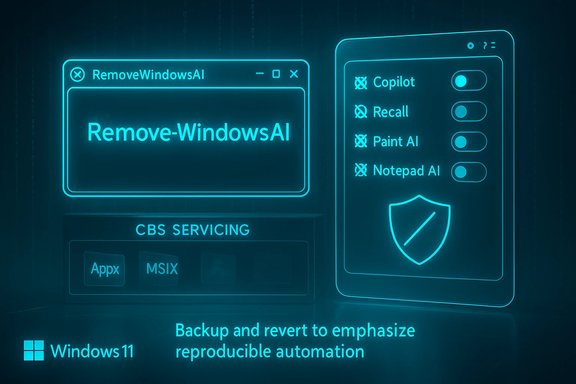
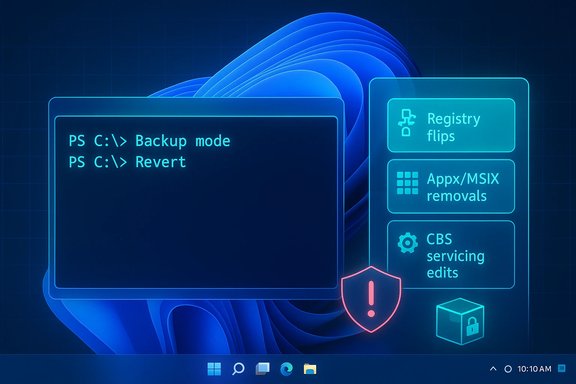
Windows 11 users who want an AI-free desktop now have a community-made tool that goes well beyond the built‑in toggles: a free PowerShell script called RemoveWindowsAI can remove Copilot, Recall, and a broad set of Microsoft’s built‑in AI entry points, then attempt to stop Windows Update from reinstalling them. The script is presented as a one‑stop way to strip visible AI UI and services from a Windows 11 system, and it combines registry policy changes, Appx package removals, scheduled‑task cleanups and a servicing‑store “blocker” to make removals persist across updates — but that approach brings technical trade‑offs and support risks that every power user should weigh carefully.
Windows 11 has been steadily folding AI into the operating system. Copilot is surfaced in the taskbar, Settings, and several bundled apps such as Notepad and Paint. Other AI components — Recall (device activity and timeline indexing), voice effects and accessibility features, AI image generation and rewrite actions — are scattered across the OS. Microsoft exposes many of these individually in Settings and enterprise policy, but there is no single Microsoft‑supported global switch to fully opt out of every AI integration.
This absence of a single control has two consequences. First, per‑feature toggles can be inconsistent: some UI elements reappear and some packages are reinstalled after cumulative updates. Second, privacy‑minded or traditional desktop users who want a minimal, AI‑free environment must either accept Microsoft’s defaults or use third‑party measures. RemoveWindowsAI is one such community response: it aims to remove visible AI entry points and harden the system against automatic reinstalls.
This blocker approach provides durability across many cumulative updates, but it also intentionally alters the servicing inventory, which Windows Update assumes matches Microsoft’s expectations. That mismatch can later cause conflicts during a major feature update or when Microsoft modifies package manifests. The result can range from harmless warnings to failed updates that require repair or a system refresh.
The script consolidates many low‑level cleanup steps that would otherwise require manual tracking and multiple tools.
However, the same techniques that give the script durability — modifying the servicing store, forcibly removing provisioned packages and installing blocker packages — are what make it risky for broad or inexperienced deployment. These changes can introduce update fragility, support complications and potential incompatibilities with OEM customizations or future Windows feature upgrades. The detection of the script as suspicious by antivirus engines is another practical hurdle.
For readers who value stability and vendor support above a fully AI‑stripped UI, a safer approach is to use official Settings and enterprise policies where available and to closely monitor Microsoft’s guidance for disabling specific features. For those who prioritize control and are comfortable with backups, a VM testbed and careful use of the script’s backup/revert modes will reduce many of the operational hazards.
In short: RemoveWindowsAI is an effective community answer to a genuine user need, and it demonstrates that technical users can regain control over AI surface area in Windows 11. It is not, however, a risk‑free solution. The responsible path is to test, back up, and proceed only when the trade‑offs are fully understood.
Source: gHacks Technology News A Free Script Disables Built-In AI Features Across Windows 11 - gHacks Tech News
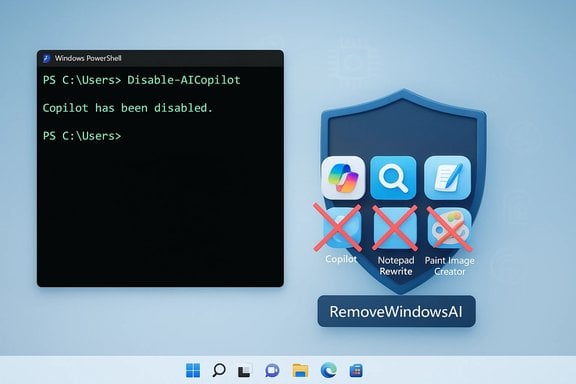 Background
Windows 11 has been steadily folding AI into the operating system. Copilot is surfaced in the taskbar, Settings, and several bundled apps such as Notepad and Paint. Other AI components — Recall (device activity and timeline indexing), voice effects and accessibility features, AI image generation and rewrite actions — are scattered across the OS. Microsoft exposes many of these individually in Settings and enterprise policy, but there is no single Microsoft‑supported global switch to fully opt out of every AI integration.This absence of a single control has two consequences. First, per‑feature toggles can be inconsistent: some UI elements reappear and some packages are reinstalled after cumulative updates. Second, privacy‑minded or traditional desktop users who want a minimal, AI‑free environment must either accept Microsoft’s defaults or use third‑party measures. RemoveWindowsAI is one such community response: it aims to remove visible AI entry points and harden the system against automatic reinstalls.
Overview of RemoveWindowsAI
What RemoveWindowsAI claims to do
RemoveWindowsAI is a PowerShell script with an interactive UI and non‑interactive modes that offer granular control over which AI components to disable. The script’s advertised feature set includes:- Disabling Copilot UI and Copilot‑related registry keys and policies.
- Removing the Recall feature and deleting Recall scheduled tasks and indices.
- Removing or disabling Appx/MSIX packages that contain AI features (including some provisioned or “non‑removable” packages).
- Installing a custom package into the Component‑Based Servicing (CBS) store to block Windows Update from reinstalling targeted AI packages.
- Hiding “AI Components” entries in the Settings app and disabling AI affordances in apps (Notepad rewrite buttons, Paint Image Creator, Voice Access effects, etc..
- Cleaning leftover files and registry keys associated with AI features.
- Providing a backup mode and a revert mode to roll changes back (when backup is used at removal time).
How users run it
RemoveWindowsAI is intended to run in Windows PowerShell 5.1 (the default Windows PowerShell that ships with Windows) and requires administrative privileges. The project notes that PowerShell 7 (PowerShell Core) is not supported and may cause issues. The script provides an interactive menu for selecting which categories to disable, and it can also be run with non‑interactive flags to apply all options or selected options in one command. A backup mode is available and recommended if users want the ability to revert changes later.Technical deep dive: what the script changes and how
Registry and policy modifications
One of the script’s primary levers is registry‑based policy changes. It applies or sets registry keys and modifies policy files so that UI elements and feature flags are turned off. These registry operations affect, among other things:- Copilot enablement toggles
- Recall indexing and history settings
- Rewrite and inline AI actions surfaced in apps
- Telemetry and input‑insights related flags
Appx/MSIX package removal and CBS surgery
RemoveWindowsAI does far more than flip registry switches. It also:- Uninstalls AI‑labeled Appx/MSIX packages, including packages marked “non‑removable” via normal Settings UI.
- Attempts to remove hidden packages from the Component‑Based Servicing store (CBS), which is the low‑level Windows servicing inventory used during updates and provisioning.
- Optionally purges installer artifacts, cached payloads and leftover files related to AI components.
Installer/blocker package to avoid reinstalls
To avoid automatic reinstalls of removed AI packages, RemoveWindowsAI installs a custom package into the servicing store. The idea is simple and widely used by community tools: introduce an item into the system’s servicing inventory that prevents Windows Update from deciding that the original Microsoft package is “missing” and must be reinstalled.This blocker approach provides durability across many cumulative updates, but it also intentionally alters the servicing inventory, which Windows Update assumes matches Microsoft’s expectations. That mismatch can later cause conflicts during a major feature update or when Microsoft modifies package manifests. The result can range from harmless warnings to failed updates that require repair or a system refresh.
Scheduled tasks, indices and hidden components
Recall and other AI features often create scheduled tasks for background indexing, snapshotting or telemetry. RemoveWindowsAI searches for and removes these tasks, and it cleans local indices used by Recall. It also attempts to remove tasks and services associated with AI fabric or runtime components.The script consolidates many low‑level cleanup steps that would otherwise require manual tracking and multiple tools.
Running RemoveWindowsAI: practical steps and precautions
Minimum prerequisites
- Use a Windows 11 system (features targeted primarily at Windows 11 25H2 and later).
- Open Windows PowerShell 5.1 as Administrator. Verify by running
$PSVersionTable.PSVersionand ensuring the major/minor version is 5.1. - Temporarily disable or whitelist the script in third‑party antivirus if it flags the tool as malicious (community tools that alter system servicing often trigger false positives).
- Create a full image backup or a restore point and, for enterprise use, test in a non‑production VM or test machine first.
Typical run flow
- Obtain the current install command from the project’s official page or repository (do not run random or copied commands from untrusted channels).
- Paste and execute the command in the elevated PowerShell session.
- Use the interactive menu to choose the components to disable, or run in non‑interactive mode with flags to target everything.
- Optionally use the script’s backup mode to capture the current state so that reversion is possible.
- Reboot only if the script prompts that a restart is necessary; many changes are visible immediately but some app‑level UI updates only appear after restarting the affected apps.
Reverting changes
The project includes a revert mode, but it requires that removal was done with backup mode enabled. Even so, a reversion is not guaranteed to be perfect, especially if Windows Update or subsequent system changes have modified the servicing store or replaced packages.Impact: benefits and use cases
- Single‑action control: For power users who want to disable a wide cross‑section of AI elements quickly, RemoveWindowsAI offers a consolidated, easy‑to‑use path.
- Persistence across monthly updates: The script’s servicing‑store blocker and package removals reduce the frequency of AI features being reinstalled by routine cumulative updates.
- Privacy and minimalism: Users who are privacy‑conscious or prefer a traditional, distraction‑free desktop can remove persistent prompts and UI elements tied to AI.
- Community transparency: The project is open source and documented, which allows technical users to inspect what the script does before running it.
Risks, limitations and unknowns
Update fragility and servicing conflicts
Modifying the servicing inventory and installing blocker packages can create a state where Windows Update encounters unexpected package configurations. This is the biggest practical risk: future feature updates may be blocked, fail, or require more intrusive repair actions. In enterprise environments that rely on centralized update management, those conflicts can create remediation headaches.Incomplete coverage and future changes
Microsoft continues to add AI features across both stable and Insider channels. RemoveWindowsAI targets the stable channel and the set of features known at the time of each release. New AI features rolled out in later updates or preview builds may not be covered until the script is updated, and there is no guarantee the script will always keep pace with Microsoft’s additions.False positives and security scanners
Tools that modify low‑level servicing behavior, remove provisioned packages or change scheduled tasks often trigger antivirus engines and endpoint protection. The project author explicitly warns about false positives. Users may need to temporarily whitelist the script in AV software, which adds operational friction and a potential security consideration.Supportability and warranty concerns
Using community tools to alter the OS at this level is unsupported by Microsoft. While such modifications rarely void hardware warranties, they may complicate vendor support interactions and make remote troubleshooting harder. Corporations and managed endpoints should treat this as an unsupported customization unless approved by IT governance.Potential for data loss
Removing Recall or deleting local indices will destroy any stored history or timeline snapshots. If users later revert the changes, the previous history may be unrecoverable. Users should export or back up anything they wish to keep before running the script.Not a “one‑click law” for security or privacy
Disabling visible AI entry points does not necessarily neutralize all telemetry, cloud interactions or background services that might be related to broader Windows diagnostics. The script reduces the visible attack surface and telemetry vectors tied to specific AI features, but it is not a substitute for a full privacy or security hardening plan.Best practices and mitigation strategies
If you decide to try RemoveWindowsAI, follow these precautions to reduce risk:- Back up the entire system image to a reliable external storage device or snapshot the VM.
- Test the script in a virtual machine or a non‑critical spare device first. Verify boots, updates and critical apps after removal.
- Use the script’s backup mode when running removal so revert mode is available later.
- Keep the original install command and the script version you ran. Record the system state (Windows build, installed updates) so you can troubleshoot or roll back.
- Monitor the Windows Update history and ensure you can access a recovery environment if updates fail.
- For enterprise deployments, run a pilot group and coordinate with patch management teams to assess update interactions.
- If using third‑party AV, add a temporary exclusion for the script and then re‑enable protection afterwards.
- Consider network‑level controls or enterprise policy for controlling Copilot and telemetry where possible before resorting to servicing store surgery.
Alternatives and the bigger picture
RemoveWindowsAI is one of several community responses to Microsoft’s AI integration. Alternatives and complements include:- Using built‑in Settings and Group Policy controls where available to disable Copilot, Voice Access, or Recall selectively.
- Enterprise management tools (MDM, Group Policy, Intune) that can suppress specific features on managed devices.
- Other debloating and system‑tweaking tools that now offer modules for AI removal — some of these integrate RemoveWindowsAI or adopt similar techniques, while others limit themselves to safer registry toggles and optional feature removal.
- Waiting for a first‑party Microsoft control: Microsoft has not provided a global opt‑out, and the lack of a single supported toggle is the primary reason many users turn to community tools.
Final assessment
RemoveWindowsAI is an unusually comprehensive community tool that addresses a real gap in Windows 11: the lack of a global, supported way to disable all AI features and prevent them from reappearing after updates. For privacy‑focused enthusiasts and advanced users who accept the risks and perform careful testing, the script can deliver the desired outcome: a Windows 11 environment with Copilot, Recall and related AI UI elements removed and guarded against routine reinstalls.However, the same techniques that give the script durability — modifying the servicing store, forcibly removing provisioned packages and installing blocker packages — are what make it risky for broad or inexperienced deployment. These changes can introduce update fragility, support complications and potential incompatibilities with OEM customizations or future Windows feature upgrades. The detection of the script as suspicious by antivirus engines is another practical hurdle.
For readers who value stability and vendor support above a fully AI‑stripped UI, a safer approach is to use official Settings and enterprise policies where available and to closely monitor Microsoft’s guidance for disabling specific features. For those who prioritize control and are comfortable with backups, a VM testbed and careful use of the script’s backup/revert modes will reduce many of the operational hazards.
In short: RemoveWindowsAI is an effective community answer to a genuine user need, and it demonstrates that technical users can regain control over AI surface area in Windows 11. It is not, however, a risk‑free solution. The responsible path is to test, back up, and proceed only when the trade‑offs are fully understood.
Source: gHacks Technology News A Free Script Disables Built-In AI Features Across Windows 11 - gHacks Tech News