

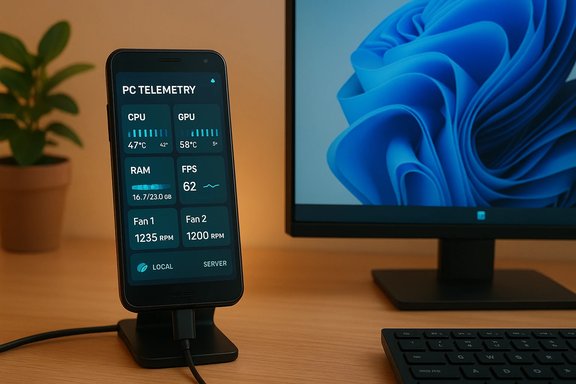
Repurposing an old Android phone into a dedicated PC performance dashboard is one of the most practical ways to extend device life in 2026: with simple software like Pitikapp you can turn any spare handset into a live, touch-capable “sensor panel” for CPU/GPU temps, fan speeds, RAM usage, and frame-rate telemetry — and do it without signing into another cloud service.
Turning a retired phone into a single-purpose PC stats monitor checks a lot of boxes users care about today: low cost, small desktop footprint, and real-world environmental impact. The approach is quick to set up, relies on local networking rather than cloud accounts, and leverages a phone’s vibrant screen and Wi‑Fi radio to provide persistent, glanceable telemetry that is particularly useful for gamers, content creators, and anyone who cares about system thermals.
Two wider trends make the idea more than a neat hobby in January 2026. First, regulators and recycling operators are pushing device stewardship policies and raising battery-safety alarms — repurposing a working phone delays disposal and reduces pressure on the recycling stream. Second, Windows 11’s continuing work on phone–PC continuity means phones are increasingly seen as companion devices rather than disposable extras. These context points shape both the practicality and the cautions of a dedicated-dashboard setup.
Source: Bez Kabli Turn an Old Android Phone Into a PC Stats Monitor With Pitikapp — Plus Today’s Windows 11 and Smartphone Security News (Jan. 11, 2026)
 Background / Overview
Turning a retired phone into a single-purpose PC stats monitor checks a lot of boxes users care about today: low cost, small desktop footprint, and real-world environmental impact. The approach is quick to set up, relies on local networking rather than cloud accounts, and leverages a phone’s vibrant screen and Wi‑Fi radio to provide persistent, glanceable telemetry that is particularly useful for gamers, content creators, and anyone who cares about system thermals.Two wider trends make the idea more than a neat hobby in January 2026. First, regulators and recycling operators are pushing device stewardship policies and raising battery-safety alarms — repurposing a working phone delays disposal and reduces pressure on the recycling stream. Second, Windows 11’s continuing work on phone–PC continuity means phones are increasingly seen as companion devices rather than disposable extras. These context points shape both the practicality and the cautions of a dedicated-dashboard setup.
Why use an old phone as a PC dashboard (quick case for reuse)
- It’s zero-cost (if the phone is already in your drawer) yet functionally powerful: modern phones have bright high-DPI displays, Wi‑Fi, and touch input.
- It reduces waste and postpones battery disposal at a time recycling operators report record-year battery-fire incidents in waste facilities. Turning a working device into a desk peripheral directly reduces potential disposal hazards.
- It’s a highly visible, low-latency way to monitor critical telemetry while gaming or stressing a system without overlaying your game or filling your main monitor with widgets.
- Software like Pitikapp prioritizes local networking and optional plugins, meaning you can avoid handing telemetry to third‑party cloud services.
What is Pitikapp and why it fits this use case
Pitikapp Remote Dashboard is built exactly for the “phone-as-dashboard” scenario: a lightweight PC server component and a mobile client that discovers it over the local network, then renders configurable widgets and modules for temperatures, utilization, fan speeds, FPS, and custom actions. The product emphasizes zero-account setup, local-first connectivity, and an extensible plugin model for custom sensors and macros. Key platform facts verified from the developer site and app-store listings:- Pitikapp Server runs on Windows (Windows 10 64‑bit or later required). The server installs locally on the PC and exposes modules.
- Pitikapp client requires Android 8.0+ (iOS 14.0+ also supported) and recommends a reasonably high-resolution display for the best experience. The developer publishes APKs for offline installs and provides a plugin library for advanced custom modules.
- The iOS App Store privacy label for Pitikapp shows “Data Not Collected,” which supports the privacy-focused pitch for users who prefer a purely local dashboard. That App Store privacy label applies to the iOS client and is developer-provided.
Step-by-step: Turn an old Android phone into a PC stats monitor with Pitikapp
This practical guide assumes a Windows PC on your home network and an old Android phone with Wi‑Fi and a working screen.What you need (hardware + software)
- A Windows PC (Windows 10 64‑bit or later) — the Pitikapp server runs locally on Windows.
- An Android phone with Wi‑Fi (Android 8.0 or higher recommended).
- A charger and cable (long cable recommended if you plan to keep the phone on the desk permanently).
- Optional monitoring utilities on the PC (MSI Afterburner, GPU‑Z, Core Temp, HWInfo) if you want richer telemetry integration.
1. Prep the phone for permanent dashboard use
- Wipe unnecessary apps and accounts; keep the device dedicated to dashboard duties. This reduces background noise, unexpected updates, and notifications.
- Enable Do Not Disturb or block notifications so pop-ups don’t interrupt the dashboard display.
- Set screen timeout to be long, or enable “stay awake while charging” in Developer Options, to keep the phone visible.
- Lower brightness and put the phone where it has airflow — long charge + heat is the main enemy of battery longevity. If the battery is near end‑of‑life, run the phone plugged in but avoid placing it over hot PC exhausts. This minimizes battery swelling risk and fire hazards that recycling groups are warning about.
2. Install Pitikapp Server on your PC
- Download the Pitikapp Server installer (Windows 10 64‑bit required). Follow the installer prompts and allow the server through your Windows Firewall when prompted.
- Launch the Pitikapp Server app and confirm it’s running in the system tray. Check the server’s network/port settings if you have a restrictive firewall or corporate network.
3. Install the Pitikapp mobile client on the old phone
- Use Google Play to install “Pitikapp Remote Dashboard” or sideload the APK if you prefer an offline install (developer provides APK downloads). The app lists minimum Android 8.0.
4. Connect client to server
- If both devices are on the same local network (same SSID) the Pitikapp client should auto-discover the server. If not, use the app’s manual-add option and enter the PC’s IP address and the server port shown in the server app.
- If the phone cannot find the server, check Windows Firewall and ensure the server is allowed on private networks.
5. Choose modules and data sources
- Common modules for a PC dashboard:
- CPU temperature and utilization
- GPU temperature, utilization, and VRAM usage
- Memory (RAM) usage
- Fan speeds and system power draw (if sensors expose them)
- FPS / frame-time (via MSI Afterburner / RTSS)
- Media controls and macro buttons for quick PC actions
- Pitikapp can pull data from MSI Afterburner, GPU‑Z, Core Temp, and similar tools — install those on the PC for the most complete telemetry. Configure the server to expose these metrics to clients.
6. Add controls (optional)
- Pitikapp supports remote actions like program launch, shortcut execution, and multimedia control. Map a few frequently used commands (e.g., toggle recording, mute mic, start/stop stream) to on‑screen buttons so the phone becomes a tiny command console.
7. Mount and position the phone
- Use a small desktop stand in portrait orientation for a vertical column of gauges. Route the cable behind the monitor for a tidy setup.
- Consider a matte screen protector to reduce glare and minor burn-in risk for OLED panels.
Best practices and safety considerations
Treat the dashboard phone as a trusted accessory, not a daily driver. If a phone no longer receives security updates, don’t store passwords or banking apps on it; use the device only for telemetry and local control. This reduces attack surface if the handset is outdated. The January 2026 Android security bulletin highlights a critical third‑party codec issue (Dolby DD+) that was patched at the platform level — patching matters even for repurposed devices. If a device is unsupported, keep it on a segmented home network and limit what accounts and sensitive apps it accesses. Battery and thermal care: Continuous charging and heat accelerate battery degradation. Keep the dashboard phone ventilated and avoid placing it directly in PC exhaust. With recycling reports showing a record number of lithium-ion–related fires in 2025, extending the useful life of working devices reduces disposal risk — but when the battery is genuinely at end-of-life, follow local take-back programs or manufacturer recycling to avoid hazards. Network & privacy: Prefer the local network discovery path rather than routing telemetry through third-party clouds. Pitikapp’s design supports local-only operation and the iOS listing shows “Data Not Collected” for the iOS client — both good signs for privacy-conscious users, but verify the Android Play Store listing’s permissions and network behavior for your device before long-term deployment.What’s new today (Jan. 11, 2026): Windows 11, smartphone security, and the bigger system picture
1) Windows 11’s continuity push — Phone Link is getting broader
Microsoft’s Phone Link (and the Link to Windows companion on Android) continues to evolve from a photo/notification bridge into a richer cross‑device productivity surface. Recent updates include an Expanded view that lets streamed Android apps use far more of the Windows desktop (reports cite “up to ~90%” of the desktop area in practical tests), and a Lock PC control that allows users to lock a paired Windows 11 machine directly from their phone. These continuity improvements make the phone a natural companion device on the desk — which is exactly the pattern that makes a phone-as-dashboard idea feel native. Community and hands-on reporting note the rollout is staged, compatibility is device-dependent, and the streaming architecture means some apps still scale imperfectly in expanded mode. Why this matters for the dashboard use case: those same Phone Link continuity improvements reflect a design trend — phones are now expected to be useful peripherals for Windows workflows rather than isolated devices. That makes a dedicated dashboard more natural for users and easier to manage in everyday routines.2) Android security: January 2026 bulletin and the Dolby DD+ fix
Google published the January 2026 Android Security Bulletin (patch level 2026-01-05), and the headline item was a critical vulnerability in the Dolby DD+ codec (CVE‑2025‑54957). Multiple security outlets and national CERTs categorized this issue as severe because specially crafted audio streams could trigger out‑of‑bounds writes and, in some contexts, enable zero-click code execution. Google and partners released fixes in the AOSP repository and device-specific updates; manufacturers’ rollout timing varies by vendor. For any repurposed phone you intend to keep on the network long-term, a device that accepts security updates is a much safer candidate than one stuck on an old patch level.3) Smartphone security policy and geopolitics — India’s new proposal
On January 11, 2026, Reuters and others reported India’s proposed smartphone security overhaul, which would require device makers to share source code with government-designated labs for testing, require on-device malware scanning, and mandate notification to authorities ahead of some significant updates. Industry groups (MAIT and major manufacturers) have pushed back, warning that such measures could be impractical and might expose proprietary code. The proposal remains subject to consultation and revision; readers should regard the rule set as a developing policy discussion rather than finalized law. These proposals illustrate how national policymaking can influence device support windows, update cadence, and even what features manufacturers are willing to ship in certain regions — factors that ultimately affect how long a phone remains a safe, supported dashboard candidate.Critical analysis: strengths, trade-offs, and risks
Strengths
- High utility for low cost. Repurposing an older phone yields an immediate, visible productivity perk with little investment. The setup is fast, and for many users it replaces a dedicated gadget purchase.
- Local-first architecture. Tools like Pitikapp emphasize local connectivity and no-account setup, which is a meaningful privacy and reliability advantage compared with cloud dashboards.
- Extensibility. Plugin systems and macros let you turn the phone into more than a readout; it can execute commands, toggle streaming, or trigger automation sequences.
Trade-offs and limitations
- Security and update lag. If the phone is no longer receiving Android security updates, its exposure to platform vulnerabilities grows with time. The January 2026 Dolby vulnerability is a reminder that media-codec bugs can be critical; an unsupported device may be a risk if connected to the same LAN as sensitive devices.
- Battery & hardware wear. Continuous charging and heat reduce battery lifespan. A phone kept plugged in for years may need battery replacement or safe disposal at end-of-life.
- Network segmentation needed for unsupported devices. If you repurpose an older, unpatched handset, isolate it behind a guest VLAN or restricted Wi‑Fi SSID to reduce risk.
- Not a replacement for professional monitoring hardware. Dedicated hardware panels or large monitors with industrial sensors remain better for server rooms and mission-critical monitoring.
Unverifiable or conditional claims
- Any regulatory proposals (e.g., India’s) can change through negotiations and amendments; the practical impact on device lifespans and update policies is conditional on final law and vendor responses. Treat current headlines as evolving and verify final text before acting on compliance decisions.
Quick checklist before you commit your spare phone to dashboard duty
- Confirm the phone receives recent security patches; prefer devices that still receive updates. If not, isolate it on a guest network.
- Back up any personal data and factory-reset the phone to reduce background services and unnecessary accounts.
- Keep the phone plugged in but away from hot exhausts; consider replacing the battery if it bulges or shows rapid capacity loss.
- Install Pitikapp on both PC and phone; configure firewall exceptions for the server.
- Add only the telemetry sources you need (MSI Afterburner, GPU‑Z, Core Temp) and test stability for a few hours before leaving the device running full-time.
- Consider a small stand and cable management to make the setup practical and visually unobtrusive.
Bottom line
Turning an old Android phone into a PC stats monitor is one of the most pragmatic, eco‑friendly, and immediately useful ways to repurpose hardware in 2026. Software like Pitikapp makes the idea accessible: local-first discovery, plugin extensibility, and cross‑platform clients let you build a bright, glanceable telemetry surface without a new purchase. At the same time, broader headlines — from the critical Dolby audio fix in Google’s January 2026 security bulletin to India’s proposed smartphone security rules and the waste sector’s rising battery-fire tally — underscore the essential caveats: prefer devices that receive updates, manage heat and charging sensibly, and be mindful of regional policy changes that can affect device support and behavior. Repurposing a phone this way is fast to set up, useful every day at your desk, and aligned with the 2026 push to keep devices in circulation longer and recycle them more safely — a small, practical action that benefits both your workflow and the broader electronics lifecycle.Source: Bez Kabli Turn an Old Android Phone Into a PC Stats Monitor With Pitikapp — Plus Today’s Windows 11 and Smartphone Security News (Jan. 11, 2026)
