

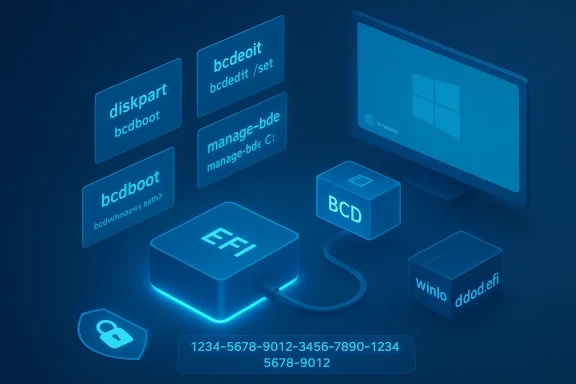
I walked into what looked like a brick—Windows booted to a BitLocker recovery screen, accepted the 48‑digit key, then rebooted into an INACCESSIBLE_BOOT_DEVICE error and back again—yet the disk itself was fine. What saved the machine was not a third‑party utility or a reinstall, but a sequence of built‑in Windows recovery tools most users never see: DiskPart, Manage‑BDE, BCDBoot/BCDEdit and the Windows Recovery Environment’s command prompt. This feature story unpacks that repair, explains why the system behaved the way it did, verifies the technical mechanics with vendor documentation and independent reporting, and offers a practical, safety‑first playbook so you can try the same repair without risking data loss.
Most desktop users associate Windows troubleshooting with a graphical “Startup Repair” or with reinstalling from installation media. That instinct is reasonable, but it misses a deeper truth: modern Windows ships with a small, powerful toolkit inside the Windows Recovery Environment (WinRE) that can rebuild the boot chain, manage BitLocker protectors, and restore a machine that otherwise looks “dead.”
On modern UEFI Windows systems the boot chain generally flows like this:
This article explains how the rescue works, why it works, and how to do it safely.
Microsoft’s own guidance explains that BitLocker recovery screens include categories for “Boot configuration” issues and that the recommended remediation in those cases is to restore or rebuild the BCD. In practice, the command that often does this reliably is BCDBoot, which copies fresh boot files and builds a new BCD store from a template.
Here’s the repair sequence I used (presented as a safe, reproducible recipe), and why each step matters.
Important safety note: use
Caveat: Only assign a letter for as long as you need it. These partitions should remain hidden under normal use.
That incident is the same pattern that makes targeted knowledge of
Recovering a “dead” Windows 11 PC is sometimes low‑magic and high‑discipline: you must verify that the disk is readable, unlock BitLocker in the right context, and then rebuild the boot chain with the official tools. The WinRE command prompt,
Source: XDA I fixed a 'dead' Windows 11 PC with the built-in tools most people don't know exist
 Background / Overview
Most desktop users associate Windows troubleshooting with a graphical “Startup Repair” or with reinstalling from installation media. That instinct is reasonable, but it misses a deeper truth: modern Windows ships with a small, powerful toolkit inside the Windows Recovery Environment (WinRE) that can rebuild the boot chain, manage BitLocker protectors, and restore a machine that otherwise looks “dead.”On modern UEFI Windows systems the boot chain generally flows like this:
- UEFI firmware → EFI boot manager (\EFI\Microsoft\Boot\bootmgfw.efi)
- Boot Configuration Data (BCD) store → winload.efi
- Kernel initialization → boot‑start drivers → SYSTEM hive → userland
This article explains how the rescue works, why it works, and how to do it safely.
The case study: the symptoms and the diagnosis
The situation I repaired looked like this:- Machine froze while gaming and then rebooted to BitLocker recovery.
- Entering the correct 48‑digit recovery key was accepted, but the system then went to INACCESSIBLE_BOOT_DEVICE.
- The machine rebooted and again demanded the BitLocker key, looping.
- The SSD (a recently purchased Corsair MP700 NVMe) mounted cleanly when inspected from a live environment, indicating the filesystem and files were intact.
- Boot a live environment (Ventoy/Clonezilla was used) and run NTFS checks — the NTFS volume mounted and appeared healthy.
- Use the recovery environment Command Prompt (WinRE) to identify volume letters; drive letters differ in WinRE vs. a normal desktop session.
- Confirm that the EFI files or the BCD store were missing, corrupt, or pointing to non‑existent device paths.
Why entering the correct BitLocker key can “loop” and still fail
This loops back to how BitLocker, TPM, and the boot chain interact. Two separate things can be true at once:- The physical encryption key on the disk is correct and the volume can be decrypted when the right recovery key is supplied.
- The Boot Configuration Data (BCD) or EFI boot files are damaged or point to the wrong path, so when Windows tries to start the kernel it fails to find or mount the system volume, producing INACCESSIBLE_BOOT_DEVICE.
Microsoft’s own guidance explains that BitLocker recovery screens include categories for “Boot configuration” issues and that the recommended remediation in those cases is to restore or rebuild the BCD. In practice, the command that often does this reliably is BCDBoot, which copies fresh boot files and builds a new BCD store from a template.
The command‑line repair: what I ran and why it works
Most graphical WinRE options (Startup Repair, Reset this PC, System Restore) can solve many issues, but they don’t expose the raw tools you need when the boot data itself is malformed. The WinRE Command Prompt is where the real power lives.Here’s the repair sequence I used (presented as a safe, reproducible recipe), and why each step matters.
1. Confirm the right volumes in WinRE
- Boot into Windows Recovery Environment → Troubleshoot → Advanced options → Command Prompt.
- Run:
diskpartlist volumeandlist disk
2. Unlock the BitLocker volume so we can modify files
- Identify the OS volume letter shown in WinRE (example used below uses C: as the unlocked letter).
- Run:
manage-bde -unlock C: -RecoveryPassword <48‑digit‑key>manage-bde -protectors -disable C:
Important safety note: use
-disable, not -remove. Disabling is temporary and reversible; removing or decrypting the drive changes protection semantics.3. Mount and prepare the EFI System Partition
- In DiskPart:
select disk 0(or the disk number you identified)list partitionorlist volumeto find the EFI partitionselect volume <n>assign letter=S
Caveat: Only assign a letter for as long as you need it. These partitions should remain hidden under normal use.
4. Rebuild the boot chain with BCDBoot
- From the WinRE command prompt once the EFI partition is accessible:
bcdboot C:\Windows /s S: /f UEFI
- BCDBoot copies the Windows boot manager and related EFI files to the ESP.
- It creates or regenerates a fresh BCD store from the system’s BCD template.
- It can update the firmware NVRAM entries so the UEFI knows to boot the Windows Boot Manager.
bcdedit /enum(verify device paths and that the OS device points to the correct partition)
5. Reboot and re‑enable BitLocker
- Reboot normally. If the BCD/EFI repair succeeded, Windows should boot into the desktop.
- From an elevated prompt in the running Windows session re‑enable BitLocker:
manage-bde -protectors -enable C:
Why those commands are safe when used correctly — and the dangers if used carelessly
- BCDBoot and BCDEdit are Microsoft tools designed to rebuild the boot environment; the official docs describe exactly the operations BCDBoot performs. When you point it at the correct Windows folder and the correct ESP, it reliably recreates the BCD store using the system template. That’s why it’s often the quickest way to repair a corrupted boot chain without reinstalling Windows.
- Manage‑BDE is the official BitLocker management CLI. Unlocking with a recovery password is safe as long as you use the correct key; disabling protectors is reversible. Avoid
manage-bde -off(full decryption) unless you intend to remove BitLocker entirely. - DiskPart is powerful and dangerous. Selecting the wrong disk and using
cleanorformatwill permanently erase partitions. Always runlist diskandlist volumeand double‑check sizes before issuing destructive commands.
Microsoft’s recent resiliency work — Quick Machine Recovery, WinRE networking, and Point‑in‑Time Restore
Microsoft has been steadily fleshing out WinRE and recovery tooling. The major trends to be aware of:- Quick Machine Recovery (QMR): a WinRE‑based feature that can connect to Windows Update and download targeted remediation packages for devices that repeatedly fail to boot. QMR is intended to automate the kind of repair flow described above in large‑scale incidents and has been highlighted as part of Microsoft’s post‑incident resiliency roadmap. (This capability is documented by Microsoft and covered by independent outlets reporting on Windows resiliency updates.)
- Smarter WinRE networking: WinRE now offers improved network support so it can reach Windows Update or service endpoints during a recovery session. Industry reporting suggests Microsoft has made WinRE better at establishing network connections and at loading the necessary network drivers without manual injection. That said, the exact behavior—particularly the claim that WinRE will automatically “pull” every needed driver from the main OS image in all cases—should be treated with caution until your hardware vendor confirms compatibility; differences in firmware, Wi‑Fi stacks, and enterprise 802.1X authentication can still block recovery networking.
- Point‑in‑Time Restore (PITR) and Cloud Rebuild: Microsoft is piloting finer‑grained restore features for Windows and Cloud PCs that let you restore to an exact snapshot rather than the nearest restore point, and to rebuild devices from cloud images while preserving user data via cloud services. These enterprise‑focused features are being rolled out in preview and are already part of some 24H2/25H2 builds and Intune workflows.
The October 2025 incident and why recoverability still matters
There’s an important operational context: in October 2025 a widely distributed cumulative update caused a pair of regressions on some Windows 11 devices:- Some systems began prompting for the BitLocker recovery key after installing the update.
- On many of those systems, WinRE would not accept USB keyboard or mouse input, rendering recovery navigation impossible on USB‑only machines.
That incident is the same pattern that makes targeted knowledge of
manage-bde, bcdboot, and diskpart important: properly used, those commands let a power user or an admin restore access without reinstalling.A practical recovery playbook (concise, step‑by‑step) — for technicians
- Before you start: ensure you have the 48‑digit BitLocker recovery key available. Also, if possible, create a full image of the disk externally.
- Boot WinRE: Troubleshoot → Advanced Options → Command Prompt.
- Identify volumes: run
diskpart→list volume. Note filesystems and sizes; find the Windows volume and the EFI partition. - If BitLocker locks the drive:
manage-bde -unlock <drive>: -RecoveryPassword <48‑digit‑key>. - Temporarily suspend protectors:
manage-bde -protectors -disable <drive>:. - Assign a letter to the EFI partition in DiskPart:
select volume <n>→assign letter=S. - Rebuild boot files:
bcdboot C:\Windows /s S: /f UEFI. - Verify with
bcdedit /enumthat entries point correctly. - Reboot. If successful, re‑enable BitLocker:
manage-bde -protectors -enable C:.
Safety, compliance, and operational warnings
- Back up first: If you have critical data and no recent image, consider imaging the disk before proceeding. DiskPart mistakes are destructive and irreversible.
- Check recovery key escrow: Make sure recovery keys for corporate devices are escrowed in your organization’s directory (Entra ID / Active Directory), and that personal devices have the key stored in your Microsoft account, printed copy, or external backup.
- Treat driver‑reuse claims cautiously: While Microsoft and multiple analysts say WinRE’s networking is improved and can load many drivers more easily, that behavior can vary by hardware. Don’t assume WinRE will always enumerate proprietary Wi‑Fi adapters or enterprise 802.1X stacks. Validate in test deployments.
- Governance for cloud recovery: Remote or cloud‑assisted recovery (QMR) can be a compliance question in regulated environments. Administrators should control policy, logging, and audit trails through Intune and test QMR in a staged fashion before enabling it broadly.
- Do not publish recovery keys: Never share recovery keys publicly. Treat them like any other sensitive credential.
Why these built‑in tools deserve broader literacy
- They save time. A single BCDBoot invocation can recreate a boot chain in minutes and avoid hours of reinstall and reconfiguration.
- They reduce data loss risk. When the disk is physically fine, a targeted boot repair preserves installed apps, accounts, and settings.
- They’re vendor support tools. BCDBoot, BCDEdit, Manage‑BDE, and DiskPart are Microsoft‑supported utilities and are often the recommended first‑line actions in enterprise KBs and vendor troubleshooting guides.
Final assessment: strengths, limitations, and when to call for help
Strengths- Non‑destructive: Rebuilding the EFI/BCD typically preserves the OS image and user data.
- Deterministic: Tools like BCDBoot follow a documented process to populate EFI and BCD entries.
- Available everywhere: These utilities ship with Windows and WinRE—no third‑party downloads required.
- Driver and firmware variability: WinRE’s improved network capabilities are helpful but not guaranteed across every device model or custom driver.
- Human error: DiskPart mistakes can be catastrophic; novices should not guess at volume numbers.
- Security governance: Features like Quick Machine Recovery introduce a cloud dependency and telemetry that organizations will need to regulate.
- If the SSD or NVMe SSD does not mount at all from a live environment, or NTFS metadata shows corruption, stop and image the drive for forensic recovery.
- If BitLocker keys are missing and not escrowed, move to offline key recovery or vendor support; repeated attempts at guesswork won’t help.
Recovering a “dead” Windows 11 PC is sometimes low‑magic and high‑discipline: you must verify that the disk is readable, unlock BitLocker in the right context, and then rebuild the boot chain with the official tools. The WinRE command prompt,
manage-bde, diskpart, and bcdboot are not arcane hacks—they’re the supported, effective way to repair many boot failures without reinstalling. Microsoft’s recent improvements to WinRE and Quick Machine Recovery make these workflows easier and more automatable for large fleets, but the fundamental techniques described here remain essential knowledge for any technician who wants to fix a system properly, quickly, and with minimal data loss.Source: XDA I fixed a 'dead' Windows 11 PC with the built-in tools most people don't know exist
