

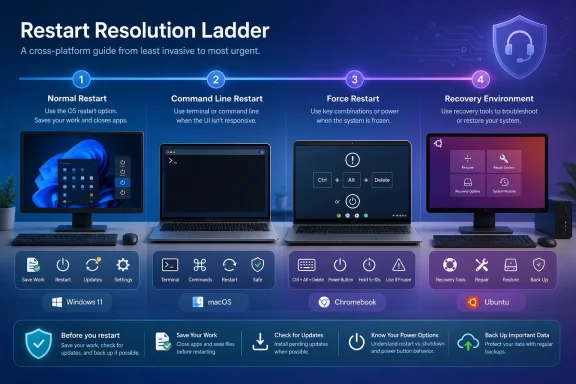
The safest way to restart a computer is to save open work and use the operating system’s normal restart command—Start > Power > Restart on Windows 11, Apple menu > Restart on Mac, time > Power > Restart on Chromebook, or the top-right system menu > Shutdown > Restart on Ubuntu. A normal restart, a forced hardware restart, and operating-system recovery are different actions. The WindowsForum approach is a cross-platform restart escalation ladder: use the least invasive method that still works, and distinguish look-alike controls before selecting them.
A restart is often treated as a universal cure when an application freezes, an update stalls, or a computer behaves strangely. The more useful question is not merely how to restart, but how far down the escalation ladder the problem requires you to go.
A normal restart is the least disruptive option because it is initiated through the operating system rather than by holding a physical button or using a hardware key sequence. It also gives applications an opportunity to display save prompts before the current session ends.
That is why the ordinary menu should remain the first choice whenever the computer still responds. A forced procedure is reserved for situations in which the available software controls cannot be used.
On Windows 11, the standard route is Start > Power > Restart. If the Start menu’s usual power control is inconvenient, right-click Start, choose Shut down or sign out, and then select Restart.
Windows also exposes a restart command through its security screen. Press Ctrl + Alt + Delete, select the Power control in the lower-right corner, and choose Restart. This route is useful when the desktop, taskbar, or Start menu is malfunctioning but Windows can still display and respond to the security screen.
Mac users can open the Apple menu and choose Restart. The restart dialog can include the option Reopen windows when logging back in. If the purpose of the restart is troubleshooting, deselecting that option can help prevent the previous collection of applications and windows from reopening immediately.
On a Chromebook, select the time at the bottom right, select Power, and choose Restart. On Ubuntu, open the top-right system menu, select the Shutdown control, and then choose Restart.
The menu labels differ, but all four normal procedures begin from a functioning operating-system interface. If one of those routes works, there is ordinarily no need to escalate to a physical power control.
On Windows 11, open Settings > Windows Update > Check for updates to see whether Windows is presenting pending update work. When the Windows Update page offers the option, select Restart now to perform the requested update-related restart.
Windows can also provide a scheduling option. From Windows Update, choose Schedule the restart and select an available time. This allows the interruption to be moved away from an active presentation, render, build, remote session, or other workload.
Active hours are available under Settings > Windows Update > Advanced options > Active hours. On a computer where those settings are available to the user, they provide a way to identify the machine’s usual period of activity.
The critical WindowsForum disambiguation is this:
ChromeOS can also present a restart after an update has downloaded. Users can select the update notification near the date and time and then choose Restart.
The longer ChromeOS route is time > Settings > About ChromeOS > Check for updates, followed by Restart when the option appears.
When an update interface is already requesting a restart, use the restart control shown in that interface whenever possible. Do not assume that a temporarily dark or changing screen means the device is frozen. First check whether the computer is displaying progress or still accepting input before moving to a force procedure.
The primary warning is straightforward: unsaved work may be lost. Applications may not have an opportunity to show save prompts before the device shuts down or restarts.
That warning is sufficient reason to pause before escalation. If the pointer still moves, a keyboard shortcut still works, or a command shell remains available, try the corresponding software route first.
Surface devices require particular care because the force procedure is not universal across the entire product line.
For Surface Pro 5th Gen and later, Surface Pro X, Surface Laptop, Surface Laptop Studio, Surface Laptop Go, Surface Go, Surface Studio, and Surface Book 2 or later:
On a Mac, the forced path is simpler:
On many Chromebooks, the hardware sequence is:
Chromebook tablets use another sequence: press Volume Up + Power for at least 10 seconds.
Once the ordinary interface is unavailable, procedures become device-specific. That is the point at which identifying the exact model matters more than memorizing a generic “hold the power button” instruction.
Control + Option + Command + Power asks applications to quit and shuts down the Mac. Applications can prompt the user to save unsaved changes. After shutdown, press the power button when ready to start the Mac again.
Control + Command + Power force restarts the Mac without asking users to save open documents.
The second sequence should be treated as an emergency command rather than a convenience shortcut. Use it only when the Mac cannot be restarted through a normal route and the possible loss of unsaved work is understood.
There is also a menu variation that removes a confirmation step without turning the operation into the same force-restart shortcut. Hold Option while choosing Apple menu > Restart to restart without the usual confirmation dialog.
These controls demonstrate why “restart without the mouse” is not a precise enough instruction. One keyboard sequence shuts down while allowing save prompts; another force restarts without them; a menu modifier removes a confirmation dialog.
When the Mac remains responsive, choose the behavior deliberately rather than selecting the shortest-looking combination.
On Windows 11, open Settings > System > Recovery and select Restart now under Advanced startup. Windows then leaves the normal desktop workflow and proceeds toward its advanced startup options.
A shorter route is to hold Shift while selecting Power > Restart. This also enters the Windows Recovery Environment.
Within Windows Recovery Environment, the Startup Settings route is:
Troubleshoot > Advanced options > Startup Settings > Restart
That Restart command prepares Windows to display startup choices. It should not be confused with an ordinary return to the desktop or the Restart now button on the Windows Update page.
This is the WindowsForum article’s central Windows distinction:
A browser or application crash ordinarily does not require Windows Recovery Environment. Recovery becomes relevant when the problem concerns startup behavior or prevents the computer from reaching a usable normal session.
On a Mac already running in macOS Recovery, choose Apple menu > Restart to leave that environment and attempt a normal startup. Entering macOS Recovery varies by Mac hardware and startup condition, so the appropriate instructions should be matched to the specific Mac.
Chromebook recovery uses key combinations that can look deceptively similar to the hardware-reset sequence:
The WindowsForum disambiguation for Chromebooks is essential:
A Chromebook hardware reset and Chromebook recovery are not interchangeable. The combinations differ, and the recovery combination is intended to reach a recovery prompt rather than perform an ordinary restart. Because the supplied recovery facts establish the entry sequence but not every consequence or subsequent workflow, users should read the on-screen recovery instructions before continuing beyond that prompt.
Terms such as restart, hardware reset, factory reset, and recovery are often used loosely in support conversations. Before following any key sequence, verify which operation is actually being requested.
On Windows, enter the following in Command Prompt or Run:
For an immediate restart, use:
PowerShell provides:
On a Mac, Terminal can use:
Ubuntu supports the following commands:
If a terminal or command prompt still responds, one of these commands can provide an alternative when the graphical menu is unavailable. Before executing it, confirm that the command is being sent to the intended computer and that users have been given an opportunity to save active work.
This is especially important during remote administration. An unresponsive remote desktop view does not by itself prove that the underlying computer has stopped responding. If another management channel or shell is available, verify the target and the current state before issuing a restart.
The state of the computer before the restart can provide useful troubleshooting context. For example:
Before restarting, when practical, record:
End users should not assume that a missing setting, a scheduled restart, or an unavailable control is a defect. If a managed computer behaves differently from a personal device, contact the responsible IT team before attempting to bypass the restriction or proceeding into recovery.
Administrators should keep restart instructions tied to user intent. A request to complete an update is different from a request to recover a frozen device, and both are different from a request to enter a repair environment.
Recovery belongs after that sequence when the startup process or operating environment requires troubleshooting. It should not be selected merely because an ordinary application is slow or because its button also says Restart now.
The difference is especially important on Chromebooks, where similar keyboard combinations can initiate a hardware reset or display a recovery prompt. The possible loss of some Downloads-folder files during a hardware reset is reason enough to pause before using Refresh + Power as an all-purpose restart method.
Surface owners face a different trap: applying the procedure for the wrong model. The later listed models use the approximately 20-second power-button procedure, while the earlier listed models use Volume Up plus power for about 15 seconds, followed by a 10-second wait and a separate press of the power button.
Mac users must distinguish the shortcut that shuts down while permitting save prompts from the shortcut that force restarts without them. Windows users must distinguish the normal power-menu restart, the Windows Update restart, and the Advanced startup restart.
The safest restart is the least invasive method that still works. Stop escalating as soon as the computer responds at a level that can perform the intended task.
| What is happening? | Best next step |
|---|---|
| The computer is responsive | Save work and use the normal restart menu |
| The Windows desktop is broken, but Ctrl + Alt + Delete works | Restart from the Windows security screen |
| A command shell is available | Use the operating system’s restart command |
| A Surface, Mac, or Chromebook is frozen | Use the model-specific force procedure |
| The computer has a boot or startup problem | Enter the appropriate recovery environment |
 A Restart Is an Operating-System Procedure, Not a Power Trick
A normal restart is the least disruptive option because it is initiated through the operating system rather than by holding a physical button or using a hardware key sequence. It also gives applications an opportunity to display save prompts before the current session ends.That is why the ordinary menu should remain the first choice whenever the computer still responds. A forced procedure is reserved for situations in which the available software controls cannot be used.
On Windows 11, the standard route is Start > Power > Restart. If the Start menu’s usual power control is inconvenient, right-click Start, choose Shut down or sign out, and then select Restart.
Windows also exposes a restart command through its security screen. Press Ctrl + Alt + Delete, select the Power control in the lower-right corner, and choose Restart. This route is useful when the desktop, taskbar, or Start menu is malfunctioning but Windows can still display and respond to the security screen.
Mac users can open the Apple menu and choose Restart. The restart dialog can include the option Reopen windows when logging back in. If the purpose of the restart is troubleshooting, deselecting that option can help prevent the previous collection of applications and windows from reopening immediately.
On a Chromebook, select the time at the bottom right, select Power, and choose Restart. On Ubuntu, open the top-right system menu, select the Shutdown control, and then choose Restart.
| Platform | Normal restart | Update-related restart | Frozen-device escalation | Recovery entry |
|---|---|---|---|---|
| Windows 11 | Start > Power > Restart | Settings > Windows Update > Restart now | Surface procedure depends on model | Settings > System > Recovery > Advanced startup > Restart now |
| Mac | Apple menu > Restart | Use the normal restart process when required | Hold power until shutdown, wait, then power on | In macOS Recovery, Apple menu > Restart |
| Chromebook | Time > Power > Restart | Update notification > Restart | Refresh + Power; tablets use Volume Up + Power | Esc + Refresh + Power; model variations apply |
| Ubuntu | Top-right system menu > Shutdown > Restart | Restart when the installed update requires it | Use the recovery procedure appropriate to the installation | No single cross-device sequence covered here |
Updates Turn Restarting Into a Maintenance Boundary
Updates are where the word restart becomes particularly ambiguous. A user may be restarting to continue troubleshooting, to complete an update, or to enter a separate repair environment. Similar labels can conceal very different destinations.On Windows 11, open Settings > Windows Update > Check for updates to see whether Windows is presenting pending update work. When the Windows Update page offers the option, select Restart now to perform the requested update-related restart.
Windows can also provide a scheduling option. From Windows Update, choose Schedule the restart and select an available time. This allows the interruption to be moved away from an active presentation, render, build, remote session, or other workload.
Active hours are available under Settings > Windows Update > Advanced options > Active hours. On a computer where those settings are available to the user, they provide a way to identify the machine’s usual period of activity.
The critical WindowsForum disambiguation is this:
- Windows Update > Restart now performs an update-related restart.
- System > Recovery > Advanced startup > Restart now sends the computer toward Windows recovery and startup tools.
ChromeOS can also present a restart after an update has downloaded. Users can select the update notification near the date and time and then choose Restart.
The longer ChromeOS route is time > Settings > About ChromeOS > Check for updates, followed by Restart when the option appears.
When an update interface is already requesting a restart, use the restart control shown in that interface whenever possible. Do not assume that a temporarily dark or changing screen means the device is frozen. First check whether the computer is displaying progress or still accepting input before moving to a force procedure.
Force Restarting Trades Save Opportunities for Immediate Control
A force restart is for the point at which normal software controls are unavailable. The power menu cannot be reached, input does not produce a useful response, and no accessible software restart path remains.The primary warning is straightforward: unsaved work may be lost. Applications may not have an opportunity to show save prompts before the device shuts down or restarts.
That warning is sufficient reason to pause before escalation. If the pointer still moves, a keyboard shortcut still works, or a command shell remains available, try the corresponding software route first.
Surface devices require particular care because the force procedure is not universal across the entire product line.
For Surface Pro 5th Gen and later, Surface Pro X, Surface Laptop, Surface Laptop Studio, Surface Laptop Go, Surface Go, Surface Studio, and Surface Book 2 or later:
- Press and hold the power button for about 20 seconds.
- Continue holding it while the Surface shuts down and restarts.
- Release the button when the Windows logo appears.
- Press and hold Volume Up and the power button together for about 15 seconds, until the screen turns off.
- Release the buttons.
- Wait 10 seconds.
- Press the power button to start the Surface.
On a Mac, the forced path is simpler:
- Press and hold the power button until the Mac turns off.
- Wait a moment.
- Press the power button again to start it.
On many Chromebooks, the hardware sequence is:
- Turn off the Chromebook.
- Press and hold Refresh.
- Tap Power.
- Release Refresh when the Chromebook starts.
Chromebook tablets use another sequence: press Volume Up + Power for at least 10 seconds.
Once the ordinary interface is unavailable, procedures become device-specific. That is the point at which identifying the exact model matters more than memorizing a generic “hold the power button” instruction.
Apple’s Keyboard Shortcuts Hide Two Very Different Outcomes
Mac keyboards provide direct power shortcuts, but similar key combinations can produce different outcomes. The difference between a controlled shutdown and a forced restart can come down to a single modifier key.Control + Option + Command + Power asks applications to quit and shuts down the Mac. Applications can prompt the user to save unsaved changes. After shutdown, press the power button when ready to start the Mac again.
Control + Command + Power force restarts the Mac without asking users to save open documents.
The second sequence should be treated as an emergency command rather than a convenience shortcut. Use it only when the Mac cannot be restarted through a normal route and the possible loss of unsaved work is understood.
There is also a menu variation that removes a confirmation step without turning the operation into the same force-restart shortcut. Hold Option while choosing Apple menu > Restart to restart without the usual confirmation dialog.
These controls demonstrate why “restart without the mouse” is not a precise enough instruction. One keyboard sequence shuts down while allowing save prompts; another force restarts without them; a menu modifier removes a confirmation dialog.
When the Mac remains responsive, choose the behavior deliberately rather than selecting the shortest-looking combination.
Recovery Is a Destination, Not Just Another Reboot
Recovery options use a restart to carry the computer into a troubleshooting environment. Their purpose is not simply to begin a fresh ordinary session, but to expose startup settings or repair tools.On Windows 11, open Settings > System > Recovery and select Restart now under Advanced startup. Windows then leaves the normal desktop workflow and proceeds toward its advanced startup options.
A shorter route is to hold Shift while selecting Power > Restart. This also enters the Windows Recovery Environment.
Within Windows Recovery Environment, the Startup Settings route is:
Troubleshoot > Advanced options > Startup Settings > Restart
That Restart command prepares Windows to display startup choices. It should not be confused with an ordinary return to the desktop or the Restart now button on the Windows Update page.
This is the WindowsForum article’s central Windows distinction:
| Control | Intended destination |
|---|---|
| Start > Power > Restart | A normal Windows restart |
| Windows Update > Restart now | An update-related restart |
| System > Recovery > Advanced startup > Restart now | Windows recovery and advanced startup |
| Troubleshoot > Advanced options > Startup Settings > Restart | Startup Settings choices |
On a Mac already running in macOS Recovery, choose Apple menu > Restart to leave that environment and attempt a normal startup. Entering macOS Recovery varies by Mac hardware and startup condition, so the appropriate instructions should be matched to the specific Mac.
Chromebook recovery uses key combinations that can look deceptively similar to the hardware-reset sequence:
- Turn off the Chromebook.
- Hold Esc + Refresh.
- Press Power.
- Release Power.
- Release the remaining keys when the recovery prompt appears.
The WindowsForum disambiguation for Chromebooks is essential:
| Chromebook action | Common sequence | Purpose in this guide |
|---|---|---|
| Normal restart | Time > Power > Restart | Begin a new ordinary session |
| Hardware reset | Refresh + Power | Escalate when the Chromebook hardware is not responding normally |
| Recovery entry | Esc + Refresh + Power | Reach the ChromeOS recovery prompt |
| Tablet hardware sequence | Volume Up + Power | Hardware reset on supported tablet designs |
| Tablet recovery sequence | Volume Up + Volume Down + Power | Reach recovery on supported tablet designs |
Terms such as restart, hardware reset, factory reset, and recovery are often used loosely in support conversations. Before following any key sequence, verify which operation is actually being requested.
Command-Line Restarts Are an Alternative Software Route
Command-line restart tools are useful when a graphical shell is unavailable, when a remote administrator needs a direct command, or when a restart is part of an approved maintenance task. They remain operating-system restart requests rather than hardware force procedures.On Windows, enter the following in Command Prompt or Run:
shutdown /rFor an immediate restart, use:
shutdown /r /t 0PowerShell provides:
Restart-ComputerOn a Mac, Terminal can use:
sudo shutdown -r nowUbuntu supports the following commands:
systemctl rebootrebootshutdown -r nowIf a terminal or command prompt still responds, one of these commands can provide an alternative when the graphical menu is unavailable. Before executing it, confirm that the command is being sent to the intended computer and that users have been given an opportunity to save active work.
This is especially important during remote administration. An unresponsive remote desktop view does not by itself prove that the underlying computer has stopped responding. If another management channel or shell is available, verify the target and the current state before issuing a restart.
Restarting Does Not Diagnose the Original Failure
A restart may remove the immediate symptom, but it does not necessarily explain why the problem occurred or whether it will return.The state of the computer before the restart can provide useful troubleshooting context. For example:
- If Ctrl + Alt + Delete works while the Windows desktop does not, record that distinction.
- If a terminal accepts input while the graphical interface does not, record which interface failed.
- If only a model-specific hardware sequence produces a response, note that no software restart route was available.
- If the problem occurs during or immediately after an update request, record the update screen and any visible message.
- If one application repeatedly triggers the problem, record its name and what it was doing.
Before restarting, when practical, record:
- The application or task that was active.
- The last visible error or status message.
- Whether the pointer moved.
- Whether the keyboard produced any response.
- Whether Ctrl + Alt + Delete worked on Windows.
- Whether a command shell remained accessible.
- Whether an update had requested a restart.
- Whether the same problem had occurred before.
Managed Devices Turn Reboots Into Policy Decisions
On a work or school device, restart timing and available controls may be governed by organizational management. Windows and ChromeOS both support high-level restart management for administered devices, but the specific configuration depends on the organization and its management tools.End users should not assume that a missing setting, a scheduled restart, or an unavailable control is a defect. If a managed computer behaves differently from a personal device, contact the responsible IT team before attempting to bypass the restriction or proceeding into recovery.
Administrators should keep restart instructions tied to user intent. A request to complete an update is different from a request to recover a frozen device, and both are different from a request to enter a repair environment.
Action checklist for admins
- Confirm whether the requested restart is routine, update-related, corrective, or intended to enter recovery.
- Ask users to save open work before any planned restart.
- Distinguish a Windows Update Restart now instruction from an Advanced startup Restart now instruction.
- Provide the exact menu path instead of sending users only the words “click Restart now.”
- Confirm whether Ctrl + Alt + Delete or a command shell remains available before directing a Windows user to force the hardware off.
- Identify the exact Surface model before supplying a force-restart sequence.
- Document only the Surface and Chromebook key combinations relevant to the organization’s deployed devices.
- Warn Chromebook users that a hardware reset might delete some files from the Downloads folder.
- Distinguish Chromebook Refresh + Power from Esc + Refresh + Power.
- Direct users to stop at a Chromebook recovery prompt unless the organization has authorized the next recovery step.
- Treat repeated forced restarts as incidents requiring investigation rather than routine endpoint maintenance.
- Record the application, visible message, input response, and update status associated with recurring freezes.
- Confirm the intended target before issuing a restart command to a remote computer.
- Escalate unavailable or policy-controlled options through the organization’s support process.
The Real Safety Feature Is Knowing When to Stop Escalating
A safe restart procedure depends on preserving the order of operations. Begin with the normal menu. Move to another supported software path if the desktop controls are unavailable. Use a command if an appropriate shell remains accessible. Reach for a hardware force procedure only when software control is no longer usable.Recovery belongs after that sequence when the startup process or operating environment requires troubleshooting. It should not be selected merely because an ordinary application is slow or because its button also says Restart now.
The difference is especially important on Chromebooks, where similar keyboard combinations can initiate a hardware reset or display a recovery prompt. The possible loss of some Downloads-folder files during a hardware reset is reason enough to pause before using Refresh + Power as an all-purpose restart method.
Surface owners face a different trap: applying the procedure for the wrong model. The later listed models use the approximately 20-second power-button procedure, while the earlier listed models use Volume Up plus power for about 15 seconds, followed by a 10-second wait and a separate press of the power button.
Mac users must distinguish the shortcut that shuts down while permitting save prompts from the shortcut that force restarts without them. Windows users must distinguish the normal power-menu restart, the Windows Update restart, and the Advanced startup restart.
The safest restart is the least invasive method that still works. Stop escalating as soon as the computer responds at a level that can perform the intended task.
What Users and IT Teams Should Remember
Restarting remains an effective first-line troubleshooting action, but a clean reboot, forced hardware control, and recovery are different operations. The practical rules are straightforward:- Save work before restarting whenever the computer still responds.
- Use the operating system’s normal restart menu first.
- On Windows, try Ctrl + Alt + Delete if the desktop or Start menu is broken.
- Use an operating-system restart command when the graphical interface is unavailable but a command shell still works.
- Confirm the destination of every Restart now button before selecting it.
- Use Windows Update > Restart now for the update restart presented on that page.
- Use System > Recovery > Advanced startup > Restart now only when the goal is to enter advanced startup and recovery tools.
- Force-restart a Surface, Mac, or Chromebook only when normal software paths cannot be used.
- Identify the Surface model before choosing its hardware sequence.
- Expect unsaved work to be lost during a forced restart.
- On a Chromebook, distinguish Refresh + Power hardware reset from Esc + Refresh + Power recovery entry.
- Remember that a Chromebook hardware reset might delete some files from the Downloads folder.
- Do not continue beyond a recovery prompt unless recovery is actually the intended task.
- Record what failed and which controls still responded before restarting, when practical.
- Investigate devices that repeatedly require forced restarts.
- Contact IT before attempting to override controls or enter recovery on a managed device.
References
- Primary source: Technobezz
Published: 2026-07-09T18:10:15.744785
Loading…
www.technobezz.com - Official source: support.google.com
Loading…
support.google.com - Official source: support.microsoft.com
Loading…
support.microsoft.com - Official source: learn.microsoft.com
Manage device restarts after updates | Microsoft Learn
Use group policy settings, mobile device management (MDM), or registry to configure when devices will restart after a Windows update is installed.learn.microsoft.com - Official source: support.apple.com
Loading…
support.apple.com