

Fixing a missing or limited set of screen resolutions for legacy integrated GPUs like the Intel HD Graphics 3200 on Windows 10 still comes up in forums and YouTube walkthroughs — and for good reason: these GPUs live in a gray zone between “works out of the box” and “legacy driver workarounds required.” In this deep-dive for WindowsForum readers I’ll explain why resolutions disappear, what’s safe to try first, and step-by-step, low-risk and advanced fixes that have actually worked for many users. You’ll get a conservative troubleshooting workflow, concrete commands and tool recommendations, and the risks you need to weigh before you edit INF files or disable driver signing.
The core problem is simple: when Windows doesn’t have a proper driver for your display adapter (or when the driver’s EDID / monitor data is wrong), Windows Settings and the classic Screen Resolution dialog list only a small subset of modes — sometimes only low resolutions such as 800×600 or 1024×768, or the generic “Microsoft Basic Display Adapter” appears in Device Manager. That limited mode list prevents you from selecting your native panel resolution or desired refresh rate.
A few structural realities make this especially common for older integrated GPUs like Intel’s HD family:
If you follow the conservative workflow above you’ll solve the missing resolutions problem in most cases: start with Windows Update and OEM drivers, record your hardware ID, clean with DDU only when necessary, and use CRU only when a proper driver is installed and you understand monitor timings. For advanced readers who choose manual INF edits or unsigned drivers: do it on a test system, keep disk images and DDU logs handy, and revert Test Signing and Secure Boot changes immediately after validation.
Practical next steps (one-line action plan)
Source: Born2Invest https://born2invest.com/?b=style-236828812/
 Background / Overview
The core problem is simple: when Windows doesn’t have a proper driver for your display adapter (or when the driver’s EDID / monitor data is wrong), Windows Settings and the classic Screen Resolution dialog list only a small subset of modes — sometimes only low resolutions such as 800×600 or 1024×768, or the generic “Microsoft Basic Display Adapter” appears in Device Manager. That limited mode list prevents you from selecting your native panel resolution or desired refresh rate.A few structural realities make this especially common for older integrated GPUs like Intel’s HD family:
- Intel and other vendors moved many older GPUs to legacy status, and the vendor website may no longer host modern installers for them. When that happens Microsoft-supplied drivers or OEM packages are the recommended fallback.
- Windows Update now surfaces driver updates in a separate “Optional updates → Driver updates” flow, and Device Manager’s online search behavior changed in recent Windows 10 releases — so simply opening Device Manager is no longer the most reliable way to find an updated driver. Use Windows Update’s Optional e OEM/Intel driver pages first.
- Community troubleshooting (forums and help threads) overwhelmingly converges on the same safe workflow: try Windows Update/OEM drivers first; if tdn try a specific legacy driver that explicitly lists your hardware ID; use EDID/CRU custom-resolution fixes only when drivers are present and you know the monitor supports the mode.
Why Windows “forgets” resolutions: the technical summary
- Windows lists only the modes the display adapter driver reports the monitor can do via EDID, and it will only surface additional modes the driver advertises. If the GPU driver is the generic Microsoft Basic Display Adapter or a mismatched legacy driver, Windows gets a reduced EDID/feature set and shows fewer resolutions.
- The driver INF controls whether a packaged installer will even accept your hardware. If the INF in a legacy driver package does not list your GPU’s PCI VEN/DEV ID, the installeis device is not supported.” Community guides repeatedly warn: edit INFs only if you know how to re-sign drivers; otherwise, use Windows Update or an OEM driver.
- Windows Update prefers Microsoft-signed drivers. If you manually install a legacy or vendor driver, Windows Update may later replace it witied driver unless you pause updates or hide the driver. Practical community workflows therefore pause updates while testing manual installs.
Quick checklist — what to try first (safe, no-risk path)
Before you touch third-party tools or boot into Safe Mode, run this short checklist. Most users regain correct resolutions by following these five checks.- Confirm the physical chain: test another cable or port (DisplayPort/HDMI/DVI/VGA) and verify the monitor’s OSD reporting — sometimes a faulty adapter or a TV set’s HDMI overscan causes missing modes.
- Reboot and let Windows Update check for optional driver updates: Settings → Update & Security → Windows Update → Check for updates → View optional updates → Driver updates. Install any Intel or display driver listed. Microsoft’s driver delivery is the safest first step for legacy GPUs.
- Run Intel® Driver & Support Assistant (if the GPU is Intel) to detect recommer your system. If Intel does not list a direct download for your product, rely on Windows Update or the OEM (vendor) driver instead.
- Check the PC OEM / laptop vendor support page for a Windows 10 driver package for your exact model (Service Tag or model number). OEM packages often include vendor-specific fixes for display and switchable graphics. Community threads strongly recommend OEM packages over generic installers on branded laptops.
- Confirm in Device Manager that your adapter is not still the “Microsoft Basic Display Adapter.” If it is, proceed to the safe driver-reinstallation steps below.
Conservative, reliable workflow (recommended order)
This is the community-tested order that minimizes risk of leaving the system without display.1) Inventory and backup (two minutes)
- Record the GPU hardware ID: Device Manager → Display adapters → Right-click → Properties → Details → Hardware Ids. Copy the PCI\VEN_xxxx&DEV_xxxx string into a text file.
- Make a System Restore point and, if feasible, create a full disk image. Driver changes that touch the display stack can make recovery harder without a snapshot.
2) Try Windows Update again (lowest risk)
- Settings → Update & Security → Windows Update → Check for updates → View optional updates → Driver updates. If a Microsoft‑signed Intetall and validate resolution and multi‑monitor behavior. Windows Update’s Microsoft-signed drivers are the safest fallback.
3) OEM/vendor driver (preferred for branded machines)
- Visit Dell/HP/Lenovo/ASUS support and download the Windows 10 driver for your rvice Tag). OEM bundles often include required power/hybrid-graphics components and hotkey support that generic installers omit. Many forum solutions explicitly point to OEM packages as the best option for laptops.
4) Clean driver state (only if moving driver families)
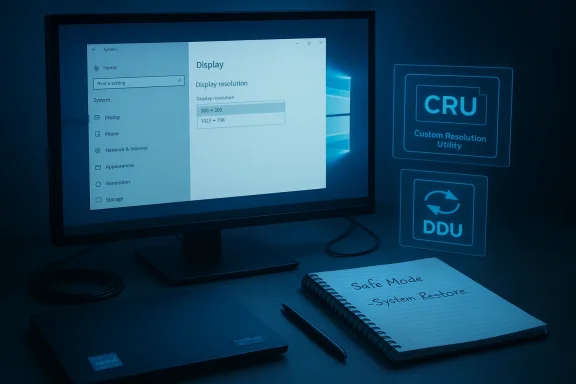
- If switching from Microsoft/OEM to a legacy or alternate driver, boot to Safe Mode and run Display Driver Uninstaller (DDU) to remove residual driver traces. Use DDU in Safe Mode per the tool author and community guidance; this reduces partial installs. After DDU, reboot and test Windows Update/OEM driver first. DDU usage and caveats are well-documented by the community. (forums.guru3d.com)
5) If you still need more — manual INF install (advanced, only if INF lists your hardware)
- Download the archived legacy package you want to try and extract it (many packages self-extract to C:\AMD or C:\Intel\…). Open the package folder and locate the Display.Driver*.inf. Search the INF for your record string.
- If the INF contains your hardware ID, you can attempt Device Manager → Update driver → Browse my computer → Let me pick from a list → Have Disk… → point to the extracted INF and install only the Display Driver.
- If the INF does not list your device, do not edit it unless you can re-sign drivers. Community guides emphasize this as the gatekeeper step.
6) Pause Windows Update while validating
- Windows Update can automatically reapply Microsoft-signed drivers and overwrite a manual install. Pause updates or use the Microsoft “Show or hide updates” tool to hide the driver while you validate a manual installation, then re-enable updates after confirming stability.
Advanced tools when drivers are present but modes are missing
If you have a working driver but the resolution you need isn’t listed, the next tier of tools is EDID override / custom resolution utilities. These are powerful and effective — but use them only when a proper display driver (not Microsoft Basic Display Adapter) is installed.Custom Resolution Utility (CRU) — what it does and when to use it
- CRU edits EDID overrides in the registry so the GPU driver sees different monitor capabilities, allowing Windows to offer additional resolutions. It’s widely used and actively maintained by the community (ToastyX / GitHub mirrors). CRU is effective for fixing overscan, adding detailed resolutions, and restoring missing refresh rates — provided the hardware supports the mode.
- Run CRU.exe and select your active monitor.
- Add a new Detailed Resolution at the native width/height and desired refresh rate (or copy a known-good extension block).
- Save and run restart64.exe to restart the graphics driver without rebooting.
- If the screen goes black, wait 15–20 seconds; if no signal returns, boot to Safe Mode and run reset-all.exe to restore defaults. CRU explicitly documents these safety measures.
- CRU creates EDID overrides — not driver patches. It will not work if the system is using the Microsoft Basic Display Adapter driver, and poor timing settings can produce a black screen. Always export a backup before editing and be ready to use reset-all.exe.
EDID override and INF editing — extreme caution
- Editing INF files to add a VID/PID entry can make the installer accept your device, but edited INF files will not be signed. Installing unsigned drivers on modern Windows builds may require Test Signing mode, disabling Secure Boot, or temporarily disabling signature enforcement — all of which reduce system security and can cause BitLocker/UEFI complications. Microsoft’s documentation on enabling Test Signing (bcdedit /set TESTSIGNING ON) is explicit about these risks. Use this route only on a non-critical machine or when you fully understand the security trade-offs.
A worked example — restoring native resolution for an Intel HD-series laptop (conservative path)
- Record the adapter hardware ID (Device Manager → Display adapters → Propertie Ids).
- Create a System Restore point and copy the current working driver installer to USB.
- Settings → Update & Security → Windows Update → Check for updates → View optional updates → Driver updates. Install any Intel driver listed and reboot. Test resolution list.
- If unresolved, visit the laptop vendor support page (enter Service Tag) and download the Windows 10 graphics driver for that exd reboot. Test again.
- If still unresolved, boot to Safe Mode, run DDU to remove drivers, reboot to Windows, and verify the display is back to Microsoft Basic Display Adapter temporarily. Then either allow Windows Update to reapply the Microsoft-supplied driver or install the OEM driver you downloaded in step 4.
- Only after a compliant driver is installed, use CRU to add a detailed resolution if the monitor truly supports the mode and the driver still doesn’t list it.
Troubleshooting: common failure modes and practical fixes
- Symptom: Installer aborts with “This device is not supported.”
- Cause: Installer INF does not list your PCI\VEN_... device ID.
- Fix: Extract the package and inspect Display.Driver*.inf. If your VID/PID is absent, don’t edit the INF unless you can re-sign drivers. Use Windows Update or OEM driver instead.
- Symptom: Device shows “Microsoft Basic Display Adapter” after install.
- Cause: Partial/failed install or leftover driver remnants.
- Fix: Boot to Safe Mode, run DDU, then reapply Microsoft-signed or OEM driver and validate. Community guides report DDU reliably clears residual conflicts.
- Symptom: Windows Update keeps replacing your manual driver.
- Cause: Windows Update prefers Microsoft-signed drivers.
- Fix: Pause updates or use the “Show or hide updates”re-enable updates after validation.
- Symptom: Custom resolution created via CRU doesn’t show in Windows.
- Cause: Timing parameters out of range or driver ignoring EDID override.
- Fix: Use CRU’s Detailed Resolutions with safe timing presets and restart the graphics driver via restart64.exe; if still missing, consult CRU logs and revert with reset-all.exe.
Security and long-term considerations
- Driver signing and Secure Boot: modern Windows enforces kernel-mode driver signing; enabling Test Signing or disabling Secure Boot to accept unsigned drivers weakens your security posture and may interfere with BitLocker or modern integrity features. Microsoft documents the Test Signing process and the protection around Secure Boot — treat these changes as temporary test steps only.
- Maintain a rollback snapshot: always keep a working installer and a disk image. If you end up with a broken display stack, Safe Mode + DDU + reinstalling the Microsoft/OEM driver is the fastest recovery path for most users.
- When to upgrade hardware: if you only need correct desktop/resolution for everyday tasks and the GPU is many years old (and no OEM driver exists), it may be more cost-effective and less risky to:
- Use an inexpensive discrete GPU (desktop) or USB external GPU/DisplayLink adapter (laptop workaround), or
- Replace the machine for sustained modern driver support.
Quick reference — tools & commands
- Get hardware ID: Device Manager → Display adapters → Right-click → Properties → Details → Hardware Ids.
- Pause Windows Update: Settings → Update & Security → Windows Update → Pause updates.
- View optional updates: Settings → Update & Security → Windows Update → View optional updates → Driver updates.
- Run DDU (Safe Mode recommended): use Display Driver Uninstaller per its author’s guide; after cleaning, install the OEM/Microsoft driver first. Community usage notes emphasize disconnecting internet or blocking Windows Update while using DDU.
- CRU actions: Run CRU.exe → Add Detailed Resolution → run restart64.exe → Validate. If display fails, use reset-all.exe from the CRU package.
- Test Signing (temporary, risky): Elevated command prompt → bcdedit /set TESTSIGNING ON → reboot. Disable with bcdedit /set TESTSIGNING OFF. Secure Boot may block this. Read Microsoft’s guidance before using.
Final verdict — strengths and risks
Strengths of the recommended approach- Safety-first: trying Windows Update and OEM drivers first restores native modes for the majority of systems without advanced tinkering. Microsoft-se kernel signing and reduce security risk.
- Community-tested cleanup: DDU in Safe Mode is the consensus tool to remove driver residue and avoid partial installs that leave the system in a bad state.
- CRU is powerful for EDID and overscan fixes — when used responsibly it solves problems that driver swaps alone can’t.
- Editing INF files and installing unsigned drivers can break Secure Boot/BitLocker and expose the system to low-level risks. Microsoft’s Test Signing mode exists for development and testing, not for long-term production use.
- Manual driver installs may be reverted by Windows Update; you must pause or hide updates during validation to avoid fighting Windows.
- CRU and EDID overrides can produce a black screen if timing values exceed the monitor’s hardware capabilities. Always export and keep backups.
If you follow the conservative workflow above you’ll solve the missing resolutions problem in most cases: start with Windows Update and OEM drivers, record your hardware ID, clean with DDU only when necessary, and use CRU only when a proper driver is installed and you understand monitor timings. For advanced readers who choose manual INF edits or unsigned drivers: do it on a test system, keep disk images and DDU logs handy, and revert Test Signing and Secure Boot changes immediately after validation.
Practical next steps (one-line action plan)
- Check Settings → Windows Update → View optional updates and install any Intel/display driver.
- If unresolved, download your OEM laptop/desktop Windows 10 graphics package and install it.
- If installs fail or modes remain limited, boot to Safe Mode, run DDU, then reinstall the OEM or Microsoft-signed driver.
- If a working driver is present but the native resolution still doesn’t appear, use CRU to add a detailed resolution (back up first).
Source: Born2Invest https://born2invest.com/?b=style-236828812/
