

For many Windchows users the sudden disappearance of the NVIDIA Control Panel — or the inability to reinstall it because the Microsoft Store won’t cooperate — has become a frustrating reality. The good news is there are reliable, supported ways to get the Control Panel working again without relying on the Microsoft Store, and there are also newer NVIDIA tools that reduce the need for the Store-only app. This article explains why the Control Panel is sometimes delivered via the Microsoft Store, how to determine whether your system uses DCH or Standard drivers, step-by-step methods to restore or install the Control Panel without using the Store, and the practical risks and trade-offs you should understand before proceeding.
In 2019–2020 NVIDIA changed the distribution model for the NVIDIA Control Panel to meet Microsoft’s requirements for DCH (Declarative Componentized Hardware) drivers. Under that model, the Control Panel is distributed as a separate Store app and is expected to be installed automatically (or manually) via the Microsoft Store after installing a DCH display driver. That shift means that on DCH systems the classic Control Panel is no longer packaged inside the driver installer itself. NVIDIA documents this behavior in its official support notes.
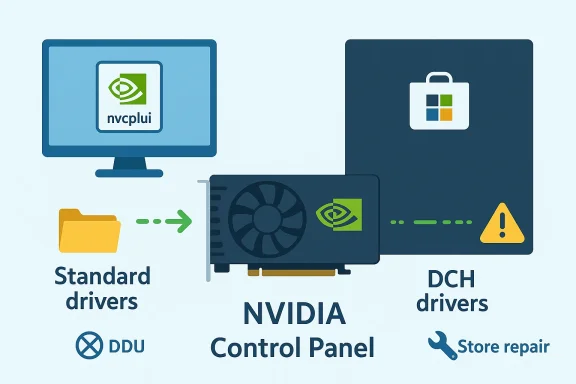
The DCH/Standard split is important because it dictates where the Control Panel lives:
Source: Born2Invest https://born2invest.com/?b=style-228837112/
 Background: why NVIDIA moved the Control Panel to the Microsoft Store
In 2019–2020 NVIDIA changed the distribution model for the NVIDIA Control Panel to meet Microsoft’s requirements for DCH (Declarative Componentized Hardware) drivers. Under that model, the Control Panel is distributed as a separate Store app and is expected to be installed automatically (or manually) via the Microsoft Store after installing a DCH display driver. That shift means that on DCH systems the classic Control Panel is no longer packaged inside the driver installer itself. NVIDIA documents this behavior in its official support notes. The DCH/Standard split is important because it dictates where the Control Panel lives:
- Systems using Standard NVIDIA display drivers typically receive the Control Panel as part of the driver package, accessible directly from the desktop context menu and Program Files.
- Systems using DCH NVIDIA drivers expect the Control Panel as a Microsoft Store app, and Windows will normally fetch it from the Store.
Overview: quick decision tree (which approach to take)
- If your system is using Standard drivers: reinstall the NVIDIA driver package — the Control Panel should be included.
- If your system is using DCH drivers and the Microsoft Store is unavailable or broken: you can either (a) install the NVIDIA Standard driver instead (so Control Panel is included with the driver package), or (b) repair/restore the Microsoft Store so the DCH-based Control Panel can be installed. Both are valid, but option (a) typically avoids the Store entirely.
How to check whether your system is running DCH or Standard NVIDIA drivers
Open the NVIDIA Control Panel (if you still have access) and use the System Information link at the bottom-left to look for the text labeled Driver Type — it will read either DCH or Standard. If the Control Panel is missing complete these quick checks:- Open Device Manager -> Display adapters -> right-click your NVIDIA device -> Properties -> Driver tab (this shows driver version but not type).
- If the Control Panel is missing altogether, check the Program Files path for the Control Panel client (Program Files\NVIDIA Corporation\Control Panel Client) or WindowsApps for the Store package variant. If you find a WindowsApps package name that looks like NVIDIACorp.NVIDIAControlPanel, you likely have a DCH installation.
Method A — Install the NVIDIA Control Panel without Microsoft Store by using Standard drivers
This is the most straightforward Store-free route: move from a DCH driver to a Standard (non-DCH) driver so the Control Panel is packaged with the driver installer.Why this works
Standard drivers include the Control Panel components inside the driver package itself, so installing a Standard driver restores the classic nvcplui Control Panel without requiring the Microsoft Store. NVIDIA acknowledges Standard drivers as an option for users who prefer the bundled model.Step-by-step (recommended safe approach)
- Confirm your current driver type is DCH using the System Information step above.
- Download the Standard NVIDIA display driver for your GPU from NVIDIA’s official Advanced Driver Search page. Prefer the explicit “Standard” or “WHQL” package rather than the “DCH” labeled package. The Advanced Driver Search tools on NVIDIA’s site show driver variants.
- Use Display Driver Uninstaller (DDU) in Safe Mode to completely remove existing NVIDIA drivers and the NVIDIA Control Panel remnants. DDU is a widely used utility for clean driver removal; use it carefully and follow the tool’s instructions. (Disconnecting from the internet can help ensure Windows Update does not auto-install a DCH version while you’re switching.)
- Reboot to normal Windows, then run the Standard NVIDIA driver installer you downloaded. Choose “Custom (Advanced)” in the installer and select “Perform a clean installation” to ensure old components are overwritten. The Standard installer should reinstall the Control Panel components into Program Files.
- After installation, verify the Control Panel is accessible via right click -> NVIDIA Control Panel or via Program Files\NVIDIA Corporation\Control Panel Client and the nvcplui.exe executable.
Important cautions and compatibility checks
- Back up any custom profiles or settings you want to keep before removing drivers.
- If your system or OEM image requires DCH drivers (some OEM systems are tightly coupled to DCH), forcing Standard drivers may break OEM software or support assumptions. Check your PC vendor’s guidance if you have an OEM device (laptop or prebuilt desktop). This is especially true for some business laptops.
- If you use the Microsoft Store, Windows Update, or other management tools that enforce DCH, Windows may later restore DCH drivers; you may need to manage updates carefully.
Method B — Repair or restore the Microsoft Store so the DCH Control Panel can be installed
If you prefer to keep DCH drivers (or your environment requires them), repairing the Microsoft Store is the recommended approach.Typical Store repair steps
- Update Windows to the latest cumulative update and ensure the Windows Update service is running. Many Store apps require recent Windows builds. NVIDIA lists Windows 10 Fall Creators Update (version 1803, build 17134) or later as a baseline for DCH/Store functionality.
- Reset or repair the Microsoft Store via Settings -> Apps -> Microsoft Store -> Advanced Options -> Reset. This often fixes download errors and permission issues for Store apps.
- Ensure “New apps will save to” is set to the C: drive (some users report that the NVIDIA Control Panel DCH app refuses to install if default app storage is set to a non-C: drive). NVIDIA support explicitly lists this as a troubleshooting step.
- After repairing the Store, search for NVIDIA Control Panel in the Microsoft Store and install it manually if it does not install automatically after a DCH driver installation.
Method C — Alternative approaches and “community tricks” (use with caution)
Some community threads and guides describe alternate shortcuts — for instance, downloading a driver package URL and removing “-dch” to get a Standard package, or copying the nvcplui.exe Control Panel binary from another machine. These approaches can work but are not officially documented by NVIDIA as supported procedures. Use them only if you understand and accept the risk.- Removing “-dch” from an NVIDIA driver filename or manually editing download links is a community-discovered trick that sometimes yields the Standard installer variant. It is not a documented NVIDIA procedure and may break if NVIDIA changes naming or packaging conventions. Treat it as an unsupported workaround and prefer the Advanced Driver Search route described earlier when possible.
How to open the NVIDIA Control Panel manually if it appears installed but missing from menus
If the Control Panel is present on disk but not visible in Start or context menus, you can try launching the executable directly:- Look for nvcplui.exe in:
- C:\Program Files\NVIDIA Corporation\Control Panel Client (Standard driver install) or
- C:\Program Files\WindowsApps[NVIDIACorp.NVIDIAControlPanel_*] (Store app path on DCH installs).
- If nvcplui.exe exists, run it directly or create a shortcut. If the file is absent, reinstalling the driver using the steps above is necessary.
The new NVIDIA app: an alternative to the classic Control Panel
NVIDIA has been consolidating features into a modern NVIDIA app (which evolves from GeForce Experience functionality) that includes many display and performance controls previously only in the legacy Control Panel. This new app is intended to eventually replace multiple separate utilities and offers features such as display configuration, G-Sync toggles, and GPU tuning without requiring the separate Microsoft Store Control Panel app. For many users, installing the updated NVIDIA app bundled with drivers reduces the dependence on the Store-only Control Panel. Consider this a viable long-term alternative.Benefits of avoiding the Microsoft Store for the Control Panel
- Simplicity: Standard drivers provide the Control Panel immediately as part of the driver installer with a predictable Program Files location.
- Independence from Store issues: If your Windows environment lacks a healthy Microsoft Store (for instance, on some enterprise or minimal installations), Standard drivers remove that dependency.
- Fewer surprises from store cache or permission problems: DCH/Store installs can fail for reasons unrelated to the GPU driver; avoiding the Store sidesteps those specific failure modes.
Risks, drawbacks, and important warnings
- OEM compatibility: Some OEMs (laptop vendors) may require DCH drivers for platform-specific integrations and updates. Installing Standard drivers on such systems could break vendor-supplied features or make future updates more complicated. Check vendor guidance before forcing standard drivers.
- Support and update behavior: Windows Update and OEM tools may attempt to reapply DCH drivers automatically. If you switch to Standard drivers, you may need to manage Windows Update behavior or reapply the Standard installer after certain Windows updates.
- Unverified community hacks: Tricks like altering file names or using third-party mirrors avoid the Store but are unsupported and potentially unsafe. Use NVIDIA’s official Advanced Driver Search or official installers when possible. Flag any unverified steps and prefer safe, documented options.
- Display Driver Uninstaller (DDU) is powerful: DDU is effective for clean removals but must be used in Safe Mode and per the tool’s instructions. Improper use can leave a system in a partially configured state. Always back up important data and drivers before using DDU.
Troubleshooting checklist when things still fail
- Confirm Windows build meets the minimum requirements for DCH/Store apps (Windows 10 1803 / build 17134 or later for older references) and that Windows Update is not disabled.
- Reset Microsoft Store if you are on DCH drivers.
- Use DDU and perform a clean driver install with the Standard/WHQL package if you want to avoid the Store.
- If a manual executable exists, run nvcplui.exe directly to confirm the Control Panel binary is valid.
- Consider adopting the new NVIDIA app for display settings if it covers the specific features you need.
Practical recommendations and a safe checklist before you change drivers
- Back up important files and take note of custom NVIDIA settings that you may want to restore.
- Document your current driver version and type (DCH vs Standard) and keep the driver installers you download in a safe folder.
- If you are on a laptop or OEM-managed machine, check the manufacturer’s support documentation first — some vendors lock or recommend specific driver types.
- Prefer official NVIDIA downloads via the Advanced Driver Search or the GeForce/NVIDIA driver pages; avoid random third-party driver mirrors.
Conclusion
The need to install the NVIDIA Control Panel without the Microsoft Store is a common and solvable problem. The right solution depends on whether your system uses DCH or Standard NVIDIA drivers. For most enthusiasts and desktop users the safest route to a Store-free Control Panel is to install the Standard driver package from NVIDIA and perform a clean installation (using DDU if necessary). For users who must remain on DCH drivers, repairing or resetting the Microsoft Store and ensuring the Store can install apps to the C: drive is the correct course. NVIDIA’s official documentation explains the DCH/Standard distinction and why the Control Panel is distributed through the Store on DCH systems, while recent NVIDIA software consolidation into the new NVIDIA app offers an emerging alternative that reduces dependence on the separate Store app. Choose the approach that matches your system’s constraints, follow the safe steps outlined above, and treat community “rename” tricks as last-resort, unofficial workarounds.Source: Born2Invest https://born2invest.com/?b=style-228837112/
