

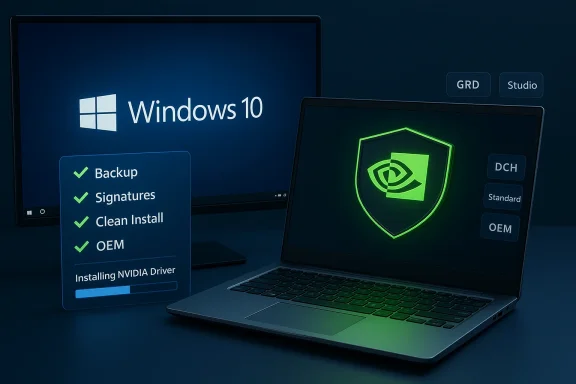
If you want the safest, fastest way to download, install, and update NVIDIA drivers on Windows 10—without breaking your system or trusting sketchy “outlet” mirrors—this feature walks you through an expert, technician‑grade workflow. It explains which NVIDIA download channel to choose, how to verify and install the correct package (desktop vs notebook, DCH vs Standard, Game Ready vs Studio), how to perform a clean install and validate results, and what to do if things go wrong. The guidance below synthesizes community best practice from the uploaded guide you provided and verifies critical claims against official NVIDIA and Microsoft documentation and trusted tooling recommendations. //www.nvidia.com/en-us/drivers/)
Windows 10 machines still in active use need careful driver management because GPU drivers are kernel‑level components that control stability, performance, and hardware features. In practical terms that means: download only from trusted sources, back up before changing drivers, and verifd supported products list before you install. The uploaded material emphasizes these same core rules and presents a safe manual workflow for Windows 10 users.
Two platform realities you must accept:
If you follow the checks and steps above—identify your exact GPU and OS, prefer NVIDIA/OEM downloads, verify signatures/checksums, perform a clean install, and keep a rollback plan—you’ll minimize risk and keep your Windows 10 PC stable and performant while dealing with NVIDIA driver updates.
Source: Born2Invest https://born2invest.com/?b=style-231245012/
 Background / Overview
Windows 10 machines still in active use need careful driver management because GPU drivers are kernel‑level components that control stability, performance, and hardware features. In practical terms that means: download only from trusted sources, back up before changing drivers, and verifd supported products list before you install. The uploaded material emphasizes these same core rules and presents a safe manual workflow for Windows 10 users.Two platform realities you must accept:
- Microsoft ended mainstream Windows 10 support on October 14, 2025; security and lifecycle implications make cautious driver updates and OS migration planning more important than ever.
- NVIDIA distributes multiple consumer driver channels—Game Ready Drivers (GRD) for gaming, Studio Drivers for creative workloads—and two packaging styles on Windows 10: DCH and Standard. Pick the branch and package that match your priorities and system. (nvidia.com)
Why you should avoid third‑party “outlet” or mirror downloads
- Drivers run at ring‑0 privilege; a tampered installer can introduce serious stability or security issues. The uploaded guide explicitly warns against repackaged or mirrored installers and recommends NVIDIA or your OEM as the pa third party claims a discount or “faster” download, treat it as a red flag unless it is a verified OEM mirror and you can confirm file hashes and digital signatures. The guid an unverified Born2Invest article as unreliable—do not use unknown article outlets as your driver source.
- NVIDIA’s official driver download pages or driver archive.
- Your laptop/desktop OEM support page for vendor‑certified builds on notebooks.
Quick glossary (know these before you click Download)
- Game Ready Driver (GRD) — NVIDIA’s branch optimized for the latest game launches and in‑game fixes. Use if gaming & latest features matter most.
- Studio Driver (SD) — Tested and validated for creative apps (Adobe, DaVinci Resolve, Autodesk). Use on production creative workstations.
- DCH vs Standard — Two Windows packaging models. DCH (Declarative, Componentized, Hardware‑odern, componentized form used across many devices; Standard is the legacy-style package. Mixing them without a clean uninstall can cause installer issues. NVIDIA documents behavior and migration rules in its DCH/Standard FAQ.
- OEM packageovided by the laptop/desktop maker; often contains model‑specific INFs, thermal/power tuning and should be preferred on notebooks.
Step‑by‑step: identify the exact driver you need (2–4 minutes)
- OpenAbout to confirm Windows edition and whether you run 64‑bit.
- Open Device Manager → Display adapters → note the exact adapter string (for precision, right‑click → Properties → Details → Hardware Ids and. This is the canonical data you will use to pick the correct driver build.
- If this is a laptop, note the OEM model number and visit the OEM support page first—many vendors ship an OEM‑certified Windows 10 driver that’s safer for power/thermals than a generic NVIDIA desktop build.
S the driver (2–5 minutes)
- Preferred: NVIDIA’s official driver search page; select Product Type → Product Series → Product → Operating System (Windows 10 64‑bit) and Driver Type (Game Ready or Studio), then click Search. Save the .exe locally. ([nvidia.com](Download The Latest Official NVIDIA Drivers owners: check the OEM’s support page for a certified Windows 10 driver for your exact model first. If OEM provides a Windows 10 build, install that instead of the generic NVIDIA notebook package.
- Verify thefirm file size reported on the NVIDIA page, and check the digital signature (Right‑click EXE → Properties → Digital Signatures). If a checksum is provided on the vendor page, verded guide stresses this step to prevent tampered installers.
Preparing Windows for a safe install (2–5 minutes)
- Create a System Restore point—or better, a full image backup—before changing kernel drivers. The uploaded material repeatedly recommends a rollback plan.
- Record your current driver version: Device Manager → Display adapters → Driver tab → Driver Version. Keep a copy of the working installer on external media if you need to revert.
- Close game overlays, capture utilities, and temporarily pause third‑party antivirus/EDR that could block installation steps.
- If you expect a cross‑family change (DCH ↔ Standard) or you have persistent issues, consider running Display Driver Uninstaller (DDU) in Safe Mode to remove remnants before installing. Use DDU only if necessary and follow its usage notes (disconnect Internet/Windows Update while running, and back up first).
Installing the driver: the recommended safe workflow
- Reboot to the normal desktop. Right‑click the downloaded NVIDIA installer → Run as Administrator.
- When the installer UI appears choose Custom (Advanced) and check Perform a clean installation. This built‑in clean option removes many remnants and is often sufficient without DDU.
- Uncheck GeForce Experience / optional components if you prefer a driver‑only install or wish to avoid telemetry. The standalone driver is still available and the app is optional.
- Follow the installer prompts and reboot when requested. Verify the driver version in Device Manager and open NVIDIA Control Panel → System Information to confirm the Driver Type (DCH or Standard) if you need to confirm package class.
DCH vs Standard: practical rules and pitfalls
- DCH is the modern packaging model. If your system currently uses DCH drivers, you can generally install DCH over Standard or Standard over DCH, but switching sometimes forces a forced clean install or requires a DDU cleanup for a trouble‑free switch. NVIDIA’suments the exact behaviors and how to confirm your installed driver type through the NVIDIA Control Panel.
- Notebook owners will often find an OEM‑signed INF packages; if the generic NVIDIA installer shows “No compatible hardware found,” it’s usually an INF/device‑ID mismatch or OEM INF restriction—return to the OEM support page first.
- If you want the NVIDIA Control Panel UI bundled with the driver, note that DCH packaging can require installing the Control Panel as a separate Microsoft Store app; the FAQ explains remedies if the Control Panel disappears after a DCH install.
Verifying results: objective checks you should run after install
- Check Device Manager → Display adapters to confirm the new driver displays.
- Open NVIDIA Control Panel → System Information and verify the installed Driver Version and Driver Type.
- Reproduce representative workloads used daily: a 10‑minute gaming loop for gamers, or a short export/render for creators. Capture baseline metrics before the update (CapFrameX, PresentMon, FrameView) and re-run them after to compare averages and 1% lows—objective data beats subjective “it feels slower” reports.
Rollback and recovery: how to getate
- If the system still boots normally: Device Manager → Display adapters → Properties → Driver → Roll Back Driver (if enabled).
- If you have severe instability or black screens: boot into Safe Mode, run DDU to remove NVIDIA drivers completely, then reinstall the previous working installer. DDU usage and cautions are well documented; always block Windows Update until you reinstall to avoid an automatic conflicting driver push.
- If Windows Update keeps reapplying a different driver during testing, use Microsoft’s “Show or hide updates” troubleshooter to hide the problematic driver update while you evaluate. This is the recommended way to prevent Windows Update from interfering with manual driver testing.
Common installer errors and targeted fixes
- “No compatible hardware found” — confirm you downloaded the correct branch (desktop vs notebook) and inspect the extracted INF for your hardware ID. If INF includes your ID, you can try Device Manager → Update driver → Browse my computer → Have Disk… but this is a fallback and has risks. Prefer OEM packages on laptops.
- Installer fails because Windowying a background driver — let Windows settle for 10–15 minutes on first boot after Windows Update and then run the manual installer, or reboot and retry. NVIDIA documents this scenario and the fix. (nvidia.custhelp.com)
- If you get persistent black screens after an update: boot Safe Mode → run DDU → reinstall known‑good driver.standard tool for stubborn leftoveommendations (Safe Mode, block Windows Update until reinstallation).
Security, privacy, and lifecycle considerations
- Because Windows 10 reached end‑of‑support on October 14, 2025, y posture of Windows 10 + legacy drivers is weaker. If your device handles sensitive data, plan an OS/ hardware migration rather than relying on archived drivers indefinitely. Microsoft’s end‑of‑support guidance explains upgrade and Extended Security Updates options.
- Avoid installing “driver updater” tools from unknown vendors—these are frequently the vector for repackaged installers, adware, or incorrect versions. The uploaded guide and community audits both warn strongly against one‑click third‑party updaters.
- If you must install a driver obtained from a mirror for any reason, verify the installer’s digital signature, file size, and SHA‑256 checksum where available before trusting it. The uploaded material emphasizes these verification steps as essential.
Practical checklists you can copy/paste
Checklist — Minik)- Record current driver version.
- Create System Restore point.
- Download driver from NVIDIA or OEM, verify digital signature.
- Run installer as Administrator → Custom → Perform a clean installation → Reboot.
- Back up full image.
- Boot Safe Mode and run DDU (documented usage cautions).
- Reboot to normal → install the chosen NVIDIA package as Administrator → Custom → Clean install.
- Block Windows Update until you confirm stability, then re‑enable.
Advanced tips and options
- If you want full control over what components get installed (exclude telemetry, HD Audio, etc.), consider NVCleanstall or NVCleanInstall‑style tools that repack NVIDIA installers with custom options—but only download such utilities from well‑known, reputable sources and understand you’re adding another layer of risk. Community walk‑throuabling “Perform a clean installation” and disabling telemetry in the repackaged installer.
- For enterprise or content‑creation rigs, prefer Studio Drivers and test on a staging image before pushing to production machines. The uploaded guide recommends this approach for creators and enterprise environments.
Final verdict: best practice summary
- Always prefer NVIDIA’s official driver pages or your OEM support site. Do not trust unknown “outlet” mirrors or repackagers.
- Back up before any driver change; use System Restore or an image. Keep a copy of the last working installer.
- Use Custom → Perform a clean installation from NVIDIA’s installer for most updates. Use DDU only when you need a deep cleanup or when switching driver package types.
- Choose Game Ready for gaming, Studio for creative work, and prefer OEM drivers for laptops. Confirm DCH vs Standard before big migrations.
- Because Windows 10 is past end‑of‑support (October 14, 2025), factor OS lifecycle into your driver and security planning—plan to upgrade hardware or OS for long‑term security.
Closing note of caution
The uploaded Born2Invest link you included could not be validated as an authoritative driver source, and the community material we reviewed explicitly flagged that sort of third‑party outlet as unreliable for driver binaries. If you want, I can verify a specific driver file (file name / SHA‑256) against NVIDIA and OEM archives for you—but do not run unverified packages downloaded from unknown “outlet” sites.If you follow the checks and steps above—identify your exact GPU and OS, prefer NVIDIA/OEM downloads, verify signatures/checksums, perform a clean install, and keep a rollback plan—you’ll minimize risk and keep your Windows 10 PC stable and performant while dealing with NVIDIA driver updates.
Source: Born2Invest https://born2invest.com/?b=style-231245012/
