

NVIDIA’s High Definition Audio driver — the small virtual piece of software that lets your GPU carry sound to a TV or monitor over HDMI or DisplayPort — is often the overlooked reason your Windows 10 system shows “No audio” or an “Unknown device / Not plugged in” message, and fixing it is usually a matter of disciplined driver hygiene rather than heroic troubleshooting.
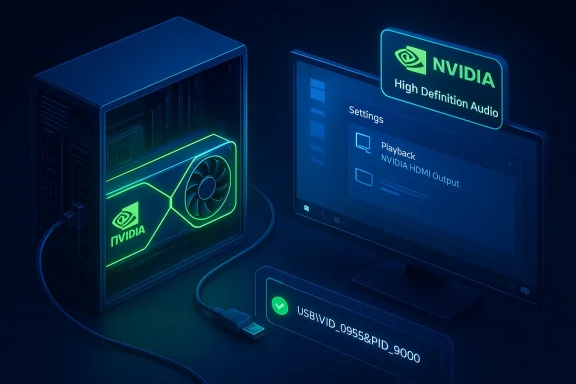
NVIDIA implements HDMI and DisplayPort audio through a virtual audio endpoint commonly known as the NVIDIA Virtual Audio Device (NVVAD) or NVIDIA High Definition Audio. Windows surfaces that endpoint to the OS using a USB-style hardware identifier (frequently USB\VID_0955&PID_9000), which is why the device can appear under “Other devices” or as “Unknown” if the correct driver entry is missing.
The NVVAD is not a physical USB dongle — it’s a kernel-level virtual device that allows Windows to route audio streams to displays and AV receivers attached to the GPU. If the NVVAD driver (the INF usually named nvvad.inf) is absent, misregistered, blocked, or mismatched with the currently installed NVIDIA display driver package, HDMI/DP audio disappears from the system’s Playback devices and Device Manager reports the logical device as “Not plugged in” or “Unknown device.”
NVIDIA’s HD audio driver is small, but its place in the kernel-level driver stack means small mistakes can have disproportionate consequences; treat the NVVAD the same as any other critical system driver: verify, back up, and install from trusted sources.
Source: Born2Invest https://born2invest.com/?b=style-230045212/
 Background / Overview
NVIDIA implements HDMI and DisplayPort audio through a virtual audio endpoint commonly known as the NVIDIA Virtual Audio Device (NVVAD) or NVIDIA High Definition Audio. Windows surfaces that endpoint to the OS using a USB-style hardware identifier (frequently USB\VID_0955&PID_9000), which is why the device can appear under “Other devices” or as “Unknown” if the correct driver entry is missing.The NVVAD is not a physical USB dongle — it’s a kernel-level virtual device that allows Windows to route audio streams to displays and AV receivers attached to the GPU. If the NVVAD driver (the INF usually named nvvad.inf) is absent, misregistered, blocked, or mismatched with the currently installed NVIDIA display driver package, HDMI/DP audio disappears from the system’s Playback devices and Device Manager reports the logical device as “Not plugged in” or “Unknown device.”
Why this problem happens (quick technical primer)
- The NVIDIA installer didn’t install the audio component (the custom install flow can skip NVVAD).
- Residual files or registry entries from previous driver versions (or mismatched packaging types: DCH vs Standard) prevented the new installer from registering nvvad.inf.
- Windows Update pushed a Microsoft-supplied or generic driver that doesn’t provide the expected NVIDIA audio endpoint, causing the system to revert or never register NVVAD.
- Corporate policies, driver-signing enforcement, or OEM-signed INF requirements block the generic NVIDIA package from installing the audio component on notebooks.
Immediate identification: a two-minute checklist
- Open Device Manager → check “Other devices” or “Unknown devices.” Confirm the Hardware Id (Properties → Details → Hardware Ids) and look for USB\VID_0955&PID_9000 (or a close variant).
- Open Sound settings → Playback devices (or right-click the speaker icon → Sounds → Playback) and see whether any NVIDIA HDMI/DisplayPort outputs appear (they can be disabled or hidden by default).
- Note your currently installed NVIDIA driver version: Device Manager → Display adapters → NVIDIA device → Driver tab → Driver Version. Save this before changing anything.
The safe remediation workflow (step-by-step)
Follow this conservative, tested sequence. Each step progresses from least to most invasive.1) Quick fixes (5–10 minutes)
- Right-click the unknown device → Update driver → Search automatically for drivers. Also run Windows Update and check Optional Updates → Driver updates; sometimes Windows Update will supply NVVAD.
- Reboot with the HDMI/DP display powered on and set to the correct input — some displays only enumerate audio endpoints when they are awake and on the correct input.
2) Official reinstall (15–30 minutes)
- For laptops: always check your OEM support page first and prefer the vendor-provided driver package. Many notebooks require OEM-signed INFs to register NVVAD correctly. For desktops: use NVIDIA’s official driver package for your GPU and Windows 10 build.
- Run the NVIDIA installer as Administrator. Choose “Custom (Advanced)” and check Perform a clean installation. Crucially, ensure NVIDIA HD Audio or similar audio option is selected (don’t uncheck it). Reboot when prompted.
3) Manual INF installation (when the installer doesn’t register NVVAD)
- Extract the NVIDIA self-extracting EXE (run it once or extract with 7‑Zip) to the local disk (e.g., C:\NVIDIA\DisplayDriver...). Locate nvvad.inf under Display.Driver or similarly named subfolders.
- In Device Manager, right-click the Unknown device → Update driver → Browse my computer for drivers → Let me pick from a list → Have Disk → Browse to nvvad.inf and install. Reboot and re-check Playback devices.
4) Aggressive cleanup with DDU (only if prior steps fail)
- Backup: create a System Restore point or full disk image first. DDU (Display Driver Uninstaller) removes deep remnants and can leave the system without display drivers temporarily if used incorrectly.
- Boot to Safe Mode, run DDU following its guidance (NVIDIA → Clean and restart). After reboot, reinstall the official NVIDIA package using the clean/custom install path above. Temporarily pause Windows Update while performing this workflow to prevent auto-replacement.
Advanced diagnostics and verification (for power users)
- Inspect Device Manager → device → Properties → Details → INF and Driver Provider to confirm nvvad.inf registration or whether the installed binary is an OEM oemXX.inf variant. Technician logs and Windows Event Viewer entries help when driver registration silently fails.
- Validate installer provenance: right‑click the EXE → Properties → Digital Signatures and confirm NVIDIA Corporation. If checksums are published, verify SHA256 or SHA1 against vendor metadata before running executables. This is standard supply-chain hygiene.
- If Windows keeps reverting drivers, use Microsoft’s “Show or hide updates” tool to block automatic driver replacement while you complete registration and testing. In managed environments, consult IT or check group policy/driver signing settings.
DCH vs Standard drivers, Game Ready vs Studio, and OEM packaging — what matters
- DCH vs Standard packaging: Microsoft’s DCH driver model changes how components are delivered. Mixing DCH and Standard packages without a full cleanup frequently causes component registration problems. If your system uses DCH, reapply a DCH installer or run DDU before switching types.
- Game Ready Driver (GRD) vs Studio Driver (SD): both branches include the HD audio component; choose the branch appropriate to your workload, but do not rely on the branch to change audio behavior.
- OEM drivers: notebooks frequently need vendor-supplied packages because the OEM-signed INFs and power/thermal adjustments are required to register components properly. If the generic NVIDIA package fails, the OEM page is the correct source.
Security and supply-chain risks: why “clearance downloads” are a red flag
Community audits and technician experiences repeatedly show that third-party repackaged driver collections and “clearance” download pages sometimes alter INF files, bundle adware, or deliver tampered EXE packages. Kernel-level drivers are a high-value attack surface; installing unverified packages can introduce malware or cause subtle system instability. Always prefer:- NVIDIA’s official download center or archive,
- Your OEM support portal for laptops, or
- Microsoft Update Catalog entries for WHQL packages when appropriate.
Common edge cases and how to handle them
“Audio device is present but shows ‘Not plugged in’”
- Ensure the display’s input supports audio (some monitors or capture devices do not accept audio over certain ports), and that the monitor/TV is powered on and set to the right input when you examine Playback devices. Windows sometimes hides endpoints if the sink is powered off.
Hybrid laptops (switchable graphics)
- Laptops with Intel + NVIDIA combos often require OEM driver packages. Installing a generic desktop NVIDIA package can omit needed INF modifications and leave NVVAD unregistered. Always consult the OEM first for notebooks.
Windows keeps replacing your working driver
- Temporarily pause Windows Update, and use Microsoft’s “Show or hide updates” tool to block problem driver versions while you register and validate the NVVAD INF manually. If an enterprise environment controls updates, coordinate with IT.
Practical quick checklist (one-page summary)
- Identify: Confirm USB\VID_0955&PID_9000 in Device Manager.
- Try quick fixes: Update driver via Device Manager and run Windows Update (Optional driver updates).
- Official reinstall: Download official NVIDIA or OEM driver and run as Administrator → Custom → Clean install → Ensure NVIDIA HD Audio selected.
- Manual fallback: Extract package → Device Manager → Have Disk → nvvad.inf. Reboot.
- Deep cleanup: Backup → Safe Mode → DDU → reinstall official package → verify.
- Verify: Playback devices detects NVIDIA HDMI/DP endpoint and sound plays to the intended display/receiver. Confirm digital signature of installer used.
Critical analysis — strengths, limitations, and risks
Strengths of the vendor-provided approach
- NVIDIA’s unified driver packages are designed to handle both display and HDMI/DP audio in one installer; a clean custom installation from a vendor-verified package resolves most problems without aggressive cleanup. This single-installer model simplifies troubleshooting for end-users.
- Manual INF installation is a reliable, low-risk fallback when the installer fails to register NVVAD automatically. It’s surgical and reversible if you maintain restore points or a driver archive.
Limitations and failure modes
- Mixing packaging models (DCH vs Standard) without prior cleanup frequently causes component registration failures that are non-obvious to inexperienced users. A DDU cleanup might be required to reconcile packaging types.
- OEM-specific INF signatures on notebooks may prevent the generic NVIDIA package from registering NVVAD correctly, meaning the technical “fix” is to revert to OEM-distributed drivers rather than forcing a desktop package.
Security and operational risks
- Using third-party or “clearance” driver sources carries supply-chain risk. Repackaged INF files or unsigned binaries can undermine kernel trust and create long-term security exposure. Validate digital signatures and checksums before installing.
- Aggressive tools like DDU are powerful but risky without a backup. A failed cleanup or incorrect reinstall sequence can leave the system with no display or audio drivers until a proper package is reinstalled. Always back up first.
When to escalate and what logs to collect
If you have tried the official package, manual INF install, and a DDU clean reinstall and the NVIDIA virtual audio endpoint still fails to register:- Collect Device Manager screenshots (Details → Hardware Ids and the Driver tab).
- Export the System Information (msinfo32) and capture Windows Event Viewer entries around the time of the failed install.
- Verify whether Group Policy or driver-signing policies in your environment block third-party drivers. If this is a managed corporate machine, open a support ticket with IT rather than modifying signature enforcement settings.
Final recommendations (practical, conservative)
- Always start with the vendor: OEM pages for notebooks; NVIDIA’s official portal for desktops. Prefer WHQL-signed packages and verify digital signatures.
- Use the NVIDIA installer’s Custom → Clean installation flow and ensure the NVIDIA HD Audio option is checked. If that fails, install nvvad.inf manually from the extracted package.
- Reserve DDU for persistent, unexplained failures and always back up first. Pause Windows Update while re-registering drivers to avoid automated replacement.
- Avoid “clearance” or third‑party driver aggregators unless you can cryptographically verify binaries — the security risk is material for kernel-level code.
NVIDIA’s HD audio driver is small, but its place in the kernel-level driver stack means small mistakes can have disproportionate consequences; treat the NVVAD the same as any other critical system driver: verify, back up, and install from trusted sources.
Source: Born2Invest https://born2invest.com/?b=style-230045212/
