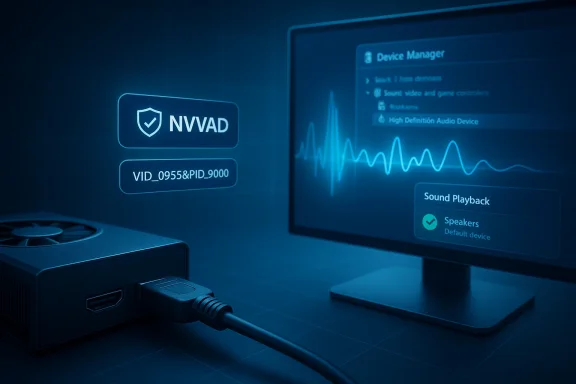
NVIDIA’s HDMI/DisplayPort audio (the driver commonly called the NVIDIA Virtual Audio Device, or NVVAD) can be simple to update — but it’s also a frequent source of confusion on Windows 10 when the virtual device shows up as “Unknown device,” when audio over HDMI/DP disappears, or when installer packaging differences (DCH vs Standard) and leftover driver fragments get in the way. This guide lays out a practical, technician-tested workflow to update or repair NVIDIA HD Audio drivers on Windows 10, explains what the virtual device actually is, warns where cheap or unofficial shortcuts create risk, and gives recovery and troubleshooting steps you can follow with confidence.
Windows exposes the NVIDIA audio endpoint as a virtual audio device (NVVAD) so the GPU can present audio over HDMI and DisplayPort to the operating system. That logical device commonly appears with the hardware ID USB\VID_0955&PID_9000 — not because it’s a physical USB gadget, but because NVIDIA exposes the endpoint via a USB‑style emulation in the driver stack. When the NVVAD driver is missing, corrupted, or blocked, Windows may list that ID as an Unknown device. This diagnosis and the common remediation steps (reinstall NVIDIA drivers or explicitly install nvvad.inf) are consistently documented in community and support threads. cirtual Audio Device component (the INF is typically named nvvad.inf). If that file is not present in the driver store or the installer fails to register it, HDMI/DP audio won’t be available even when the GPU and cables are correct. Reinstalling the full official NVIDIA package and allowing the audio component to install resolves the vast majority of cases.
Best-practice DDU workflow (high level):
If you’d like, I can produce a printable one‑page checklist or a ready-to-run command/script list that walks you through the DDU + reinstall workflow step-by-step for your exact GPU model and Windows build.
Source: Born2Invest https://born2invest.com/?b=style-236660612/
 Background / Overview
Windows exposes the NVIDIA audio endpoint as a virtual audio device (NVVAD) so the GPU can present audio over HDMI and DisplayPort to the operating system. That logical device commonly appears with the hardware ID USB\VID_0955&PID_9000 — not because it’s a physical USB gadget, but because NVIDIA exposes the endpoint via a USB‑style emulation in the driver stack. When the NVVAD driver is missing, corrupted, or blocked, Windows may list that ID as an Unknown device. This diagnosis and the common remediation steps (reinstall NVIDIA drivers or explicitly install nvvad.inf) are consistently documented in community and support threads. cirtual Audio Device component (the INF is typically named nvvad.inf). If that file is not present in the driver store or the installer fails to register it, HDMI/DP audio won’t be available even when the GPU and cables are correct. Reinstalling the full official NVIDIA package and allowing the audio component to install resolves the vast majority of cases.What the NVIDIA HD Audio (NVVAD) What it does: Exposes an audio endpoint so Windows can route sound to displays or AV receivers connected to a GPU’s HDMI or DisplayPort outputs. It is a virtual driver — not a separate external sound device.
- How Windows labels it: Typically USB\VID_0955&PID_9000 o NVIDIA). When it’s unclaimed by a driver, Windows shows it under “Other devices” or “Unknown devices.”
- Key file to know: nvvad.inf (the vendor-supplied INF that registers the NVVADYou may need to point Device Manager to this INF when the installer fails to register the component automatically.
Why HDMI or DisplayPort audio breaks after an update
Several common causes explain sudden loss of HDMI/DP audio:- Taller was run with a custom selection that excluded the audio component. The NVVAD checkbox can be unchecked in a custom install, and people often skip it accidentally.
- Leftover artifacts from prior, failed, or mixed-package installs (DCH vs Standard packaging) can leave the nvvad.inf absent or unregistered. Thag installer types without a clean uninstall.
- Windows Update sometimes installs a driver variant that conflicts with a separately downloaded NVIDIA package, or corporate policies and signature enforcement block ver from registering.
Quick checklist (2‑minute preflight)
Befng, perform these quick safety checks:- Create a System Restore point or better: a disk image for production machines. Kernel-level driver changes can break boot.
- Note your current driver version: Device Manager → Display adapters → Driver tab → Driver Version. Save the currently working installer if you have one.
- Confirm Windows architecture (Settings → System →e system expects DCH-style drivers (modern Windows images usually do). Mixing DCH and Standard packages without cleaning first causes errors.
Step-by-step: Safest standard update (recommended for most users)
- Open Device Manager and confirm the symptom (look under Sound, video and game controllers and OtID_0955&PID_9000). Note exact Hardware Ids if you see Unknown devices.
- Download the official NVIDIA driver package for your GPU and Windows 10 build from NVIDIA or your OEM (use OEM packages for laptops first). Prefer WHQL-signed packages when available.
- Run the installer as Administrator. Choose Custom (Advanced) and check “Perform a clean installation.” Make sure the NVIDIA HD Audio option is selected. Reboot when prompted.
- After reboot, check Sound settings → Playback devices (or right‑click the speaker icon → Sounds → Playback) and confirm an NVIDIA HDMI/DP device is present and enabled. If audioe to the manual steps below.
Manual recovery: installing nvvad.inf directly
If the NVIDIA installer doesn’t register the virtual audio driver, a manual Device Manager install often succeeds:- Download the full NVIDIA driver executable and eThe installer is a self-extracting archive that typically expands into C:\NVIDIA\DisplayDriver\… when run once or extracted with 7‑Zip.
- In Device Manager find the Unknown device (USB\VID_0955&PID_9000) → Update driver → Browse my computer for drivers → Let me pick from a list → Have Disk → Browse to the extracted folder and locate nvvad.inf (search under Display.Driver or s). Select the INF and install. Reboot.
- If the INF isn’t in the package, the package is incomplete or OEM-restricted; return to the OEM support site for the correct installer.
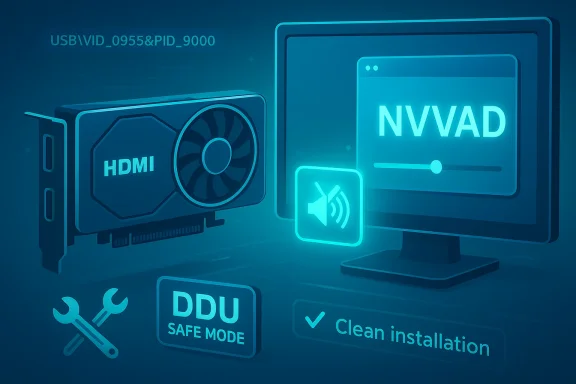
When to use DDU (Display Driver Uninstaller) and how to do it safely
If repeated installs fail, or you’ve mixed DCH and Standard packages and suspect leftover files are causing conflicts, use Display Driver Uninstaller (DDU) — but only after backing up. DDU performs a deep cleanup and is the community standard for resolving driver residue. Follow vendor guidance carefully: boot to Safe Mode, run DDU, and then reinstall the desired NVIDIA package.Best-practice DDU workflow (high level):
- Back up, create a System Restore point, and download the NVIDIA driver you want to install after cleanup. ([support.skyforgepc.com](How to Use Display Driver Uninstaller (DDU) | Support Center Mode (use msconfig or the Windows advanced startup options).
- Run DDU, choose GPU → NVIDIA, and select “Clean and restart.” Allow DDU to complete.
- After reboot, disable Safe Mode if you enabled it via msconfig, then run the NVIDIA installer as Administrator and perform a Custom → Clean installation. Ensure audio is checked.
DCH vs Standard NVIDIA drivers — what you must know
Microsoft’s DCH (Declarative, Componentized, Hardware Support App) driver model changes packaging and how UI components are delivered. NVIDIA provides both DCH and Standard packages; mixing them without a clean uninstall can create incompatibilities.- Functionally they’re equivalent for core driver behavior, but packaging differs — the DCH variant may deliver UI as a separate support app and has a smaller installer footprint. NVIDIA documents these differences and how to choose between them.
- If you need the legacy NVIDIA Control Panel from the driver package (not the Microsoft Store app), you might prefer Standard packages in some cases — but for most modern Windows 10 setups, DCH is the recommended path. A clean uninstall (DDU) is required when switching between the two types.
Troubleshooting common errors and how to fix them
- “Installer cannot find compatible hardware” — usually an INF/device‑ID mismatch or OEM-signed INF blocking. Confirm your hardware ID and that you downloaded the correct desktop vs notebook package. If needed, use the maethod only as a fallback.
- “Unknown device USB\VID_0955&PID_9000 remains” — point Device Manager to nvvad.inf inside the extracted NVIDIA package or reinstall the full NVIDIA package and ensure the audio option is checked. If Winlacing your choice, use Microsoft’s “Show or hide updates” tool to block that driver while you test.
- Black screen or boot hang after install — boot Safe Mode, run DDU, reinstall a verified older working driver, or restore your system image. Always test in a controlled way to avoid data loss.
Safety, privacy, and the temptation of “cheap” driver shops
You may find websites or “driver packs” advertising fast fixes — including ones promising the NVVAD driver alone. Resist the shortcut. Reasons:- Third‑party repackagers sometimes alter INF files or bundle extras; these can break kernel-level behaviotry and malware. Always prefer NVIDIA’s official package or your OEM’s driver. Community histories warn about repackaged drivers altering INF sections.
- Some sites bundle optional adware or unwanted compr downloader. “Cheap nvidia hd sound Shop” style offerings are especially risky because they trade convenience for unknown provenance; do not use them unless you can cryptographically verify the binary (signature or SHA256 checksum) against the vendor release.
- If you’re privacy-conscious, run the NVIDIA installer with Custom → uncheck GeForce Experience. The installer still provides the driver-only option and prevents optional telemetry from being installed.
Advanced diagnostics: logs and verification
- Check the driver provider, version, and INF listed in Device Manager → Properties → Driver and Details → INF flation. The nvvad.inf is commonly registered under an OEM INF name like oemXX.inf in the Windows\inf folder. Technician logs often surface the exact INF name and version when diagnosing.
- Validate the NVIDIA installer binary after download: right‑click the EXE → Properties → Digital Sigt’s signed by NVIDIA Corporation. If NVIDIA publishes checksums, verify them. This prevents tampered downloads.
- Objective verification: after install, set the HDMI/DP device as the default playback device and run a reliable playback test (a short media clip on the target monitor/TV). If multi‑channel audio is required (home theater PC setups), test pa mapping specifically.
Recovery checklist (if something goes wrong)
- Boot to Safe Mode.
- If the system is unstable, use DDU in SafeA drivers.
- Reinstall the previously archived working driver package (the one you saved in preflight). If you didn’t archive one, use the latest official NVIDIA WHQL package for your GPU.
- If Windows Update keeps reverting the driver, run Microsoft’s “Show or hide updates” troubleshooter to hide the driver update reachability or enterprise policies block driver updates, consult your IT admin — corporate group policy or driver signing settings can intentionally block third-party drivers.
Real-world notes and common edge cases
- Laptops: prefer OEM-supplied packages. Many laptops add signed INF extensions for power Using a generic NVIDIA package on an OEM laptop can remove those adjustments and cause battery or stability regressions.
- Legacy GPUs: older cards may belong to legacy driver families that don’t receive frequent updates. If you’ree.g., older GT/GTX generations), choose a driver branch explicitly supporting that card. For long-term reliability, consider hardware upgrade rather than relying on ancient drivers.
- Corporate environments: some security policies prevent unsigned drivers or certain driver classes from registering. If the NVVAD device stays unknown despite proper installers, check Windows Event Logs and group policy settings.
Summary — what to do right now
- If you want the fastest, safest fix: download the official NVIDIA package for your GPU and Windows 10 build (or the OEM driver for laptops), run the installer as Admitom → Perform a clean installation, and ensure the NVIDIA HD Audio / HDMI audio option is selected. Reboot and verify audio in Sound settings.
- If the NVVAD device still shows as Unknown or audio act the NVIDIA installer and manually point Device Manager to nvvad.inf (Have Disk) to register the virtual audio device.
- If manual install fails or you’ve mixed DCH/Standard packages: back up, boot to Safe Mode, run DDU to clean driver residu correct official package. Follow DDU guidance carefully.
- Never trust unverified “cheap driver shop” downloads; prefer NVIDIA or OEM packages and verify digital signatures.
Final assessment — strengths and risks
Strengths of the official approach:- A full NVIDIA package installs both display and virtual audio cted, signed way; it’s the most reliable path for HDMI/DP audio restoration.
- The manual INF fallback and DDU-driven clean installations are proven technician workflows for stubborn cases and are well documented across vendor and community sources.
- Using third‑party repackagers or anonymous “driver packs” can introduce malicious or modified INFs; such packages have been observed to alter behavior at a kernel level. Avoid them unless you can cryptographically validate the binary.
- DDU is powerful and effective, but it performs deep removals. Use it only when necessary, and always follow the recommended Safe Mode workflow and backup steps.
If you’d like, I can produce a printable one‑page checklist or a ready-to-run command/script list that walks you through the DDU + reinstall workflow step-by-step for your exact GPU model and Windows build.
Source: Born2Invest https://born2invest.com/?b=style-236660612/