

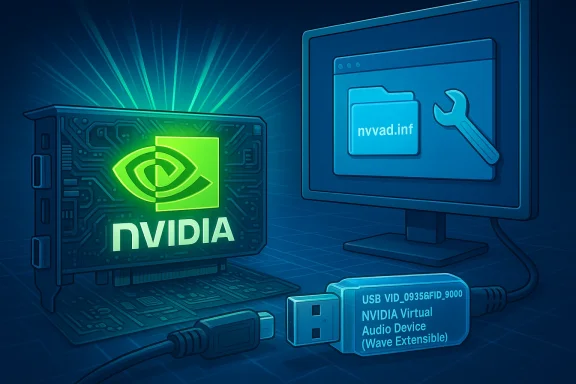
USB hardware IDs can look cryptic, but in this case the mystery resolves cleanly: the device reporting as USB\VID_0955&PID_9000 is the NVIDIA Virtual Audio Device (Wave Extensible) — the virtual audio endpoint NVIDIA installs to provide HDMI / DisplayPort audio output — and the usual fix is to install or repair the NVIDIA audio component that ships with the GeForce/Studio driver package.
When Windows lists an entry under Device Manager with a Hardware ID such as USB\VID_0955&PID_9000, it is reporting two standardized identifiers:
Source: Born2Invest https://born2invest.com/?b=style-232864612/
 Background / Overview
When Windows lists an entry under Device Manager with a Hardware ID such as USB\VID_0955&PID_9000, it is reporting two standardized identifiers:- VID (Vendor ID) — the manufacturer/vendor. In this case 0x0955 maps to NVIDIA.
- PID (Product ID) — the device or product under that vendor. 0x9000 here is the identifier used for NVIDIA's “virtual audio” device.
What the entry actually is (technical summary)
- Device: NVIDIA Virtual Audio Device (Wave Extensible) (WDM)
- Hardware ID: USB\VID_0955&PID_9000
- INF file / driver section: commonly distributed in NVIDIA driver packages as nvvad.inf (INF section names such as NVVAD_WaveExtensible64.NT or similar appear in driver packages).
Why it shows up as “Unknown device” or “Other device” on Windows 10
Common root causes:- The NVIDIA driver installer did not install the virtual audio (HDMI/DP audio) component. That can happen when users select a custom install and uncheck audio, or when GeForce Experience/installer fails to register the audio component.
- A Windows update, driver update, or leftover driver fragments left behind after an incomplete uninstall can break the NVVAD entry, leaving the hardware ID unclaimed by any driver.
- The system’s driver store lacks the correct nvvad.inf that defines USB\VID_0955&PID_9000, so Device Manager flags the device as unknown.
- In rare cases driver-signing or corporate policy (WDAG, driver blocks) can prevent Windows from installing the NVIDIA audio driver automatically.
Safe, step-by-step remediation (Windows 10 focus)
Below is a practical, proven troubleshooting sequence to resolve the USB\VID_0955&PID_9000 unknown device and restore HDMI/DP audio. Follow the steps in order; the later steps are progressively more invasive.1. Quick identification (2–3 minutes)
- Open Device Manager (Win+X → Device Manager).
- If the entry is under “Other devices” or “Unknown devices,” right‑click → Properties → Details → Hardware Ids and confirm you see USB\VID_0955&PID_9000.
- Note whether there is a driver provider or INF referenced.
2. Try Windows Update / Plug-and-Play refresh
- In Device Manager, right-click the unknown device → Update driver → Search automatically for drivers.
- Run Windows Update (Settings → Update & Security → Windows Update) and check Optional Updates → Driver updates.
3. Install the latest official NVIDIA driver package (recommended)
- Download the appropriate NVIDIA driver for your GPU from NVIDIA's official driver portal (use the GeForce / Studio driver page and pick the correct product and OS). The official download packages include the NVIDIA Virtual Audio Device component in the driver set.
- Run the NVIDIA installer. Choose “Custom (Advanced)” and check Perform a clean installation (this ensures existing conflicting files are removed).
- Ensure the installer is allowed to install the HDMI/Audio component (do not uncheck audio). Reboot when prompted.
4. Manual driver installation (when the installer fails)
If the NVIDIA installer does not register nvvad properly, you can manually point Device Manager to the nvvad.inf inside the extracted NVIDIA package:- Download the full NVIDIA driver executable.
- Extract its contents (the GeForce driver is a self-extracting archive — 7-Zip or running the installer once is sufficient to unpack the folder typically to C:\NVIDIA\DisplayDriver\<version>).
- In Device Manager right-click the unknown device → Update driver → Browse my computer for drivers → Let me pick from a list → Have Disk → Browse to the directory that contains nvvad.inf (look under Display.Driver or a similarly named subfolder).
- Select the INF and install. Reboot.
5. Aggressive clean + reinstall (if problems persist)
If installations fail or the device remains unknown:- Use Display Driver Uninstaller (DDU) to remove all NVIDIA display/driver/service remnants (run in Safe Mode following DDU recommendations).
- Reboot to normal mode and install the latest NVIDIA driver package cleanly (as in step 3). DDU is widely used by technicians to resolve stubborn driver residues and is recommended when ordinary uninstall/install cycles fail.
6. Final checks
- Open Sound settings → Playback devices (or right-click the speaker icon → Sounds → Playback) and confirm an NVIDIA HDMI/DisplayPort audio device exists and is enabled.
- Test audio to the HDMI/DP output (it helps to have the monitor/TV powered on and set to a supported audio-capable input).
- If the device appears but audio is choppy or absent, verify the monitor/TV supports the audio channel and confirm Windows output is routed to that device.
Advanced diagnosis and edge cases
- Some machines show the virtual device even with no HDMI cable attached; the NVVAD object is logical and can appear anytime the NVIDIA audio stack is present.
- On laptops with switchable GPUs or hybrid Intel+NVIDIA setups, ensure you install the OEM-recommended drivers (some OEM laptops require vendor-tailored installers). Several vendor forums and laptop-specific driver sites document cases where a generic NVIDIA installer omits a laptop-specific INF and the NV audio device remains broken. If you have a branded laptop (MSI, Lenovo, Dell, etc., consult the vendor’s driver page if the generic installer fails.
- If driver signatures or Group Policy are blocking installs, Device Manager will report driver package errors. In corporate-managed environments, contact your admin for approved driver packages rather than disabling signature checks.
Security and risk considerations
- Do not download drivers from shady driver-collection aggregators. Sites that repackage drivers are convenient, but they sometimes bundle additional software or provide tampered installers. Always prefer the NVIDIA official driver portal or your OEM’s support pages for driver downloads. The driver package contains the authoritative nvvad.inf and nvvad.sys entries.
- If a site only offers a single INF file or proprietary “unknown device” downloader, treat it as suspicious. Driver installers should be obtained from manufacturer sites or trusted repositories, and checksums or digital signatures should be validated if available.
- Using DDU is safe when used correctly, but it is an aggressive cleanup tool; follow the developer’s instructions and create a restore point beforehand. Misuse can leave the system without display drivers until a new driver is installed.
Why multiple sources identify VID_0955 as NVIDIA (verification)
This mapping is corroborated by several independent and reputable sources:- The USB ID database and vendor lists show VID 0955 → NVIDIA and list numerous NVIDIA product PIDs. That same database lists PID 9000 as the Virtual Audio product entry.
- Driver inventory and update directories (driver repositories) explicitly list USB\VID_0955&PID_9000 with the device name NVIDIA Virtual Audio Device (Wave Extensible) and point to the nvvad.inf driver file shipped in NVIDIA driver packages. These driver collections document the historical presence of the NVVAD audio driver across many driver versions.
- Community and vendor Q&A threads show real cases where users saw the same Hardware ID in Windows Device Manager, and the consistent community recommendation is to install/repair the NVIDIA audio driver or the full NVIDIA driver package.
Common troubleshooting pitfalls and how to avoid them
- Avoid blindly installing “driver packs” scraped from third-party portals. They may install outdated or unsigned drivers, or include unwanted extras.
- Don’t assume the device is a third-party USB dongle; treat it as part of the GPU driver stack. Removing “unknown” USB devices without understanding the VID/PID can remove legitimate system endpoints.
- If you attempt manual INF installation, ensure the INF you choose matches the OS architecture (x64 vs x86) and Windows version; wrong architecture INF will fail to install.
- If you plan to use DDU, follow the DDU instructions: boot to Safe Mode, block Windows Update while running the tool, then reinstall the correct NVIDIA package. This prevents Windows Update from re-pulling the old/failed driver mid-cleanup.
Practical checon (quick-reference)
- Confirm the Hardware ID: Device Manager → Details → Hardware Ids → look for USB\VID_0955&PID_9000.
- Install or repair NVIDIA drivers using the official NVIDIA driver download page; choose Custom → Clean install and ensure audio is selected.
- If the installer fails, extract the package and manually install nvvad.inf via Device Manager → Update driver → Have Disk.
- If remnants of previous installs block the new driver, run DDU (Safe Mode) then reinstall the latest NVIDIA package.
- Do not use unknown driver download utilities that are not vendor-provided. Prefer official sources or OEM support pages.
Real-world context and examples
Community forums and end-user logs frequently show the same pattern: Device Manager reports the NVVAD hardware id and users fix it by reinstalling NVIDIA drivers or applying the audio component manually. Corporate support threads and Windows Q&A reports also list USB\VID_0955&PID_9000 as the NVIDIA Virtual Audio Device — the same diagnosis appears repeatedly in diverse platforms, which reinforces the conclusion that this is not a random or obscure device but a standard element of NVIDIA's Windows driver stack. Windows system reports and technician logs routinely show many USB and audio device entries alongside the NV Virtual Audio device when the NVIDIA stack is correctly installed; snapshots of such device lists provide further practical confirmation that the entry corresponds to NVIDIA audio endpoints.Assessment: strengths, limitations, and potential risks
- Strengths: The identification of USB\VID_0955&PID_9000 as the NVIDIA Virtual Audio Device is consistent across vendor databases, driver inventories, OEM troubleshooting threads, and community reports. The fix is well-understood: reinstall or repair NVIDIA drivers (or specifically the NVVAD package).
- Limitations: Some laptop OEMs use vendor-specific driver packages that may alter INF names or how the audio component is deployed. In those cases, the generic NVIDIA installer might not fully satisfy OEM-specific hardware signatures. If the machine is OEM-branded (MSI, Dell, Lenovo, etc. and problems persist, consult the OEM driver page.
- Risks: Downloading drivers from unofficial third-party sites increases exposure to malicious or poorly packaged installers. Using aggressive cleanup tools (like DDU) without following instructions or without a recovery plan can temporarily leave the system without display/audio drivers. Always back up, create a restore point, and prefer vendor-signed packages.
Final notes and quick recap
- USB\VID_0955&PID_9000 = NVIDIA Virtual Audio Device (Wave Extensible) (NVVAD).
- The device is the software/driver endpoint that enables HDMI and DisplayPort audio over NVIDIA GPUs; it is not an independent external accessory.
- Fix path: install the official NVIDIA driver package → choose clean/custom install → ensure audio component is selected; use DDU if the system has corrupt driver remnants; avoid third-party driver download sites.
Source: Born2Invest https://born2invest.com/?b=style-232864612/
