

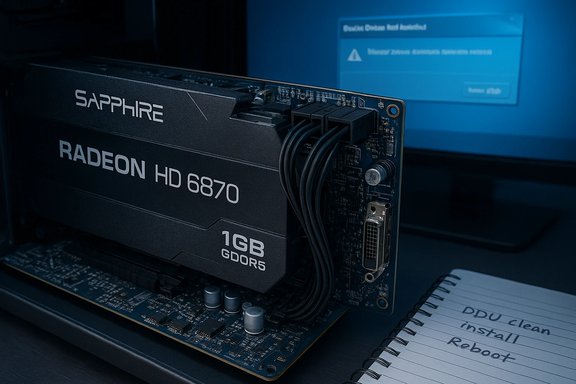
The SAPPHIRE AMD Radeon HD 6870 — a once-popular 1GB GDDR5 PCIe card built on AMD’s Barts architecture — can still power a usable Windows desktop in 2026, but obtaining a reliable Windows 10 driver for it requires care, patience, and a conservative installation path. Practical options range from letting Windows Update apply Microsoft‑signed legacy drivers to extracting and manually installing legacy Catalyst packages; community troubleshooting guides and archived forums document both workable methods and the hazards of unsigned or repackaged installers.
The Radeon HD 6870 launched in October 2010 as a mainstream DirectX‑11 card with a 256‑bit GDDR5 bus, 1,120 stream processors, and a stock GPU clock around 900 MHz. Typical partner boards — including SAPPHIRE-branded cards — shipped with two 6‑pin PCIe power connectors and a mix of DVI, HDMI and mini‑DisplayPort outputs. Those hardware facts are consistent across GPU databases and retailer specs. Official driver support for HD‑6000 series cards entered a “legacy” pattern years ago: AMD stopped active feature development for the older Catalyst/Adrenalin stacks and moved many older families to archival releases intended for Windows 7 / 8-era kernels. That has left Windows 10 users dependent on either Microsoft‑provided signed legacy drivers (via Windows Update), OEM vendor drivers, or careful manual installs of archived Catalyst packages. Community threads and driver‑support guidance published since 2024 document this exact reality and give practical step‑by‑step options.
If the goal is long‑term stability, security, and access to driver features and modern game optimizations, planning a hardware upgrade to a supported modern GPU and OS stack remains the best course. For those who must keep an HD 6870 alive on Windows 10, proceed methodically, back up before changes, and choose Microsoft‑signed or OEM‑provided packages wherever possible.
Source: Born2Invest https://born2invest.com/?b=style-231999512/
 Background
The Radeon HD 6870 launched in October 2010 as a mainstream DirectX‑11 card with a 256‑bit GDDR5 bus, 1,120 stream processors, and a stock GPU clock around 900 MHz. Typical partner boards — including SAPPHIRE-branded cards — shipped with two 6‑pin PCIe power connectors and a mix of DVI, HDMI and mini‑DisplayPort outputs. Those hardware facts are consistent across GPU databases and retailer specs. Official driver support for HD‑6000 series cards entered a “legacy” pattern years ago: AMD stopped active feature development for the older Catalyst/Adrenalin stacks and moved many older families to archival releases intended for Windows 7 / 8-era kernels. That has left Windows 10 users dependent on either Microsoft‑provided signed legacy drivers (via Windows Update), OEM vendor drivers, or careful manual installs of archived Catalyst packages. Community threads and driver‑support guidance published since 2024 document this exact reality and give practical step‑by‑step options. What the HD 6870 is (and isn’t): Specs and realistic expectations
Hardware snapshot
- GPU: Barts XT (Northern Islands generation)
- Stream processors: ~1,120
- Memory: 1 GB GDDR5 on a 256‑bit bus
- Typical clocks: GPU ~900 MHz, memory ~1050 MHz (4.2 Gbps effective)
- TDP / power: ~150 W; typically requires 2 × 6‑pin PCIe power connectors
- Outputs: 2× DVI, 1× HDMI, 2× mini‑DisplayPort (varies by partner).
What to expect on Windows 10
- Basic desktop and video playback: Microsoft’s signed legacy driver (Windows Update) will usually supply a stable, minimal driver suitable for desktop, 2D acceleration and standard video playback. This is the safest route.
- Advanced acceleration and Catalyst features: Expect limited or no support for the complete Catalyst/Adrenalin control suites, modern driver‑level power management, and some UVD features because these packages were not designed or validated for later Windows 10 kernels. Community reports show partial installs where the Catalyst Control Center appears but the display driver is a Microsoft Basic Adapter.
- Gaming and modern workloads: Performance will lag modern hardware; driver optimizations for new titles are unlikely. Plan for reduced performance and compatibility trade‑offs.
Where to get drivers (ranked by trust and safety)
- Windows Update (Microsoft‑signed driver) — recommended first for Windows 10 users. It provides the most broadly compatible, signed, and secure option.
- OEM / System vendor downloads — if your PC or branded system (Dell, HP, Lenovo) shipped with a SAPPHIRE/HD 6870 option, check the vendor’s download page for a Windows 10‑tested package. These are often vendor‑tuned and safer than generic Catalyst installers.
- AMD legacy packages (archival Catalyst installers) — available in AMD’s download archive and in community archives. These target Windows 7/8 and may require manual steps to install under Windows 10; they can work if you extract the INF and the Display.Driver files and perform a manual “Have Disk” install. Only advanced users should take this route.
- Reputable community archives and forums — can host repackaged installers and user‑tested guidance; treat these as a last resort and verify checksums/signatures where available. Community posts document both successes and hazards with these packages.
- One‑click updaters and driver bundles — convenient but risky; they may bundle unwanted software or select an incorrect package. Use only after backups.
Practical, safe workflow to bring a SAPPHIRE HD 6870 up on Windows 10
Follow this conservative, test‑first sequence to minimize risk. Community troubleshooting threads strongly recommend this order.- Inventory and backup
- Record the GPU hardware ID: Device Manager → Display adapters → right‑click → Properties → Details → Hardware Ids (copy the VEN_XXXX&DEV_YYYY string).
- Create a System Restore point and a full disk image if possible. Driver changes to the display stack can cause unbootable systems.
- Try Windows Update first (recommended)
- Settings → Windows Update → Check for updates → view optional driver updates.
- If Windows Update offers a display driver, allow it and validate basic functionality (resolution, multi‑monitor, video playback).
- Check OEM / motherboard vendor pages
- If your PC or motherboard vendor offers a tested display driver for your model and Windows 10, prefer it over generic Catalyst packages. OEM installers are often tuned and safer.
- Clean the driver state if switching installers
- Use Display Driver Uninstaller (DDU) in Safe Mode to remove lingering driver files and registry entries. This is strongly recommended before attempting a legacy Catalyst installer. Community guidance repeatedly lists DDU as a key step to avoid partial installs.
- Attempt a manual INF install only if necessary (advanced)
- Download an archival Catalyst package (for example, Catalyst 13.x or earlier) and extract it.
- Inspect Display.Driver*.inf for your hardware ID. If present, use Device Manager → Update driver → Browse my computer → Let me pick → Have Disk and point to that extracted INF.
- If the INF lacks your device ID, editing INFs or using repackaged installers is risky and should be avoided by novices.
- If an installer refuses to run, try compatibility mode and temporarily allow unsigned drivers for testing only
- Run the installer in Windows 7 compatibility mode when necessary. If you need to test an unsigned INF, temporarily disable driver signature enforcement — do not leave signature enforcement disabled on production machines.
- Reboot, validate, and retain rollback options
- After installation, confirm Device Manager shows the AMD driver and that release‑note component versions match the package you used. Keep the working installer for rollback.
Step‑by‑step: manual INF install (expanded)
For users comfortable with manual installs, these are the concrete steps that frequently succeed when the packaged installer will not run on Windows 10. Follow them carefully and keep a rollback plan. Community threads document numerous cases where this exact workflow resurrected legacy cards on modern systems.- Download the legacy Catalyst package (for HD 6000 family, older Catalyst 13.x or 14.x packages are common choices).
- Right‑click the installer and choose to extract its contents (many AMD installers extract to C:\AMD by default).
- Locate Display.Driver*.inf inside the extracted folder. Open with a plain text editor and search for your VID/PID string.
- If your hardware ID is listed, open Device Manager → Display adapters → right‑click the Microsoft Basic Display Adapter or the unknown device → Update driver → Browse my computer → Let me pick from a list → Have Disk → point to that INF.
- If Windows shows “unsigned driver” warnings, consider testing with signature enforcement temporarily disabled; do this only for testing and return to normal enforcement after validating.
- Reboot and validate resolution, Device Manager driver version, and basic GPU features.
Troubleshooting common failure modes
- Partial installs where Catalyst Control Center appears but the display adapter remains Microsoft Basic Display Adapter: often caused by leftover driver remnants or an interrupted install. The community’s standard fix is to run DDU in Safe Mode and retry a clean manual INF install.
- Installer aborts with “device not supported”: indicates the packaged INF lacks your VID/PID. Confirm the hardware ID and consider OEM drivers instead.
- Windows Update keeps replacing a manual install with an older Microsoft driver: temporarily pause Windows Update before manual installs and reboot only after the installer completes.
- Repackaged or third‑party “Windows 10” drivers from untrusted archives: these may be unsigned or malicious. Validate hashes where possible and prefer Microsoft or OEM sources.
The SAPPHIRE brand and buying used / cheap cards
SAPPHIRE is a long‑standing AMD board partner; SAPPHIRE variants of the HD 6870 generally conform to AMD’s reference specs but may differ in cooler design, clock speeds, and output layout. When buying a used SAPPHIRE HD 6870 (often listed as “cheap HD 6870”), inspect the card for physical damage, verify it has the expected 2× 6‑pin power connectors, and confirm the output ports match your monitors or that you can obtain the needed adapters. Retail product pages and GPU spec databases are consistent on these hardware checks. When acquiring a cheap used card online:- Prefer sellers offering tested working returns or short-term guarantees.
- Ask for photographs of the actual PCB and connector area (look for capacitor bulging or burned marks).
- Verify that the seller will include original driver media or instructions — though driver files will likely need to come from Microsoft / AMD archives regardless.
Security, stability, and legal cautions
- Unsigned drivers: disabling driver signature enforcement increases attack surface and may permit malicious kernel‑level code; do this only temporarily for testing and re‑enable enforcement immediately afterwards.
- Third‑party repackaged installers: widely distributed in community forums, but they may be altered. Verify digital signatures and checksums or avoid these packages entirely in favor of Microsoft/OEM sources.
- Windows OS lifecycle and vendor documentation: AMD’s release notes and community reporting show priorities shifted toward Windows 11 in recent driver cycles; that does not mean Windows 10 is no longer supported, but vendor documentation may omit Windows 10 explicitly while still providing compatible installers. Expect reduced testing for legacy families in newer release branches. Flag any claim that AMD “dropped Windows 10” as misleading unless corroborated by AMD’s official policy documents — community reporting indicates AMD clarified that Windows 10 remains supported even when not named in recent release notes.
Quick FAQ (concise answers)
- Can I get a full Catalyst/Adrenalin experience on Windows 10 with an HD 6870?
Not reliably. The Catalyst suites were designed for Windows 7 / 8-era kernels; Windows Update or OEM drivers provide minimal, stable display drivers. Advanced Catalyst feature parity is unlikely. - Is it safe to download a “Windows 10” driver from a third‑party archive that claims to support HD 6870?
Treat with caution. Verify the file’s checksum, prefer Microsoft or OEM packages, and avoid unsigned executable bundles where possible. - What driver version should I try if Windows Update doesn’t work?
Look for the Catalyst legacy packages that historically support the HD 6000 family (Catalyst 13.x / 14.x era), extract the INF and attempt a manual Device Manager “Have Disk” install — only after a full DDU cleanup.
Conclusion: a pragmatic stance for HD 6870 owners
The SAPPHIRE AMD Radeon HD 6870 1GB GDDR5 PCIe card remains usable for basic desktop work and older games on Windows 10, but the safest path is to adopt a conservative driver strategy: prefer Microsoft’s signed driver via Windows Update, check OEM support pages for vendor drivers, and use archived Catalyst installers only when you understand the risks and follow a disciplined DDU + manual INF workflow. Community archives and forum threads record both success stories and the pitfalls — they are invaluable for troubleshooting but should never replace vendor drivers or safe installation practices.If the goal is long‑term stability, security, and access to driver features and modern game optimizations, planning a hardware upgrade to a supported modern GPU and OS stack remains the best course. For those who must keep an HD 6870 alive on Windows 10, proceed methodically, back up before changes, and choose Microsoft‑signed or OEM‑provided packages wherever possible.
Source: Born2Invest https://born2invest.com/?b=style-231999512/
