

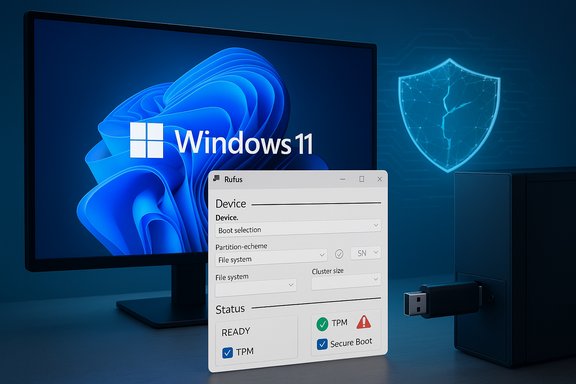
Microsoft’s compatibility gatekeepers labeled many five-year‑old desktops “ineligible” for Windows 11 — and yet a straightforward Rufus-assisted trick has let enthusiasts upgrade in minutes, preserving apps and data while skipping TPM and Secure Boot checks. The result: a working Windows 11 on otherwise healthy hardware — but with real trade‑offs in security, support and future updates that every owner must understand before attempting this path.
Background / Overview
Microsoft ended mainstream support for Windows 10 on October 14, 2025, leaving millions of PCs facing a choice: upgrade to Windows 11, enroll in limited Extended Security Updates (ESU), migrate to another OS, or accept growing risk. That deadline pulled the curtain back on a long‑running problem: many perfectly usable PCs are flagged “incompatible” by Microsoft’s automated checks because of a small set of hardware policies — most notably the requirement for TPM 2.0, UEFI with Secure Boot, certain processor families, and baseline storage/RAM minimums. A popular route around those enforced checks is to use the official Windows 11 ISO together with the USB authoring tool Rufus, which offers an “extended” installer option that removes checks for TPM 2.0, Secure Boot, and the 4 GB RAM gate when creating bootable media. Community writeups — including the firsthand ZDNET-style accounts that circulated in October 2025 — describe a rapid media creation step (often five minutes) followed by an in‑place upgrade or clean install that produces a functioning Windows 11 desktop on hardware Microsoft deems unsupported. This article explains exactly what the Rufus method does, verifies the technical claims against official and independent sources, walks through the practical steps, and analyzes the strengths and the material risks so you can make a safe, informed decision.What Microsoft actually requires (and why it matters)
Minimum gates enforced by Microsoft
Microsoft’s public Windows 11 specifications and tooling enforce a short checklist that drives most compatibility failures:- Trusted Platform Module (TPM) 2.0 or equivalent platform attestation.
- UEFI firmware with Secure Boot capability enabled.
- A supported processor (Microsoft publishes CPU compatibility lists and the PC Health Check app references those lists).
- 4 GB RAM minimum and 64 GB storage (practical installs often succeed with slightly less, but Microsoft’s guidance lists 64 GB).
- Graphics and display requirements (DirectX 12 / WDDM 2.0, HD display).
Practical checks: PC Health Check and Windows Update
The PC Health Check tool and Windows Update both perform compatibility checks. They can produce slightly different results because Microsoft’s update paths and installer flows enforce different checks at different times. The PC Health Check gives a clear “eligible / not eligible” verdict; Windows Update or the in‑installer flow might block or warn at the last minute. That discrepancy explains why some users see pop‑ups urging “buy a new PC” even when hardware is otherwise capable.How the Rufus trick works — the technical mechanics
Rufus doesn’t change Microsoft’s signed Windows binaries. Instead it creates specially configured USB installation media that alters how Windows Setup performs hardware checks during the booted installer flow. The tool exposes options that create a boot environment where the installer skips certain pre‑flight checks (TPM, Secure Boot, 4 GB RAM and optionally the Microsoft account requirement). That bypass applies to the booted installer path — not always to the in‑place upgrade path when you run setup.exe from inside Windows — which is why Rufus’ FAQ explicitly warns about the difference. Key technical points:- Rufus writes a modified boot.wim environment that adds registry keys (LabConfig entries like BypassTPMCheck and BypassSecureBootCheck) to the runtime installer image so the installer won’t abort on missing TPM or Secure Boot.
- Rufus does not manufacture hardware features — it simply prevents Setup from refusing to continue during the installer’s checks.
- Because this is a change in the installer flow, the behavior can change if Microsoft revises the installer. Users may find that some newer Windows 11 builds make certain checks harder to bypass.
When this method is most likely to work
This workaround is most suitable when:- Your PC is a mid‑range desktop or laptop from roughly 2018–2021 where the CPU and peripherals are still fast and drivers exist.
- The only real blocker reported by Microsoft’s check is TPM 2.0 or Secure Boot — and your hardware otherwise meets the other requirements (RAM, storage, instruction sets).
- You are comfortable making a full backup and handling driver updates after the upgrade.
- You accept the possibility of future update blocks or limits to official support.
The 10‑step Rufus method (practical walk‑through)
Below are the standard steps many users followed to create a bootable Rufus USB and perform an in‑place upgrade that bypasses TPM/Secure Boot checks. This replicates the simple workflow widely reported in community guides.- Download the latest Rufus executable (portable) to your Windows 10 PC. Use Rufus’ official website or GitHub release page; run it as Administrator.
- Download the official Windows 11 ISO from Microsoft’s Windows 11 download page and save it to your Downloads folder.
- Insert an empty USB flash drive (minimum 8 GB). Move or back up any files on it — Rufus will erase the drive.
- Open Rufus, select your USB device under Device, and under Boot selection point Rufus to the Windows 11 ISO. Leave Image option as Standard Windows Installation (modern Rufus versions show the custom options after you click Start).
- Click Start. When the “Windows User Experience” or customization dialog appears, check Remove requirement for 4GB+ RAM, Secure Boot and TPM 2.0 (and any other options you want, like removing the Microsoft account requirement). Confirm and let Rufus write the media.
- When the USB is ready, open the drive in File Explorer on your Windows 10 PC and double‑click Setup.exe to run the installer in‑place if you want to preserve apps and files; or boot from the USB for a clean install. Note: the Rufus bypass is guaranteed only for the booted installer path; in‑place upgrades may still be subject to some checks depending on the Windows build.
- If you see the warning “This PC doesn’t currently meet Windows 11 system requirements,” accept it and continue. When the installer offers “Change how Setup downloads updates,” click Not right now to reduce early‑stage online checks.
- Choose whether to Keep personal files and apps (in‑place) or perform a clean install. Proceed and allow the machine to reboot several times.
- After installation finishes, validate drivers, open Device Manager and vendor support pages to update drivers as needed (chipset, storage, Wi‑Fi, GPU). Expect at least one driver update.
- Verify activation and check Windows Update, then reconfigure privacy, BitLocker and any security controls you need. Create a fresh system image or enable a reliable backup after confirming system stability.
Alternate path: the registry bypass (what it is and why Microsoft removed guidance)
A separate workaround that circulated widely is the registry toggle:- Create key HKEY_LOCAL_MACHINE\SYSTEM\Setup\MoSetup
- Add DWORD AllowUpgradesWithUnsupportedTPMOrCPU = 1
Verified claims and cross‑checks
- Windows 10’s end‑of‑support date (October 14, 2025) is confirmed across official Microsoft announcements and independent reporting; Extended Security Updates (ESU) options exist for a limited period thereafter. The practical meaning: no more free feature/security updates for Windows 10 after that date unless you enroll in ESU.
- Windows 11 system requirements (TPM 2.0, UEFI Secure Boot, CPU lists, RAM/storage minima) are documented in Microsoft’s Windows specifications and in the PC Health Check tool — these are the checks the installer enforces.
- Rufus’ “extended” or installer customization feature (options to remove TPM/Secure Boot/4GB RAM requirements and to bypass OOBE Microsoft account requirements) is documented in Rufus’ FAQ and observed in release notes — it works by modifying the boot-time installer environment, and Rufus’ documentation explicitly warns that the bypass applies only when booting from the created media. Independent reporting confirms the feature exists and how to use it.
Strengths: why savvy users like this method
- Cost‑effective: No hardware purchase required when the machine is otherwise capable. That can be especially valuable in tight budgets or for DIY desktops where the motherboard/CPU combo is still fast.
- Preserves environment: In‑place upgrades can keep installed apps, settings and files intact, minimizing reinstallation work.
- Simplicity for many builds: Rufus bundles several bypass options in an easy UI rather than forcing users to manually edit boot images or use console commands.
Risks and long‑term downsides (the trade‑offs you must accept)
- Update delivery and future blocks: Microsoft has warned that unsupported devices may not receive updates consistently. There is a tangible risk that a future cumulative update or feature release will reintroduce checks or prevent updates entirely for machines it deems unsupported. Over time that could create growing security exposure.
- Stability and driver support: OEMs and silicon vendors are less likely to publish Windows 11 drivers for older hardware. Missing or poorly optimized drivers can cause instability, missing functionality (Wi‑Fi, audio), or performance regressions.
- Warranty, enterprise policy and compliance: If the PC is corporate property or covered by certain support contracts, installing an unsupported OS may violate policies, void warranties, or break regulatory controls. Enterprises should treat this approach as an extreme edge case and prefer sanctioned upgrade paths.
- Security posture: Bypassing TPM and Secure Boot disables the hardware-backed assurances Microsoft intended — for example, protections against some firmware attacks and stronger key protection for BitLocker. If you rely on those protections for sensitive work, bypassing them can materially increase risk.
- Potential for “bricking” or data loss: Any OS installation carries risk; registry hacks and third‑party tooling raise that risk. A full backup is mandatory before attempting.
Safe preparation checklist (before you try this)
- Make a full disk image and a verified file backup to external media or cloud storage; verify the image can be mounted. Do not proceed without it.
- Confirm hardware basics: run msinfo32 (check BIOS Mode = UEFI) and tpm.msc (confirm presence and specification version). If TPM is present but disabled in firmware, try enabling it (fTPM or PTT) first.
- Verify your CPU supports required instruction sets (SSE4.2, POPCNT, etc.; if it doesn’t, a bypass won’t help.
- Update firmware and drivers to the latest OEM BIOS/UEFI and chipset drivers before upgrading if updates are available.
- Prepare a fallback plan: know how to restore your disk image or reinstall Windows 10 if needed.
Post‑install checklist (what to do immediately after upgrade)
- Open Device Manager; update chipset, storage and network drivers from the OEM site. Test Wi‑Fi, audio, virtualization and power features.
- Verify Windows Update status and if cumulative updates install properly. If updates are blocked, consider enrolling in ESU temporarily or reverting to your backup.
- Confirm BitLocker or disk encryption behavior and key backup; if TPM is absent you may need to change the BitLocker protector to a password or USB key.
- Create a fresh system image once you confirm stability. Keep a known‑good fallback.
Alternatives to bypassing Microsoft’s checks
- Enable TPM / Secure Boot in firmware (if your board supports it) — the safest route.
- Install a discrete TPM module (on some desktop motherboards a physical TPM header can be populated) and enable it in BIOS.
- Replace or upgrade the motherboard/CPU to a supported combination.
- Stay on Windows 10 with ESU for a limited time while planning migration. ESU options are limited but available for those who cannot upgrade immediately.
- Switch to Linux or ChromeOS Flex for older hardware where Windows 11 isn’t practical — a good, secure alternative for web‑centric workloads.
Bottom line — when the trick makes sense (and when it doesn’t)
For an experienced home user with a mid‑range 2019–2021 desktop that performs well and shows only TPM or UI/firmware as the blocker, the Rufus method is a practical way to extend the useful life of the machine and gain Windows 11 features quickly. Many community reports confirm successful, stable results when the process is executed carefully and drivers are updated afterward.However, this is a workaround, not an official pathway. It involves clear trade‑offs: possible future update blocks, reduced hardware‑backed protections, and support uncertainty. Enterprises, mission‑critical systems, or users who require guaranteed update delivery should not rely on the bypass and should pursue supported upgrade paths or ESU enrollment instead.
Final recommendations — a practical, risk‑aware approach
- If your machine can enable TPM 2.0 and Secure Boot in firmware, do that first — it’s the cleanest option.
- If enabling firmware features is impossible and budget is limited, the Rufus method is a documented, repeatable alternative — but only after a verified full backup, driver check, and acceptance of the update/support risks.
- Label such machines internally as “unsupported” and plan to replace or fully migrate them within a predictable time window (12–24 months), because Microsoft could tighten enforcement later.
- For critical workloads, use virtualization or cloud desktops (Windows 365 / Azure Virtual Desktop) until you can migrate to supported hardware.
- Keep backups current, monitor Windows Update behavior after the upgrade, and maintain an image-based recovery plan.
Source: ZDNET Microsoft said my PC couldn't run Windows 11, but I upgraded in 5 minutes anyway - here's how
