

Danale is a mobile-first camera client that still works well for many IP cameras — but if your aim is to “Download Danale for PC (Windows & Mac)” you’ll need a clear plan: there is no supported native desktop client, the app’s presence in official app stores has been inconsistent in 2024–2025, and the safest way to run it on a computer is either using a vendor-provided desktop pathway where available or running the Android app inside a well‑maintained emulator with strict hardening.
Danale began as a P2P/cloud-enabled mobile app for consumer IP cameras and DVRs, marketed as a plug‑and‑play remote-viewing solution with live streaming, playback, PTZ control and motion alerts. The vendor ecosystem and camera manuals still reference the Danale mobile client as the primary control surface, and third‑party camera vendors (and camera manuals) instruct users to download “Danale” from the iOS and Android stores during initial setup. Over the last 18–24 months the app’s availability has changed: public app‑store listings and APK archives show Danale builds (APK v1.1.16 / 1.1.21) that were updated in 2024, but some aggregator pages report the app as unpublished from official storefronts in mid‑2025. That inconsistent availability matters to anyone trying to run Danale on a PC because it increases the temptation to use third‑party APK archives — a tactic that carries additional risk. Why Windows/Mac users want Danale on a computer
Conclusion
“Download Danale for PC” is doable today — but not by downloading a native Windows or Mac application from Danale itself. The practical, safe paths are (A) use a vendor‑supplied desktop/web client if available; (B) run Danale’s Android build inside a reputable emulator like BlueStacks with disciplined hardening; or (C) connect your cameras directly to a native PC/Mac VMS that supports ONVIF/RTSP for a long‑term, local‑first monitoring strategy. Each path has tradeoffs between convenience, security, and performance; evaluate them against your use case and prioritize verified downloads, strong credentials, and local backup for recordings.
Source: PrioriData Download Danale for PC (Windows & Mac) | Priori Data
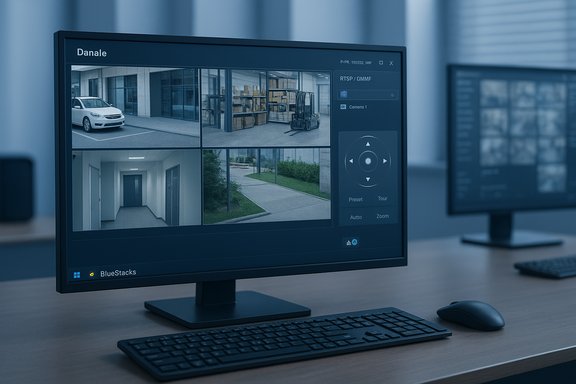 Background / Overview
Danale began as a P2P/cloud-enabled mobile app for consumer IP cameras and DVRs, marketed as a plug‑and‑play remote-viewing solution with live streaming, playback, PTZ control and motion alerts. The vendor ecosystem and camera manuals still reference the Danale mobile client as the primary control surface, and third‑party camera vendors (and camera manuals) instruct users to download “Danale” from the iOS and Android stores during initial setup. Over the last 18–24 months the app’s availability has changed: public app‑store listings and APK archives show Danale builds (APK v1.1.16 / 1.1.21) that were updated in 2024, but some aggregator pages report the app as unpublished from official storefronts in mid‑2025. That inconsistent availability matters to anyone trying to run Danale on a PC because it increases the temptation to use third‑party APK archives — a tactic that carries additional risk. Why Windows/Mac users want Danale on a computer- Larger screens and multi‑monitor monitoring for simultaneous camera feeds
- Easier archive management, exports and local backup to desktop storage
- Better multitasking while monitoring (desktop notifications, automation dashboards)
How Danale works (quick technical summary)
Danale operates as a mobile client + P2P/cloud service that:- Connects to compatible IP cameras, NVRs and DVRs via a device cloud ID or local network discovery.
- Offers live streaming, remote playback and motion‑event notifications via push messages.
- Often implements P2P/RTSP/ONVIF compatibility on the camera firmware side so third‑party VMS solutions can also connect — many Danale‑branded cameras expose RTSP or ONVIF endpoints for integrators.
- Many Danale camera manuals explicitly state 2.4 GHz Wi‑Fi only for provisioning, not 5 GHz. That’s a setup consideration for initial pairing on laptop hot‑spots or guest networks.
- Where manufacturers expose ONVIF or RTSP streams you can bypass the Danale cloud and point PC VMS software directly at the camera feed; this is often a safer, local‑first architecture.
Key features you can expect from Danale (mobile first)
- Real‑time video monitoring with multi‑camera grid layouts and live PTZ control.
- Remote playback of recordings stored on the device/SD card or cloud recordings (depending on camera and vendor settings).
- Motion detection alerts with configurable sensitivity and event playback.
- Cloud sync / P2P connectivity to allow remote access without complex router configuration (P2P ID or QR pairing).
Can you run Danale on Windows or Mac?
Short answer: yes — but not natively. There are three practical options:- Use an official vendor desktop client or browser-based portal if your camera vendor provides one (preferred). Many camera vendors now provide native Windows or web portals that are purpose‑built for desktop viewing. Emulation should be a fallback, not the default.
- Run Danale’s Android app inside a mainstream Android emulator (BlueStacks, NoxPlayer, LDPlayer). This reproduces the mobile UI on Windows or macOS and is the method covered by many how‑tos and emulator vendors’ app pages. BlueStacks’ own pages include a Danale app landing and an emulator installation walkthrough.
- Use a native PC VMS or NVR that connects directly to your camera via RTSP/ONVIF and avoid the Danale app entirely. This approach gives superior performance, local retention and a smaller cloud attack surface — examples include Blue Iris (Windows), Agent DVR / iSpy (Windows/macOS/Linux), SecuritySpy (macOS), Milestone’s XProtect and ZoneMinder.
Emulation: step‑by‑step (BlueStacks — recommended path)
BlueStacks is the most commonly recommended emulator for this use case and publishes system requirements and a how‑to page for running Danale inside the emulator. Confirm your PC meets the emulator’s minimums before proceeding.- Download BlueStacks from the official BlueStacks site and run the installer as Administrator.
- Launch BlueStacks, enable virtualization in BIOS/UEFI if prompted and sign into Google Play inside the emulator (preferably using a secondary Google account).
- Open Google Play inside BlueStacks, search for “Danale” and install. If the app is not available in Play Store you may (with caution) sideload a vetted APK — but this increases risk and should be avoided unless you can verify the build.
- Launch Danale inside BlueStacks, sign in, and add your cameras — follow the same onboarding steps as you would on a phone (QR or device‑ID pairing).
- Allocate at least 4 GB RAM to BlueStacks (8 GB recommended for smoother multi‑camera sessions).
- Enable hardware virtualization (Intel VT‑x / AMD‑V) in BIOS/UEFI for performance.
- Keep folder sharing between host and guest disabled unless you need local file exports — it increases attack surface. Community hardening guidance recommends a dedicated non‑admin Windows account for emulator use.
Alternatives that run natively on Windows and macOS
If your goal is a robust desktop surveillance setup (long‑term monitoring, many cameras, local retention), consider a native VMS instead of emulating Danale.- Blue Iris (Windows) — A mature, feature‑rich commercial VMS that supports hundreds of camera models, PTZ control, motion detection, alerts and up to 128 cameras depending on license. Blue Iris is a popular Windows VMS for advanced home and small business setups.
- Agent DVR / iSpy (Windows/macOS/Linux) — The Agent DVR project (the successor to iSpy) is a powerful, free/open solution with wide device support, web UI, AI integrations and remote access without complex port forwarding. It supports ONVIF and RTSP devices, making it a good native alternative to running Danale in an emulator.
- SecuritySpy (macOS) — A mature, native Mac application with multi‑camera support, motion detection and iOS client integration. Ideal for Mac users who require high reliability.
- Milestone XProtect — An enterprise‑grade VMS with multiple SKUs, including free and entry‑level editions (product names and availability have changed in 2025; verify current offerings). Milestone’s platform is architected for large deployments and advanced analytics.
- ZoneMinder (Linux, cross‑platform) — Open‑source VMS that can be run on Linux servers and accessed from Windows/Mac browsers; suited to technically experienced users who want a local‑first stack.
- Lower CPU/GPU overhead for multi‑stream decoding, better use of hardware acceleration.
- Native integration with OS storage, scheduled backups and export tools.
- Smaller attack surface: no extra runtime layer (emulator) to secure.
- More flexible automation and integration with home automation or AI pipelines.
Security, privacy and operational risks — the hard reality
Running Danale on PC via an emulator introduces additional risks beyond those faced by mobile users. The community and vendor guidance highlight three core risk classes:- Supply‑chain risks: If the app is unpublished from official stores, users may be tempted to download APKs from third‑party hosts. Those files can be tampered with; use official channels only and verify checksums when provided.
- Emulator attack surface: Emulators create network hooks, shared‑folder bridges and additional privilege boundaries that increase the host’s exposure. Community best practice is to download emulators only from official vendor pages, use a secondary Google account, disable unnecessary host‑guest sharing and run the emulator under a limited user account.
- Cloud dependencies and data residency: Using Danale’s cloud/P2P services means trusting a third party with recorded evidence; users with privacy or compliance needs should prefer local RTSP/ONVIF ingestion into a native VMS.
- Download emulators only from official vendor sites and keep them up to date.
- Prefer the browser/web portal or vendor desktop client if provided by your camera brand; treat emulation as a fallback.
- If you must sideload an APK: verify cryptographic checksums and only use well‑established APK archives; consider a disposable VM.
- Use strong unique passwords and enable two‑factor authentication on associated accounts.
- Disable unnecessary file sharing between emulator and host; restrict emulator to a non‑admin Windows account.
Practical installation flows (two recommended paths)
A — Safer, recommended: connect your Danale‑compatible camera to a native PC VMS
- Check your camera manual for RTSP or ONVIF endpoint details (many Danale OEM cameras expose them).
- Install Agent DVR (or Blue Iris if you prefer a commercial solution) on the PC.
- Add the camera by IP address / RTSP URL or use ONVIF discovery. Confirm live view and record settings.
- Configure retention, export paths and scheduled backups to local NAS or external drives.
B — Practical fallback: run Danale inside BlueStacks
- Confirm your machine meets BlueStacks minimums (Windows 7+; 4 GB RAM minimum; 8 GB recommended). Enable virtualization.
- Install BlueStacks from its official site, sign into Play Store, and install Danale (or use the vendor‑provided APK only if officially necessary).
- Harden the emulator: use a secondary account, disable shared folders, run under a non‑admin host account.
- Add cameras within Danale and verify streaming, alerts and recording. For exports, save clips within the emulator then transfer via secure export channels to the host — avoid automatic synced folders.
What to watch for — real‑world caveats and pitfalls
- App availability: Danale’s distribution status in Play Store / App Store has fluctuated; some storefront aggregators list the app as unpublished in May 2025. That increases the risk of outdated app builds or unofficial APKs. Verify current storefront status before trusting an APK.
- Emulators are not a one‑size‑fits‑all solution: they consume CPU/GPU and can struggle with multiple 1080p/4K streams. For many-camera setups, a native VMS is a better engineering choice.
- Camera firmware diversity: “Danale” branded cameras are often OEM builds with different firmware versions; one camera may expose RTSP/ONVIF while another does not. Check your specific model.
- Legal and privacy considerations: cloud recordings are subject to vendor policies and any legal requests for data. For high‑sensitivity use cases choose local storage and robust access controls.
Final verdict and practical recommendation
If your objective is a simple, occasional desktop viewing station for a single Danale camera, running the mobile app within BlueStacks is an effective and pragmatic solution — provided you follow hardening guidance, avoid sideloading unknown APKs and keep the emulator updated. BlueStacks even lists Danale as an app you can run on PC and documents the emulator’s system requirements. If, however, you need a reliable, always‑on monitoring station (multiple cameras, long retention, automation or business use), skip emulation and adopt a native VMS like Blue Iris (Windows), Agent DVR/iSpy, SecuritySpy (macOS) or Milestone’s platform — these solutions offer better performance, local retention options and integration flexibility. Cross‑point: many Danale cameras support RTSP/ONVIF so migrating to a native VMS is often straightforward and reduces cloud dependence. Practical next steps- Confirm whether your camera exposes RTSP/ONVIF and consider connecting it to a native VMS.
- If you prefer the Danale mobile UI on your PC, install BlueStacks from the official site and follow the emulator hardening checklist.
- Avoid third‑party APKs unless you can cryptographically verify them; prefer vendor sites or official app stores where possible.
Conclusion
“Download Danale for PC” is doable today — but not by downloading a native Windows or Mac application from Danale itself. The practical, safe paths are (A) use a vendor‑supplied desktop/web client if available; (B) run Danale’s Android build inside a reputable emulator like BlueStacks with disciplined hardening; or (C) connect your cameras directly to a native PC/Mac VMS that supports ONVIF/RTSP for a long‑term, local‑first monitoring strategy. Each path has tradeoffs between convenience, security, and performance; evaluate them against your use case and prioritize verified downloads, strong credentials, and local backup for recordings.
Source: PrioriData Download Danale for PC (Windows & Mac) | Priori Data
