

AlfredCamera turns idle smartphones into working security cameras, but the path from “install and forget” to a safe, reliable PC-based monitoring station requires careful choices — this feature unpacks what Alfred delivers, what it doesn’t, and how to run it on Windows or macOS with minimal risk.
AlfredCamera (often marketed simply as Alfred) began as a DIY approach to home surveillance: install the app on two devices, designate one as a camera and one as a viewer, and use existing phones or tablets to build a camera network. The vendor’s site highlights tens of millions of installs and positions Alfred as “the most popular home security camera app,” with a full feature set that includes live view, motion alerts, two-way audio and cloud recording. The app is available on the major mobile stores, where the product listing reiterates the same features and subscription tiers (a small monthly premium for HD streaming, extended cloud storage and ad removal). Requirements on official store pages give a practical baseline for device compatibility (iOS 12+ on Apple devices; modern Android versions on Google Play). Alfred’s own privacy and security documents explain its network design, data retention rules for free versus paid tiers, and the encryption and tokenization schemes the company uses to protect streams and stored events. Those policies are explicit about cloud storage retention windows for premium recordings and the use of industry-standard transport and media encryption.
However, the emulator route raises real security and stability tradeoffs:
Key caveats:
Source: PrioriData Download Alfred Security for PC – Windows 7/8/10 & MAC | Priori Data
 Background / Overview
AlfredCamera (often marketed simply as Alfred) began as a DIY approach to home surveillance: install the app on two devices, designate one as a camera and one as a viewer, and use existing phones or tablets to build a camera network. The vendor’s site highlights tens of millions of installs and positions Alfred as “the most popular home security camera app,” with a full feature set that includes live view, motion alerts, two-way audio and cloud recording. The app is available on the major mobile stores, where the product listing reiterates the same features and subscription tiers (a small monthly premium for HD streaming, extended cloud storage and ad removal). Requirements on official store pages give a practical baseline for device compatibility (iOS 12+ on Apple devices; modern Android versions on Google Play). Alfred’s own privacy and security documents explain its network design, data retention rules for free versus paid tiers, and the encryption and tokenization schemes the company uses to protect streams and stored events. Those policies are explicit about cloud storage retention windows for premium recordings and the use of industry-standard transport and media encryption. What Alfred actually does — features and limits
Core features (what works as advertised)
- Live streaming: Remote live view via the mobile app and the vendor’s web presence. Quality scales with connection and tier.
- Motion detection and event recording: Motion-triggered clips (and additional AI filters on paid plans) that can be stored to the cloud for a limited retention period. Alfred documents automatic deletion windows for premium event clips.
- Two‑way audio (walkie‑talkie): Bi-directional talk lets viewers speak through the camera device to whoever’s on the other end.
- Low‑light / night mode: The app leverages the camera hardware and software image processing to improve low-light captures. Performance depends heavily on the camera module and sensor in the repurposed phone.
- Multiple cameras and trust sharing: You can add multiple camera devices to one account and invite others into a “Trust Circle” to share access without handing over credentials.
Important limitations and product boundaries
- No native full‑featured Windows desktop app: Alfred does not publish a native Windows application that replaces the mobile experience; Windows access is delivered via a web-based viewer or by running the mobile app inside an emulator. That’s a practical limitation for users expecting a native PC client with integrated DVR functions. Independent Windows guides and how‑to pages document the web approach as the supported PC path.
- Free vs. paid gaps: The free tier offers basic motion alerts and viewing, but continuous recording, HD streaming, advanced AI detection and extended cloud retention are gated behind subscription plans. Alfred’s store listings and privacy pages outline the retention and feature differences.
- Dependence on cloud services and accounts: Remote access and many convenience features rely on Alfred’s cloud infrastructure and third‑party cloud hosts. While Alfred encrypts streams and uses tokenization, any cloud dependency carries additional privacy and availability tradeoffs.
Security & privacy: what Alfred says and what that means in practice
Alfred publishes a straightforward security posture: OAuth2 sign-in, per-session encryption of media streams (256‑bit AES claims), TLS for backend communications, short‑lived access tokens and randomized media URLs with short lifecycles. For premium event storage, Alfred uses third‑party cloud providers and documents retention windows. The company’s support pages and privacy policy are explicit about those mechanisms. Those vendor claims are meaningful and reflect modern design choices, but they do not eliminate risk. Independent security guidance for consumer cameras emphasizes several persistent realities:- Two‑factor authentication and strong password hygiene are baseline requirements for connected cameras. Wired security reporting and privacy guides urge users to enable multi‑factor login wherever available. Alfred documents recommended account protections in its help center.
- Cloud storage, legal access and data residency remain practical considerations. Alfred’s legal and privacy pages make clear that legal process (warrants, subpoenas) can compel data preservation or disclosure; that’s the tradeoff when using cloud backends.
- User reports and aggregated feedback show mixed experiences with reliability, ads and customer support in some cases — these are not unique to Alfred, but they’re part of the operational risk picture for consumer-grade services. Independent user-review platforms and feedback aggregators capture those complaints.
Running Alfred on a PC: options, step‑by‑step, and verified caveats
There are three practical ways to use Alfred with a Windows or macOS system. Each has pros, cons and verified caveats.1) Official web access — the simplest, safest PC option
Alfred supports a browser-based viewer and account access that allows a PC to act as a viewer without an emulator. This is the recommended PC path when you need a quick, low-risk way to watch feeds, because it avoids installing extra software that increases the attack surface. Guides that walk through the browser approach replicate Alfred’s own advice for Windows users. Practical steps:- Sign in at the AlfredCamera web portal with the same account you use on mobile.
- Grant the browser permission to access a PC webcam if you want the computer to act as a camera (for temporary use).
- Use the mobile app as the primary viewer or keep the web tab open for live monitoring.
2) Use an Android emulator (BlueStacks, Nox, LDPlayer) — full mobile parity, but more risk
If you need the exact mobile UI and feature parity on PC — for example, to run Alfred’s mobile app directly on a desktop — mainstream Android emulators are the practical option. The emulators commonly recommended by users are BlueStacks, NoxPlayer and LDPlayer; they allow you to install Alfred from Google Play inside the emulator and run the app as if on an Android device.However, the emulator route raises real security and stability tradeoffs:
- Emulators increase the software surface on the PC and may introduce additional permissions, file‑sharing and networking hooks that need careful configuration. Community best practices for emulator use stress downloading only from official emulator sites, using a dedicated Google account inside the emulator, and limiting shared folders.
- Emulators also bring performance overhead and sometimes compatibility quirks with audio/video passthrough; older Windows 7 systems or low‑RAM machines will struggle. Practical emulator guidance emphasizes at least 4 GB of RAM and stable virtualisation support.
- Install BlueStacks/Nox/LDPlayer from the official site and update it.
- Sign into Google Play within the emulator (prefer a secondary account).
- Install Alfred from Google Play and configure Camera/Viewer roles as on mobile.
3) Use your phone as a native webcam (USB or Phone Link) for Windows tasks
For those who want low-latency video from a phone into PC applications (conferencing, streaming or local recording), using a phone’s native webcam mode (where supported) or Microsoft Phone Link (“Connected Camera”) is a better technical solution than emulation. When a phone exposes a USB webcam mode it appears to Windows as a standard UVC camera and integrates with the Camera app or desktop software. Community guides and technical deep dives show this is often the most stable approach for continuous, low-latency use.Key caveats:
- Not all phones expose native USB webcam mode (Pixel phones and some others commonly do).
- Wireless Phone Link solutions depend on Wi‑Fi quality and can introduce latency; prefer USB for long sessions.
Verified system requirements and performance tips
Minimum practical requirements to run Alfred comfortably on a modern PC (either via the web or an emulator):- OS: Windows 7/8/10/11 or macOS (modern browser). For emulators, Windows 10+ is recommended.
- Memory: 4 GB minimum; 8 GB+ recommended if running an emulator with multiple apps.
- Storage: 2–10 GB free for emulator and app caches; cloud recordings are stored in Alfred’s cloud per the plan, but local disk space matters if you export clips.
- Network: stable broadband upload on camera side and download at the viewer; use wired Ethernet for PC viewer where possible to reduce jitter.
- Plug camera phones into power to avoid battery drain and background sleep.
- Use 5 GHz Wi‑Fi if using wireless connected cameras; keep phone close to router for high-resolution streams.
- Test your full workflow (alert delivery, playback, export) before relying on it for important monitoring.
Alternatives to Alfred for PC-first surveillance
Alfred is excellent at its core DIY promise, but it’s not the only route. If you primarily want a PC-native surveillance solution — especially for advanced analytics, large camera estates, or local-only recordings — these alternatives are worth considering:- ManyCam — A commercial desktop virtual‑camera and streaming tool with motion detection, multi‑source mixing and local recording; useful when you want a native Windows app that integrates webcams, IP cameras and streaming services.
- iSpy / iSpyConnect — Open‑source, Windows‑focused surveillance with support for many cameras, advanced motion rules and optional cloud services; recommended for users comfortable with deeper configuration.
- Yawcam — Lightweight, Java‑based webcam server for Windows with motion detection, built‑in webserver and FTP upload; simple and effective for basic PC-hosted setups.
- ZoneMinder (and alternatives) — Enterprise‑scale, open surveillance systems (ZoneMinder focuses on Linux environments); better suited for multi-camera business deployments and advanced analytics when you can self-host or manage infrastructure.
Critical analysis: strengths, tradeoffs and risks
Strengths
- Exceptional reuse value: Alfred’s core value is enabling useful surveillance without buying new hardware. That proposition is simple, compelling and verified by the vendor and app store metrics.
- Feature parity with paid kits: Motion alerts, two‑way audio and cloud storage give many households the same operational features as off‑the‑shelf cameras — at a fraction of the hardware cost.
- Accessible onboarding: Setup is quick (camera + viewer pairing via QR or email) and the web viewer avoids heavy installs for PC use.
Tradeoffs and risks
- Cloud dependence vs. local control: The convenience of cloud streaming and remote access means trusting a third party with encryption, storage and availability. That’s fine for many users, but users with high privacy or regulatory needs should prefer local‑first systems. Alfred’s privacy page is transparent about processors, retention and how legal requests are handled — read it and plan accordingly.
- Emulator complexity and supply‑chain risk: Running the mobile app in an emulator is a valid technical workaround for desktop parity, but it expands the attack surface and requires careful sourcing and configuration. Download emulators only from their official sites, use a dedicated account inside the emulator and limit file sharing between host and guest. Community guides warn that emulators are a workaround rather than an ideal solution.
- Operational reliability and support: Public feedback shows mixed experiences with ads, forced upsells and occasional reliability complaints; these are common friction points for highly scaled, freemium services and are relevant when you rely on the system for senior care or critical security. Independent reviews and user feedback aggregators document both praise and complaints.
Practical security checklist for PC-based Alfred deployments
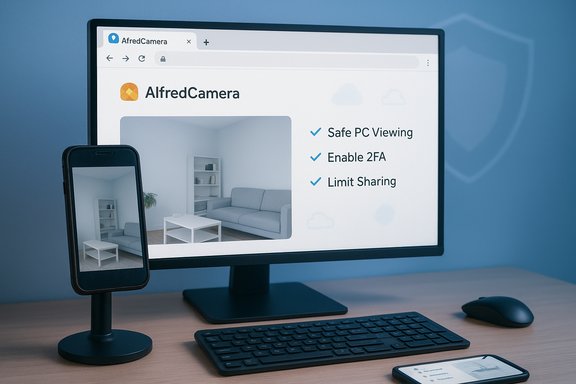
Follow this short, high-impact checklist to reduce risk and increase reliability:- Enable multi‑factor authentication on your Google/Apple account and use a strong, unique password for Alfred sign‑ins.
- Prefer the browser-based viewer on PCs; avoid emulators unless you need the mobile UI.
- Keep camera devices physically secure, powered, and on a private Wi‑Fi network (avoid public hotspots for camera devices).
- Limit Trust Circle membership to only those you trust and periodically review connected devices.
- If you must use an emulator: download from the official vendor, use a secondary Google account, disable unnecessary folder sharing and run the emulator under a non‑admin Windows account.
- For long‑term or business use, consider a local NVR or desktop VMS (iSpy, ZoneMinder, Blue Iris) that keeps recordings on your hardware and avoids cloud retention policies.
How to get started — step‑by‑step (safe route for Windows/Mac users)
- Create a dedicated Alfred account and enable 2FA on your identity provider (Google/Apple).
- Install AlfredCamera on the phone that will act as the Camera and grant camera/microphone permissions.
- From your Windows or macOS PC, sign in to the Alfred web portal; use the browser UI as your Viewer. This avoids installing extra software on the PC.
- Configure motion sensitivity, trust sharing and alert rules in the mobile app. Test alerts and playback.
- If you need local recording or advanced PC features, evaluate iSpy or a native VMS and migrate cameras when you’re ready.
Final verdict and recommendations
AlfredCamera is a pragmatic, widely adopted solution that matches its promise: it repurposes old phones into competent surveillance cameras with modern conveniences like motion alerts, two‑way audio and cloud backup. For the majority of home users who want a low-cost, easy-to-deploy monitor, Alfred is a strong choice — especially when used as a viewer via a modern browser on Windows or macOS. That said, the convenience of Alfred comes with tradeoffs: cloud reliance, subscription tiers for continuous/higher-quality recordings, and the operational attention that any connected camera demands. If you need local-only storage, advanced multi-camera orchestration, or an enterprise-grade monitoring system, choose a PC-native VMS (iSpy, ZoneMinder, Blue Iris) or an integrated NVR. Practical, balanced guidance:- Use Alfred’s web viewer on PC for most home scenarios; it’s the safest, simplest route.
- Reserve emulators for edge cases (when feature parity is essential) and follow community hardening steps if you go that route.
- Maintain strong account security, limit sharing and periodically audit connected devices — those steps will give you the biggest privacy and safety improvements.
Source: PrioriData Download Alfred Security for PC – Windows 7/8/10 & MAC | Priori Data
