

Running Windows from an external drive is one of those ideas that sounds clunky on paper and, surprisingly, can be practical in the real world. In my testing, a fast external NVMe enclosure made the experience far more usable than most people would expect, especially for everyday tasks like browsing, writing, and file management. The tradeoffs are real, though, and they show up most clearly in boot time, sustained transfers, and hardware compatibility. The key is understanding where the setup shines, where it stumbles, and why it still feels like a very specific tool rather than a replacement for a normal internal Windows install.
Windows on external storage has lived in the awkward space between novelty and utility for well over a decade. Microsoft has never made the standard consumer Windows installer happy about external boot targets, and that reluctance shaped the ecosystem around it. What began as a niche workaround for testers and IT tinkerers eventually turned into a legitimate workflow for people who wanted portability, isolation, or a disposable environment for experiments. Windows To Go was the company’s official answer for enterprise users, while tools like Rufus later made the concept far more approachable for everyone else.
The modern appeal is easy to understand. Fast NVMe SSDs are now cheap, USB 3.x ports are widespread, and external enclosures can approach internal-drive performance closely enough for ordinary work. That combination changed the equation. Once the storage itself stopped being the obvious bottleneck, the question became whether the interface overhead and firmware quirks would still ruin the experience. For many users, they no longer do.
That doesn’t mean the idea is broadly simple. Boot support still depends on the machine’s firmware, the quality of the enclosure, and whether the host system’s BIOS or UEFI settings cooperate. Even when it works, Windows still has opinions about drivers, activation, power management, and sudden disconnects. The result is a setup that can feel almost native in daily use while remaining unmistakably nonstandard underneath.
WindowsForum readers have seen this story before in earlier forms. Forum discussions from the Windows 7 and Windows 8 era already reflected the same themes: USB bootability, BIOS support, driver compatibility, and the balance between convenience and risk. In those conversations, users were often excited by the portability but immediately warned about hardware limits, installation complexity, and the fragility of removable storage as a system disk .
Today, the conversation is more interesting because the hardware finally caught up with the idea. An external Windows install is no longer a science project just to prove a point. It is still not ideal, and it is still not for everyone, but it can be genuinely useful if you treat it as a separate workspace rather than a permanent main OS.
That matters because most day-to-day Windows work is not endlessly hammering the storage device. Desktop apps launch, load a few files, and then spend a lot of time idle or in memory. Once the system is up and running, the difference between internal and external storage can be much smaller than people assume. The result is a system that feels slower in specific moments but not in a way that destroys usability.
The appeal is also philosophical. A portable Windows installation can be a clean, isolated environment. It lets you test software, separate work and personal profiles, or carry a familiar desktop between machines without touching the internal drive. That is especially handy for users who frequently borrow systems, troubleshoot PCs, or want a recovery environment that behaves like a real desktop OS rather than a stripped-down rescue shell.
The practical takeaway is that the concept is no longer absurd. It is just specialized. If you need a portable, independent Windows environment, the external-drive route is now credible enough to consider seriously.
The typical flow is straightforward once you know the trick. You download the Windows ISO, open Rufus, choose the external SSD as the target, and switch the image type from a standard install to Windows To Go mode. From there, the tool writes a portable Windows layout that is designed to boot from external storage. After that, you adjust your BIOS or UEFI boot order so the machine prefers the external drive when it is attached.
What happens next feels normal in the best way. The machine boots, you complete the usual first-run Windows setup, and the OS starts pulling in drivers for the hardware it sees. Once that is done, Windows behaves like a conventional installation. Apps install, updates apply, and settings persist exactly as they would on an internal disk.
Older WindowsForum posts about bootable USB installs reflect the same reality. Community members have long advised that BIOS support and firmware behavior can make or break the experience, regardless of the quality of the drive itself . That is still true, only now the media is much faster and the odds are better.
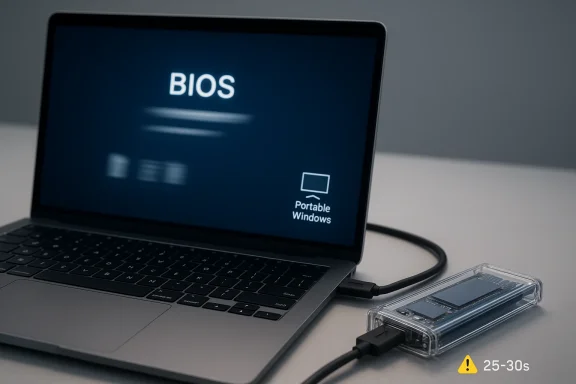
A cold boot from external storage can easily be in the 25- to 30-second range on a typical laptop where an internal drive might reach the desktop in roughly 10 seconds. That difference is visible, but it is not the kind of delay that makes the machine feel unusable. The key point is that the USB or Thunderbolt bridge, not the SSD, is doing the throttling.
Sleep changes the equation. Resuming from sleep is often close enough to internal-drive behavior that the difference becomes marginal. Since many users do not fully shut down their machines every day, that matters a lot. If you treat the external Windows environment like a laptop hibernation or sleep-based workspace, the boot penalty fades into the background.
This is one of the rare cases where good enough really is good enough. If your workflow favors sleep over full power-off cycles, boot time stops being a serious argument against the setup.
App launches may be a little slower on the first run, but once programs are loaded and Windows has cached what it needs, the experience settles down. That is because many of the common tasks people do on a desktop are not storage-bound for long periods. The system spends much of its time waiting on you, not the drive.
The isolation is another big advantage. The external install has its own profile, apps, and configuration. That makes it useful for testing, travel, and “clean room” computing. Plug it in, boot from it, and you are in your own environment without touching the host system’s internal drive.
Forum users have long appreciated that second-drive isolation for the same reason. Even in older discussions, people liked the idea of putting important files or alternate systems on a separate disk so that reinstalling the main OS would not wipe everything out . The external-drive version extends that logic into a more portable form.
This is not a surprise once you think about it, but it matters in real use. A fast external Windows install can feel perfectly fine for a workday and then become much less appealing the moment you begin shuttling large files between internal and external storage. In those moments, the bridge really does matter more than the underlying drive.
Hardware switching is another issue. Move the external install between different machines and Windows may spend time rediscovering drivers. That is manageable, but it is not instant. Each new host can trigger a bit of reconfiguration before the environment feels settled again.
The old WindowsForum skepticism about running a full Windows install from removable media was not wrong; it was simply speaking for an earlier generation of hardware. Even now, the limitations remain real, only less severe than they once were .
For enterprise users, the value is more structured. A portable Windows workspace can support field work, contractor scenarios, labs, and controlled environments where users need consistent access to a familiar desktop. Microsoft’s original Windows To Go idea was aimed squarely at this kind of use case, because organizations care about manageability, policy control, and separation from host machines.
The divide matters because the success criteria are different. Consumers care about ease, speed, and “does this feel normal enough?” Enterprises care about repeatability, supportability, and whether the environment can be managed without chaos. A setup that is good enough for one group may still be too messy for the other.
That is why the same technology can feel both elegant and awkward. It solves a problem that many users genuinely have, but it does so in a way that still asks for technical patience.
If you boot the same Windows environment on multiple systems, you may encounter activation prompts or licensing friction. Sometimes this is easy to resolve if the license has already been linked to a Microsoft account. Other times, the move reminds you that portability does not erase licensing rules.
Hardware identity also affects the user experience in subtler ways. Windows will remember drivers and settings, but it still adapts to the host machine. That is useful, because it allows the OS to function across systems. It is also annoying, because each machine can introduce a little bit of setup churn before things settle down again.
That distinction is important because it shapes expectations. Users who imagine a fully portable, plug-anywhere Windows desktop may be disappointed. Users who think of it as a flexible but still accountable Windows environment are much more likely to be satisfied.
Reliability also depends heavily on the enclosure and cable quality. A cheap bridge chip or flaky cable can ruin an otherwise good SSD. Since the external drive is effectively your system disk, that extra layer matters more than it would for ordinary file storage. It is worth spending more than the absolute minimum here.
There is also the practical issue of backups. A portable OS is convenient precisely because it separates itself from the host machine, but that does not protect you from the usual human mistakes or hardware failures. If the external install is important to you, it deserves the same backup discipline as any other Windows system.
The broader lesson is that portability introduces convenience and fragility at the same time. You gain independence from the internal disk, but you also inherit the physical risks of removable hardware. That tradeoff is manageable, but it is never free.
That said, Microsoft’s support posture still shapes the market. Without broad official consumer support, the ecosystem will continue to rely on tools like Rufus and on the patience of users who are comfortable doing things the nonstandard way. That keeps external Windows in a very particular niche: widely possible, lightly unofficial, and genuinely useful for the people who need it.
What to watch:
Source: MakeUseOf I tried running Windows from an external drive and was surprised by how usable it is
 Overview
Windows on external storage has lived in the awkward space between novelty and utility for well over a decade. Microsoft has never made the standard consumer Windows installer happy about external boot targets, and that reluctance shaped the ecosystem around it. What began as a niche workaround for testers and IT tinkerers eventually turned into a legitimate workflow for people who wanted portability, isolation, or a disposable environment for experiments. Windows To Go was the company’s official answer for enterprise users, while tools like Rufus later made the concept far more approachable for everyone else.The modern appeal is easy to understand. Fast NVMe SSDs are now cheap, USB 3.x ports are widespread, and external enclosures can approach internal-drive performance closely enough for ordinary work. That combination changed the equation. Once the storage itself stopped being the obvious bottleneck, the question became whether the interface overhead and firmware quirks would still ruin the experience. For many users, they no longer do.
That doesn’t mean the idea is broadly simple. Boot support still depends on the machine’s firmware, the quality of the enclosure, and whether the host system’s BIOS or UEFI settings cooperate. Even when it works, Windows still has opinions about drivers, activation, power management, and sudden disconnects. The result is a setup that can feel almost native in daily use while remaining unmistakably nonstandard underneath.
WindowsForum readers have seen this story before in earlier forms. Forum discussions from the Windows 7 and Windows 8 era already reflected the same themes: USB bootability, BIOS support, driver compatibility, and the balance between convenience and risk. In those conversations, users were often excited by the portability but immediately warned about hardware limits, installation complexity, and the fragility of removable storage as a system disk .
Today, the conversation is more interesting because the hardware finally caught up with the idea. An external Windows install is no longer a science project just to prove a point. It is still not ideal, and it is still not for everyone, but it can be genuinely useful if you treat it as a separate workspace rather than a permanent main OS.
Why Windows on an External Drive Is Finally Plausible
The biggest reason this setup has become realistic is simple: external storage got fast enough. A PCIe 4.0 NVMe SSD behind a decent USB 3.2 Gen 2 or Thunderbolt bridge is no longer comparable to the old, painful era of spinning USB hard drives. When the drive itself is capable of very high throughput, the interface becomes the constraint rather than the media.That matters because most day-to-day Windows work is not endlessly hammering the storage device. Desktop apps launch, load a few files, and then spend a lot of time idle or in memory. Once the system is up and running, the difference between internal and external storage can be much smaller than people assume. The result is a system that feels slower in specific moments but not in a way that destroys usability.
The appeal is also philosophical. A portable Windows installation can be a clean, isolated environment. It lets you test software, separate work and personal profiles, or carry a familiar desktop between machines without touching the internal drive. That is especially handy for users who frequently borrow systems, troubleshoot PCs, or want a recovery environment that behaves like a real desktop OS rather than a stripped-down rescue shell.
What changed
- NVMe enclosures became fast enough to matter.
- USB 3.2 and Thunderbolt reduced the old bottlenecks.
- Windows hardware support is mature enough to re-detect devices reasonably well.
- Rufus Windows To Go mode made creation much easier than manual methods.
- Portable workflows are more relevant now for testing and travel.
- SSD affordability makes dedicated external Windows media realistic.
The practical takeaway is that the concept is no longer absurd. It is just specialized. If you need a portable, independent Windows environment, the external-drive route is now credible enough to consider seriously.
How the Setup Actually Works
The setup process is still less straightforward than a normal installation because Microsoft’s standard wizard does not want to install Windows to removable media. That is why tools like Rufus matter so much here. They create a bootable external Windows environment in a way the default installer will not.The typical flow is straightforward once you know the trick. You download the Windows ISO, open Rufus, choose the external SSD as the target, and switch the image type from a standard install to Windows To Go mode. From there, the tool writes a portable Windows layout that is designed to boot from external storage. After that, you adjust your BIOS or UEFI boot order so the machine prefers the external drive when it is attached.
What happens next feels normal in the best way. The machine boots, you complete the usual first-run Windows setup, and the OS starts pulling in drivers for the hardware it sees. Once that is done, Windows behaves like a conventional installation. Apps install, updates apply, and settings persist exactly as they would on an internal disk.
The practical setup steps
- Download the Windows ISO.
- Open Rufus.
- Select the external SSD as the device.
- Change the image mode to Windows To Go.
- Write the media and finish the process.
- Reboot into BIOS or UEFI.
- Put the external drive first in boot order.
- Complete Windows setup and driver installation.
Older WindowsForum posts about bootable USB installs reflect the same reality. Community members have long advised that BIOS support and firmware behavior can make or break the experience, regardless of the quality of the drive itself . That is still true, only now the media is much faster and the odds are better.
Boot Time: Slower, But Not Annoying
Boot speed is the first thing most people worry about, and for good reason. If the system takes ages to start, the convenience of portability evaporates quickly. In practice, a fast external NVMe drive is slower than internal NVMe storage, but not dramatically so for many users.A cold boot from external storage can easily be in the 25- to 30-second range on a typical laptop where an internal drive might reach the desktop in roughly 10 seconds. That difference is visible, but it is not the kind of delay that makes the machine feel unusable. The key point is that the USB or Thunderbolt bridge, not the SSD, is doing the throttling.
Sleep changes the equation. Resuming from sleep is often close enough to internal-drive behavior that the difference becomes marginal. Since many users do not fully shut down their machines every day, that matters a lot. If you treat the external Windows environment like a laptop hibernation or sleep-based workspace, the boot penalty fades into the background.
Where the delay comes from
- Interface overhead is the main limiter.
- BIOS/UEFI initialization adds time before Windows even loads.
- Fast Boot settings can help or hurt depending on the machine.
- Thunderbolt can reduce the gap more than basic USB.
- Slow enclosures make the difference much more obvious.
This is one of the rare cases where good enough really is good enough. If your workflow favors sleep over full power-off cycles, boot time stops being a serious argument against the setup.
Everyday Use Feels Surprisingly Normal
This is where the idea starts to win people over. Once the machine is booted, the external Windows install often behaves like a regular installation for routine work. Browsing, writing, light office use, and file management generally feel very close to an internal SSD experience.App launches may be a little slower on the first run, but once programs are loaded and Windows has cached what it needs, the experience settles down. That is because many of the common tasks people do on a desktop are not storage-bound for long periods. The system spends much of its time waiting on you, not the drive.
The isolation is another big advantage. The external install has its own profile, apps, and configuration. That makes it useful for testing, travel, and “clean room” computing. Plug it in, boot from it, and you are in your own environment without touching the host system’s internal drive.
Why it works for normal work
- Writing and browsing are not heavily storage-limited.
- RAM caching reduces repeated disk access.
- Separate user profiles keep the environment isolated.
- Updates and drivers behave normally after the first boot.
- No interference with the host drive is a major benefit.
Forum users have long appreciated that second-drive isolation for the same reason. Even in older discussions, people liked the idea of putting important files or alternate systems on a separate disk so that reinstalling the main OS would not wipe everything out . The external-drive version extends that logic into a more portable form.
Where the Limitations Show Up Fast
The setup starts losing its charm when you ask it to do something storage-heavy for long periods. Video editing, large game installs, and sustained transfers make the interface bottleneck obvious. The SSD may be excellent, but the bus is still the gatekeeper.This is not a surprise once you think about it, but it matters in real use. A fast external Windows install can feel perfectly fine for a workday and then become much less appealing the moment you begin shuttling large files between internal and external storage. In those moments, the bridge really does matter more than the underlying drive.
Hardware switching is another issue. Move the external install between different machines and Windows may spend time rediscovering drivers. That is manageable, but it is not instant. Each new host can trigger a bit of reconfiguration before the environment feels settled again.
The most common pain points
- Large file transfers are slower than expected.
- Game installs can magnify interface bottlenecks.
- Video editing stresses the connection hard.
- Host changes can trigger driver re-detection.
- Power draw over USB can nibble at battery life.
- Cable bumps can create avoidable risk.
The old WindowsForum skepticism about running a full Windows install from removable media was not wrong; it was simply speaking for an earlier generation of hardware. Even now, the limitations remain real, only less severe than they once were .
Enterprise vs Consumer Use Cases
For consumers, the most obvious use is convenience. You might want a test Windows environment, a travel-friendly setup, or a backup OS you can boot on a second machine. That kind of flexibility has a direct, personal appeal. It also lowers the risk of experimenting with software or system tweaks, because the external install can be treated as a disposable sandbox.For enterprise users, the value is more structured. A portable Windows workspace can support field work, contractor scenarios, labs, and controlled environments where users need consistent access to a familiar desktop. Microsoft’s original Windows To Go idea was aimed squarely at this kind of use case, because organizations care about manageability, policy control, and separation from host machines.
The divide matters because the success criteria are different. Consumers care about ease, speed, and “does this feel normal enough?” Enterprises care about repeatability, supportability, and whether the environment can be managed without chaos. A setup that is good enough for one group may still be too messy for the other.
Consumer advantages
- Personal portable workspace
- Easy testing without risking the internal drive
- Separate profile and apps
- Useful for borrowed or shared systems
- Good for troubleshooting and recovery
Enterprise advantages
- Consistent employee workspace
- Easier separation from host hardware
- Useful in labs and field scenarios
- Standardized environment for contractors
- Reduced dependence on a single machine
That is why the same technology can feel both elegant and awkward. It solves a problem that many users genuinely have, but it does so in a way that still asks for technical patience.
Licensing, Activation, and Hardware Identity
One of the less glamorous issues is Windows activation. A digital license is generally tied to the machine’s hardware identity, especially the motherboard. That becomes important when you move an external install between different PCs.If you boot the same Windows environment on multiple systems, you may encounter activation prompts or licensing friction. Sometimes this is easy to resolve if the license has already been linked to a Microsoft account. Other times, the move reminds you that portability does not erase licensing rules.
Hardware identity also affects the user experience in subtler ways. Windows will remember drivers and settings, but it still adapts to the host machine. That is useful, because it allows the OS to function across systems. It is also annoying, because each machine can introduce a little bit of setup churn before things settle down again.
What to expect
- Activation may not travel cleanly across devices.
- Microsoft account linking can reduce headaches.
- Driver signatures may change with new hardware.
- Device-specific settings can follow the install unexpectedly.
- Enterprise licensing may behave differently from consumer licensing.
That distinction is important because it shapes expectations. Users who imagine a fully portable, plug-anywhere Windows desktop may be disappointed. Users who think of it as a flexible but still accountable Windows environment are much more likely to be satisfied.
Reliability and Data-Safety Concerns
The single scariest risk is simple: accidental disconnection. If the cable gets bumped or the enclosure loses power at the wrong moment, you can corrupt data or force recovery work. Internal drives are not immune to failure, of course, but external systems add a physical dependency that you notice more often.Reliability also depends heavily on the enclosure and cable quality. A cheap bridge chip or flaky cable can ruin an otherwise good SSD. Since the external drive is effectively your system disk, that extra layer matters more than it would for ordinary file storage. It is worth spending more than the absolute minimum here.
There is also the practical issue of backups. A portable OS is convenient precisely because it separates itself from the host machine, but that does not protect you from the usual human mistakes or hardware failures. If the external install is important to you, it deserves the same backup discipline as any other Windows system.
Reliability priorities
- Use a high-quality enclosure.
- Choose a reliable USB-C or Thunderbolt cable.
- Keep regular backups of important data.
- Avoid moving the drive while it is active.
- Prefer sleep over frequent hard disconnects.
- Treat the environment as portable, not indestructible.
The broader lesson is that portability introduces convenience and fragility at the same time. You gain independence from the internal disk, but you also inherit the physical risks of removable hardware. That tradeoff is manageable, but it is never free.
Strengths and Opportunities
The reason this concept continues to attract attention is that it solves real problems elegantly enough for the right user. It creates a separate Windows environment without touching the host system, and it does so with hardware that is now fast enough to make the experience credible. For the right mix of travel, testing, and everyday work, it can feel shockingly normal.- Portability without repartitioning the host drive
- Isolation from the machine’s internal Windows install
- Fast-enough performance for everyday productivity
- Useful testing platform for software or updates
- Great fallback environment when the internal OS is broken
- Easy to rebuild if the portable install gets corrupted
- Flexible across machines when firmware support is good
Risks and Concerns
The drawbacks have not disappeared; they have just become more manageable. That is an important distinction. The setup can fail due to firmware quirks, licensing friction, cable issues, or simple user error, and those risks are greater than on a normal internal installation.- Boot compatibility is still machine-dependent
- Sustained storage workloads expose the interface bottleneck
- Activation issues may arise when switching hardware
- Accidental unplugging can corrupt the installation
- Power draw can matter on laptops
- Cheap enclosures can undermine the entire setup
- Not ideal for heavy creative workloads
Looking Ahead
The future of external Windows depends less on some grand change in software and more on the slow improvement of hardware norms. As USB4 and Thunderbolt become more common, and as firmware support gets more predictable, the category will keep getting more respectable. The gap between internal and external performance is shrinking enough that the argument is increasingly about convenience and risk rather than raw speed.That said, Microsoft’s support posture still shapes the market. Without broad official consumer support, the ecosystem will continue to rely on tools like Rufus and on the patience of users who are comfortable doing things the nonstandard way. That keeps external Windows in a very particular niche: widely possible, lightly unofficial, and genuinely useful for the people who need it.
What to watch:
- USB4 adoption in midrange and premium laptops
- More reliable boot firmware across OEM systems
- Rufus and similar tools improving portable-install workflows
- External SSD enclosure quality and controller compatibility
- Windows licensing behavior across portable environments
Source: MakeUseOf I tried running Windows from an external drive and was surprised by how usable it is
