

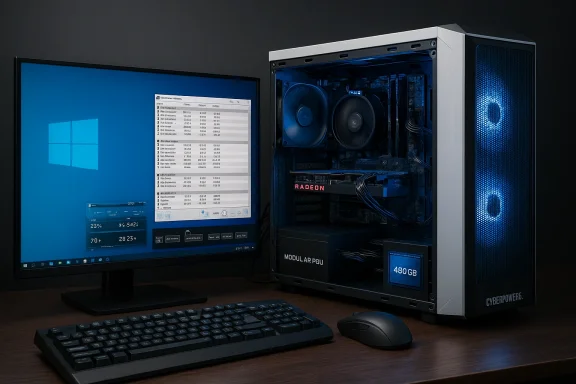
A familiar midrange gaming bundle—the CYBERPOWERPC Gamer Master GMA8908W configured with an AMD Ryzen 5 1400, an AMD Radeon RX 570 4GB, 8GB DDR4 and a 480GB SSD running Windows 10 Home—has reappeared in retailer listings and bargain write-ups, but one recurring user complaint is hard to ignore: “my RX 570 runs hot on Windows 10.” This feature takes a close look at the GMA8908W SKU, verifies the core hardware specifications, explains why RX 570 thermal behavior matters on Windows 10 systems, and delivers a practical, technical troubleshooting and buying checklist for anyone considering this discounted prebuilt or trying to fix a hot RX 570 in a similar rig.
The CYBERPOWERPC Gamer Master GMA8908W (marketed in multiple reseller storefronts) advertises a classic budget‑gaming combination: AMD Ryzen 5 1400 (3.2 GHz), Radeon RX 570 4GB, 8GB DDR4 (expandable), 480GB SSD, and Windows 10 Home 64‑bit. Multiple reseller pages repeat those specs, which makes the advertised configuration credible, but the listings omit several high‑impact details buyers should verify before purchase—most notably the PSU model and wattage, exact GPU brand/board partner, and internal cooling arrangement. These omissions matter because they directly affect upgradeability and thermal performance.
At the same time, the RX 570 is known to be a power‑hungry Polaris card with a board TDP in the neighborhood of ~150 W for reference variants, and the card normally runs warm under load. Verified GPU databases and reviews put the RX 570’s TDP and clock figures in that range, which explains why thermal design and case airflow are critical.
Below, I verify the technical specs, diagnose why RX 570 cards can feel “hot” in Windows 10 machines, and provide step‑by‑step guidance and practical buyer advice to ensure you get a stable, upgrade‑friendly system rather than a short‑lived bargain.
Source: Born2Invest https://born2invest.com/?b=style-231980512/
 Overview
The CYBERPOWERPC Gamer Master GMA8908W (marketed in multiple reseller storefronts) advertises a classic budget‑gaming combination: AMD Ryzen 5 1400 (3.2 GHz), Radeon RX 570 4GB, 8GB DDR4 (expandable), 480GB SSD, and Windows 10 Home 64‑bit. Multiple reseller pages repeat those specs, which makes the advertised configuration credible, but the listings omit several high‑impact details buyers should verify before purchase—most notably the PSU model and wattage, exact GPU brand/board partner, and internal cooling arrangement. These omissions matter because they directly affect upgradeability and thermal performance. At the same time, the RX 570 is known to be a power‑hungry Polaris card with a board TDP in the neighborhood of ~150 W for reference variants, and the card normally runs warm under load. Verified GPU databases and reviews put the RX 570’s TDP and clock figures in that range, which explains why thermal design and case airflow are critical.
Below, I verify the technical specs, diagnose why RX 570 cards can feel “hot” in Windows 10 machines, and provide step‑by‑step guidance and practical buyer advice to ensure you get a stable, upgrade‑friendly system rather than a short‑lived bargain.
Background: what’s actually inside the GMA8908W?
Confirmed core components
Multiple independent reseller listings that carry the GMA8908W SKU converge on the same headline components: AMD Ryzen 5 1400 (4 cores / 8 threads, 3.20 GHz base, 3.4 GHz boost), AMD Radeon RX 570 4GB (Polaris, GDDR5), 8GB DDR4 (advertised as expandable to 32GB), 480GB SSD, and Windows 10 Home. These reseller pages are consistent enough to treat the advertised configuration as credible, but they are not the same as an itemized spec sheet from CyberPowerPC itself. Confirm itemized internal part numbers from the seller before purchasing.Verifying the CPU: Ryzen 5 1400
The Ryzen 5 1400 is a first‑generation Zen (Summit Ridge) desktop CPU. Official and third‑party technical listings show:- 4 cores / 8 threads
- Base clock: 3.2 GHz
- Boost/Turbo: up to 3.4 GHz
- TDP: 65 W
- AM4 socket
Verifying the GPU: AMD Radeon RX 570 4GB
The RX 570 is a Polaris‑based discrete GPU that ships in many board partner variations. Key reference figures are:- Shaders: 2,048
- Memory: 4 GB GDDR5 (some SKUs come in 8 GB)
- Clock/Boost: ~1,168 MHz base / ~1,244 MHz boost (vendor variants differ)
- TDP (board): around 150 W for many reference designs; some partner cards tune power higher or lower depending on cooling and connectors.
Why an RX 570 feels “hot” in Windows 10 systems
Polaris design, TDP and practical thermal envelope
The RX 570 is not a low‑power GPU; it was designed to increase clock and memory throughput relative to older Polaris parts and consequently draws more power. A typical RX 570 configuration will target a board power around 150 W (with some variants rated higher), which means the GPU produces substantial heat under sustained gaming loads. Most modern GPUs are engineered to tolerate high junction temperatures, but that doesn’t mean sustained high temps are free of impact: high temperatures cause thermal throttling, potentially reduce lifespan, and can drive system‑wide noise as fans ramp up.Windows 10 driver stack and power management
Windows 10 uses the driver and power policy presented by GPU vendors (AMD’s Adrenalin software) to manage clocks, voltages, and fan curves. While driver releases over the years have improved performance and power management, occasional driver regressions—especially with older GPUs—can alter boost behavior or fan control. If you find a sudden change after a driver update, rolling back to a previously stable Adrenalin build often fixes abnormal thermal behavior. Always keep your system’s chipset and GPU drivers consistent with the vendor’s recommended releases for your GPU family.Case airflow, ancillary cooling, and PSU effects
In prebuilt PCs—particularly budget models—case design, the number and placement of intake/exhaust fans, cable routing, and the blower/axial GPU cooler choice can dramatically change temperature readings. A well‑cooled RX 570 in a roomy case with directed airflow will run several degrees cooler than the same card in a cramped case with minimal intake. Similarly, a marginal PSU can cause voltage instability under load, which sometimes leads to erratic fan/power behavior or thermal spikes. Community guidance for prebuilt purchases emphasizes verifying the PSU model and cooling layout; this advice is especially relevant for the Gamer Master SKU, where vendor listings rarely publish PSU details.Measured and expected temperature ranges — what’s normal?
- Idle (desktop): ~30–50°C depending on ambient temperature and fan idle policy.
- Gaming / sustained load: ~70–82°C is typical for an RX 570 under real‑world gaming loads when properly cooled. Many reviewers report comfortable, steady readings in the low‑to‑high 70s.
- Warning zone: >85°C — persistent levels above this should prompt action (fan tuning, case airflow improvements, or verifying cooler mounting). Occasional spikes into the mid‑80s won’t always damage the card immediately, but long‑term exposure shortens component life and invites more frequent throttling.
Troubleshooting: how to stop an RX 570 from running hot on Windows 10
If your RX 570 is hitting mid‑80s or higher on sustained gaming runs, follow this prioritized checklist. Each step is practical, reversible (where applicable), and targeted to the most common fault domains.- Check monitoring and confirm the problem
- Install a monitoring tool (e.g., GPU‑aware utilities such as HWInfo + MSI Afterburner) and record core temperature, fan speed, power draw, and clock rates while running a reproducible benchmark or game scene for 10–15 minutes.
- Confirm whether the system is actually hot (sustained high core temps) or whether you’re seeing transient spikes.
- Verify driver health
- Update to a stable AMD Adrenalin driver recommended for Polaris/RX 500 series. If the issue began after a driver update, roll back to the earlier driver that exhibited stable thermal behavior. Driver regressions can affect fan control and power management.
- Inspect case airflow and dust
- Open the case and visually inspect for dust accumulation on GPU fans/heatsink and front/rear intake filters. Clean with compressed air.
- Ensure you have at least one front intake and one rear/top exhaust fan to create positive airflow; reorient fans if needed to avoid turbulent, trapped air around the GPU.
- Tune fan curves and power/clock behavior
- Use MSI Afterburner (or AMD WattMan/Adrenalin settings) to gently raise the fan curve to hold temps lower; a 5–10% higher fan speed under load can materially reduce temps at little cost in noise for many users.
- Consider applying a small power limit (e.g., −5% to −10%) in WattMan to reduce core voltage and heat with minimal performance loss; this is especially helpful for older Polaris cards on weak cooling.
- Check GPU cooler mounting and thermal interface
- If temps remain elevated after airflow and driver checks, the thermal interface (TIM) between GPU die and heatsink or the pressure of the retention bracket could be suboptimal—factory TIM can dry over years. Warning: replacing TIM and retorquing a GPU cooler is an advanced, warranty‑jeopardizing step. Proceed only with knowledge or seek professional service.
- Validate the PSU and power connections
- Ensure the GPU’s PCIe power connector(s) are fully seated and the PSU provides stable voltages. A poor PSU or a single low‑quality 6‑pin feed can cause higher dissipation in the VRMs or unwanted behavior. Budget prebuilts sometimes ship with undersized or proprietary PSUs—verify the PSU model before assuming upgrade headroom.
- Consider a cool, low‑noise case upgrade or an aftermarket GPU cooler (if the board supports it)
- If everything else checks out but the case is restrictive, upgrading to a case with better airflow or a quality aftermarket GPU cooler (vendor‑supported) can deliver large temperature improvements.
When “hot” is a symptom of something worse: signs to watch for
- Persistent thermal throttling that never recovers even after fan ramp and airflow fixes.
- System instability or crashes under load (not typical if temps are within the 70–82°C range).
- Abnormal fan noise patterns (e.g., fans that don’t spin up under load or run at full speed permanently).
- Voltage instability or intermittent black screens under load—these can point to PSU or motherboard VRM issues rather than the GPU cooler alone. Community buyer advice for prebuilts repeatedly highlights that unknown PSU details are a material risk for long‑term ownership. If you see these symptoms, demand itemized PSU specs from the seller or consider a warranty RMA/repair.
Performance expectations: what the GMA8908W will deliver
If the GMA8908W is configured as advertised, the pairing of a Ryzen 5 1400 and an RX 570 positions the system as a 100–1440p budget gaming rig best suited for 1080p gameplay. Expect:- Excellent results in esports titles (e.g., CS:GO, Valorant) with high FPS at 1080p.
- Playable framerates in many mainstream AAA games at 1080p with medium to high settings; some heavy, modern AAA titles will require reduced settings to maintain smooth gameplay.
- Limited future‑proofing—8GB system RAM and a 4GB GPU are becoming constraints for the newest texture‑heavy titles and streaming workflows. If you plan to upgrade or stream, prioritize adding RAM and consider a GPU with more VRAM in the future.
Buyer checklist: confirm these before you click Buy
Prebuilt listings can be tempting, but the buyer who asks the right questions avoids the most common regrets. Before ordering the GMA8908W or a similar discounted prebuilt:- Ask for an itemized parts list with manufacturer and model numbers (GPU vendor and SKU, RAM stick SKUs, SSD make/model, motherboard make/model). Vendor brand and SKU materially change cooling and upgrade paths.
- Demand the PSU brand, model, wattage and efficiency rating. If the PSU is unknown or proprietary, budget for a PSU replacement if you plan to upgrade the GPU later.
- Confirm RAM configuration: is 8GB a single stick or 2×4GB in dual‑channel? Single‑stick setups perform worse than matched dual‑channel configurations.
- Request internal photos that show cable routing, fan wiring, and GPU cooler — these reveal airflow quality and whether fans are plugged into a controller or motherboard headers.
- Validate warranty and RMA mechanics: who underwrites the warranty, where repairs are performed, and whether shipping is covered. Prebuilt sellers sometimes offer limited return windows or 3rd‑party support channels.
Upgrade path and practical recommendations
- First upgrade: add a second 8GB DDR4 stick to achieve 16GB dual‑channel memory. This has immediate, measurable benefits for gaming and multitasking.
- Second upgrade (if needed): a PSU upgrade to a known‑good 80 PLUS Bronze/Gold modular unit in the 500–650 W range if you plan to move to a higher‑TDP GPU later. Confirm case clearance for larger GPUs first.
- GPU upgrade: when you upgrade the GPU, prefer a board partner with robust cooling and 8 GB+ VRAM for longevity at higher resolutions.
What we could not verify and why you should be cautious
A number of promotional posts and deal pages will claim an immediate discount or “hot” clearance price for the GMA8908W. I could not verify any specific, time‑limited discount or coupon from CyberPowerPC’s official channels in the materials inspected. Discount claims, especially those in third‑party deal write‑ups, should be validated on the seller’s checkout page and by requesting a written quote or invoice before purchase. Treat novelty discount headlines as conditional until verified by a seller‑provided order confirmation. If a price looks too low, confirm the itemized internal parts and warranty in writing.Verdict for Windows 10 buyers: who should buy the GMA8908W?
Buy this configuration if:- You want an affordable, plug‑and‑play 1080p gaming PC for esports and mainstream AAA titles on medium settings.
- You value convenience over DIY and are prepared to verify PSU and warranty details before purchase.
- You plan to add a second RAM stick soon.
- You demand long‑term upgradeability without replacing the PSU or case.
- You want maximum thermal headroom for extended streaming/encoding sessions.
- You need a high‑resolution (1440p+) or future‑proofed machine for AAA gaming with high texture settings.
Final recommendations — short actionable checklist
- Verify the seller provides the full internal parts list and PSU model.
- If buying, plan to upgrade to 16GB RAM immediately for smoother multitasking.
- If you already own a GMA8908W with a hot RX 570: confirm drivers, clean dust, tune the fan curve, and inspect case airflow before assuming hardware failure.
- Monitor temps with HWInfo/MSI Afterburner while you test fixes; persistent temps >85°C warrant further hardware inspection or warranty service.
Source: Born2Invest https://born2invest.com/?b=style-231980512/
