

Windows users can disable some background services without immediately breaking the operating system, but the popular “turn off these five services right now” advice needs more caution in 2026 because Windows services now double as update plumbing, diagnostics controls, app infrastructure, and enterprise policy endpoints. The MakeUseOf list is directionally useful for privacy-minded home users and underpowered PCs, but it turns a tuning exercise into a universal prescription. The safer story is not that Windows is bloated beyond redemption; it is that Microsoft has made too many optional conveniences look indistinguishable from core system machinery.
There is a certain enduring appeal to opening
That interface is the problem. A service that supports login security, one that preloads frequently used apps, one that syncs Xbox saves, and one that ships diagnostic data can all look similarly disposable if the user does not know what depends on what. Microsoft’s own service descriptions are often terse, and third-party guides fill the vacuum with confidence.
The MakeUseOf article lands because it reflects a real frustration: Windows often runs components for features a user never consciously chose. A non-gamer may have Xbox services. A local-account user may still see OneDrive update infrastructure. A person who rejected optional diagnostics may still wonder why telemetry-named components exist at all. The annoyance is legitimate.
But annoyance is not the same as waste, and waste is not the same as risk-free removal. A modern Windows installation is less like a desktop appliance and more like a managed platform, where updates, app distribution, security baselines, cloud identity, and device experience are wired together. The old enthusiast habit of disabling everything that sounds unnecessary can still produce a leaner machine, but it can also create subtle failures that appear days or months later.
For home users who want less background reporting, disabling the service is a coherent choice. Microsoft has documented scenarios where DiagTrack can be disabled, particularly in constrained or specialized configurations, and Windows generally continues to boot, update, browse, print, and run applications without it. That is why this service shows up on nearly every privacy-hardening checklist.
The more interesting point is that the service sits at the intersection of privacy, supportability, and product development. Crash reports and diagnostic signals do not directly help the individual user in the moment. They help Microsoft see failure patterns at scale, tune compatibility blocks, identify rollout issues, and make decisions about what breaks in the field.
That bargain is difficult to sell because the user pays immediately and invisibly. The machine runs a service, sends data under defined diagnostic settings, and offers no obvious local benefit in return. The benefit is aggregated and delayed, which makes telemetry feel like a corporate extraction layer even when it contributes to reliability work.
For administrators, the answer is not usually to right-click-disable the service on every endpoint. It is to set diagnostic data levels and connected experience policies through management tooling so behavior is explicit, auditable, and reversible. For a standalone home PC, disabling DiagTrack may be a reasonable privacy choice. For a fleet, the same act can become configuration drift masquerading as hardening.
This is where the “disable what you don’t use” principle works best. The feature boundary is clear. The consequence is understandable. If you later install a Game Pass title or sign into Xbox services, something may fail or ask for repair, and the path back is obvious.
Even here, though, Windows’ consumer and enterprise personalities collide. A home user can treat Xbox components as clutter. An organization may care less about the few megabytes involved and more about reducing consumer-facing endpoints, sign-in surfaces, and unnecessary services on managed devices. The case for disabling Xbox services is not just performance; it is role clarity.
That distinction matters because the performance gains are often oversold. On a modern system with ample memory and an SSD, idle Xbox services are unlikely to be the thing standing between the user and a fast desktop. On a low-end PC, they may contribute to the background pileup. The real win is not that Windows suddenly becomes light; it is that the system stops preparing for a use case that will never arrive.
Delivery Optimization is Microsoft’s peer-aware downloader and local caching system for Windows updates, Microsoft Store apps, and other Microsoft-distributed content. In enterprise environments, it is not a nuisance; it is a way to prevent hundreds or thousands of clients from hammering the internet connection or distribution infrastructure at once. For branch offices, schools, and bandwidth-constrained sites, it can be a feature rather than a leak.
The safer consumer advice is usually not “disable the service” but “change the sharing behavior.” Windows settings allow users to limit downloads from other PCs, choose local-network sharing instead of internet peers, and inspect activity. That is a more precise intervention than killing the service outright, because the downloader role may still be used even when peer-to-peer sharing is not desired.
This is also where the storage argument needs care. Delivery Optimization does cache update content, and clearing or limiting that cache can help on small drives. But forcing every device to fall back to direct downloads can trade local disk relief for repeated network traffic. On one PC with a cramped SSD, that trade may make sense. On a house full of Windows machines or an office with metered bandwidth, it may not.
Microsoft’s design is not beyond criticism. The company could make the feature’s behavior more intelligible to ordinary users, especially the difference between local-network sharing, internet sharing, cache size, and download source. But Delivery Optimization is infrastructure, not mere bloat. Treating it as a universal disable candidate is the kind of advice that sounds empowering until Patch Tuesday arrives.
The basic idea behind SysMain is sensible: observe usage patterns and help frequently used applications load faster by making better use of idle resources. On older hard drives, preloading could make a system feel more responsive. On modern SSDs and NVMe drives, the advantage is less obvious because storage latency is already low.
That does not automatically make SysMain useless. Windows memory management is more sophisticated than the caricature suggests, and unused RAM is not inherently virtuous if it could be improving responsiveness. But it does mean SysMain is less sacred than it once was. If a user can see persistent disk churn, high CPU tied to the SysMain host, or stuttering that disappears when the service stops, disabling it is a reasonable troubleshooting step.
The mistake is treating SysMain as guilty before measuring it. On many current systems, it will not be the villain. On some budget laptops, older HDD-based machines, or quirky OEM images, it may be part of a noticeable performance problem. The correct answer is empirical: check Task Manager, Resource Monitor, or Performance Monitor, stop the service temporarily, and see whether the system actually improves.
That makes SysMain a perfect example of the broader Windows tuning problem. The services most worth touching are not always the ones with the scariest names. They are the ones causing measurable harm on the specific machine in front of you.
This is not strictly a Microsoft problem, though Microsoft contributes to it. The Windows desktop software model has long rewarded persistence. If an application wants fast launch, update checks, notifications, sync, shell integration, device detection, or licensing enforcement, it often installs a service or scheduled task. Some are justified. Many are badly behaved.
The recommended path through System Configuration — hiding Microsoft services and examining third-party entries — is sensible if used carefully. It reduces the chance of disabling something central to Windows. It also surfaces the real offenders on many PCs: vendor utilities installed years ago and forgotten, trialware updaters, abandoned device companions, or redundant sync clients.
But “Disable all” is a dangerous phrase when applied to a filtered list. Hide Microsoft services does not mean “everything left is safe.” A VPN service may be non-Microsoft and essential. A backup agent may be third-party and critical. Endpoint security, disk encryption, remote management, audio drivers, touchpad features, licensing daemons, and hardware monitoring tools may all appear outside Microsoft’s namespace.
The best cleanup starts with uninstalling software rather than disabling its services. If an app is truly unused, remove it. If it is needed occasionally, check its own startup and update settings. Services are symptoms of installed software; disabling them without addressing the parent application can produce broken updaters, recurring errors, and mysterious repair prompts.
But these services also demonstrate why blanket guidance can age badly. Print Spooler, for example, has a security history that made disabling it an urgent mitigation in some environments. It is also required for local and network printing. On a domain controller or server that never prints, disabling it can be sound hardening. On a receptionist’s workstation, it is self-inflicted downtime.
Smart Card is similar. A home user may never need it. A government contractor, hospital, law firm, or enterprise using certificate-based authentication may depend on it completely. Windows Biometric Service may be irrelevant on a desktop tower and central to a laptop fleet using Windows Hello for Business.
The right test is not “does the service sound optional?” It is “what business process, device, login method, management tool, or security control depends on this?” Enthusiast advice often assumes the PC is a personal island. Modern Windows machines are frequently part of identity systems, compliance regimes, backup plans, and management baselines, even when the user never thinks of them that way.
That is why disabling five Windows services may feel satisfying but produce underwhelming results. If the machine has 8GB of RAM, a slow SSD, a bloated OEM image, and six vendor agents starting at login, killing Xbox services will not transform it. If the real culprit is a browser with dozens of restored tabs, SysMain may be innocent. If Windows Update is mid-install, Delivery Optimization may be busy for a good reason.
There is also a difference between idle resource use and harmful resource use. A background service consuming a small amount of memory is not automatically a problem if it remains quiet and provides useful functionality when called. A service that repeatedly wakes the CPU, thrashes disk, uploads on a metered connection, or delays shutdown is a different matter.
The best tuning sequence is boring but effective: uninstall what you do not use, disable unnecessary startup apps, review scheduled tasks, check Windows Update health, update drivers from reputable sources, and only then touch services. Services should be tuned after the obvious clutter is gone, not as a substitute for housekeeping.
Connected User Experiences and Telemetry is a prime example. If the user sets diagnostic data to a minimum, what exactly still runs and why? If Delivery Optimization is set to local-network only, what content can still be cached and how long does it stay? If Edge is not the default browser, why are Edge update services present? The answers exist, but they are scattered across documentation, policy references, and support pages.
Windows would benefit from a clearer “roles and features” model for client PCs. A user should be able to say this is a gaming PC, a business laptop, a kiosk, a development workstation, a family computer, or a minimal local-use machine, and have Windows explain which background services are relevant. Server editions have long understood roles. Client Windows still pretends every PC might need everything.
Until that changes, third-party advice will continue to occupy the gap between Microsoft’s platform ambition and the user’s desire for control. Some of that advice will be useful. Some will be reckless. The difference often comes down to whether it treats services as switches for features or as mysterious parasites to be exterminated.
For a typical home user, Xbox services are a low-risk disable if gaming is irrelevant. DiagTrack is a defensible privacy choice, though it may reduce diagnostic feedback to Microsoft. Delivery Optimization should usually be adjusted through Settings before the service is disabled. SysMain should be tested, not assumed guilty. Third-party services should be traced back to applications and removed at the source when possible.
For IT pros, the lesson is governance. Do not let users or junior admins build endpoint baselines from consumer cleanup articles. Convert the useful instincts into policy: define which services are allowed by device role, document exceptions, manage diagnostic and delivery settings centrally, and monitor for update or app failures after changes. A service disabled without a rollback plan is not optimization; it is a future ticket.
The MakeUseOf piece is therefore best read as a prompt, not a prescription. It points at real background activity that many users do not need. But “safe” in Windows is contextual, and the context is the machine’s role, hardware, network, management state, and owner’s tolerance for broken convenience.
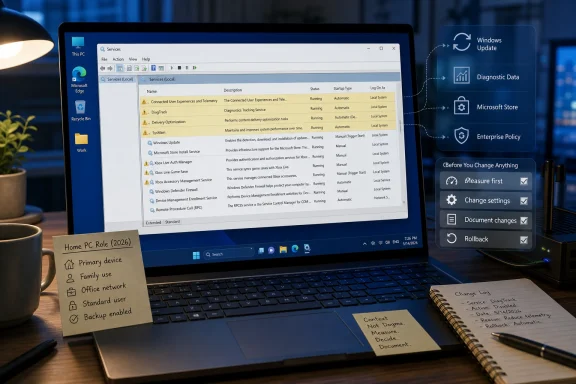 The Windows Services Console Is a Scalpel, Not a Broom
There is a certain enduring appeal to opening services.msc, spotting a long list of mysterious daemons, and deciding that performance must be hiding behind the “Disabled” button. Windows has encouraged this ritual for decades. Every new release adds more cloud hooks, app services, device brokers, game integrations, sync agents, and telemetry paths, and the Services console presents them all with the same bureaucratic neutrality.That interface is the problem. A service that supports login security, one that preloads frequently used apps, one that syncs Xbox saves, and one that ships diagnostic data can all look similarly disposable if the user does not know what depends on what. Microsoft’s own service descriptions are often terse, and third-party guides fill the vacuum with confidence.
The MakeUseOf article lands because it reflects a real frustration: Windows often runs components for features a user never consciously chose. A non-gamer may have Xbox services. A local-account user may still see OneDrive update infrastructure. A person who rejected optional diagnostics may still wonder why telemetry-named components exist at all. The annoyance is legitimate.
But annoyance is not the same as waste, and waste is not the same as risk-free removal. A modern Windows installation is less like a desktop appliance and more like a managed platform, where updates, app distribution, security baselines, cloud identity, and device experience are wired together. The old enthusiast habit of disabling everything that sounds unnecessary can still produce a leaner machine, but it can also create subtle failures that appear days or months later.
Telemetry Is the Easiest Target Because Microsoft Made It One
Connected User Experiences and Telemetry, also known as DiagTrack, is the service most likely to survive any debate about safe disabling. Its name practically invites suspicion. It handles diagnostic and usage data flows, and Microsoft’s privacy posture has never fully escaped the shadow of Windows 10’s launch-era overreach.For home users who want less background reporting, disabling the service is a coherent choice. Microsoft has documented scenarios where DiagTrack can be disabled, particularly in constrained or specialized configurations, and Windows generally continues to boot, update, browse, print, and run applications without it. That is why this service shows up on nearly every privacy-hardening checklist.
The more interesting point is that the service sits at the intersection of privacy, supportability, and product development. Crash reports and diagnostic signals do not directly help the individual user in the moment. They help Microsoft see failure patterns at scale, tune compatibility blocks, identify rollout issues, and make decisions about what breaks in the field.
That bargain is difficult to sell because the user pays immediately and invisibly. The machine runs a service, sends data under defined diagnostic settings, and offers no obvious local benefit in return. The benefit is aggregated and delayed, which makes telemetry feel like a corporate extraction layer even when it contributes to reliability work.
For administrators, the answer is not usually to right-click-disable the service on every endpoint. It is to set diagnostic data levels and connected experience policies through management tooling so behavior is explicit, auditable, and reversible. For a standalone home PC, disabling DiagTrack may be a reasonable privacy choice. For a fleet, the same act can become configuration drift masquerading as hardening.
Xbox Services Are the Cleanest Win for Non-Gamers
The Xbox Live services are the least controversial entry in the list because their purpose is narrow and visible. Xbox Live Auth Manager, Xbox Live Game Save, and Xbox Live Networking exist to support gaming identity, save sync, and network features tied to Microsoft’s gaming ecosystem. If the PC is a work laptop, a lab machine, or a home desktop that never touches Xbox apps or PC Game Pass, there is little practical reason to keep them eager.This is where the “disable what you don’t use” principle works best. The feature boundary is clear. The consequence is understandable. If you later install a Game Pass title or sign into Xbox services, something may fail or ask for repair, and the path back is obvious.
Even here, though, Windows’ consumer and enterprise personalities collide. A home user can treat Xbox components as clutter. An organization may care less about the few megabytes involved and more about reducing consumer-facing endpoints, sign-in surfaces, and unnecessary services on managed devices. The case for disabling Xbox services is not just performance; it is role clarity.
That distinction matters because the performance gains are often oversold. On a modern system with ample memory and an SSD, idle Xbox services are unlikely to be the thing standing between the user and a fast desktop. On a low-end PC, they may contribute to the background pileup. The real win is not that Windows suddenly becomes light; it is that the system stops preparing for a use case that will never arrive.
Delivery Optimization Is Not Just “Windows Torrenting”
Delivery Optimization is where simple advice becomes risky. The MakeUseOf framing is familiar: Windows can download update content from other PCs and may upload pieces to peers, so disabling it saves bandwidth and storage. That is true in the narrow consumer sense, but it leaves out why the feature exists and how many update paths now pass through it.Delivery Optimization is Microsoft’s peer-aware downloader and local caching system for Windows updates, Microsoft Store apps, and other Microsoft-distributed content. In enterprise environments, it is not a nuisance; it is a way to prevent hundreds or thousands of clients from hammering the internet connection or distribution infrastructure at once. For branch offices, schools, and bandwidth-constrained sites, it can be a feature rather than a leak.
The safer consumer advice is usually not “disable the service” but “change the sharing behavior.” Windows settings allow users to limit downloads from other PCs, choose local-network sharing instead of internet peers, and inspect activity. That is a more precise intervention than killing the service outright, because the downloader role may still be used even when peer-to-peer sharing is not desired.
This is also where the storage argument needs care. Delivery Optimization does cache update content, and clearing or limiting that cache can help on small drives. But forcing every device to fall back to direct downloads can trade local disk relief for repeated network traffic. On one PC with a cramped SSD, that trade may make sense. On a house full of Windows machines or an office with metered bandwidth, it may not.
Microsoft’s design is not beyond criticism. The company could make the feature’s behavior more intelligible to ordinary users, especially the difference between local-network sharing, internet sharing, cache size, and download source. But Delivery Optimization is infrastructure, not mere bloat. Treating it as a universal disable candidate is the kind of advice that sounds empowering until Patch Tuesday arrives.
SysMain Is the Old Performance Argument in New Clothes
SysMain, formerly Superfetch, is the service that keeps the Windows optimization debate alive because almost everyone can produce an anecdote. One user disables it and sees disk activity vanish. Another leaves it alone and sees no downside. A third finds that the service briefly spikes CPU or disk after startup and assumes Windows is sabotaging performance.The basic idea behind SysMain is sensible: observe usage patterns and help frequently used applications load faster by making better use of idle resources. On older hard drives, preloading could make a system feel more responsive. On modern SSDs and NVMe drives, the advantage is less obvious because storage latency is already low.
That does not automatically make SysMain useless. Windows memory management is more sophisticated than the caricature suggests, and unused RAM is not inherently virtuous if it could be improving responsiveness. But it does mean SysMain is less sacred than it once was. If a user can see persistent disk churn, high CPU tied to the SysMain host, or stuttering that disappears when the service stops, disabling it is a reasonable troubleshooting step.
The mistake is treating SysMain as guilty before measuring it. On many current systems, it will not be the villain. On some budget laptops, older HDD-based machines, or quirky OEM images, it may be part of a noticeable performance problem. The correct answer is empirical: check Task Manager, Resource Monitor, or Performance Monitor, stop the service temporarily, and see whether the system actually improves.
That makes SysMain a perfect example of the broader Windows tuning problem. The services most worth touching are not always the ones with the scariest names. They are the ones causing measurable harm on the specific machine in front of you.
App Services Reveal the Mess Microsoft Won’t Clean Up
The MakeUseOf article’s broadest category, services tied to apps you never use, may be its most useful point. Windows machines accumulate background agents the way browsers accumulate extensions. Edge update services, OneDrive update tasks, printer suites, VPN clients, RGB utilities, cloud storage tools, OEM support assistants, game launchers, meeting apps, and security products all compete for a permanent foothold.This is not strictly a Microsoft problem, though Microsoft contributes to it. The Windows desktop software model has long rewarded persistence. If an application wants fast launch, update checks, notifications, sync, shell integration, device detection, or licensing enforcement, it often installs a service or scheduled task. Some are justified. Many are badly behaved.
The recommended path through System Configuration — hiding Microsoft services and examining third-party entries — is sensible if used carefully. It reduces the chance of disabling something central to Windows. It also surfaces the real offenders on many PCs: vendor utilities installed years ago and forgotten, trialware updaters, abandoned device companions, or redundant sync clients.
But “Disable all” is a dangerous phrase when applied to a filtered list. Hide Microsoft services does not mean “everything left is safe.” A VPN service may be non-Microsoft and essential. A backup agent may be third-party and critical. Endpoint security, disk encryption, remote management, audio drivers, touchpad features, licensing daemons, and hardware monitoring tools may all appear outside Microsoft’s namespace.
The best cleanup starts with uninstalling software rather than disabling its services. If an app is truly unused, remove it. If it is needed occasionally, check its own startup and update settings. Services are symptoms of installed software; disabling them without addressing the parent application can produce broken updaters, recurring errors, and mysterious repair prompts.
Print Spooler, Biometrics, and Smart Cards Are “Safe” Only in Context
The article’s closing examples — Print Spooler, Windows Biometric Service, Smart Card, Windows Image Acquisition, Parental Controls — show both the strength and the weakness of service-tuning advice. Yes, many Windows services exist for hardware or scenarios a given user does not have. No printer means the Print Spooler may be unnecessary. No fingerprint reader or facial recognition setup means the biometric service may not matter. No scanner or camera capture workflow means Windows Image Acquisition might sit idle.But these services also demonstrate why blanket guidance can age badly. Print Spooler, for example, has a security history that made disabling it an urgent mitigation in some environments. It is also required for local and network printing. On a domain controller or server that never prints, disabling it can be sound hardening. On a receptionist’s workstation, it is self-inflicted downtime.
Smart Card is similar. A home user may never need it. A government contractor, hospital, law firm, or enterprise using certificate-based authentication may depend on it completely. Windows Biometric Service may be irrelevant on a desktop tower and central to a laptop fleet using Windows Hello for Business.
The right test is not “does the service sound optional?” It is “what business process, device, login method, management tool, or security control depends on this?” Enthusiast advice often assumes the PC is a personal island. Modern Windows machines are frequently part of identity systems, compliance regimes, backup plans, and management baselines, even when the user never thinks of them that way.
The Real Performance Problem Is Startup Creep, Not Services Alone
A Windows PC that feels heavy usually suffers from accumulation rather than one bad service. Startup apps, shell extensions, scheduled tasks, browser background modes, Teams-style collaboration tools, update agents, cloud sync clients, and security scans all arrive at boot like passengers trying to board through the same door. Services are only one lane of that traffic.That is why disabling five Windows services may feel satisfying but produce underwhelming results. If the machine has 8GB of RAM, a slow SSD, a bloated OEM image, and six vendor agents starting at login, killing Xbox services will not transform it. If the real culprit is a browser with dozens of restored tabs, SysMain may be innocent. If Windows Update is mid-install, Delivery Optimization may be busy for a good reason.
There is also a difference between idle resource use and harmful resource use. A background service consuming a small amount of memory is not automatically a problem if it remains quiet and provides useful functionality when called. A service that repeatedly wakes the CPU, thrashes disk, uploads on a metered connection, or delays shutdown is a different matter.
The best tuning sequence is boring but effective: uninstall what you do not use, disable unnecessary startup apps, review scheduled tasks, check Windows Update health, update drivers from reputable sources, and only then touch services. Services should be tuned after the obvious clutter is gone, not as a substitute for housekeeping.
Microsoft Still Owns the Confusion
It would be unfair to blame users for reaching for aggressive guides. Microsoft has made Windows more cloud-connected while failing to make those connections legible. The Settings app exposes some controls; Group Policy and Intune expose many more; the Services console exposes underlying machinery but not the consequences of changing it. The result is a maze where expert controls are visible to non-experts but explained like internal plumbing.Connected User Experiences and Telemetry is a prime example. If the user sets diagnostic data to a minimum, what exactly still runs and why? If Delivery Optimization is set to local-network only, what content can still be cached and how long does it stay? If Edge is not the default browser, why are Edge update services present? The answers exist, but they are scattered across documentation, policy references, and support pages.
Windows would benefit from a clearer “roles and features” model for client PCs. A user should be able to say this is a gaming PC, a business laptop, a kiosk, a development workstation, a family computer, or a minimal local-use machine, and have Windows explain which background services are relevant. Server editions have long understood roles. Client Windows still pretends every PC might need everything.
Until that changes, third-party advice will continue to occupy the gap between Microsoft’s platform ambition and the user’s desire for control. Some of that advice will be useful. Some will be reckless. The difference often comes down to whether it treats services as switches for features or as mysterious parasites to be exterminated.
The Sensible Windows Diet Is Smaller Than the Viral One
The practical answer is narrower than the headline but still useful. There are services many users can disable safely, provided they understand what they are giving up. There are others that should be configured rather than killed. And there are some that should be left alone unless a measurable problem points directly at them.For a typical home user, Xbox services are a low-risk disable if gaming is irrelevant. DiagTrack is a defensible privacy choice, though it may reduce diagnostic feedback to Microsoft. Delivery Optimization should usually be adjusted through Settings before the service is disabled. SysMain should be tested, not assumed guilty. Third-party services should be traced back to applications and removed at the source when possible.
For IT pros, the lesson is governance. Do not let users or junior admins build endpoint baselines from consumer cleanup articles. Convert the useful instincts into policy: define which services are allowed by device role, document exceptions, manage diagnostic and delivery settings centrally, and monitor for update or app failures after changes. A service disabled without a rollback plan is not optimization; it is a future ticket.
The MakeUseOf piece is therefore best read as a prompt, not a prescription. It points at real background activity that many users do not need. But “safe” in Windows is contextual, and the context is the machine’s role, hardware, network, management state, and owner’s tolerance for broken convenience.
The Five-Service Cleanup Becomes Useful Only After the Hype Is Removed
The lesson for WindowsForum readers is not to avoid service tuning. It is to stop treating it as folklore. A leaner Windows setup is possible, but the best changes are deliberate, measured, and reversible.- You can usually disable Xbox Live services on PCs that never use Xbox apps, Game Pass, or Microsoft gaming features.
- You can disable Connected User Experiences and Telemetry if your priority is reducing diagnostic data flows, but managed environments should use policy instead of ad hoc local changes.
- You should configure Delivery Optimization before disabling it, because local caching and controlled peer delivery can save bandwidth on multi-PC networks.
- You should disable SysMain only when monitoring shows it is causing real CPU, memory, or disk pressure on the specific device.
- You should remove unused third-party applications rather than merely disabling their services, because abandoned software is often the real source of background clutter.
- You should document every service change so the fix can be reversed when Windows Update, printing, sign-in, gaming, scanning, or app updates behave unexpectedly.
References
- Primary source: MakeUseOf
Published: Thu, 21 May 2026 16:00:18 GMT
5 Windows background services you can safely disable right now
Your PC will thank you for it. www.makeuseof.com
- Official source: learn.microsoft.com
SuperFetch(SysMain) service consumes CPU - Windows Client | Microsoft Learn
Works around an issue where the system experiences CPU spike for 1-2 minutes when a 64-bit application runs in the 64-bit version of Windows.learn.microsoft.com - Official source: support.microsoft.com
Delivery Optimization in Windows | Microsoft Support
Delivery Optimization in Windowssupport.microsoft.com - Related coverage: windows-security.org
Superfetch | Windows security encyclopedia
The Superfetch (Sysmain) service maintains and improves system performance. The Superfetch service is part of a collection of performance-enhancing features that address responsiveness issues related to demand paging. We do not recommend using the Superfetch service on servers unless the server...www.windows-security.org
- Related coverage: howtogeek.com
- Related coverage: maketecheasier.com
What is Windows Superfetch (SysMain) and How to Disable It - Make Tech Easier
Noticed the SysMain process in your Task Manager? Learn what this Windows service does and whether it's safe to disable it.www.maketecheasier.com

