

I found a single Windows folder eating gigabytes on a modern PC — and with the right tools and safeguards I recovered most of that space without breaking anything.
Every Windows installation keeps a hidden cache of staged driver packages in the Driver Store. On many systems that cache is small and harmless, but on long‑lived or heavily updated PCs it can grow into tens of gigabytes. A recent hands‑on cleanup that reclaimed roughly 20–22 GB from the Driver Store — described in the MakeUseOf walkthrough — is a practical example of how much space can accumulate and how a cautious cleanup can free it.
This feature explains what the DriverStore (specifically the FileRepository) is, why it grows, how to clean it safely, and which official and community tools to use — including the built‑in pnputil/DISM methods and the widely used third‑party GUI Driver Store Explorer (RAPR). Each technical claim is cross‑checked against Microsoft documentation and multiple independent sources, and irreversible or risky steps are flagged so you can decide whether to proceed.
Key commands and what they do:
This article paired the real‑world MakeUseOf cleanup anecdote with Microsoft’s documented pnputil/DISM commands and a review of the Driver Store Explorer tool and its GitHub project. Proceed methodically: backup, enumerate, review, delete, and validate. The result is a leaner Windows installation and a practical path to reclaiming the space the OS has been keeping “just in case.”
Source: MakeUseOf I recovered 20GB of space by cleaning this one "untouchable" Windows folder
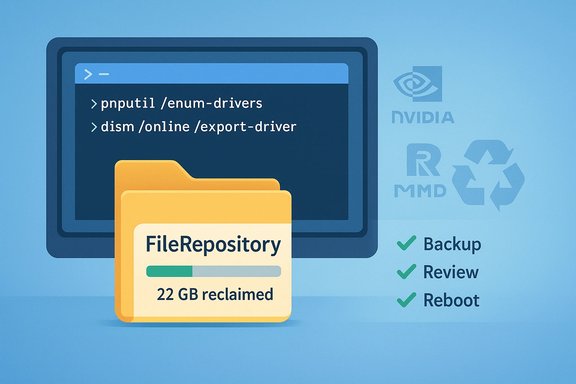 Overview
Every Windows installation keeps a hidden cache of staged driver packages in the Driver Store. On many systems that cache is small and harmless, but on long‑lived or heavily updated PCs it can grow into tens of gigabytes. A recent hands‑on cleanup that reclaimed roughly 20–22 GB from the Driver Store — described in the MakeUseOf walkthrough — is a practical example of how much space can accumulate and how a cautious cleanup can free it.This feature explains what the DriverStore (specifically the FileRepository) is, why it grows, how to clean it safely, and which official and community tools to use — including the built‑in pnputil/DISM methods and the widely used third‑party GUI Driver Store Explorer (RAPR). Each technical claim is cross‑checked against Microsoft documentation and multiple independent sources, and irreversible or risky steps are flagged so you can decide whether to proceed.
Background: what the Driver Store is and where it lives
The Driver Store is a trusted Windows area that holds staged driver packages (INF, SYS, CAT, and related files) before those drivers are installed to devices. Windows stages drivers into the Driver Store so the operating system can rapidly install, repair, or roll back drivers without contacting the internet or a vendor installer.- Location: The Driver Store lives under C:\Windows\System32\DriverStore, and the driver packages are stored in the FileRepository subfolder (C:\Windows\System32\DriverStore\FileRepository). This is the canonical path Windows and community documentation reference.
- Purpose: It contains staged driver packages (both in‑box and some third‑party packages) so Windows can reinstall or use them whenever devices are reconnected or reinstalled. Microsoft explicitly documents that the Driver Store is the source Windows uses when reinstalling drivers.
Why DriverStore can grow to dozens of GB
There are several common reasons the DriverStore balloons on real systems:- Vendor drivers are large (modern GPU driver packages often exceed 1 GB). Multiple historical versions stack up.
- OEM utility suites or hardware helper drivers (audio DSPs, virtualization drivers, sensor stacks) often install multiple driver packages and leave prior packages behind.
- Frequent use of vendor “driver updater” installers that always stage a full new package rather than applying a delta update.
- Optional Windows Update driver pushes that stage new drivers in addition to in‑box drivers.
- Long uptime and many driver updates mean more historic packages remain in the store.
What you must not do: don’t delete DriverStore files manually
Windows protects the Driver Store for a reason. Manually deleting folders or files under C:\Windows\System32\DriverStore\FileRepository using File Explorer or a simple RD command can produce unpredictable behavior, driver inconsistencies, or device failures. Microsoft warns that manual deletion of driver package files is unsupported and can lead to system instability. Use supported APIs and tools instead.Supported, safe methods to manage DriverStore
There are two classes of safe approaches to reclaim space from the Driver Store:- Official command‑line methods that use Windows APIs (pnputil, DISM/Export) — recommended for administrators and power users who prefer explicit control.
- Community GUI tools (Driver Store Explorer / RAPR) that wrap the same APIs in a friendly interface — convenient but should be used with care and always with backups.
The official route: pnputil and DISM (recommended for precision)
Windows ships with pnputil.exe (in %windir%\system32) and DISM which provide supported ways to list, export, and delete driver packages.Key commands and what they do:
- Enumerate third‑party drivers (list packages):
- pnputil /enum-drivers
This lists the staged third‑party driver packages and assigns them names like oem0.inf, oem1.inf, etc. The Microsoft pnputil documentation explains syntax and flags. - Delete a driver package from the Driver Store:
- pnputil /delete-driver oem#.inf [/uninstall] [/force] [/reboot]
- Use the
/uninstallflag to remove the driver from any device currently using it (if possible). - Use
/forceonly when you understand the consequences (it deletes even if in use). Microsoft documents these options and cautions. - Backup/export drivers first (strongly recommended):
- dism /online /export-driver /destination:C:\DriverBackup
- This exports all third‑party drivers into the destination folder so you can restore them later if needed. Multiple sources and guides confirm this workflow for safe backup.
- They call into Windows driver installation APIs and update the system’s driver metadata correctly.
- They avoid leaving the system in an inconsistent state or removing files that Windows still expects to be present.
- They are scriptable for repeatable maintenance.
- Run pnputil /enum-drivers and export the output to a text file for review.
- Cross‑reference the driver package dates and providers to identify truly old packages.
- Export drivers with DISM so you can reinstall if a device stops working.
The convenient GUI: Driver Store Explorer (RAPR)
Driver Store Explorer (RAPR) is an open‑source GUI that enumerates Driver Store packages and provides “Select Old Drivers” and deletion options. The project is actively maintained on GitHub and distributed with clear warnings: improper use can break devices or even prevent boot. The GitHub repository and the project website document features, license (GPL‑2.0), and usage notes. What Driver Store Explorer does for you:- Presents a sortable list of driver packages with provider, date, version and size.
- Offers a “Select Old Drivers” helper to automatically mark candidates that appear to be older versions.
- Exposes Delete / Force Delete actions that call into the same Windows APIs under the hood (through DISM/pnputil) to remove packages.
- It dramatically simplifies discovery: you can quickly see which vendors and packages account for the most space.
- The “Select Old Drivers” shortens decision time for non‑experts.
- Always run it as Administrator.
- Double‑check the selection the tool proposes; automatic heuristics can be conservative but may also mark packages you actually need.
- Avoid bulk force‑deletions of drivers whose function you don’t recognize.
- Export or backup drivers before deletion (DISM /export-driver or the tool’s export feature).
A safe, tested workflow to clean DriverStore and recover space
Below is a step‑by‑step, conservative workflow that balances safety and space recovery. Use the command examples directly from Microsoft’s documented tools.- Prepare backups (safety first)
- Create a full system restore point or a disk image if you’re about to make large changes.
- Export third‑party drivers with DISM:
- Open an elevated Command Prompt and run:
dism /online /export-driver /destination:C:\DriverBackup - Verify that drivers were exported (C:\DriverBackup contains subfolders for each driver).
- Enumerate what’s in the Driver Store
- Run:
pnputil /enum-drivers > C:\DriversList.txt - Open the text file and scan for large providers (NVIDIA, AMD, Realtek, vendor utilities). Microsoft documents pnputil syntax and options.
- Option A — GUI review (Driver Store Explorer)
- Download Driver Store Explorer from the official GitHub or project site and run Rapr.exe as Administrator.
- Click “Select Old Drivers” and manually inspect what’s selected.
- Uncheck any package you don’t recognize or that looks recent.
- Delete the selected drivers. Reboot and verify hardware functions.
- Option B — Command‑line deletion (pnputil)
- Identify the target package name (oemX.inf) from pnputil /enum-drivers.
- Remove it with:
pnputil /delete-driver oemX.inf /uninstall - If Windows refuses because the driver is in use and you are sure it’s safe to remove, consider
/force, but be aware of risk:
pnputil /delete-driver oemX.inf /uninstall /force - Reboot and confirm device functionality. Microsoft’s documentation explains the delete and uninstall steps and cautions.
- Reboot and verify
- After deletions, reboot.
- Check Device Manager for devices with missing drivers. If something is missing the exported backup can be reinstalled using:
pnputil /add-driver C:\DriverBackup*.inf /subdirs /install - Or import drivers via Device Manager by pointing to the exported driver folder. DISM/pnputil restore flows are well documented.
- Prevent repeat growth
- Avoid repeated use of aggressive vendor updater apps that always install full new packages.
- Consider disabling optional/unnecessary driver updates in Windows Update where appropriate.
- Run a Driver Store Explorer scan or pnputil review periodically (every 3–6 months) and export drivers before major cleanup.
What to expect: typical space savings and real results
- On lightly used systems the Driver Store is often only a few gigabytes; on systems with dedicated GPU drivers, multiple device suites, or long histories, the Driver Store can easily exceed 10–30 GB.
- The MakeUseOf example reclaimed ~22 GB by targeting old driver packages; such results are achievable on systems with large driver histories but are not guaranteed. Treat published numbers as illustrative, not guaranteed outcomes.
Risks, failure modes, and recovery options
Cleaning the Driver Store comes with tradeoffs. Know these before you act:- Device functionality loss: incorrectly deleting the only staged package for a device can make reinstallation harder, especially for devices with vendor‑supplied installers that do not expose driver INF files separately.
- Windows Update behavior: removing older packages means Windows cannot roll back to them automatically if a new driver causes problems.
- System instability: force‑deleting boot‑critical drivers or key chipset drivers may prevent boot or cause instability.
- Reinstall drivers from the exported DISM backup with pnputil or Device Manager.
- Use the system image or the restore point you created before cleanup.
- Re-download vendors’ installers from their official sites (GPU, audio, LAN, etc. and reinstall.
Quick troubleshooting: common gotchas
- pnputil lists only third‑party drivers by default. Use appropriate flags or DISM for a full view.
- Some driver packages are device‑specific and marked as “in‑use” or “boot critical”; these will be protected and cannot be safely removed.
- Driver Store Explorer may show drivers for hardware that is not currently attached (greyed names). Removing those is usually safe for external devices you no longer use, but keep backups.
- If a deleted driver immediately reappears after reboot, Windows Update may reinstall it automatically — consider pausing driver updates during cleanup.
Practical checklist (copy/paste ready)
- Create a system restore point or image.
- Export drivers: dism /online /export-driver /destination:C:\DriverBackup.
- Enumerate drivers: pnputil /enum-drivers > C:\DriversList.txt.
- Review list; pick candidates (old date, same provider, large size).
- Option A (GUI): run Driver Store Explorer as Admin → Select Old Drivers → Review → Delete → Reboot.
- Option B (CLI): pnputil /delete-driver oemX.inf /uninstall [/force] → Reboot.
- If needed, restore from C:\DriverBackup with pnputil or DISM.
- Repeat periodic reviews and avoid repeated full‑package vendor installers.
Final verdict: safe, effective, but respect the tooling
- The Driver Store is a legitimate place to recover storage space when it has accumulated stale third‑party packages. The MakeUseOf example shows the potential — tens of gigabytes — but that is user‑dependent and anecdotal.
- Use supported tools: pnputil for scripting and precision, DISM to back up drivers reliably, and Driver Store Explorer if you prefer a GUI. All of these use the appropriate Windows APIs; Driver Store Explorer wraps those APIs but still requires informed use.
- Always export drivers and make a restore option before deleting. If you follow the recommended workflow above, you can reclaim substantial disk space while minimizing the chance of device breakage.
Closing notes for Windows power users and administrators
Cleaning the Driver Store is a high‑leverage maintenance task for storage constrained systems and long‑lived machines that have accumulated drivers from many updates and vendor installations. It belongs in your periodic maintenance checklist — alongside DISM component‑store cleanup, VSS shadow storage checks, and manual curation of personal large files.This article paired the real‑world MakeUseOf cleanup anecdote with Microsoft’s documented pnputil/DISM commands and a review of the Driver Store Explorer tool and its GitHub project. Proceed methodically: backup, enumerate, review, delete, and validate. The result is a leaner Windows installation and a practical path to reclaiming the space the OS has been keeping “just in case.”
Source: MakeUseOf I recovered 20GB of space by cleaning this one "untouchable" Windows folder
