Safely Update or Roll Back AMD Radeon HD 6310 Drivers on Windows 10

  • Thread Author
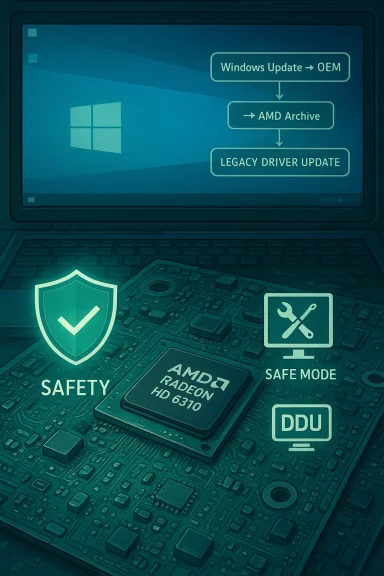
Teal laptop screen shows Windows Update flow to AMD archive and legacy driver update, with safety icons.
The AMD Radeon HD 6310 is officially a legacy product, but many Windows 10 machines still rely on its integrated graphics. This feature explains—step‑by‑step—how to safely find, verify, download, install, and, if necessary, roll back an AMD 6310 driver for Windows 10, while weighing the trade‑offs between stability, features, and security for legacy hardware. It pulls together vendor guidance, community-tested workflows, and independent verification so you can update your system without guessing.

Background​

The Radeon HD 6310 dates from the early 2010s as an integrated GPU in AMD’s E‑series APUs. AMD moved these parts into a legacy support model years ago, which means driver development for new features or performance improvements has ended and only archived or maintenance releases remain available. AMD’s product pages list legacy Catalyst/Crimson builds (for example, Catalyst 15.7.1 and Crimson 16.2.1 Beta) as the final supported installers for the E‑350 / HD 6310 family. At the same time, Microsoft’s Windows Update catalog often supplies a Microsoft‑signed compatibility driver for older Radeon families. For Windows 10 users, that Microsoft‑signed driver is frequently the lowest‑risk path when full Catalyst/Adrenalin features are unnecessary. Community and archival guidance similarly rank vendor/OEM pages and Microsoft Update above third‑party driver repositories for safety and provenance. Recent vendor messaging around Windows 10 driver packaging has caused confusion: AMD’s newer Adrenalin documents sometimes omit Windows 10 from headlines (since Microsoft ended mainstream support), but AMD has clarified compatibility is preserved for supported legacy packages where applicable. Still, for truly legacy GPUs like the HD 6310, expect the final drivers to be archived Catalyst/Crimson packages rather than modern Adrenalin releases. Use official AMD pages and OEM downloads first.

Why this matters: stability, security, and provenance​

Updating display drivers touches kernel‑level code and the Windows display stack. That makes drivers both powerful and a real risk surface if they’re unsigned, repackaged, or downloaded from unknown sources. There are three short rules to reduce risk:
  • Prefer official AMD support pages or your PC OEM for branded systems. These are the most authoritative installers.
  • If you need only a stable desktop and video playback, accept the Microsoft‑signed Windows Update driver first. It’s the lowest‑risk option for Windows 10.
  • Avoid unverified repackagers, torrent mirrors, and “cheap driver” websites that do not provide checksums or signatures; they’re a common source of modified INF files and unsigned kernel binaries.
These rules guide the practical instructions below.

Overview: Where to get a legitimate HD 6310 driver​

  • AMD Official Drivers & Support (legacy archive pages for E‑series APUs and Radeon HD family). AMD lists the final legacy drivers (Catalyst 15.7.1, Crimson 16.2.1 beta, and similar builds) on the product download page. These pages also explicitly declare the product moved to legacy support.
  • Your PC OEM (Dell, HP, Lenovo, Acer, etc.. OEM packages may include vendor‑specific tweaks for hybrid graphics, hotkeys, and power management—especially important on laptops.
  • Microsoft Update / Microsoft Update Catalog. Microsoft supplies signed legacy drivers that prioritize compatibility and security on Windows 10 and should be tried before manual installs.
  • Reputable archives and driver indexes (Softpedia, TechPowerUp, DriverScape, etc. — useful for locating specific historical driver CAB files or version numbers but treat any download from these sites as secondary; verify digital signatures and checksums and prefer AMD/OEM binaries.

Preparing your system (do this before downloading anything)​

  1. Record the GPU hardware ID
    • Open Device Manager → Display adapters → right‑click the device → Properties → Details → Hardware Ids. Save the PCI\VEN_1002&DEV_xxxx string to a text file. This ensures any manual INF install targets the correct device.
  2. Create recovery points
    • Make a System Restore point and, if possible, a full disk image. Driver changes touching the display stack can render systems difficult to recover without these backups.
  3. Keep the current working driver installer
    • Archive the currently working driver package on USB or external storage so you can roll back without Windows Update fighting you.
  4. Note Windows Update behavior
    • Windows Update can automatically reapply Microsoft‑signed drivers and override manual installs. Plan to pause or hide the driver update while you validate a manual driver, then re‑enable updates.

Step‑by‑step: Safest update path for HD 6310 on Windows 10​

Below are three ordered options from lowest risk to highest risk. Follow them in sequence and stop when you have acceptable functionality.

Option A — Try Windows Update first (recommended, lowest risk)​

  1. Settings → Update & Security → Windows Update → Check for updates.
  2. Click “View optional updates” and then “Driver updates.” If a Microsoft‑signed Radeon driver is offered, install it and verify resolution, multi‑monitor behavior, and video playback.
Why: Microsoft‑signed drivers prioritize OS stability and include WHQL signing that preserves kernel integrity.

Option B — Use your OEM support page (for branded machines)​

  1. Identify your exact OEM model (from the sticker or System Information).
  2. Visit the vendor support site and download the Windows 10 driver package for that model if available.
  3. Install the OEM package and validate features (hybrid graphics, hotkeys, power plan).
Why: OEM packages are tuned for specific machines and can restore vendor‑required integrations missing from generic packages.

Option C — Official AMD legacy package (advanced, when you need Catalyst features)​

  1. On AMD’s site, locate the archived driver for your APU/product page (e.g., E‑350 with Radeon HD 6310) and download the recommended final WHQL build or Catalyst/Crimson archive. Note AMD flags these as legacy.
  2. Verify the downloaded file’s digital signature (Right‑click file → Properties → Digital Signatures).
  3. If you are switching stacks or suspect leftover drivers, boot to Safe Mode and run the AMD Cleanup Utility or Display Driver Uninstaller (DDU) to remove residue. DDU in Safe Mode is widely recommended by community archives to prevent partial installs.
  4. Extract the AMD package (many AMD installers self‑extract into C:\AMD). Open the extracted Display.Driver*.inf and search for your recorded hardware ID (PCI\VEN_1002&DEV_xxxx). If the INF contains your ID, proceed. If not, do not edit the INF unless you understand driver signing and re‑signing implications.
  5. Install via the AMD installer or, if the GUI refuses, use Device Manager → Update driver → Browse my computer → Let me pick from a list → Have Disk… → point to the extracted INF and install only the display driver. Avoid installing optional runtimes or unsigned components unless necessary. Reboot and validate.
Why: AMD’s archived Catalyst or Crimson packages can restore features found in the legacy Control Center, but they were built for older kernels and need careful handling on Windows 10.

Verifying integrity and avoiding pitfalls​

  • Always confirm the installer’s digital signature in file properties; AMD or OEM signatures provide provenance. If a package lacks a valid signature, treat it as untrusted.
  • If a third‑party site lists a newer driver than AMD’s official archive, treat the claim as unverifiable unless it includes checksums and a clear link back to AMD/OEM archives. Many repackagers modify INFs or bundle unsigned files.
  • If the installer asks you to disable driver signature enforcement permanently, do not accept that on a productionn system. It weakens kernel defenses. Temporary test mode on a sacrificial machine is the only safe alternative.

Troubleshooting: common failure modes and fixes​

  • Symptom: Installer aborts with “This device is not supported.”
    • Cause: The package INF doesn’t list your hardware ID.
    • Fix: Extract and open Display.Driver*.inf and confirm your PCI\VEN_1002&DEV_xxxx string. If absent, stop—either use Windows Update/MS driver or find an OEM package that matches. Editing INFs without re‑signing is risky.
  • Symptom: Device shows as “Microsoft Basic Display Adapter” after installing the package.
    • Cause: Partial install or residue from previous drivers.
    • Fix: Boot to Safe Mode, run DDU, then reattempt install (OEM or Microsoft drivers first). Community reports show DDU significantly reduces partial installs.
  • Symptom: Windows Update keeps replacing your manual driver.
    • Cause: Windows Update auto‑applies signed drivers.
    • Fix: Pause Windows Update, or use Microsoft’s “Show or hide updates” (wushowhide) tool to hide the driver while validating a manual install; re‑enable updates after testing.
  • Symptom: Installer repeatedly asks to disable driver signature enforcement.
    • Cause: The package is unsigned or the signing metadata is incompatible with your OS kernel.
    • Fix: Avoid this on production machines. Use this as a last resort on test machines after making a full image. �Permanent disabling of enforcement undermines security.

Quick checklist (copy/paste)​

  • Record GPU Hardware ID (Device Manager → Details → Hardware Ids).
  • Create a System Restore point and a disk image.
  • Try Windows Update → Optional → Driver updates.
  • If branded system, check OEM downloads.
  • If using AMD archive: download, verify signature, DDU if switching stacks, extract INF, confirm hardware ID, install.

What driver versions can you expect for the HD 6310?​

Public archives and reputable driver indexes list final legacy builds and later maintenance CABs used in Windows Update:
  • Catalyst 15.7.1 WHQL — final era Catalyst legacy release (2015).
  • Crimson Edition 16.2.1 Beta — an archival Crimson build that was used as a transitional package.
  • Windows Update / Microsoft Catalog offers signed WDDM drivers compiled for legacy support. Confirm specific versions via the Microsoft Update Catalog for your hardware ID.
Independent download indices (Softpedia, DriverScape) list additional CAB builds and driver family revisions (for example, 15.200.1062 and 15.201.1151) distributed in 2015–2016 for legacy GPUs; treat these as references to version numbers rather than primary download sources. Always prefer AMD’s archive or OEM.

Critical analysis — strengths and limitations of each approach​

Strengths​

  • Windows Update: highest safety due to Microsoft signing and broad compatibility. Ideal for daily drivers where advanced Catalyst features are unnecessary.
  • OEM downloads: deliver vendor‑tuned behavior for laptops and hybrid‑graphics systems—best preserve battery and hotkey behaviors.
  • AMD archive: the only route to restore legacy Catalyst features and the Control Center on older hardware. When the INF includes your hardware ID and you verify the package signature, it’s legitimate.

Limitations and risks​

  • Legacy feature gap: Even the latest archived drivers will not add modern codecs (HEVC 10‑bit, AV1) or optimizations for recently released titles. Expect modest results for modern gaming or high‑resolution hardware‑accelerated decode.
  • Unsigned or repackaged drivers: Third‑party repackagers sometimes modify INFs or bundle unsigned kernel modules—this is a security hazard and can destabilize the system. Avoid them.
  • Windows Update reversion: Manual driver installs may be auto‑replaced by Windows Update; plan to pause updates or hide specific driver updates during testing.
  • Lifecycle and security: Legacy drivers receive no active feature updates and limited security attention. If you rely on this machine for sensitive tasks, consider hardware modernization as a long‑term mitigation.

When to accept the Microsoft driver and when to upgrade hardware​

If your needs are basic desktop work, office productivity, web browsing, and occasional video playback, the Microsoft‑signed Windows Update driver is typically sufficient and safest. If you require specific legacy Catalyst features (e.g., old CCC control panels, extended video options from older UVD runtimes), you can attempt an AMD archive install—but budget time for validation, DDU cleanup, and possible rollback.
If you need modern codec acceleration (10‑bit HEVC, AV1), reliable higher‑frame gaming, or driver optimizations for recent titles, a modest modern GPU or a newer laptop is almost always a more cost‑effective, lower‑risk path than prolonged driver tinkering. Community consensus repeatedly emphasizes that small hardware upgrades yield much better compatibility and security for minimal cost compared with ongoing legacy driver maintenance.

Final recommendations (practical, conservative)​

  • Start with Windows Update and OEM drivers; only move to AMD archives for feature needs that the other two options cannot satisfy.
  • Before any change, make a full system image and restore point, and record the Hardware ID to avoid mismatched INF installs.
  • Use DDU in Safe Mode if changing driver families (Catalyst ↔ Adrenalin) or if you suspect leftovers from prior installs. Community testing and guidance strongly recommend a clean state before applying legacy packages.
  • Verify digital signatures and checksums on any downloaded installer and avoid unverified third‑party driver bundles. If a package is unsigned or requires permanent signature enforcement changes, do not use it on production machines.
  • Plan a hardware refresh if you require modern codec support, better gaming performance, or a longer security lifecycle—these needs exceed what legacy HD 6310 drivers can offer.

The Radeon HD 6310 can still provide a perfectly serviceable desktop experience on Windows 10 when handled carefully. The safe path is conservative: try Microsoft’s signed driver via Windows Update first, fall back to the OEM package for branded machines, and only use AMD’s archived Catalyst builds if you explicitly need legacy features and you’re prepared to validate and roll back. Take the recommended backup and DDU steps, verify signatures, and avoid repackaged drivers. These precautions preserve system stability and reduce the security exposure that comes with touching kernel‑level components—important guidance for anyone maintaining legacy Windows 10 hardware today.
Source: Born2Invest https://born2invest.com/?b=style-237466812/
 

Modern Windows 10 systems still need careful handling when updating legacy AMD integrated graphics like Radeon R4 (used in A‑series APUs), and the safest, most reliable path is not always the loudest “download now” button on a random site — this comprehensive guide explains exactly which driver to choose, where to get it, and how to install or roll back drivers for Windows 10 with step‑by‑step instructions, verified specifications, and clear security cautions.

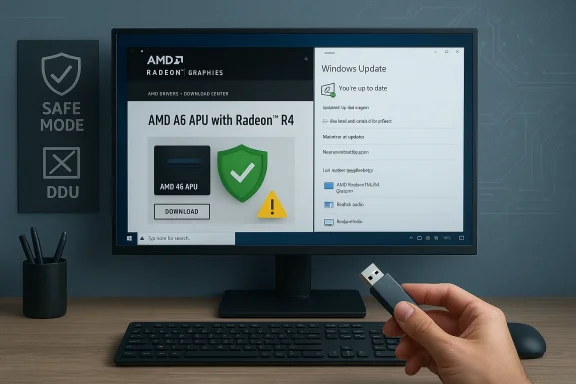
A hand with a USB drive near a monitor showing Windows Update and AMD Radeon graphics.Background / Overview​

AMD’s Radeon R4 family ships as integrated graphics inside a range of A‑series APUs (for example, A6‑9210 and closely related A6/A8 mobile parts). These APUs were produced across multiple product generations and, for many models, AMD now classifies their Windows drivers under a legacy support model. That matters: legacy status means the latest modern Adrenalin bundles may not be actively updated for those chips, and the canonical, validated driver for a given APU may be an archived Adrenalin or older Catalyst package rather than the newest general‑purpose installer. AMD’s product pages explicitly call out which packages are the official, recorecommended builds for specific APU families; for example, many A6/A8‑class APUs list Adrenalin 21.x or Adrenalin 22.6.1 as the recommended Windows 10 packages for 64‑bit systems, while older 32‑bit or truly legacy items point to Adrenalin Edition 18.9.3 or archived Catalyst releases.
At the same time, Windows Update (Microsoft) frequently offers a Microsoft‑signed compatibility driver that is the lowest‑risk option for users who only need a stable desktop, multi‑monitor support, and video playback. Microsoft documents the Device Manager / Windows Update workflow for driver updates; community pages both recommend trying Windows Update first on Windows 10 machines.
Recent vendor messaging has introduced nuance: AMD’s modern driver release notes sometimes omit Windows 10 from headlines as the company aligns with newer OS lifecycles, yet AMD has clarified that many builds remain compatible with Windows 10 even when the marketing copy focuses on Windows 11. Independent reporting has covered this change and the community reaction; treat current compatibility statements as specific to a product page or release notes rather than blanket assurances.

Why correctness and Radeon R4 drivers​

Updating GPU drivers touches kernel‑level display components; a wrong or tampered installer can cause system instability, driver signature enforcement warnings, or — in the worst case — kernel‑level compromise. The three short rules that underpin a safe practice are:
  • Prefer official AMD product pages or your OEM vendor for download authoritative and signed.
  • If you need only a stable desktop experience, accept Microsoft‑supplied drivers via Windows Update before trying vendor packages.
  • Avoid repackagers, torrent mirrors, or “cheap driver” marketplaces that don’t provide checksums or digital signatures; they are a common source of modified INF files or unsigned kernel drivers.
These are not hypothetical concerns — community threads and moderation logs repeatedly document problems caused by modified INFs, unsigned kernel files, or installers that disable signature enforcement to make a driver installable. The consequence ranges from persistent display faults to a higher security risk.

Which driver should you download for Radeon R4 on Windows 10?​

1. Start by identifying your exact hardware and OS​

Before downloading anything, ca The exact APU / GPU model (example: A6‑9210 with Radeon R4 Graphics or A6‑7310 with Radeon R4). You can confirm this in Device Manager → Display adapters.
  • Your Windows 10 edition and architecture (32‑bit vs 64‑bit).
  • The GPU’s Hardware Id string: open Device Manager → Display adapters → right‑click the→ Details → Hardware Ids and copy the PCI\VEN_1002&DEV_xxxx identifier to a text file. This string is essential for INF checks if you perform a manual install.

2. Trust hierarchy (where to get a legitimate driver)​

Use this prioritized list when choosing where to download:
  • OEM/vendor support page for branded laptops or systems (Dell, HP, Lenovo, ASUS). OEM packages often include hybrid‑graphics, hotkeys, and power management that generic AMD installers omit.
  • AMD’s official Drivers & Support pages — use the product selector / previous drivers area to find the release recommended for that APU. AMD’s pages list the specific Adrenalin or legacy builds that are the official downloads for that part. For example, many A6 family pages list Adrenalin 22.6.1 or Adrenalin 21.x as the recommended Win.com]
  • Microsoft Update / Windows Update — often the safest fallback for Windows 10 because the driver is Microsoft‑signed and prioritizes OS stability. Try this first if you only require basic functionality.
  • Reputable archives and trackers (TechPowerUp, TechSpot) for r but use them only for research and cross‑checking; prefer a direct AMD or OEM download for the actual installer.
If you must choose a file today for AMD product pages are authoritative: look for the “Recommended (WHQL)” or “Legacy” tag on the AMD driver listing, and prefer W production machines.

Step‑by‑step: Safest update path for Radeon R4 on Windows 10​

Follow this ordered workflow. Stop at any step where the system meets your needs.

Preparation (do this before downloading)​

  • Create a System Restore point and — if possible — a full disk image. Driver changes to the display stack can render a system non‑bootable.
  • Record the GPU Hardware Id (Device Manager → Display adapters → Properties → Details → Hardware Ids) and save the PCI\VEN_1002&DEV_xxxx string.
  • Archive your current working driver installer on external media so you can roll back without Windows Update fighting you.

Option A — Windows Update (lowest ri Update & Security → Windows Update → Check for updates → View optional updates → Driver updates.​

  • If a Microsoft‑signed Radeon driver appears, install it and validate desktop, multi‑monitor, and video playback scenarios.
    Why: Microsoft‑signed drivers prioritize OS stability and are the least likely to break kernel integrity.

Option B — OEM driver (for branded laptops / prebuilt your OEM model number (sticker on chassis or System Information).​

  • Download the Windows 10 driver package that the vendor publishes for your exact model and OS. Install, reboot, and validate features (hotkeys, power management).ften include vendor‑specific integrations that generic AMD packages omit.

Option C — AMD official package (Adrenalin / legacy — advanced)​

  • Visit AMD’s product selector for your exact APU (for example, A6‑7310 or A6‑9210 product pages) and choose the package that explicitly lists your GPU and Windows often labels legacy packages and recommended WHQL builds on those pages.
  • Download the Adrenalin (or legacy) installer marked “Recommended (WHQL).” Driver → Properties → Digital Signatures and confirm AMD’s signer. Verify checksums if AMD publishes them.
  • If you suspect leftover preview drivers or prior failed installs, boot to Safe Mode and run AMD Cleanup Utility or Display Driver Uninstaller (DDU) before installing. Community mmend DDU for a clean state.

Minimal install approach​

  • During the AMD installer choose a Custom or Minimal install and uncheck optional components (recording utilities, optional runtime them. Reboot when prompted and then validate Device Manager shows the AMD driver (not Microsoft Basic Display Adapter).

Advanced: Manual INF install (when the GUI refuses)​

This is for advanced users only — do not edit INFs unless you understand driverg implications.
  • Run the AMD installer to allow it to self‑extract (many packages extract to C:\AMD). If the GUI aborts, locate the extracted folder.
  • Inspect Display.Driver.inf with a text editor and search for your recorded Hardware Id (PCI\VEN_1002&DEV_xxxx). If the INF lists your Imanual install. If not, stop — do not* edit the INF unless you are prepared to re‑sign and accept the security tradeoffs.
  • To install: Device Manager → Update driver → Browse my computer → Let me pick from a list → Have Disk… → point to the INF and install only the ent. Reboot and validate.
Why this method: the manual INF path avoids the installer’s optional components and is the conservative choice for legacy Catalyst packages that were written for older kernels. It is also the path most frequently recommended in community troubleshooting threads.

Common failure modes and practical fixes​

  • “This device is not supported” or Error 182: the package INF doesn’t include your hardware ID. Fix: stop; try Windows Update or OEM drivers or find a package where the INF lists your VID/PID. Editing the INF without re‑signing is risky.
  • Device shows “Microsoft Basic Display Adapter” after installing the package: likely a partial install or residue from previous drivers. Fix: boot to Safe Mode, run DDU, and reinstall the correct package. Community data shows DDU significantly reduces partial installeeps replacing your manual driver: Windows Update can reapply Microsoft‑signed drivers. Use Microsoft’s Device Installation Settings or the “Show/Hide updates” troubleshoo driver updates while you validate a manual install; re‑enable updates afterward.
Rollback: If the new driver breaks display functionality, boot into Safe Mode, run DDU to remove the AMD stack, and restore your System Restore point or disk image. If the Device Manager shows a Roll Back Driver button, use it; otherwise manually reinstall the archived working package.

Security and integrity checks (non‑negotiable)​

  • Always check the installer’s Digital Signatures tab in file properties to confirm it’s signed by AMD or your OEM. Unsigned installers are a red flag.
  • If available, verify SHA‑256 checksums against the value published on the AMD or OEM page. If checksums are absent on a third‑party site, don’t use the download.
  • Avoid third‑party “one‑click” driver updaters that don’t show vendor provenance; community reports indicate they can bundle extras or pick incorrect installers.

Specific, verifiable driver details (examples)​

  • For many A6‑class APUs (including certain A6‑7310 and A6‑9210 familyists Adrenalin 22.6.1 (Recommended WHQL for Windows 10 64‑bit) as the modern legacy‑era download, while older 32‑bit or deeply legacy builds point to Adrenalin Edition 18.9.3. Always confirm the exact file name and r product page for your APU.
  • AMD explicitly notes certain older product lines have moved to a legacy support model and that “no additional driver releases are pl; if your product page includes that notice, treat future performance or bug fixes as unlikely.
If a news story claims AMD has dropped Windows 10 support universally, cross‑check the vendor product pages for your APU and the specific driver release notes — AMD’s messaging and community reporting show nuance rather than a single global cutoff.

Practical checklist: quick one‑page summary​

  • Inventory & backup: Record PCI\VEN_1002&DEV_xxxx, create a System Restore point and (ideally) a full image.
  • Try Windows Update first: Settings → Update & Security → Windows Update → View optional ups.
  • Check OEM support for branded machines: prefer OEM packages for laptops.
  • Use AMD product page next: download the Recommended (WHQL) Adrenalin/legaact APU. Verify digital signature and checksums.
  • Clean installs: if switching driver stacks or resolving partial installs, use AMD Cleanup Utility or DDU from Safe Mode before reinstalling.
  • Advanced/last resort: manual INF “Have Disk” install only if the extracted Display.Driver*.inf contains your hardware ID. Do not edit the INF unless you can re‑sign drivers.

Risks, trade‑offs, and when to consider a hardware refresh​

  • Legacy drivers can deliver acceptable performance for desktop tasks and light legacy gaming, but they will not receive feature improvements and may lack optimizations for modern multimedia or newer API advances. If you rely on modern game optimizations or new Vulkan/DX12 features, consider a hardware upgrade. Community guidance recommends balancing the expense of troubleshooting old drivers against the benefit of a modest new GPU or platform refresh.
  • Security risk from unsigned or repackaged drivers: repackaged installers sometimes include unsigned kernel code — do not run these on a production or work machine. Always verify signatures and prefer vendors.
  • Vendor/OEM nuance: on laptops, the OEM driver often includes firmware and hotkey integrations. Installing a generic AMD package can disable power‑saving features or hybrid‑graphics behavior on some systems. If the machine is OEM‑branded, test an AMD generic driver only after backing up and keeping the OEM installer available.

Final notes and verification summary​

This guide is grounded in vendor documentation and community‑vetted workflows: AMD product pages list the exact files and their release metadata (Adrenalin 22.6.1, Adrenalin 21.x, Adrenalin Edition 18.9.3, etc.), Microsoft’s support documentation explains Device Manager and Windows Update‑driven driver updates, and community archives and troubleshooting threads document practical failure modes and tools (DDU, manual INF install) used to resolve them. These sources were cross‑checked to verify release names, recommended installation sequences, and safety precautions.
If an explicit download link or file name is required for your particular system, the correct next step is to provide the exact APU/GPU model string (or the full Device Manager Hardware Id) and whether you run Windows 10 x86 or x64 — with that information the precise AMD product page and recommended installer can be identified and verified against the vendor pages and Microsoft Update catalog before downloading.
This approach minimizes risk, preserves system stability, and keeps your Windows 10 machine secure while letting you gain the GPU features you actually need.

Source: Born2Invest https://born2invest.com/?b=style-232021612/
 

Back
Top