

If you want to download and run SonarQube on a Windows 10 machine, the basic steps in most quick-start guides are correct — but the devil is in the details. This article summarizes the simple walk-through you likely read, verifies the technical claims against official documentation, and then walks you through a safer, production-aware Windows 10 installation path with concrete checks, configuration tips, and troubleshooting steps you can rely on.
The quick “SonarQube Download for Windows 10: A Simple Guide” you provided outlines the common, high-level flow: download the SonarQube ZIP, extract to a folder (e.g., C:\sonarqube), supply a Java Runtime, optionally configure PostgreSQL in sonar.properties, run the Windows start script under bin\windows-x86-64\StartSonar.bat, then point a browser at http://localhost:9000 and sign in using the default admin/admin credentials. That concise sequence is fine for a local evaluation, and many community walkthroughs reproduce it exactly. nt, version-sensitive caveats were glossed over in the simple guide. The official SonarSource documentation lists explicit system requirements and recommended production practices you should follow: the SonarQube server requires Java 17, only 64‑bit systems are supported, the embedded H2 database is strictly not recommended for production, and even small team instances need at least 2 GB of RAM just for the server process (with far higher recommendations for production). These platform and JVM constraints matter on Windows 10 too — treat a Windows 10 install as a developer/test instance or short-lived trial, and plan production installs on supported server platforms with separate database hosts.
Below I expand the simple guide into a verified, step-by-step Windows 10 installation method, explain the important configuration choices you’ll face, and discuss the operational risks and upgrades you should plan for.
The platform is split into three roles at runtime:
SonarQube on Windows 10 is straightforward to get running for testing and learning, but real-world reliability and security require attention to Java versioning, database choice, memory and disk performance, and administrative hygiene. Use the verified checks and configuration steps above as your installation blueprint — they align with SonarSource’s official documentation and community best practices and will save you costly surprises as your instance scales.
Source: thedetroitbureau.com Sonarqube Download For Windows 10: A Simple Guide
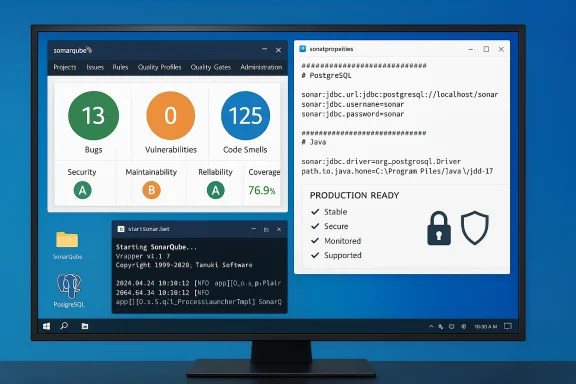 Background / Overview
The quick “SonarQube Download for Windows 10: A Simple Guide” you provided outlines the common, high-level flow: download the SonarQube ZIP, extract to a folder (e.g., C:\sonarqube), supply a Java Runtime, optionally configure PostgreSQL in sonar.properties, run the Windows start script under bin\windows-x86-64\StartSonar.bat, then point a browser at http://localhost:9000 and sign in using the default admin/admin credentials. That concise sequence is fine for a local evaluation, and many community walkthroughs reproduce it exactly. nt, version-sensitive caveats were glossed over in the simple guide. The official SonarSource documentation lists explicit system requirements and recommended production practices you should follow: the SonarQube server requires Java 17, only 64‑bit systems are supported, the embedded H2 database is strictly not recommended for production, and even small team instances need at least 2 GB of RAM just for the server process (with far higher recommendations for production). These platform and JVM constraints matter on Windows 10 too — treat a Windows 10 install as a developer/test instance or short-lived trial, and plan production installs on supported server platforms with separate database hosts.Below I expand the simple guide into a verified, step-by-step Windows 10 installation method, explain the important configuration choices you’ll face, and discuss the operational risks and upgrades you should plan for.
What SonarQube actually is (short refresher)
SonarQube is an open-source platform for continuous static code analysis that finds bugs, code smells and security vulnerabilities across many languages (Java, JavaScript, C#, Python, etc.). It runs as a server that receives analysis reports from scanners (SonarScanner, language analyzers or CI plugins), stores results in a database, and exposes dashboards and quality gates via a web UI. SonarQube’s power comes from built-in rules, extensible analyzers, and the ability to gate CI pipelines based on quality metrics.The platform is split into three roles at runtime:
- A web server (serves UI and API).
- Compute engine workers (process analysis reports).
- An embedded search engine (Elasticsearch) for index/search of results.
Verified prerequisites (what you must check before downloading)
Below are the concrete prerequisites you should verify before you download or extract SonarQube.- Java runtime: the SonarQube server requires Java 17 (OpenJDK or Oracle JDK). Scanners may require Java 11 or 17 depending on the scanner version. Don’t run SonarQube with older Java — the server process will fail or behave unpredictably. If you run multiple JDKs on Windows, explicitly point the server to the Java you want via SONAR_JAVA_PATH.
- Architecture: 64‑bit only. SonarQube and SonarScanner only support 64‑bit JVMs. 32‑bit runtimes are deprecated and unsupported.
- Memory and CPU: For a small, single‑developer instance, SonarSource documents a minimum of 2 GB RAM allocated to the server plus ~1 GB for the OS. For a production/enterprise instance, start planning with at least 8 CPU cores and 16 GB RAM and scale from there. The Elasticsearch indices are I/O significant; use SSDs where possible.
- Database: The embedded H2 database is only for trials and evaluation. For any real use you must use a supported external database (PostgreSQL, MS SQL Server, or Oracle). SonarSource strongly recommends PostgreSQL for production. The docs also list supported PostgreSQL versions (for example, PostgreSQL 12–17 in recent docs) and the need for a UTF‑8 collation for some DB engines.
- Ports and firewall: SonarQube listens on
9000by default (sonar.web.port). Elasticsearch and internal services use additional ports (default9001for search). If your Windows firewall blocks 9000, you won’t be able to reach the UI. - Windows permissions: The user that starts SonarQube needs read/write access to SonarQube folders (logs, temp, data, extensions). Running the StartSonar.bat from an administrator Command Prompt avoids permission issues.
Step‑by‑step: Install SonarQube on Windows 10 (verified and safe)
These steps expand the one-liner guide with verification and checks you should run as you go. Use them whether you’re testing locally or preparing a small team instance.1. Choose the SonarQube version to download
- Decide whether you want a current release or an LTS/LTA (long-term active) branch. If you plan to keep the instance beyond a trial, use the latest LTA recommended by SonarSource.
- Download the ZIP for the edition you need (Community, Developer, Enterprise) and extract it to a short path such as C:\sonarqube to avoid long path issues.
2. Install a supported Java runtime
- Install OpenJDK 17 (or another JDK 17 distribution). Make sure the JDK is a 64‑bit build.
- Set JAVA_HOME or use SONAR_JAVA_PATH to explicitly point SonarQube to a specific java.exe:
- Windows: setx SONAR_JAVA_PATH "C:\Program Files\Java\jdk-17\bin\java.exe"
- Verify from a Command Prompt: java -version (should report Java 17).
3. Prepare a database (strongly recommended for anything beyond toy use)
- For evaluation you can skip this and rely on embedded H2, but for any persistent or collaborative instance:
- Install PostgreSQL (choose a supported version). Create a dedicated user and a database for SonarQube and grant appropriate privileges.
- In sonar.properties (under conf\sonar.properties) set:
- sonar.jdbc.username=your_user
- sonar.jdbc.password=your_password
- sonar.jdbc.url=jdbc
 ostgresql://localhost:5432/your_database
 - Ensure the DB is configured for UTF‑8 where required.
4. Configure sonar.properties for Windows
- Open C:\sonarqube\conf\sonar.properties and:
- Uncomment and set the JDBC URL and credentials for PostgreSQL.
- If you need a different port, modify sonar.web.port (default 9000).
- Set sonar.web.host if you want to bind to a specific IP; leaving it default (0.0.0.0) accepts all addresses.
5. Start SonarQube on Windows 10
- Open an Administrator Command Prompt.
- cd C:\sonarqube\bin\windows-x86-64
- Run StartSonar.bat
- Watch the console output until you see “Server is up” (or similar lines). SonarQube will start several processes (web, compute, elasticsearch). If the CMD window closes immediately, re-run from an already-opened cmd to capture log lines; community conversations show the batch scripts can exit silently on failures unless you run them interactively.
6. Access and secure the UI
- Browse to http://localhost:9000. Default credentials on a fresh install are
admin/admin. The UI will typically force you to change that password on first login. Change it immediately, and create a service account token for CI rather than embedding admin password in scripts.
7. Make SonarQube a Windows Service (optional for convenience)
- SonarQube ships with scripts (e.g., SonarService.bat / InstallNTService.bat) to install it as a Windows service. That’s useful if you want it to run without interactive login. If you use the service wrapper, ensure the service user has folder permissions and that the SONAR_JAVA_PATH points to a valid Java executable. Community threads indicate running SonarQube as a service sometimes hides logs — keep an eye on logs/ folder.
Important configuration and hardening notes
- Change default admin password immediately and create a dedicated user for automation tokens. SonarQube creates a default
adminlocal account on install. Always rotate it. - Firewall and reverse proxy: If you expose SonarQube beyond localhost, put it behind a reverse proxy (Nginx, Apache, IIS ARR) and terminate TLS there. Keep sonar.web.port on an internal port and restrict direct access to Elasticsearch ports. SonarSource documents recommended network segmentation for production.
- JVM and memory tuning: SonarQube components have JVM settings you can tune in conf files or via environment variables (sonar.web.javaOpts, sonar.ce.javaOpts, sonar.search.javaOpts). For small test instances you may need to bump values from defaults; for production allocate substantially more memory (Elasticsearch is sensitive to heap sizing). Official docs give recommended JVM options based on scale.
- Backups: Back up the database and the SONARQUBE_HOME/conf and data directories (if using an external volume for Elasticsearch indices). Relying on H2 means fragile backups — another reason to use PostgreSQL in production.
- Version compatibility: SonarQube releases update Java and plugin APIs. When you upgrade SonarQube, verify scanner and plugin compatibility beforehand. Some plugin ecosystems only support LTS SonarQube branches. An upgrade path that skips steps can force database migrations.
Troubleshooting the common problems (what to check first)
- SonarQube fails to start
- Check logs in the logs\ folder (web.log, es.log, ce.log, sonar.log). They contain the most direct clues.
- Common causes: wrong Java version, insufficient memory, port conflicts, or missing DB connection.
- “Cannot connect to database”
- Ensure PostgreSQL is running, the JDBC URL is correct, and the DB user has appropriate rights. Verify that local firewall or local network rules aren’t blocking connections.
- Port 9000 already in use
- Either stop the conflicting service or change sonar.web.port in sonar.properties and restart. SonarQube will continue to try to bind to ports specified in sonar.properties; review logs to confirm which port it used.
- StartSonar.bat opens and then closes
- Run it from an already-opened cmd window (don’t double-click). If it exits silently, the wrapper scripts may be swallowing errors — check the logs folder contents for clues. There are community-reported batch script bugfixes; if the script exits without logs, inspect lib\find_java.bat and StartSonar.bat for fix suggestions in the community.
Critical analysis — strengths, trade‑offs, and risks
Strengths
- Multi‑language static analysis with actionable rules. SonarQube supports many languages and integrates with CI pipelines, giving teams early feedback on code quality and security issues.
- Quality gates and policy enforcement. Automated quality gates can block merges/builds when coverage or critical issue thresholds are violated.
- Extensible and pluggable. You can add analyzers and write custom rules for specialized checks.
- Rich UI and historical trend data. The web UI and dashboards provide traceable technical debt and rule violations over time.
Trade‑offs and operational risks you must weigh
- Resource demands: Even a small SonarQube instance needs a non‑trivial amount of memory and I/O. Running a production instance on a lightweight Windows 10 laptop is a recipe for poor performance; prefer dedicated servers or containers with dedicated resources. SonarSource’s hardware guidance (2 GB minimum for small setups; 16+ GB for enterprise) is realistic.
- Database and Elasticsearch complexity: SonarQube depends on a resilient external DB for production and a reliable disk layout for Elasticsearch. Migrating between DBs (or away from H2) is non-trivial and must be planned. Recent community reports and upgrade notes show H2 being deprecated/removed in certain versions — do not rely on H2 for anything you care about. If you have an existing H2-based instance and plan to upgrade past the versions that deprecate/remove H2, prepare a migration to PostgreSQL first.
- Version and Java churn: SonarQube server requirements (JDK 17+) mean you may need to manage multiple Java versions in your environment. SonarSource has introduced features like JRE auto‑provisioning in recent LTA releases, but that behavior depends on the SonarScanner version. Always test analysis pipelines after upgrades.
- Security defaults: Default admin credentials exist on fresh installs; failing to rotate them is a real security risk for publicly-accessible instances. Always change the admin password, restrict access, and enable SSO/LDAP in production.
- Windows 10 as a host: Windows 10 is fine for local dev/test, but it’s not intended as a production server OS. If you rely on Windows 10 for team access, understand you’ll be trading off manageability, uptime guarantees, and scalability. SonarSource docs and community guidance assume server-class hosts for production.
Practical hardening and operational checklist (quick reference)
- [ ] Install and point SonarQube to OpenJDK 17 (verify with java -version).
- [ ] Use PostgreSQL (or another supported external DB) for production; do not use H2.
- [ ] Grant SonarQube the required directory permissions (logs, temp, data).
- [ ] Change default admin/admin credentials and create CI tokens for scanners.
- [ ] Configure a reverse proxy and TLS for public exposure; keep Elasticsearch on loopback or private network.
- [ ] Tune JVM options (sonar.web.javaOpts, sonar.ce.javaOpts, sonar.search.javaOpts) and allocate appropriate heap sizes according to your instance size.
- [ ] Backup DB regularly; snapshot any external Elasticsearch volumes when needed.
- [ ] Plan an upgrade/migration strategy (plugins, scanner versions and supported Java) before upgrading SonarQube versions.
- [ ] Monitor disk, memory, and CPU metrics once the instance is in use.
When to run SonarQube on Windows 10 — and when to avoid it
- Use Windows 10 when:
- You are experimenting, learning, or proving out SonarQube locally.
- You need a quick dev/test instance to validate scans before adding a production server.
- Avoid Windows 10 when:
- You expect multiple concurrent users, continuous CI uploads, or large-scale code analyses.
- You need enterprise uptime, backups, and formal maintenance windows.
Final recommendations and next steps
If you followed the simple “download & run” guide, you can successfully evaluate SonarQube on Windows 10. But before you trust it in a team or production workflow, do these concrete things:- Install Java 17 and explicitly set SONAR_JAVA_PATH.
- Stand up PostgreSQL and configure sonar.properties with a JDBC URL and credentials.
- Allocate memory beyond the minimum for the server’s JVMs and use an SSD-backed data directory for Elasticsearch.
- Rotate default credentials and configure access controls / SSO for team installs.
SonarQube on Windows 10 is straightforward to get running for testing and learning, but real-world reliability and security require attention to Java versioning, database choice, memory and disk performance, and administrative hygiene. Use the verified checks and configuration steps above as your installation blueprint — they align with SonarSource’s official documentation and community best practices and will save you costly surprises as your instance scales.
Source: thedetroitbureau.com Sonarqube Download For Windows 10: A Simple Guide
