

SageThumbs 2K 1.3.1 arrives as a substantial quality-of-life update for one of the most ambitious File Explorer extensions now available for Windows 10 and Windows 11, fixing a context-menu regression while delivering much faster thumbnail extraction for large creative and technical files. For photographers, designers, 3D-printing enthusiasts, CAD users, archivists, and anyone tired of blank Explorer icons, the release reinforces SageThumbs 2K’s core appeal: turning File Explorer into a far more capable visual browser without requiring a separate viewer for every file format.
The software is a clean-room modern successor to the original SageThumbs utility, an old favorite among Windows power users who wanted thumbnail support beyond the narrow set of image types handled by Windows out of the box. SageThumbs 2K retains that familiar Explorer-first philosophy, but applies it to a dramatically broader range of modern workflows.
Version 1.3.1 focuses on polish rather than flashy new headline features. That is not a criticism. Explorer extensions live or die on predictability, responsiveness, and restraint. A thumbnail tool that technically supports hundreds of formats but makes Explorer sluggish, hides its own commands, or struggles with large files is not doing its job. The latest release addresses precisely those pain points.
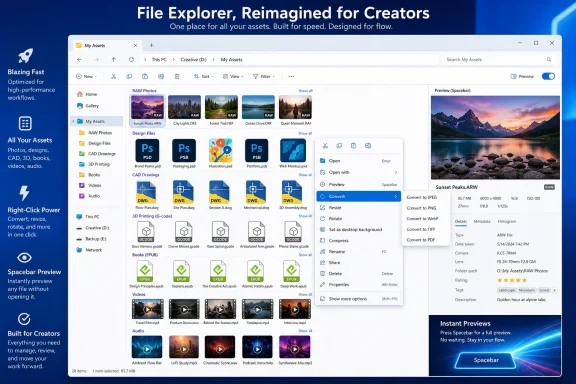
At its simplest, SageThumbs 2K is a Windows shell extension that generates thumbnail previews for file types that Windows cannot normally preview in File Explorer. Instead of presenting a folder full of generic icons for camera RAW files, Photoshop documents, ebook collections, video clips, CAD drawings, or 3D assets, it aims to show useful visual representations directly in the Explorer grid.
That basic proposition sounds modest, but it can change how Windows users work with large asset libraries. A photographer sorting a shoot can identify the right RAW files without launching Lightroom. A designer can scan through PSD and PSB documents without opening Photoshop. A creator managing a mixed folder of HEIC images, AVIF exports, JPEG XL files, rendered EXR images, and video clips can locate the needed asset at a glance.
The scope is wider than many older thumbnail utilities. SageThumbs 2K advertises support across six broad categories:
Still, the breadth is the point. SageThumbs 2K is attempting to reduce the friction created by Windows’ fragmented format support.
The problem is that Explorer’s native thumbnail behavior is inconsistent. Windows handles common JPEG, PNG, GIF, BMP, and MP4 scenarios reasonably well, but modern file libraries are rarely so simple. A folder may contain RAW originals, HDR renders, layered design files, proprietary project documents, compressed comics, and media files created by several devices or applications.
Without thumbnail support, that folder becomes visually opaque. Every file may have a recognizable extension, but extensions are not enough when hundreds of similarly named assets sit side by side.
SageThumbs 2K is particularly relevant because the gaps it targets have grown larger. HEIC is common on phones. AVIF and JPEG XL matter to web and imaging workflows. RAW camera formats continue to evolve. Creative teams increasingly exchange files from Affinity, Krita, Blender, Clip Studio Paint, and other applications alongside Adobe formats.
File Explorer has not become a universal asset browser on its own. SageThumbs 2K tries to fill that role from inside the interface people already use.
Before version 1.3.1, that setting reportedly failed on some Windows 11 setups using the classic full right-click menu. This is an important distinction because Windows 11 now presents two different context-menu experiences: the newer compact menu and the older expanded menu commonly reached through Show more options. Many power users configure systems or use utilities that favor the classic interface.
When the quick-action setting did not work in that configuration, users could end up with the worst possible result: the direct commands were hidden, while nothing useful replaced them. Version 1.3.1 corrects that behavior so the quick actions appear whenever the option is switched on, including with the classic context menu.
That fix is a practical win because conversion and resizing are exactly the kinds of commands that should be quick. A few saved clicks may sound trivial, but those clicks add up when processing many images.
That is a classic shell-extension usability issue. Settings should be immediately testable. If a user reorders menu items, disables a command, or turns quick actions on, the next right-click should reflect the choice.
Version 1.3.1 now refreshes the Explorer menu after settings are saved. This sounds like a small refinement, but it improves confidence in the configuration system. Users no longer have to wonder whether an option failed, whether Explorer cached the menu, or whether they need to close windows and restart the shell.
That approach is wasteful. A thumbnail generator should not need to process every byte of a massive document merely to display a small image in Explorer.
SageThumbs 2K 1.3.1 now reads only the relevant portion of the file when retrieving an embedded preview. The stated targets include:
This change also matters for storage performance. Large files stored on mechanical hard drives, portable USB media, network shares, or slower NAS devices can make thumbnail generation feel particularly sluggish. Reading a small preview segment instead of repeatedly traversing multi-gigabyte project files is exactly the kind of optimization that improves real-world Explorer responsiveness.
That is a meaningful quality improvement for ebook libraries. EPUB packages can include many illustrations, advertisements, title-page graphics, decorative assets, and chapter images. A random internal picture is not a useful library thumbnail. The cover is.
For users who organize technical books, fiction collections, comics, manuals, or reference archives directly in File Explorer, accurate cover extraction makes browsing much more natural.
The conversion workflow can include settings for:
The stated design principle is that original files are not overwritten by default. That is a welcome safeguard. File conversion utilities should make destructive behavior difficult, especially when they are embedded in a context menu where actions can be invoked quickly.
The ability to control menu visibility, ordering, and quick actions is therefore not cosmetic. It is essential. A clean File Explorer context menu is part of Windows productivity.
The feature is designed to go beyond still images. Depending on the file type, the preview mode can reportedly handle:
However, the feature also raises an important expectation-management issue. “Preview anything” is an attractive claim, but not every complex format can be represented fully or perfectly outside its native application. A QuickLook-style window is excellent for inspection; it is not a replacement for Photoshop, AutoCAD, Blender, Microsoft Office, or a dedicated ebook reader.
The distinction matters. SageThumbs 2K is at its best when treated as an identification and browsing layer, not a universal editing suite.
SageThumbs 2K directly addresses that concern with a modern architecture built in Rust, using out-of-process work, crash isolation, panic guards, sandboxing boundaries, and image-bomb protections. The project’s stated goal is to ensure that a malformed or problematic file cannot bring down File Explorer.
That is the right engineering direction. Parsing external content is risky, particularly when the content includes old image formats, proprietary documents, compressed archives, video containers, camera RAW files, and files obtained from untrusted sources.
SageThumbs 2K says heavy decoding work is isolated outside Explorer, while thumbnails are generated on demand and then cached by Windows. In principle, that approach offers several benefits:
The key question is not whether there is zero overhead. The question is whether the overhead is controlled, temporary, cache-friendly, and proportionate to the benefit.
SageThumbs 2K 1.3.1’s targeted preview extraction for PSD, PSB, DWG, and G-code files is a promising example of that philosophy. Users with huge folders should still test it on representative collections, especially where files sit on network drives or removable storage.
Yet broad format support needs careful interpretation.
A thumbnail may come from one of several sources:
That is normal. The value of SageThumbs 2K lies in making Explorer more informative, not in reconstructing every application’s internal workspace.
Although some download listings may casually call the project “open source,” the PolyForm Noncommercial license is source-available rather than open source in the conventional OSI-approved sense. It permits inspection and certain use cases, but it restricts commercial use. Businesses, managed IT environments, consultants, and organizations evaluating deployment should review the license terms carefully rather than assuming the software can be used freely in every context.
On privacy, the project states that thumbnail generation and local tools process files locally, with no data collection or file upload involved in ordinary use. That is a meaningful advantage for sensitive photo libraries, design assets, technical drawings, and personal archives.
However, users should not treat a “false positive” label as a reason to bypass all security checks without thought. An unsigned installer carries less publisher assurance than a signed package, regardless of whether the software is legitimate.
A careful installation approach includes:
Its strongest audience is anyone whose folders contain a mixture of specialized formats.
HEIC, AVIF, JPEG XL, OpenEXR, DDS, and wide-gamut image support further broaden the utility for modern photographic, web, gaming, and rendering workflows.
The spacebar preview and right-click conversion tools may also reduce the need to open heavyweight creative applications for quick inspection.
The benefit depends on the quality of embedded metadata and the availability of usable frames, but the potential convenience is clear.
The ability to extract embedded previews efficiently is more useful than trying to fully load a complex technical file just to populate an Explorer icon.
Its greatest strength is not any individual codec or right-click command. It is the attempt to make File Explorer a better visual workspace for modern file collections. RAW camera images, creative project files, HDR renders, web formats, videos, ebooks, comics, CAD drawings, and audio files increasingly coexist in the same folders. SageThumbs 2K recognizes that Windows users should not have to accept a wall of blank icons simply because their files are more specialized than JPEGs and PNGs.
There are sensible caveats. Performance will vary with hardware, storage, file complexity, and folder size. Broad format support does not mean perfect rendering for every file variation. The product is source-available under a non-commercial license rather than conventionally open source, and the unsigned installer requires deliberate security hygiene.
For the right audience, though, SageThumbs 2K 1.3.1 offers something Windows has long needed: a modern, configurable, security-conscious way to make File Explorer understand the files people actually use.
The software is a clean-room modern successor to the original SageThumbs utility, an old favorite among Windows power users who wanted thumbnail support beyond the narrow set of image types handled by Windows out of the box. SageThumbs 2K retains that familiar Explorer-first philosophy, but applies it to a dramatically broader range of modern workflows.
Version 1.3.1 focuses on polish rather than flashy new headline features. That is not a criticism. Explorer extensions live or die on predictability, responsiveness, and restraint. A thumbnail tool that technically supports hundreds of formats but makes Explorer sluggish, hides its own commands, or struggles with large files is not doing its job. The latest release addresses precisely those pain points.
 Overview: A Thumbnail Extension Built for Modern Windows Workflows
At its simplest, SageThumbs 2K is a Windows shell extension that generates thumbnail previews for file types that Windows cannot normally preview in File Explorer. Instead of presenting a folder full of generic icons for camera RAW files, Photoshop documents, ebook collections, video clips, CAD drawings, or 3D assets, it aims to show useful visual representations directly in the Explorer grid.That basic proposition sounds modest, but it can change how Windows users work with large asset libraries. A photographer sorting a shoot can identify the right RAW files without launching Lightroom. A designer can scan through PSD and PSB documents without opening Photoshop. A creator managing a mixed folder of HEIC images, AVIF exports, JPEG XL files, rendered EXR images, and video clips can locate the needed asset at a glance.
The scope is wider than many older thumbnail utilities. SageThumbs 2K advertises support across six broad categories:
- Images and graphics, including PSD, PSB, HEIC, AVIF, JPEG XL, DDS, EXR, SVG, WebP, Krita files, GIMP XCF files, Affinity documents, Blender files, CorelDRAW assets, and many more.
- Camera RAW formats from Canon, Nikon, Sony, Fujifilm, Olympus, Panasonic, Pentax, Leica, Hasselblad, and other camera ecosystems.
- Documents, including PDF, Microsoft Office files, OpenDocument formats, DjVu, InDesign documents, Visio files, Apple iWork documents, and related formats.
- Video containers, such as MKV, MP4, MOV, AVI, WebM, WMV, FLV, MPEG, TS, M2TS, and VOB.
- Audio files, where embedded cover artwork can serve as a thumbnail.
- Ebooks and comics, including EPUB, MOBI, AZW, AZW3, FB2, CBZ, CBR, CBT, and CB7 files.
Still, the breadth is the point. SageThumbs 2K is attempting to reduce the friction created by Windows’ fragmented format support.
Why File Explorer Thumbnail Support Still Matters
Windows File Explorer remains central to day-to-day file management. Even users with advanced media cataloging applications, creative suites, and developer tools regularly return to Explorer to open folders, attach files, move assets, and inspect downloads.The problem is that Explorer’s native thumbnail behavior is inconsistent. Windows handles common JPEG, PNG, GIF, BMP, and MP4 scenarios reasonably well, but modern file libraries are rarely so simple. A folder may contain RAW originals, HDR renders, layered design files, proprietary project documents, compressed comics, and media files created by several devices or applications.
Without thumbnail support, that folder becomes visually opaque. Every file may have a recognizable extension, but extensions are not enough when hundreds of similarly named assets sit side by side.
The Cost of Generic Icons
Generic file icons create several practical problems:- Selecting the wrong RAW frame from a large photo shoot.
- Opening several PSD files just to find a particular composition.
- Losing time identifying video clips by filename alone.
- Struggling to sort scans, comics, ebooks, textures, or render outputs.
- Installing multiple narrowly focused Explorer add-ons for different file types.
- Relying on third-party viewers merely to inspect a folder’s contents.
SageThumbs 2K is particularly relevant because the gaps it targets have grown larger. HEIC is common on phones. AVIF and JPEG XL matter to web and imaging workflows. RAW camera formats continue to evolve. Creative teams increasingly exchange files from Affinity, Krita, Blender, Clip Studio Paint, and other applications alongside Adobe formats.
File Explorer has not become a universal asset browser on its own. SageThumbs 2K tries to fill that role from inside the interface people already use.
What SageThumbs 2K 1.3.1 Fixes
The 1.3.1 release is primarily a maintenance update, but its changes target highly visible Explorer behavior. That makes it more consequential than a minor version number might suggest.Quick Actions Return to the Right-Click Menu
The most prominent fix concerns the option labeled “Show quick actions in the menu.” When enabled, that setting is meant to expose common commands such as:- Convert into
- Convert…
- Resize
- Rotate
Before version 1.3.1, that setting reportedly failed on some Windows 11 setups using the classic full right-click menu. This is an important distinction because Windows 11 now presents two different context-menu experiences: the newer compact menu and the older expanded menu commonly reached through Show more options. Many power users configure systems or use utilities that favor the classic interface.
When the quick-action setting did not work in that configuration, users could end up with the worst possible result: the direct commands were hidden, while nothing useful replaced them. Version 1.3.1 corrects that behavior so the quick actions appear whenever the option is switched on, including with the classic context menu.
That fix is a practical win because conversion and resizing are exactly the kinds of commands that should be quick. A few saved clicks may sound trivial, but those clicks add up when processing many images.
Settings Changes Now Refresh Explorer Menus Immediately
The update also makes context-menu configuration changes apply without requiring an Explorer restart. Previously, toggling a menu option in SageThumbs 2K’s Settings interface and saving could leave the old context menu in place until Explorer was restarted manually.That is a classic shell-extension usability issue. Settings should be immediately testable. If a user reorders menu items, disables a command, or turns quick actions on, the next right-click should reflect the choice.
Version 1.3.1 now refreshes the Explorer menu after settings are saved. This sounds like a small refinement, but it improves confidence in the configuration system. Users no longer have to wonder whether an option failed, whether Explorer cached the menu, or whether they need to close windows and restart the shell.
Faster Thumbnail Extraction for Large PSD, DWG, and G-Code Files
The most technically meaningful improvement involves large files that contain an embedded preview near the beginning of the file. Earlier versions could read an entire large Photoshop document, AutoCAD drawing, or 3D-printer G-code file before extracting the relatively small preview needed for a thumbnail.That approach is wasteful. A thumbnail generator should not need to process every byte of a massive document merely to display a small image in Explorer.
SageThumbs 2K 1.3.1 now reads only the relevant portion of the file when retrieving an embedded preview. The stated targets include:
- Adobe Photoshop
.psdfiles - Adobe Photoshop Large Document
.psbfiles - AutoCAD
.dwgdrawings - G-code files used in 3D-printing workflows
This change also matters for storage performance. Large files stored on mechanical hard drives, portable USB media, network shares, or slower NAS devices can make thumbnail generation feel particularly sluggish. Reading a small preview segment instead of repeatedly traversing multi-gigabyte project files is exactly the kind of optimization that improves real-world Explorer responsiveness.
Better EPUB Cover Detection
The final headline improvement fixes ebook thumbnails for large EPUB files. Instead of occasionally selecting an arbitrary image from inside a book, SageThumbs 2K 1.3.1 is designed to show the real cover.That is a meaningful quality improvement for ebook libraries. EPUB packages can include many illustrations, advertisements, title-page graphics, decorative assets, and chapter images. A random internal picture is not a useful library thumbnail. The cover is.
For users who organize technical books, fiction collections, comics, manuals, or reference archives directly in File Explorer, accurate cover extraction makes browsing much more natural.
More Than Thumbnails: The Explorer Toolkit
The thumbnail engine is SageThumbs 2K’s main attraction, but the application has expanded into a broad Explorer-integrated toolkit. That creates both value and complexity.File Conversion and Batch Operations
SageThumbs 2K includes conversion tools accessible from the right-click menu. Supported output choices reportedly include familiar formats such as JPEG, PNG, WebP, and TIFF, as well as more advanced options depending on the source and installed components.The conversion workflow can include settings for:
- Output format
- Image dimensions
- Percentage scaling
- Fit-based resizing
- Compression or quality level
- Destination folder
- Batch processing across multiple selected files
The stated design principle is that original files are not overwritten by default. That is a welcome safeguard. File conversion utilities should make destructive behavior difficult, especially when they are embedded in a context menu where actions can be invoked quickly.
Rotation, Metadata Removal, OCR, and PDF Creation
The context-menu toolkit also includes several functions that are usually scattered across separate applications:- Rotate and flip images.
- Strip metadata, including potentially sensitive EXIF, IPTC, XMP, and GPS data.
- Copy text with OCR using Windows’ OCR capabilities.
- Combine images into PDF or CBZ files.
- Pick colors from anywhere on screen through an eyedropper tool.
- Set images as wallpaper.
- Capture and annotate screen regions, according to the project’s listed features.
The ability to control menu visibility, ordering, and quick actions is therefore not cosmetic. It is essential. A clean File Explorer context menu is part of Windows productivity.
QuickLook-Style Spacebar Previews
One of the most interesting capabilities is a QuickLook-style preview mode activated with the Space key. With a supported file selected in Explorer, users can open a large preview without launching the default associated application.The feature is designed to go beyond still images. Depending on the file type, the preview mode can reportedly handle:
- Full-size image viewing.
- Video playback with basic playback controls.
- Audio playback and cover art.
- Multi-page PDF navigation.
- Font specimen previews.
- Syntax-highlighted source code.
- Rendered Markdown documents.
- Archive content listings for ZIP, 7Z, and RAR files.
However, the feature also raises an important expectation-management issue. “Preview anything” is an attractive claim, but not every complex format can be represented fully or perfectly outside its native application. A QuickLook-style window is excellent for inspection; it is not a replacement for Photoshop, AutoCAD, Blender, Microsoft Office, or a dedicated ebook reader.
The distinction matters. SageThumbs 2K is at its best when treated as an identification and browsing layer, not a universal editing suite.
Performance and Stability: The Most Important Claims
Shell extensions operate close to the Windows desktop experience. When they fail, users may blame File Explorer itself. Explorer freezes, crashes, restarts, and slow folder loads are among the most frustrating Windows problems because they affect everyday tasks.SageThumbs 2K directly addresses that concern with a modern architecture built in Rust, using out-of-process work, crash isolation, panic guards, sandboxing boundaries, and image-bomb protections. The project’s stated goal is to ensure that a malformed or problematic file cannot bring down File Explorer.
That is the right engineering direction. Parsing external content is risky, particularly when the content includes old image formats, proprietary documents, compressed archives, video containers, camera RAW files, and files obtained from untrusted sources.
Why Out-of-Process Decoding Matters
Traditional Explorer extensions have historically earned a bad reputation because an unstable codec or decoder could run in the same process as Explorer. If that code crashed, Explorer could crash with it.SageThumbs 2K says heavy decoding work is isolated outside Explorer, while thumbnails are generated on demand and then cached by Windows. In principle, that approach offers several benefits:
- A bad decode operation is less likely to take down the shell.
- Expensive work can be separated from Explorer’s primary user interface process.
- Cached thumbnails reduce repeat work when revisiting folders.
- Large-file safeguards can limit extreme resource consumption.
- Users can configure limits for thumbnail size and file size.
The Real-World Performance Caveat
The claim that an extension “will not slow down Explorer” should always be read with nuance. Any thumbnail provider must consume CPU time, disk access, memory, and sometimes decoder resources when it encounters unfamiliar files.The key question is not whether there is zero overhead. The question is whether the overhead is controlled, temporary, cache-friendly, and proportionate to the benefit.
SageThumbs 2K 1.3.1’s targeted preview extraction for PSD, PSB, DWG, and G-code files is a promising example of that philosophy. Users with huge folders should still test it on representative collections, especially where files sit on network drives or removable storage.
Format Support Is Broad, but Not Identical to Full Application Support
The feature list is impressive, particularly for creative professionals. Photoshop PSD and PSB previews, GIMP XCF thumbnails, Krita files, Affinity formats, Clip Studio Paint assets, Adobe XD documents, InDesign files, Blender projects, CAD drawings, 3D assets, and camera RAW files make SageThumbs 2K unusually broad for an Explorer extension.Yet broad format support needs careful interpretation.
A thumbnail may come from one of several sources:
- An embedded preview already stored in the file.
- A fast native decoder.
- A Windows Imaging Component codec.
- A bundled conversion engine.
- A fallback parser that renders a limited representation.
That is normal. The value of SageThumbs 2K lies in making Explorer more informative, not in reconstructing every application’s internal workspace.
Licensing, Privacy, and the Unsigned Installer Question
SageThumbs 2K is free for personal and non-commercial use, with source code available under the PolyForm Noncommercial 1.0.0 license. That classification deserves precision.Although some download listings may casually call the project “open source,” the PolyForm Noncommercial license is source-available rather than open source in the conventional OSI-approved sense. It permits inspection and certain use cases, but it restricts commercial use. Businesses, managed IT environments, consultants, and organizations evaluating deployment should review the license terms carefully rather than assuming the software can be used freely in every context.
On privacy, the project states that thumbnail generation and local tools process files locally, with no data collection or file upload involved in ordinary use. That is a meaningful advantage for sensitive photo libraries, design assets, technical drawings, and personal archives.
SmartScreen Warnings Should Not Be Dismissed Automatically
The developer also notes that the installer may trigger warnings from Microsoft Defender SmartScreen or some heuristic security engines because it is new and unsigned. That explanation is plausible: reputation-based systems often treat unfamiliar unsigned installers cautiously.However, users should not treat a “false positive” label as a reason to bypass all security checks without thought. An unsigned installer carries less publisher assurance than a signed package, regardless of whether the software is legitimate.
A careful installation approach includes:
- Downloading only from the project’s official release channel.
- Checking the expected version number, 1.3.1.
- Verifying any published checksum or cryptographic signature if available.
- Scanning the installer with local security software.
- Testing first in a non-critical environment when deploying broadly.
- Keeping Windows and SageThumbs 2K updated.
Who Should Consider SageThumbs 2K 1.3.1?
SageThumbs 2K is not essential for every Windows PC. Users who mostly handle JPEGs, PNGs, PDFs, and common Office documents may find that Windows’ native preview support is sufficient.Its strongest audience is anyone whose folders contain a mixture of specialized formats.
Photographers and Image Professionals
RAW thumbnail support can save substantial time when reviewing shoots. Seeing CR2, CR3, NEF, ARW, RAF, DNG, ORF, RW2, and related formats in Explorer makes fast identification easier before importing files into an editing catalog.HEIC, AVIF, JPEG XL, OpenEXR, DDS, and wide-gamut image support further broaden the utility for modern photographic, web, gaming, and rendering workflows.
Designers and Digital Artists
PSD and PSB thumbnail support is a major attraction. The same applies to GIMP XCF, Krita, Affinity, Clip Studio Paint, CorelDRAW, Adobe XD, InDesign, and other graphic design assets that otherwise appear as opaque project files.The spacebar preview and right-click conversion tools may also reduce the need to open heavyweight creative applications for quick inspection.
Video, Audio, and Content Creators
Video thumbnails for MKV, MP4, MOV, AVI, WebM, WMV, FLV, and related containers make media folders easier to browse. Audio cover art support can make music, podcast, audiobook, and sound-effects libraries more navigable.The benefit depends on the quality of embedded metadata and the availability of usable frames, but the potential convenience is clear.
CAD, 3D, and 3D-Printing Users
DWG, 3D asset, and G-code thumbnail support targets a group often underserved by general-purpose Windows tools. The 1.3.1 optimization for large AutoCAD and G-code files is particularly relevant here.The ability to extract embedded previews efficiently is more useful than trying to fully load a complex technical file just to populate an Explorer icon.
Collectors, Archivists, and Ebook Users
EPUB cover handling, comic thumbnails, archive previews, PDF navigation, and metadata tools make the extension appealing for digital library management. The improved EPUB cover logic in 1.3.1 is a small but meaningful refinement for collections where visual identification matters.The Bottom Line
SageThumbs 2K 1.3.1 is a focused update that improves the everyday reliability of a remarkably wide-ranging Windows File Explorer extension. The restored quick actions, instant menu refresh behavior, faster preview extraction for massive PSD, PSB, DWG, and G-code files, and improved EPUB cover thumbnails all address the kinds of details that determine whether a shell tool feels native or merely experimental.Its greatest strength is not any individual codec or right-click command. It is the attempt to make File Explorer a better visual workspace for modern file collections. RAW camera images, creative project files, HDR renders, web formats, videos, ebooks, comics, CAD drawings, and audio files increasingly coexist in the same folders. SageThumbs 2K recognizes that Windows users should not have to accept a wall of blank icons simply because their files are more specialized than JPEGs and PNGs.
There are sensible caveats. Performance will vary with hardware, storage, file complexity, and folder size. Broad format support does not mean perfect rendering for every file variation. The product is source-available under a non-commercial license rather than conventionally open source, and the unsigned installer requires deliberate security hygiene.
For the right audience, though, SageThumbs 2K 1.3.1 offers something Windows has long needed: a modern, configurable, security-conscious way to make File Explorer understand the files people actually use.
References
- Primary source: Neowin
Published: 2026-07-22T15:28:01+00:00
Loading…
www.neowin.net