

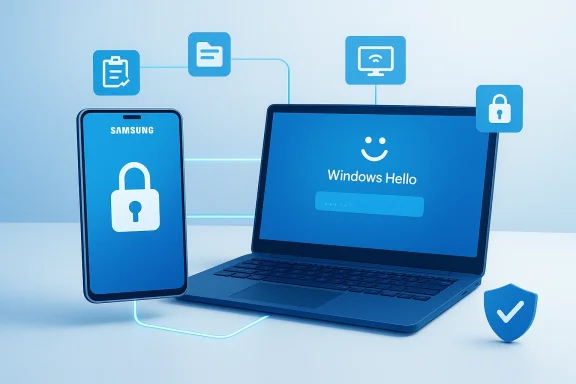
Samsung’s Flow (and related “phone‑to‑PC” partnerships) promised to make a Galaxy phone a true identity key for Windows machines, but the reality behind the BetaNews headline — that you could “unlock any device running Windows 10 Creators Update with a Samsung phone” — is more complicated, conditional, and security‑conscious than the original coverage suggested. What started as a convenient continuity feature grew into a broader set of cross‑device capabilities (file transfer, clipboard sync, screen mirroring and remote lock), but Microsoft and OEM partners ultimately favored a conservative security model that avoids a wholesale, remote unlock capability without strong, local authentication guarantees.
Windows and mobile ecosystems have chased continuity and cross‑device convenience for years. Microsoft’s Windows Hello gave users biometric sign‑in on Windows devices, promising passwordless, hardware‑backed authentication. Meanwhile, OEMs such as Samsung built companion apps — Samsung Flow and later deeper Link to Windows integrations — to bridge phone and PC workflows in ways Apple’s ecosystem had already popularized with Handoff, AirDrop, and Auto Unlock features. The Windows 10 Creators Update era (and subsequent updates) broadened platform support for proximity and continuity features, but with explicit security tradeoffs.
Samsung framed Flow as the Galaxy counterpart to Apple’s Handoff: a quick, secure way to move work between phone and PC, including authenticating sessions and handing off tasks. At first the integration on Windows was limited — Samsung pointed to support for the Windows‑based Galaxy TabPro S and signaled plans to widen compatibility to more Windows PCs after the Creators Update — but the specifics of “unlocking any Windows 10 device” were never a simple, unconditional promise. Samsung’s roadmap comments in app store release notes indicated intent to expand functionality in Windows 10 updates, not to replace Windows’ local authentication model.
Where Samsung did make moves toward a closer integration, it tied PC actions to Windows sign‑in verification and platform security measures rather than inventing a new, weaker unlock mechanism — effectively piggybacking on Windows’ local authentication rather than supplanting it. That’s a security‑first posture, even if it undercuts the simple “use your phone to unlock your PC” headline.
For users, the takeaway is straightforward: Samsung Flow and Link to Windows add genuinely useful cross‑device capabilities, but they augment — not replace — Windows’ local authentication system. Treat them as productivity tools that need the same operational hygiene as any cloud‑oriented convenience: strong account protection, selective feature enablement, and measured deployment in managed environments.
Conclusion
Cross‑device continuity between phones and PCs has matured into a practical set of features that make mixed workflows smoother. Samsung and Microsoft moved carefully because the alternative — enabling remote unlock without hardware‑backed verification — would have put millions of devices at risk. The sensible compromise delivers most day‑to‑day conveniences while keeping the PC’s final unlock decision local and backed by Windows Hello or equivalent protections. For anyone considering these features, the immediate priorities are to enable Windows Hello, secure the Microsoft account, and test the behaviors on your specific devices before trusting them in high‑risk scenarios.
Source: BetaNews You'll be able to unlock any device running Windows 10 Creators Update with a Samsung phone
 Background
Windows and mobile ecosystems have chased continuity and cross‑device convenience for years. Microsoft’s Windows Hello gave users biometric sign‑in on Windows devices, promising passwordless, hardware‑backed authentication. Meanwhile, OEMs such as Samsung built companion apps — Samsung Flow and later deeper Link to Windows integrations — to bridge phone and PC workflows in ways Apple’s ecosystem had already popularized with Handoff, AirDrop, and Auto Unlock features. The Windows 10 Creators Update era (and subsequent updates) broadened platform support for proximity and continuity features, but with explicit security tradeoffs.Samsung framed Flow as the Galaxy counterpart to Apple’s Handoff: a quick, secure way to move work between phone and PC, including authenticating sessions and handing off tasks. At first the integration on Windows was limited — Samsung pointed to support for the Windows‑based Galaxy TabPro S and signaled plans to widen compatibility to more Windows PCs after the Creators Update — but the specifics of “unlocking any Windows 10 device” were never a simple, unconditional promise. Samsung’s roadmap comments in app store release notes indicated intent to expand functionality in Windows 10 updates, not to replace Windows’ local authentication model.
What Samsung Flow (and Link to Windows / Phone Link) actually does
Samsung Flow and Microsoft’s Link to Windows / Phone Link are focused on several tangible, productivity‑oriented features. These features are useful, but they are not identical to a full remote unlock capability that bypasses local Windows authentication.- Remote lock (one‑way): The phone can send a lock command to a paired PC so you can secure a session when you step away. This is a deliberate, conservative capability that terminates an active session; it does not provide a remote unlock path in the shipped implementations.
- Clipboard sync (text and images): Cross‑device copy/paste between phone and PC to reduce friction when moving small content pieces. Practical but a potential data‑exposure vector if misused.
- Bidirectional file transfer: Send files from phone to PC and vice versa; transfers typically use BLE for discovery and local Wi‑Fi for throughput.
- Screen mirroring / app streaming: Start a phone screen mirror or stream supported apps to the PC; works best on specific OEM devices with tighter integration (Samsung being the lead partner).
- Recent Activity and status: A hub that shows recent transfers, clipboard items and a quick “PC‑at‑a‑glance” with battery or network status.
Parsing the BetaNews claim: “unlock any device” — hype or reality?
The headline that Galaxy phones would unlock “any device running Windows 10 Creators Update” conflates several distinct ideas:- Samsung’s public intention to expand Flow compatibility to more Windows PCs;
- Microsoft’s evolving Phone Link/Link to Windows features around the same period; and
- The long‑standing desire for a phone to act like an authentication token for a PC.
Where Samsung did make moves toward a closer integration, it tied PC actions to Windows sign‑in verification and platform security measures rather than inventing a new, weaker unlock mechanism — effectively piggybacking on Windows’ local authentication rather than supplanting it. That’s a security‑first posture, even if it undercuts the simple “use your phone to unlock your PC” headline.
Technical mechanics and prerequisites
To understand what these features can (and cannot) do, it helps to know how pairing and connectivity work in practice.- Pairing uses the Microsoft account as the binding axis and a combination of Bluetooth Low Energy (BLE) and local network (Wi‑Fi) discovery for establishing trust and transferring data. A phone and PC must be paired via Phone Link / Link to Windows; the same Microsoft account must be used on both devices.
- Remote actions generally appear only when the phone and PC show as “connected” in the companion apps. Some flows use cloud coordination for relay, while bulk transfers often happen locally for speed. Reports about which transport is strictly required (BLE vs. cloud relay) vary across device models, so empirical testing on your hardware is recommended.
- When an action affects authentication (for example, Samsung’s work on requiring Windows sign‑in verification for certain password‑related flows), the vendor often defers to Windows Hello and TPM storage for secure, local gating. That means the phone can initiate or authorize certain operations, but the PC can still require local biometric/PIN verification as a final gate.
- Update Phone Link / Link to Windows and Samsung Flow / Link to Windows on your phone to the latest versions.
- Sign into the same Microsoft account on phone and PC and complete pairing.
- On Windows, enable Remote PC controls in Settings → Bluetooth & devices → Mobile devices → Manage devices if you want Lock PC capability.
- Configure Windows Hello (face, fingerprint or PIN) and ensure device TPM is enabled on modern hardware for strongest protection.
Security analysis — strengths and risks
Strengths- Practical security controls: Allowing a phone to lock a machine remotely addresses a common real‑world risk: leaving an unlocked laptop unattended. The one‑way lock is low‑risk compared with remote unlock, because it doesn’t create a convenient bypass for local authentication.
- Leverages platform security: By deferring to Windows Hello and TPM for authentication gating, OEM features benefit from hardware‑backed protections and consistent system behavior instead of inventing a parallel, weaker trust mechanism.
- Productivity wins without large attack surface expansion: Clipboard sync, file send, and screen mirroring cut friction in legitimate workflows and can be scoped by OS settings and user choice.
- Fragmentation and uneven UX: Some advanced features are deeper on Samsung devices because of closer OEM/Microsoft collaboration. Users on other phones may see degraded or inconsistent behavior. This creates a multi‑tier experience.
- Clipboard and file transfer exposure: Synchronizing clipboard content and sending files across devices multiplies transient data paths. Sensitive data (passwords, 2FA codes, PII) can inadvertently cross devices if users are not careful.
- Account dependency and recovery risk: Because these features rely on the Microsoft account and its pairing model, account compromise or poor recovery hygiene magnifies risk across devices. Strong account protections (MFA, passkeys) are essential.
- No universal remote unlock: The absence of a robust, secure remote unlock feature can be seen as a limitation, though it reflects a deliberate mitigation of a major attack vector. Any system that allowed remote unlock without strong, recent biometric confirmation or hardware‑backed tokens would risk enabling access from a lost or stolen phone.
Enterprise and administrative considerations
Enterprises must treat phone pairing and cross‑device linking as part of device and account governance, not a casual convenience.- Require multi‑factor authentication on Microsoft accounts used for pairing and ensure account recovery options are tightly managed.
- Use Mobile Device Management (MDM) and endpoint controls to restrict which devices can pair or to disable Bluetooth pairing for managed endpoints. The administrative surface for Link to Windows / Phone Link remains less prescriptive than traditional device management, so policy design is necessary.
- Audit paired devices regularly and implement a swift revocation workflow for lost or compromised phones. The Phone Link model lets admins and users remove devices from account device lists; this should be in incident‑response playbooks.
- Scope clipboard and file syncing for machines handling sensitive workloads; for high‑compliance environments, disable cross‑device clipboard and phone→PC transfers unless explicitly required.
How to enable and use the core features (concise steps)
- Update your phone’s Link to Windows (or Samsung Flow) app via the Play Store / Galaxy Store and update Phone Link on Windows.
- Sign into the same Microsoft account on both phone and PC.
- Pair the devices through the Phone Link onboarding flow (scan QR from phone or start pairing from the PC).
- On Windows: Settings → Bluetooth & devices → Mobile devices → Manage devices → enable Remote PC controls to allow Lock PC.
- To send files: use the phone’s “Send files to PC” option, or use the Phone Link share target on PC to send back. Transfers typically appear in a Phone Link/Downloads folder on the PC.
Practical workflows that work well
- Quick harden: Lock a laptop remotely from the phone when leaving a public workspace or classroom; the one‑tap Lock PC minimizes exposure without giving the phone an unlock key.
- Photo editing handoff: Snap photos on the phone, send them to the PC for editing, and return edited versions to the phone — a common photographer workflow that saves time over manual cloud uploads.
- Bug reporting and code snippets: Capture an error message or stack trace on the PC, copy to clipboard, and paste into a ticket on the phone while away from the desk — clipboard sync makes this trivial, but treat it as ephemeral.
- Demos and support: Mirror a phone app to the PC to demonstrate a workflow or debug an issue while maintaining the ability to control and record the session from the desktop.
Practical recommendations and hardening checklist
- Enable and require Windows Hello (biometric or device PIN) on PCs and ensure TPM is active on supported hardware. This keeps local unlock strong even as phone‑initiated convenience features are used.
- Use strong Microsoft account protections: enable MFA, consider passkeys where supported, and lock down recovery options. Account compromise is the biggest single risk for cross‑device integrations.
- Scope clipboard usage: Disable cross‑device clipboard for sensitive workloads and educate users to treat clipboard sync as ephemeral.
- Audit paired devices: Regularly review paired phones in Windows Settings and the Microsoft account device portal. Implement immediate revocation steps in incident response.
- Test on representative hardware: Vendor and OEM differences mean that transport and timing behavior can vary; pilot deployments before wide enablement will uncover surprise edge cases.
Final assessment: useful evolution, not a wholesale replacement of local security
The headline claiming that Samsung phones would let users “unlock any Windows 10 device” oversimplified a nuanced, iterative evolution of continuity features. The concrete outcome over time was significant and practical: better file transfers, clipboard parity, screen mirroring and a deliberate remote lock control — all of which materially improve productivity for mixed mobile/PC users. However, Microsoft and OEM partners consistently prioritized local authentication and platform security, rejecting an unconstrained remote‑unlock model that would have introduced serious risk.For users, the takeaway is straightforward: Samsung Flow and Link to Windows add genuinely useful cross‑device capabilities, but they augment — not replace — Windows’ local authentication system. Treat them as productivity tools that need the same operational hygiene as any cloud‑oriented convenience: strong account protection, selective feature enablement, and measured deployment in managed environments.
Conclusion
Cross‑device continuity between phones and PCs has matured into a practical set of features that make mixed workflows smoother. Samsung and Microsoft moved carefully because the alternative — enabling remote unlock without hardware‑backed verification — would have put millions of devices at risk. The sensible compromise delivers most day‑to‑day conveniences while keeping the PC’s final unlock decision local and backed by Windows Hello or equivalent protections. For anyone considering these features, the immediate priorities are to enable Windows Hello, secure the Microsoft account, and test the behaviors on your specific devices before trusting them in high‑risk scenarios.
Source: BetaNews You'll be able to unlock any device running Windows 10 Creators Update with a Samsung phone
