Samsung Internet for Windows Beta Brings Galaxy AI and Cross-Device Sync

  • Thread Author
Samsung’s mobile browser has returned to Windows as a deliberately staged beta, bringing bookmarks, open tabs, and Galaxy AI-powered browsing tools to PCs — but the rollout is limited, some features are still staged, and careful verification is essential before you install it on primary machines.

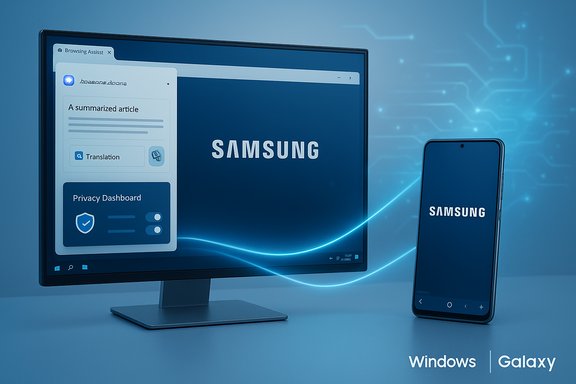
A laptop and smartphone display Galaxy AI Privacy Dashboard with blocked trackers.Background​

Samsung Internet has been a staple browser on Galaxy phones for more than a decade, known for a privacy-forward design, extension support, and tight integration with Samsung services. The company briefly experimented with a Windows listing in late 2023; that early appearance was removed, leaving users uncertain about a desktop future. Samsung’s recent relaunch positions the Windows client as a full PC browser with explicit goals: cross-device continuity, built-in Galaxy AI browsing assists, and an accessible privacy dashboard. This new PC beta is explicitly region-gated in its first wave to the United States and South Korea and targets Windows 11 plus Windows 10 starting with the October 2018 Update (version 1809). Samsung is distributing the beta through a mix of the Microsoft Store (where available), official beta sign-ups via Samsung’s developer/beta channels, and signed direct installers for testers. Expect broader expansion in subsequent stages.

What Samsung promises on Windows (at a glance)​

Samsung frames the Windows client around three headline promises that will matter most to Galaxy users:
  • Cross-device sync of bookmarks, open tabs, and browsing history tied to a Samsung Account.
  • Galaxy AI — Browsing Assist, offering on-page summarization, inline translation and contextual helpers to make long or multilingual pages easier to consume.
  • Privacy-first tooling, including Smart Anti‑Tracking and a Privacy Dashboard that shows what trackers are being blocked and lets users manage settings in real time.
All three are consistent with Samsung’s mobile positioning, but the desktop environment raises new technical and privacy trade-offs that the company must address before users migrate fully.

Overview: System requirements and availability​

Supported platforms​

Samsung’s published beta guidance and independent reports list the following minimums:
  • Windows 11
  • Windows 10 — version 1809 (October 2018 Update) or later
  • Builds for x86/x64 and ARM-based Windows devices are available in the initial tester packages.

Regions and distribution​

  • Initial beta availability: United States and South Korea only. Samsung will expand to additional regions over time.
  • Distribution channels: Microsoft Store (preferred where available), Samsung Developer Portal / Samsung Members beta sign-ups, and signed direct installers for registered testers. Manual installers exist for ARM and x86/x64 where a Store listing is not yet present.

How to download and install (step-by-step, conservative path)​

These steps reflect Samsung’s recommended channels and practical safety checks for beta software.
  • Confirm your Windows build
  • Open Settings > System > About and verify you are on Windows 11 or Windows 10, version 1809 or later. Update Windows if necessary.
  • Back up your browser profile
  • Export bookmarks and save your password vault or use an existing password manager backup before importing or testing any beta browser. This avoids accidental data loss when experimenting.
  • Create or verify a Samsung Account
  • A Samsung Account is required for cross-device sync and for Galaxy AI features that rely on cloud processing. Sign up or confirm your credentials through Samsung’s account portal.
  • Join the beta program (recommended)
  • Register through Samsung Developer Portal or Samsung’s beta registration links (Samsung Members) to receive official instructions and download links for testers. This reduces the risk of running an unsigned or tampered package.
  • Install from the Microsoft Store where possible
  • If the Samsung Internet listing appears in your regional Microsoft Store, prefer that route because it offers automatic updates and catalog integrity guarantees.
  • Manual installer (if you must)
  • Only download direct installers from official Samsung developer or beta pages. Before running:
  • Verify the file’s digital signature (Properties → Digital Signatures) — signer should be Samsung Electronics Co., Ltd.
  • Compare published SHA‑256 checksums if Samsung provides them.
  • Prefer running the installer on a test machine or VM first.
  • Initial configuration after launch
  • Launch Samsung Internet, sign in with your Samsung Account, enable or inspect Sync settings, and open the Privacy Dashboard to understand what’s being blocked by default. Disable Browsing Assist for sensitive sites until you confirm behavior.
These steps prioritize safety and auditability for users and administrators evaluating the beta.

Features in detail: what’s included and what’s staged​

Cross-device sync and Samsung Pass​

Samsung advertises sync for bookmarks, open tabs, and history between Android and Windows when signed into a Samsung Account. This is the primary continuity value proposition for Galaxy users moving between phone and PC. However, full parity for Samsung Pass password vaults has not been guaranteed in initial builds; early tests and reporting suggest password sync may be staged or limited due to platform security differences (Knox and secure elements on Galaxy hardware vs. generic Windows systems). Treat password synchronization as a feature to verify before relying on it.

Galaxy AI — Browsing Assist​

Browsing Assist is Samsung’s name for the on-page AI helpers that can:
  • Summarize long articles into concise notes
  • Translate web pages inline into other languages
  • Surface contextual suggestions, highlights and definitions
This is a useful productivity feature for research and multilingual browsing, and Samsung’s implementation appears to rely on a hybrid model: some inference runs in the cloud to deliver richer summarization and translation than pure local models can provide. That hybrid approach increases capability but also raises privacy and data residency questions because page content (or excerpts) may be transmitted to Samsung’s servers for processing.

Privacy Dashboard and Smart Anti‑Tracking​

Samsung Internet’s privacy narrative carries to the desktop: Smart Anti‑Tracking aims to block third-party trackers by default, and the Privacy Dashboard provides a daily summary of blocked trackers and per-site toggles. This is a tangible benefit for users who prefer privacy defaults over opt-in protections. Samsung’s mobile experience has proven this model, and the desktop beta retains the same signage.

Extensions and Chromium compatibility​

The Windows client is Chromium‑based, which helps web compatibility and offers a path to Chrome/Edge extensions. That said, prior Windows experiments in late 2023 and early beta notes indicated inconsistent extension behaviors and greyed-out install options for some extensions. Browser extension parity and a smooth extension store experience are table stakes for mainstream adoption on Windows. Expect Samsung to iterate on extension handling during the beta.

Security, privacy and enterprise considerations​

AI data flows and compliance​

Because Browsing Assist uses cloud inference in many cases, enterprises and privacy-conscious users should treat it like any cloud NLP service. Evaluate:
  • Does your company policy allow page content (including internal pages) to be sent to third-party clouds for processing?
  • What are Samsung’s documentation and retention policies for processed page content and associated telemetry?
  • Are there contractual or regulatory constraints (e.g., GDPR, HIPAA) that would prohibit enabling Browsing Assist for certain user groups?
Until those questions are clearly answered and documented by Samsung, disable Browsing Assist on corporate images and keep it off for sensitive websites.

Password sync and key storage​

Samsung Pass on Galaxy devices relies on device-level security primitives (Knox, secure enclave). Porting equivalent password vault protections to commodity Windows hardware is non-trivial and requires either OS-backed secure storage or Samsung-managed vault protections. Early beta behavior indicates Samsung Pass parity may be incomplete. Do not rely on password sync for critical credentials until Samsung publishes a clear security model and compatibility matrix.

Sideloading and installer verification​

Installing a beta outside the Microsoft Store may require sideloading signed executables. Always verify the publisher certificate and digital signature, run the installer in a test environment first, and use standard enterprise allowlisting (AppLocker / Microsoft Defender Application Control) where appropriate. Unsigned or leaked packages are higher risk and should not be used on production endpoints.

Performance, usability and ecosystem trade-offs​

Desktop browsers are judged by different standards than mobile browsers: multi-monitor behavior, GPU acceleration, high-refresh scrolling, extension ecology, and predictable update cadence matter more on PCs. Reports from earlier Windows appearances noted scrolling and compositing issues and inconsistent extension installs. Samsung must address these desktop expectations to be competitive with Chrome, Edge, and other Chromium-based alternatives. If Samsung can match performance and extension reliability while offering the Galaxy continuity story, it will have a credible niche among Galaxy users who prefer a single browser across devices.

Practical recommendations for different user types​

Casual Galaxy users (want continuity)​

  • If you live inside Samsung’s ecosystem and want synced bookmarks and tabs on your PC, register for the beta if you’re in a supported region and install via the Microsoft Store where available.
  • Keep Browsing Assist off for banking, healthcare, or confidential work until you understand how the feature sends and stores processed content.

Power users and extension-heavy workflows​

  • Wait for reports from early adopters about extension parity and performance on multiple monitor setups.
  • Test the browser in a VM or secondary profile before switching your primary workflow.

Enterprises and IT admins​

  • Treat the beta as a pilot: test on non-critical images and validate integration with AppLocker, Defender Application Control, and your SSO/password managers before authorizing broad deployment.
  • Keep sensitive teams (legal, HR, finance, healthcare) off Browsing Assist until a compliance review is complete.

What remains uncertain (flagged claims and items to verify)​

  • Samsung Pass full parity: marketing mentions Samsung Pass integration, but early builds reportedly do not provide full password vault sync. Verify this before you migrate passwords.
  • Exact data handling for AI processing: Samsung’s hybrid cloud model is clear enough to flag privacy questions, but specific retention and telemetry details are worth verifying in Samsung’s documentation for corporate compliance.
  • Microsoft Store availability by region: the Store listing may not be present in all markets on day one. If the Store listing isn’t visible, follow Samsung’s official beta channels rather than third‑party download mirrors.
These are not speculative concerns — they’re practical verification steps that protect users and administrators from unintended data exposure or usability surprises.

Quick checklist before you click “Install”​

  • Confirm Windows version is supported (Windows 11 or Windows 10 v1809+).
  • Back up bookmarks and passwords from your current browser.
  • Create/verify your Samsung Account and link your Galaxy device for sync.
  • Prefer the Microsoft Store install in supported regions; if using a direct installer, verify digital signatures and checksums.
  • Disable Browsing Assist on sensitive sites until you’ve audited data flows.

Why this matters: strategic context​

Samsung’s move to bring its Internet browser to Windows is part of a broader strategy to make the Galaxy ecosystem more cohesive. The browser is a natural continuity layer: unlike single-purpose sync like links or messages, a first-party browser can tether reading positions, bookmarks, open research tabs, and AI-enhanced summaries across device form factors. That convenience is meaningful for users who switch between Galaxy phones and Windows laptops every day. However, turning that convenience into a platform-sized win depends on Samsung addressing desktop-quality expectations: speed, extension parity, robust security for password sync, and clear privacy guarantees for AI features.

Conclusion​

Samsung Internet for Windows arrives as a pragmatic extension of the mobile browser into the desktop world — offering real conveniences for Galaxy users through synced bookmarks, tabs, and Galaxy AI-powered Browsing Assist, while bringing along the mobile browser’s privacy-first features. The initial beta is responsibly staged to the United States and South Korea and supports Windows 11 and Windows 10 (v1809+), with both Store and signed direct-installer distribution paths. But important caveats remain: password vault parity (Samsung Pass), extension reliability, and the privacy posture around cloud-based AI processing need explicit documentation and verification before many users or enterprises adopt the browser as a daily driver. Proceed with caution, prefer official sign-ups and Store installs where available, and verify the specific features you depend on before making a permanent switch.
Source: Hindustan Times Samsung brings its internet browser to Windows: Here’s how to download it
 

Samsung has quietly pushed its mobile-first web browser onto Windows PCs with a new beta that promises tight Galaxy ecosystem sync and a first taste of Galaxy AI on the desktop, but the launch raises as many practical questions as it answers about privacy, trust, and whether Samsung can crack a market long dominated by Chromium-based incumbents.

Samsung monitor and phone glow with a blue connection, showcasing Windows and Galaxy branding.Background​

Samsung Internet began life as a mobile browser preinstalled on Galaxy devices and has expanded steadily from phones to tablets, wearables and other embedded platforms. The move to a full Windows PC client is the most significant extension of the product to date — and it marks a renewed attempt to make Samsung Internet not just an Android convenience, but a cross-device gateway into Samsung’s broader Galaxy experiences.
This Windows beta is positioned as an extension of Samsung’s ambition to fuse everyday browsing with AI features; Samsung describes the PC release as the “first step” toward an ambient-AI browsing future. The company is shipping the beta with headline features familiar to mobile users — cross-device sync for bookmarks, history and login data through Samsung Pass — while adding Galaxy AI-powered tools such as a “Browsing Assist” summarization and translation capability when users sign into the same Samsung Account on both phone and PC.

What Samsung announced (the hard facts)​

  • Launch date: the beta opens on October 30, 2025.
  • Availability: initial beta access is limited to Windows 11 and Windows 10 (version 1809 or later) users in the United States and South Korea, with a stated plan for broader expansion later.
  • How to join: users must sign up for the beta via Samsung’s stated beta registration channel; steps require a Samsung account and the beta waitlist.
  • Cross-device features:
  • Sync bookmarks, browsing history, and Samsung Pass data (autofill and saved sign-ins) across your Galaxy phone and a Windows PC.
  • Session continuity: the browser will prompt to resume a browsing session when switching between phone and PC.
  • Galaxy AI features:
  • Browsing Assist: in-browser summarization and translation of webpages when signed in to the same Samsung Account.
  • Samsung frames the PC browser as the “gateway to ambient AI,” with hints at additional AI capabilities to come.
  • Privacy/security claims: the browser includes smart anti-tracking and a Privacy Dashboard that reports the browser’s blocking activity and gives users controls.
  • Platform support: Samsung states compatibility with both x86 and ARM Windows devices for Windows 10 and 11 builds meeting the version requirement.
These details are drawn from Samsung’s official announcement and corroborated by independent coverage across the tech press; the timing, platform restrictions, and early feature list are consistent across multiple reports.

Why this matters to Windows users​

Samsung’s desktop browser is not just another Chromium skin. It’s a strategic effort to:
  • Keep Galaxy users inside Samsung’s ecosystem by reducing friction when moving from phone to PC.
  • Extend Samsung’s Galaxy AI reach to laptops and desktops, positioning browser-level AI features as a differentiator.
  • Collect and act on first-party usage signals across devices — bookmarks, browsing sessions, and signed-in activity — which can be used to improve AI experiences and cross-device continuity.
For Galaxy owners who already use Samsung Internet as their mobile default, a Windows client that preserves bookmarks, history, and passwords could be genuinely convenient. For Windows power users and enterprises, however, convenience must be balanced against increased attack surface and the operational realities of adding another browser to patch cycles and extension compatibility matrices.

Technical and deployment specifics (verified)​

System requirements and rollout​

  • Supported OS: Windows 11 and Windows 10 (version 1809 and later).
  • Regions at launch: United States and South Korea only, initial beta.
  • Sign-in prerequisites: a Samsung Account is required to enable cross-device sync and Galaxy AI features.
  • Enrollment mechanics: early beta access uses a registration/waitlist flow managed by Samsung’s beta portal. Some early reporting indicates additional developer-account steps may be necessary for downloads during the beta window.

Cross-device continuity mechanics (practical caveats)​

  • Continued browsing between phone and PC requires:
  • Both devices signed into the same Samsung Account.
  • Relevant device-to-device features enabled (Samsung notes that wireless connectivity and certain “continue apps” settings may be required in some cases).
  • Samsung Pass synchronization transfers saved logins and autofill profiles across devices once a user authorizes sync, but Samsung’s public announcement provides only summary-level security claims rather than a technical whitepaper describing encryption or key storage details for Windows clients.

Galaxy AI on the desktop: what’s in scope​

  • The only Galaxy AI capability named for the Windows beta is Browsing Assist — a tool that summarizes and translates webpage content when the user is signed into their Samsung Account.
  • Samsung has signaled broader AI ambitions for the browser, but has not published a definitive list of desktop AI features or the exact data flows (what is processed locally vs. sent to cloud models, logging, or retention policies).

The competitive landscape: where this browser fits​

The browser market on Windows is dominated by a small set of Chromium-based offerings and one browser that integrates AI as a first-class capability. Samsung is entering at a time when AI-powered browsing features are becoming an expected premium:
  • Vendors are adding summarization, question-answering and tab-level AI assistants directly into the browsing experience.
  • Microsoft has deeply integrated Copilot AI into Windows and Edge, providing contextual summarization and assistance across tabs and system services.
  • Google is rolling AI into Chrome and its broader product stack through its next-generation models and Chrome’s AI toolset.
Samsung’s advantage is that it controls a large mobile ecosystem and can offer end-to-end sync for Galaxy users — an experience those users will immediately value. The weakness is that convincing non-Samsung PC users to switch requires meaningful differentiators beyond sync and a nascent AI feature set.

Privacy and security analysis — the red flags and unknowns​

Samsung’s announcement focuses on user convenience and privacy-friendly marketing phrases, but it leaves critical technical questions unaddressed. The public information reads like a feature preview; it does not include the low-level security and privacy documentation that many IT teams and security-conscious users will require.
Key concerns:
  • Encryption and key management: Samsung states that Samsung Pass data will sync, but it has not published a clear specification for how credentials and autofill data are stored on Windows — for example, whether they are secured using platform-bound hardware (TPM), encrypted with keys derived from device credentials, or only stored client-side. This matters because Windows machines, particularly non-managed consumer devices, can be targeted by credential-harvesting malware.
  • Cloud processing for Galaxy AI: Samsung does not say which Galaxy AI operations execute locally and which are routed through cloud servers. Summarization and translation can be handled locally on-device for short content, but large-scale or higher-quality models often rely on cloud inference. That raises questions about what page content is transmitted to Samsung’s cloud and under what retention and logging policies.
  • Cross-border data flows: syncing between phones and PCs in different jurisdictions can trigger data-transfer and compliance considerations. The announcement does not discuss data residency, international transfer safeguards, or whether certain sensitive categories are excluded from sync.
  • Telemetry and analytics: modern browsers collect telemetry for crash reporting, feature usage, and AI-model improvement. Samsung’s marketing mentions privacy controls but does not provide an explicit telemetry opt-in/opt-out matrix describing what is collected, how it is used, or whether telemetry can be disabled for beta testers.
  • Enterprise considerations: many organizations standardize on browser builds with specific extensions or security policies. Samsung Internet for PC’s enterprise readiness is untested; there is no published guidance for group-policy integration, extension whitelisting, or enterprise deployment mechanisms.
Because Samsung has not yet published a detailed security whitepaper or technical FAQ for the Windows release, these remain open questions. They are especially relevant for security teams considering adding a new, third-party browser into corporate device fleets.

Practical risks for beta testers and admins​

Beta releases are exploratory by design, but some practical precautions are wise:
  • Treat the beta as experimental: avoid syncing primary password stores or corporate credentials during the beta. Use a secondary account or a separate browser profile for testing.
  • Use platform safeguards: enable multi-factor authentication on your Samsung Account before syncing anything sensitive. Use Windows accounts with limited privileges rather than admin-level profiles for routine browsing.
  • Test in isolated environments: if possible, evaluate the beta inside a virtual machine, a disposable profile, or a separate test machine before enabling sync on a main workstation.
  • Audit privacy settings: once installed, inspect the browser’s Privacy Dashboard and any telemetry or usage settings. If the dashboard does not provide sufficient controls, delay syncing sensitive information.
  • Monitor updates: betas often ship frequent updates. Apply them promptly, but verify change logs for security-relevant fixes before enabling new features.
  • Watch for extension limitations: extension support on the initial Windows beta has not been clearly cataloged. Expect differences in the extension ecosystem versus mainstream Chromium browsers.
  • For administrators: do not approve a corporate-wide rollout until Samsung provides formal enterprise management guidance, including policy controls, deployment MSI/MSIX options, and compatibility testing with existing endpoint protection tools.

Product strengths and opportunities​

  • Seamless Galaxy continuity: Samsung Internet for PC directly addresses the pain point of fragmented browsing across phone and PC for users heavily invested in the Galaxy ecosystem. The promise of picking up where you left off is compelling for that audience.
  • Early Galaxy AI desktop presence: adding Browsing Assist gives Samsung a foothold in browser-level AI features. If Samsung expands AI capabilities responsibly, it could build unique cross-device experiences tied to the user’s Galaxy profile.
  • Platform breadth: support for Windows 10 (v1809+) and Windows 11, including ARM devices, lowers the barrier to entry and signals Samsung’s intent to be inclusive of many PC hardware configurations.
  • Privacy-facing UX features: smart anti-tracking and a Privacy Dashboard are valuable baseline features for any modern browser and will be expected by privacy-conscious users.

Weaknesses and strategic risks​

  • Sparse technical disclosures: the announcement is thin on technical detail for encryption, telemetry, and AI data flows. That gap will make security-conscious users and enterprise IT teams wary.
  • Competitive pressure: major competitors have long-established desktop browsers and evolving AI integrations. Samsung must move quickly to offer AI capabilities that are materially different or better to convince non-Galaxy customers to switch.
  • Trust and attack surface: introducing password sync and AI that may process webpage contents increases the attack surface. Without published security architecture, Samsung will face skepticism from the security community.
  • Filtering and extension compatibility: if Samsung Internet cannot match the extension ecosystem or content-blocking performance of other Chromium forks, power users will be less likely to adopt it.

How Samsung can improve transparency and adoption​

For the product to gain traction beyond curious Galaxy users, Samsung should publish a clear and technical trust package that covers:
  • Encryption and storage design for Samsung Pass on Windows — describe key derivation, hardware-backed key usage, and how credentials are unreachable without user consent.
  • AI data flow diagrams — state what content is sent to cloud services, what remains local, model providers, and retention periods.
  • Opt-in telemetry and data-sharing controls — let testers and admins choose minimal telemetry modes.
  • Enterprise deployment documentation — group policies, deployment files (MSI/MSIX), and support for managed-update channels.
  • Extension compatibility specifics — whether Chromium extensions are supported and any notable limitations.
Publishing these items would remove much of the uncertainty that slows adoption in both consumer and enterprise markets.

What to watch next​

  • Broader rollout: Samsung plans “broader expansion” after the initial US/Korea beta. Watch for region expansions and whether the beta opens to EU jurisdictions, which would force explicit handling of GDPR concerns.
  • Security whitepaper: the appearance (or absence) of a detailed security and privacy whitepaper will be a key signal of Samsung’s seriousness about trust.
  • Feature parity: whether Samsung ports more advanced Galaxy AI features to the PC browser beyond Browsing Assist, and how it balances local processing vs. cloud inference.
  • Extension support and performance: third-party evaluation of extension compatibility, rendering speed, and memory footprint compared to mainstream Chromium browsers.
  • Enterprise readiness: testing for manageability and compatibility with common endpoint security stacks and corporate single sign-on environments.

Recommended checklist for WindowsForum readers considering the beta​

  • Confirm eligibility: Windows 10 (v1809+) or Windows 11 and residency in the US or South Korea during the beta window.
  • Create a test plan:
  • Use a secondary Windows user or VM for testing.
  • Do not sync primary corporate or critical passwords initially.
  • Harden the Samsung Account:
  • Enable two-factor authentication before syncing.
  • Monitor account activity after activation.
  • Review privacy settings and the Privacy Dashboard immediately after install.
  • Inspect network flows:
  • Use a network monitor or firewall to observe outbound connections during active AI features; be alert for unexpected endpoints.
  • Report back:
  • Provide structured feedback to Samsung through the beta channel (bugs, privacy concerns, feature requests).

Conclusion — pragmatic optimism with a cautionary footnote​

Samsung’s Windows beta for Samsung Internet is a logical and strategically important step: the company is extending a popular mobile offering into the desktop space and delivering the first Galaxy AI experiences on Windows. For Galaxy users who prize seamless cross-device continuity, the browser could quickly become a useful piece of the ecosystem.
However, the release is a classic example of a feature-first announcement with insufficient technical disclosure: Samsung’s marketing highlights convenience, ecosystem integration and privacy-oriented features, but it provides few actionable details about encryption, telemetry and AI data handling on Windows. That omission matters because the browser’s most valuable features — synced logins and AI-assisted processing of web content — intersect directly with user privacy and enterprise security.
Adoption will hinge on Samsung’s next moves: publishing technical documentation, clarifying what AI does with webpage content, and demonstrating enterprise-friendly deployment and management. Until then, Windows users and IT administrators should treat the beta as an experimental convenience for Galaxy fans — promising, but not yet enterprise-ready.

Source: HardwareZone Samsung tries out Windows PC version of its Internet browser phone app
 

Back
Top