

A folder-shaped icon at the top of a Samsung Galaxy phone is usually not a fault, malware warning, or storage alert. As BGR reported on July 13, it commonly points to Samsung Secure Folder: the Knox-backed private area used to keep separate copies of apps, files, photos, and accounts behind an additional lock.
The icon can appear in two different places, which matters when trying to remove it. A Secure Folder shortcut may be visible in the Apps screen, while a small icon in the status bar generally accompanies a notification from an app running inside Secure Folder. Neither means the phone has exposed the protected material; it indicates that the feature is enabled, unlocked, or receiving activity.
Samsung’s current support guidance says users can remove the visible Secure Folder app shortcut while keeping its contents intact. Open Settings, then go to Security and privacy > More security settings > Secure Folder. Authenticate when prompted and switch off Add Secure Folder to Apps screen.
There is also a faster route on supported Galaxy devices: pull down Quick Settings with two fingers and tap the Secure Folder tile to hide or reveal it. Hiding the shortcut is not the same as removing the feature. Apps and files remain inside the protected container, and the folder can be shown again from the same settings area.
Users wanting less conspicuous branding rather than a hidden shortcut can open Secure Folder, tap the three-dot menu, select Customize, and change its name, icon, and color. That is useful for people who want the workspace accessible but less obvious in the app drawer.
Be careful with broader privacy settings. Samsung notes that disabling background activity while Secure Folder is locked can limit its visibility and stop its apps from functioning normally in the background. Likewise, encrypted Secure Folder mode prevents the contained apps and their notifications from operating until the folder is decrypted again.
For anyone who no longer wants the feature, first move needed files out of Secure Folder and remove any apps or accounts stored there before considering deletion. Samsung also recommends enabling recovery through a Samsung account during setup; without it, a forgotten Secure Folder lock method can leave the protected data inaccessible.
In short, turn off the Apps screen shortcut or adjust Secure Folder notification settings depending on where the folder icon appears.
The icon can appear in two different places, which matters when trying to remove it. A Secure Folder shortcut may be visible in the Apps screen, while a small icon in the status bar generally accompanies a notification from an app running inside Secure Folder. Neither means the phone has exposed the protected material; it indicates that the feature is enabled, unlocked, or receiving activity.
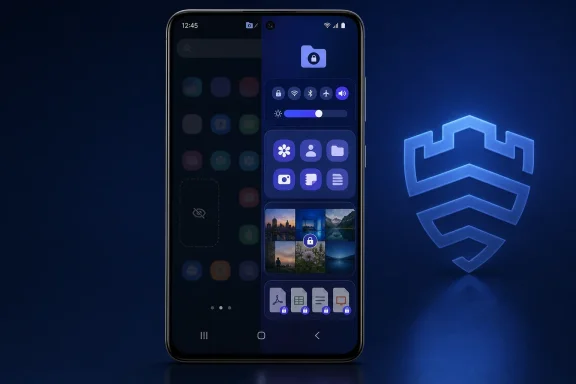 Hide the shortcut without deleting Secure Folder
Samsung’s current support guidance says users can remove the visible Secure Folder app shortcut while keeping its contents intact. Open Settings, then go to Security and privacy > More security settings > Secure Folder. Authenticate when prompted and switch off Add Secure Folder to Apps screen.There is also a faster route on supported Galaxy devices: pull down Quick Settings with two fingers and tap the Secure Folder tile to hide or reveal it. Hiding the shortcut is not the same as removing the feature. Apps and files remain inside the protected container, and the folder can be shown again from the same settings area.
Users wanting less conspicuous branding rather than a hidden shortcut can open Secure Folder, tap the three-dot menu, select Customize, and change its name, icon, and color. That is useful for people who want the workspace accessible but less obvious in the app drawer.
Stop notifications and status-bar clutter
If the complaint is specifically about the symbol in the status bar, hiding the Apps screen shortcut may not be enough. Samsung says notifications from apps inside Secure Folder are controlled separately. Open Secure Folder, select the three-dot menu, choose Settings, then Notifications. From there, users can manage notifications for the enclosed apps or turn them off individually.Be careful with broader privacy settings. Samsung notes that disabling background activity while Secure Folder is locked can limit its visibility and stop its apps from functioning normally in the background. Likewise, encrypted Secure Folder mode prevents the contained apps and their notifications from operating until the folder is decrypted again.
What Secure Folder changes
Secure Folder is designed to create a separated space rather than simply hide files. Adding an app to it creates a distinct instance, allowing separate sign-ins and separate local data. That is why notifications may still arrive even when the regular version of an app is quiet.For anyone who no longer wants the feature, first move needed files out of Secure Folder and remove any apps or accounts stored there before considering deletion. Samsung also recommends enabling recovery through a Samsung account during setup; without it, a forgotten Secure Folder lock method can leave the protected data inaccessible.
In short, turn off the Apps screen shortcut or adjust Secure Folder notification settings depending on where the folder icon appears.
References
- Primary source: bgr.com
Published: 2026-07-13T09:17:00+00:00
Why There's A Folder Icon On Top Of Your Samsung Phone's Screen (And How To Turn It Off)
Did you notice a folder icon at the top of the screen on your Samsung phone? It might be a sign that your phone is using a security feature.www.bgr.com - Related coverage: images.samsung.com
