

Setting up a Microsoft Teams meeting in 2026 is straightforward once you choose the scheduling surface that matches the account and calendar you actually use. For most work and school users, the fastest route is the Calendar area in Teams or Outlook. For personal Microsoft accounts, Microsoft Teams Free offers its own meeting workflow, while Google Calendar users can add Teams conferencing through Microsoft’s Workspace add-on.
The confusion comes from the fact that Teams is not one single scheduling experience. The buttons, available features, and even whether a meeting link can be created depend on whether the organizer is signed in with a work account, school account, personal Microsoft account, or an account managed by an organization.
This guide explains the practical paths for creating a Teams meeting, starting an instant call, adding Teams to Outlook or Google Calendar, and resolving the missing options that frequently derail scheduling.
Before creating an invitation, identify the situation. That single decision prevents most of the common “Why can’t I see the Teams meeting button?” problems.
Use this quick guide:
This approach is particularly useful for:
The key point is that personal Teams users should not expect the same Outlook integration or organization-level administration features available to enterprise users.
That is where Meet now becomes useful.
Use an instant meeting when speed matters. Use a scheduled meeting when the discussion needs preparation, accountability, a recurring schedule, or coordination across multiple time zones.
In 2026, the experience differs between new Outlook for Windows, Outlook on the web, classic Outlook for Windows, and Outlook mobile.
The Teams scheduling feature is not supported for:
This setting is available across modern Outlook clients, although the wording and menu placement vary.
Also be cautious if multiple conferencing products are installed. An improperly configured setup can result in invitations containing more than one conferencing link, which looks unprofessional and creates uncertainty for attendees.
This is valuable for teams that use Google as the calendar system but rely on Microsoft Teams for video conferencing, chat, collaboration, or external client calls.
That limitation is significant for organizations with mixed scheduling systems. A meeting organizer may see the event in Google Calendar, while a colleague who expects all work events in Teams or Outlook may not see the same item there unless they receive and accept the invitation.
For this reason, teams should establish a clear scheduling standard. Either treat Google Calendar as the authoritative calendar, or use Outlook and Teams as the system of record. Running both without a policy often produces duplicate events, missed reminders, and conflicting availability information.
Use a channel meeting when:
Managed organizations can control whether users are allowed to schedule private meetings, start instant meetings, create channel meetings, and use the Outlook integration.
The classic Teams client reached end of support on July 1, 2024, and reached end of availability on July 1, 2025. Instructions that depend on classic Teams screens should be treated cautiously, especially when they describe buttons or navigation labels that no longer appear in the current Teams client.
Teams live events retired on June 30, 2026. Events scheduled before that retirement date can remain supported through February 28, 2027, but organizations planning new large-scale broadcasts should use the newer Teams events experience rather than building a workflow around retired live events.
Meeting registration is another area where outdated instructions cause problems. Standard Teams meetings with registration are no longer supported. Organizations that need public registration, richer branding, attendee tracking, or large-event management should use the current Teams events options instead of attempting to revive an old meeting-registration workflow.
A useful prompt might be:
This is especially important when the meeting touches sensitive projects. AI-assisted scheduling can save time, but it should not replace basic calendar hygiene or careful review of who receives access to the discussion.
For most Microsoft 365 organizations, that means Teams Calendar or Outlook Calendar. For personal users, Teams Free offers its own simple meeting tools. For Google Workspace environments, the Teams Meeting add-on can bridge Google Calendar and Teams, although it does not create a two-way Microsoft calendar sync.
The modern Teams experience gives users several ways to meet: planned invitations, instant links, chat-based calls, channel meetings, Outlook events, and Google Calendar events. That flexibility is a strength, but it also requires a disciplined choice of workflow.
Use scheduled meetings when coordination matters, use Meet now when speed matters, and use channel meetings only when the conversation truly belongs to the team. With the correct account, calendar, and policy settings in place, Microsoft Teams meeting setup becomes a routine task rather than a frustrating search for the right button.
The confusion comes from the fact that Teams is not one single scheduling experience. The buttons, available features, and even whether a meeting link can be created depend on whether the organizer is signed in with a work account, school account, personal Microsoft account, or an account managed by an organization.
This guide explains the practical paths for creating a Teams meeting, starting an instant call, adding Teams to Outlook or Google Calendar, and resolving the missing options that frequently derail scheduling.
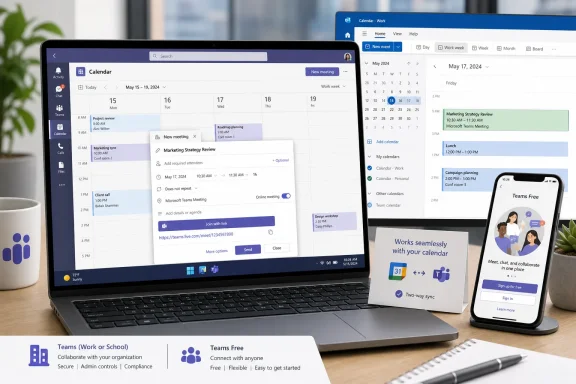 Overview: Choose the Right Microsoft Teams Meeting Method
Before creating an invitation, identify the situation. That single decision prevents most of the common “Why can’t I see the Teams meeting button?” problems.Use this quick guide:
- Work or school Microsoft 365 account: Schedule from the Teams Calendar or Outlook Calendar.
- Personal Microsoft account: Use Teams Free through its Meet or Calendar areas.
- Need an immediate join link: Use Meet now or the Teams Free meeting-link tool.
- Your company runs on Outlook: Create the event in Outlook and turn on the Teams meeting option.
- Your organization uses Google Workspace: Install the Teams Meeting add-on for Google Calendar.
- The discussion already exists in Teams: Schedule from a chat, group chat, or channel.
- A button is missing: Check whether an organizational meeting policy, account type, or mailbox requirement is blocking it.
Schedule a Standard Teams Meeting from the Teams Calendar
For a Microsoft 365 work or school account, the Teams Calendar is usually the cleanest place to create a standard invitation. It is the best choice when the meeting belongs on your work calendar, needs attendee availability, or requires normal meeting controls such as lobby settings and presentation permissions.Create the invitation
- Open Microsoft Teams on Windows, the web, or a supported mobile device.
- Select Calendar from the navigation area.
- Click or tap an open time slot, or select New.
- Enter a meeting title.
- Add required and optional attendees.
- Choose the date, start time, end time, and recurrence pattern if needed.
- Confirm that the event is configured as a Teams meeting.
- Add an agenda, location, files, or other meeting details.
- Select Send or Save.
Why the Teams Calendar route is often best
Scheduling directly in Teams keeps the meeting in the collaboration space where it will actually happen. It also makes follow-up work easier, because the organizer can later find the meeting chat, recordings, notes, participant information, and related files in the same Microsoft 365 environment.This approach is particularly useful for:
- One-time staff meetings
- Recurring project check-ins
- Customer calls
- Department planning sessions
- Meetings that need a detailed Teams agenda
- Sessions where you want to adjust meeting options before the event begins
Use Microsoft Teams Free for Personal Meetings
Microsoft Teams Free is designed for people using a personal Microsoft account rather than a Microsoft 365 work or school identity. The layout is similar to business Teams in some areas, but the available meeting paths differ.The key point is that personal Teams users should not expect the same Outlook integration or organization-level administration features available to enterprise users.
Schedule from the Meet area on desktop or the web
On Teams Free for Windows or the web:- Open Teams and select Meet.
- Choose Schedule a meeting.
- Enter a title in the meeting title field.
- Add participants using a name, email address, or phone number where supported.
- Set the start and end time.
- Add recurrence, location, description, and available advanced settings as needed.
- Select Save.
Schedule from the Teams Free Calendar
The Calendar view is another valid path:- Open Calendar.
- Select New meeting.
- Add the title and invitees.
- Configure the date, time, repeat schedule, location, and description.
- Review available advanced options.
- Select Save.
Schedule on iPhone or Android
On Teams Free mobile:- Open Calendar at the bottom of the screen.
- Expand the meetings menu if necessary.
- Select New meeting.
- Enter the meeting title, guests, schedule, location, and notes.
- Tap Submit.
Create a Teams Meeting Link Immediately
Not every conversation needs a formal calendar invitation. Sometimes the priority is simply creating a secure Teams link and sending it to people right away.That is where Meet now becomes useful.
Create an instant meeting from Teams
For most work or school users:- Open Calendar in Teams.
- Select Meet now.
- Edit the meeting name if desired.
- Choose Get a link to share to copy the join link.
- Send the link through chat, email, or another approved communication channel.
- Select Start meeting when ready.
- Choose Join now to enter the meeting.
Create a shareable link in Teams Free
In Teams Free on desktop or the web:- Select Meet.
- Choose Create a meeting link.
- Type a descriptive meeting title.
- Use Share link to copy and distribute the meeting URL.
- Use Join when it is time to begin.
Instant meetings are convenient, but use them deliberately
A Meet now link lowers friction, but it also removes some of the structure of a scheduled event. There may be no clear calendar block, no automatic reminder, and less opportunity for attendees to prepare.Use an instant meeting when speed matters. Use a scheduled meeting when the discussion needs preparation, accountability, a recurring schedule, or coordination across multiple time zones.
Schedule Teams Meetings Through Outlook
Outlook remains the preferred scheduling hub for many organizations because it is where users manage calendars, rooms, distribution lists, and availability.In 2026, the experience differs between new Outlook for Windows, Outlook on the web, classic Outlook for Windows, and Outlook mobile.
Important Outlook account limitation
Teams scheduling in Outlook is intended for supported Microsoft 365 Business Exchange accounts. It is not a universal feature for every email account that happens to appear in Outlook.The Teams scheduling feature is not supported for:
- Free Exchange addresses such as
@outlook.com,@hotmail.com, and@msn.com - POP accounts
- IMAP accounts
- Third-party personal email accounts such as Gmail, Yahoo, or iCloud when configured as standard Outlook mailboxes
New Outlook for Windows and Outlook on the web
For new Outlook and Outlook on the web:- Open Calendar.
- Select New event.
- Enter the meeting title.
- Turn on the Teams meeting toggle next to the title field.
- Add attendees, scheduling details, agenda text, and any room information.
- Select Send.
Classic Outlook for Windows
Classic Outlook continues to use a different interface:- Open Outlook and go to the Home tab.
- Open the arrow beside New Email.
- Select Meeting.
- Open the menu beside Teams Meeting.
- Choose Schedule meeting.
- Add attendees, subject, date, time, and message details.
- Select Send.
Outlook for iPhone and Android
On Outlook mobile:- Open Calendar.
- Create a New Event.
- Turn on Teams Meeting.
- Add the event details and recipients.
- Tap Save.
Make Every Outlook Meeting a Teams Meeting by Default
For hybrid teams, manually enabling Teams for every appointment becomes repetitive. Outlook includes a setting that can automatically add an online meeting to newly created events.This setting is available across modern Outlook clients, although the wording and menu placement vary.
Configure the default in new Outlook or Outlook on the web
- Open Calendar.
- Open Calendar settings.
- Choose Events and invitations.
- Enable Add online meeting to all meetings.
- Set Microsoft Teams as the preferred meeting provider.
- Select Save.
Configure the default in classic Outlook
- Select File.
- Open Options.
- Choose Calendar.
- Find Add online meeting to all meetings under Calendar options.
- Choose the applicable account.
- Select Microsoft Teams as the meeting provider.
- Confirm with OK.
Configure the default in Outlook mobile
On Outlook for Android or iPhone:- Open Outlook settings.
- Select Calendar.
- Open Online meetings.
- Enable the setting to make every meeting online.
- Set Microsoft Teams as the default provider.
Also be cautious if multiple conferencing products are installed. An improperly configured setup can result in invitations containing more than one conferencing link, which looks unprofessional and creates uncertainty for attendees.
Add Microsoft Teams to Google Calendar
Organizations using Google Workspace can still create Teams meetings from Google Calendar through the Microsoft Teams Meeting add-on.This is valuable for teams that use Google as the calendar system but rely on Microsoft Teams for video conferencing, chat, collaboration, or external client calls.
Install the Teams Meeting add-on
- Open Google Calendar.
- Use the side panel to select Get Add-ons.
- Search the Google Workspace Marketplace for Microsoft Teams Meeting.
- Select Install.
- Continue through the Google account authorization prompts.
- Open the Teams add-on from the side panel.
- Sign in with the Microsoft work or school account used for Teams.
- Approve access when prompted.
Create a Teams meeting in Google Calendar
After the add-on is installed and authorized:- Select a time on the Google Calendar grid.
- Add the event title.
- Select Add conferencing.
- Choose Teams meeting.
- Add guests and remaining event details.
- Select Save.
The calendar sync limitation
Meetings created through the Google Calendar Teams add-on appear in Google Calendar only. They do not automatically sync into Microsoft calendars.That limitation is significant for organizations with mixed scheduling systems. A meeting organizer may see the event in Google Calendar, while a colleague who expects all work events in Teams or Outlook may not see the same item there unless they receive and accept the invitation.
For this reason, teams should establish a clear scheduling standard. Either treat Google Calendar as the authoritative calendar, or use Outlook and Teams as the system of record. Running both without a policy often produces duplicate events, missed reminders, and conflicting availability information.
Start or Schedule a Meeting from a Chat or Channel
Teams is more than a calendar. If a meeting belongs to an existing conversation, creating it from that context can preserve the discussion history and reduce the need to hunt for related messages later.Schedule from a one-to-one or group chat
To schedule from a chat:- Select Chat.
- Open the relevant conversation.
- Select More chat options near the top of the window.
- Choose Schedule a meeting.
- Add the date, time, title, attendees, and agenda.
- Select Send.
Start an immediate meeting from a chat
A practical shortcut for a fast conversation is the/meetnow command:- Open the chat where the discussion is happening.
- Type
/meetnowin the compose field. - Press Enter or Tab.
- Start the meeting and invite participants.
Schedule a channel meeting
Channel meetings are appropriate when the subject belongs to an entire team rather than a selected set of individuals.- Select Teams.
- Open the relevant team and channel.
- Open the menu beside Meet now.
- Select Schedule a meeting.
- Add the event details.
- Add external attendees or send personal invitations if required.
- Select Send.
Channel meeting considerations
Channel meetings are useful because their conversation is visible in the channel, but they are not the right choice for every event.Use a channel meeting when:
- The topic applies to the whole team
- The meeting chat should remain accessible in the channel
- Participants need shared visibility into the event
- Follow-up messages and files belong with the ongoing team discussion
Fix Missing Teams Meeting Buttons and Toggles
When New, Meet now, the Teams toggle, or the Outlook integration is missing, the problem is often administrative rather than technical.Managed organizations can control whether users are allowed to schedule private meetings, start instant meetings, create channel meetings, and use the Outlook integration.
Meeting policies that can affect scheduling
Teams administrators can restrict settings including:- Private meeting scheduling
- Meet now in private meetings
- Channel meeting scheduling
- Meet now in channel meetings
- Outlook add-in availability
Common causes of an Outlook Teams option disappearing
The Outlook Teams option may be missing because:- The selected Outlook calendar uses an unsupported personal, POP, or IMAP account.
- The account lacks a suitable Microsoft 365 Business Exchange mailbox.
- The user is not correctly signed in to Teams.
- A Teams meeting policy disables Outlook scheduling.
- The classic Outlook add-in failed to load.
- Outlook or Teams needs to be restarted after an update.
- The organization uses a configuration that requires modern authentication.
- The user’s mailbox or address-list configuration prevents proper meeting generation.
The sensible troubleshooting order
- Confirm whether the account is personal or work/school.
- Verify that the calendar belongs to a supported Microsoft 365 Exchange account.
- Check whether Teams itself is signed in with the same organizational account.
- Try scheduling directly in the Teams Calendar.
- Restart Teams and Outlook.
- Update both applications.
- If the account is managed, ask the IT team to review the assigned Teams meeting policy and Exchange mailbox configuration.
Know Which Older Teams Instructions to Ignore
Many search results and internal help documents still reference product experiences that are no longer current.The classic Teams client reached end of support on July 1, 2024, and reached end of availability on July 1, 2025. Instructions that depend on classic Teams screens should be treated cautiously, especially when they describe buttons or navigation labels that no longer appear in the current Teams client.
Teams live events retired on June 30, 2026. Events scheduled before that retirement date can remain supported through February 28, 2027, but organizations planning new large-scale broadcasts should use the newer Teams events experience rather than building a workflow around retired live events.
Meeting registration is another area where outdated instructions cause problems. Standard Teams meetings with registration are no longer supported. Organizations that need public registration, richer branding, attendee tracking, or large-event management should use the current Teams events options instead of attempting to revive an old meeting-registration workflow.
Use Copilot Carefully for Meeting Scheduling
Copilot in Outlook can assist with scheduling where the feature is available to a qualifying work or school account. It can interpret a request, inspect relevant attendee calendars, and suggest a suitable time for a Teams meeting.A useful prompt might be:
Copilot can reduce the manual work of comparing calendars and drafting an invitation. However, the organizer remains responsible for reviewing the title, duration, invitee list, time zone, agenda, attachment choices, and conferencing details before sending.Schedule a 30-minute Teams meeting with the project group next week to review the rollout plan.
This is especially important when the meeting touches sensitive projects. AI-assisted scheduling can save time, but it should not replace basic calendar hygiene or careful review of who receives access to the discussion.
The Best Teams Meeting Setup Is the One That Matches Your Calendar
The central rule for scheduling a Microsoft Teams meeting is simple: create the meeting where your authoritative calendar lives.For most Microsoft 365 organizations, that means Teams Calendar or Outlook Calendar. For personal users, Teams Free offers its own simple meeting tools. For Google Workspace environments, the Teams Meeting add-on can bridge Google Calendar and Teams, although it does not create a two-way Microsoft calendar sync.
The modern Teams experience gives users several ways to meet: planned invitations, instant links, chat-based calls, channel meetings, Outlook events, and Google Calendar events. That flexibility is a strength, but it also requires a disciplined choice of workflow.
Use scheduled meetings when coordination matters, use Meet now when speed matters, and use channel meetings only when the conversation truly belongs to the team. With the correct account, calendar, and policy settings in place, Microsoft Teams meeting setup becomes a routine task rather than a frustrating search for the right button.