

The June 2026 Secure Boot certificate milestone has passed, but Windows systems missing the 2023 certificate authorities are not expected to fail en masse: they generally continue booting and receiving ordinary Windows updates. Administrators should now inventory the current
The Microsoft Corporation KEK CA 2011 and Microsoft UEFI CA 2011 began expiring in June 2026. Windows Production PCA 2011 expires in October 2026. Use those supported month-level milestones rather than assigning unsupported day-specific deadlines.
WindowsForum’s Secure Boot Certificate Rollout for Windows: 2011 to 2023 CA Transition characterized the work as coordinated certificate management, not a conventional patch check. WindowsForum’s preparation coverage likewise emphasized that Secure Boot protects the early startup chain against boot-level threats. That distinction matters operationally: a system can continue starting and installing routine updates while lacking the replacement trust needed for future Windows Boot Manager signatures, Secure Boot database changes, or revocation updates.
A missing status does not automatically indicate permanent hardware failure. Microsoft has been delivering the transition in phases to eligible systems. Every unresolved device nevertheless needs a named owner, classification, and recheck date.
For a command-line check using the same supported Windows data source:
A missing value is not equivalent to
Collect relevant System events separately:
For manual review, open Event Viewer > Windows Logs > System, select Filter Current Log, and enter:
Event 1808 records a successful update at a particular time, but it does not replace the current status. The inventory rule is therefore simple: only the current
Place computer names in
This schema deliberately repeats the current status beside each event so reporting tools can join and group the evidence without discarding older relevant events. In production, collect the registry value through the approved registry-inventory capability of the endpoint-management system and ingest matching System events through its event or log-collection facility. Preserve collection time, event time, and reachability as separate fields.
When multiple events exist, retain all of them and investigate the most recent unresolved condition. Do not let an older success event override a current non-updated status.
Event 1808 can corroborate when servicing succeeded, but it cannot independently establish the current queue.
Use Microsoft Learn’s documented Azure Local Secure Boot certificate-update procedure directly. That procedure supplies the supported PowerShell checks for the Secure Boot DB and KEK certificates and the corresponding remediation sequence. Run its documented checks inside each applicable guest, preserve the complete results, and record:
The useful fleet metric is the number of systems with a current verified 2023 status, followed by clearly separated counts for restart-required, missing-KEK, firmware-error, phased-delivery, and offline queues.
UEFICA2023Status, join it with recent Microsoft-defined Secure Boot events, and place each client, server, virtual machine, Azure Local guest, and offline asset into a specific remediation queue.
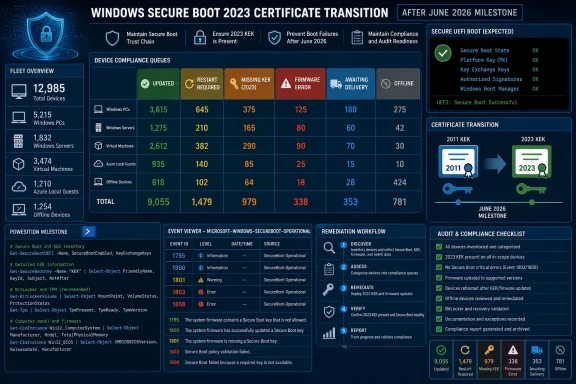 Why the June deadline changes the priority
The Microsoft Corporation KEK CA 2011 and Microsoft UEFI CA 2011 began expiring in June 2026. Windows Production PCA 2011 expires in October 2026. Use those supported month-level milestones rather than assigning unsupported day-specific deadlines.WindowsForum’s Secure Boot Certificate Rollout for Windows: 2011 to 2023 CA Transition characterized the work as coordinated certificate management, not a conventional patch check. WindowsForum’s preparation coverage likewise emphasized that Secure Boot protects the early startup chain against boot-level threats. That distinction matters operationally: a system can continue starting and installing routine updates while lacking the replacement trust needed for future Windows Boot Manager signatures, Secure Boot database changes, or revocation updates.
A missing status does not automatically indicate permanent hardware failure. Microsoft has been delivering the transition in phases to eligible systems. Every unresolved device nevertheless needs a named owner, classification, and recheck date.
Build the inventory before attempting remediation
Use two forms of evidence:- Treat a current
UEFICA2023Statusvalue ofUpdatedas the primary success signal. - Retain all relevant recent System events as historical and troubleshooting evidence.
UEFICA2023Status in the Secure Boot servicing registry provider. From an elevated PowerShell session, collect it with:
Code:
$statusPath = 'HKLM:\SYSTEM\CurrentControlSet\Control\SecureBoot\Servicing'

$status = Get-ItemPropertyValue `
    -Path $statusPath `
    -Name UEFICA2023Status `
    -ErrorAction SilentlyContinue

[pscustomobject]@{
    ComputerName      = $env:COMPUTERNAME
    UEFICA2023Status  = $status
    CollectedAt       = Get-Date
}reg query "HKLM\SYSTEM\CurrentControlSet\Control\SecureBoot\Servicing" /v UEFICA2023StatusA missing value is not equivalent to
Updated. Record it as empty or not reported and classify the device using the decision table below.Collect relevant System events separately:
Code:
$events = Get-WinEvent -FilterHashtable @{
    LogName   = 'System'
    Id        = 1795,1800,1801,1803,1808
    StartTime = (Get-Date).AddDays(-90)
} -ErrorAction SilentlyContinue |
Sort-Object TimeCreated -Descending

$events |
Select-Object TimeCreated, Id, LevelDisplayName, ProviderName, Message1795, 1800, 1801, 1803, 1808Event 1808 records a successful update at a particular time, but it does not replace the current status. The inventory rule is therefore simple: only the current
UEFICA2023Status=Updated result can place a reachable system in the Updated queue.Collect joined fleet evidence
The following PowerShell remoting example collects the current status and every matching event from the previous 90 days. It is a starting point for approved enterprise collection, not a replacement for Intune, Configuration Manager, or another organization-managed inventory service.Place computer names in
C:\Admin\SecureBootComputers.txt, then run from an authorized administrative system:
Code:
$computers = Get-Content C:\Admin\SecureBootComputers.txt
$statusPath = 'HKLM:\SYSTEM\CurrentControlSet\Control\SecureBoot\Servicing'

$inventory = foreach ($computer in $computers) {
    try {
        Invoke-Command -ComputerName $computer -ErrorAction Stop -ScriptBlock {
            $path = 'HKLM:\SYSTEM\CurrentControlSet\Control\SecureBoot\Servicing'

            $status = Get-ItemPropertyValue `
                -Path $path `
                -Name UEFICA2023Status `
                -ErrorAction SilentlyContinue

            $events = Get-WinEvent -FilterHashtable @{
                LogName   = 'System'
                Id        = 1795,1800,1801,1803,1808
                StartTime = (Get-Date).AddDays(-90)
            } -ErrorAction SilentlyContinue |
            Sort-Object TimeCreated -Descending

            if ($events) {
                foreach ($event in $events) {
                    [pscustomobject]@{
                        ComputerName     = $env:COMPUTERNAME
                        Reachable        = $true
                        CollectedAt      = Get-Date
                        UEFICA2023Status = $status
                        EventId          = $event.Id
                        EventTime        = $event.TimeCreated
                        EventProvider    = $event.ProviderName
                        EventMessage     = $event.Message
                    }
                }
            }
            else {
                [pscustomobject]@{
                    ComputerName     = $env:COMPUTERNAME
                    Reachable        = $true
                    CollectedAt      = Get-Date
                    UEFICA2023Status = $status
                    EventId          = $null
                    EventTime        = $null
                    EventProvider    = $null
                    EventMessage     = $null
                }
            }
        }
    }
    catch {
        [pscustomobject]@{
            ComputerName     = $computer
            Reachable        = $false
            CollectedAt      = Get-Date
            UEFICA2023Status = $null
            EventId          = $null
            EventTime        = $null
            EventProvider    = $null
            EventMessage     = $_.Exception.Message
        }
    }
}

$inventory |
Export-Csv C:\Admin\SecureBootInventory.csv -NoTypeInformationApply the first-pass decision table
Microsoft’s Secure Boot event guidance provides the 1800, 1801, 1803, and 1795 interpretations used here. Apply the rules in this order:| Current evidence | Queue |
|---|---|
UEFICA2023Status=Updated | Updated |
Event 1800 or 1801 and status is not Updated | Restart required |
Event 1803 and status is not Updated | Missing KEK |
Event 1795 and status is not Updated | Firmware error |
Reachable, eligible, not Updated, and no event above explains the state | Awaiting phased delivery |
| Device cannot be contacted | Offline |
Work each remediation queue
Updated
Assign this classification only when the current collected value isUEFICA2023Status=Updated. Record the collection time, final verification date, and any relevant restart record.Event 1808 can corroborate when servicing succeeded, but it cannot independently establish the current queue.
Restart required
Under Microsoft’s event guidance, Event 1800 means a restart is required. Event 1801 indicates an incomplete update state for which Microsoft also directs administrators to restart.- Confirm that the BitLocker recovery key is available for an encrypted physical system.
- Place servers and production guests into an approved maintenance window.
- Restart Windows normally.
- Recollect
UEFICA2023Statusand the recent events. - Move the system to Updated only if the current value reports
Updated.
Missing KEK
Microsoft maps Event 1803 to a missing required Key Exchange Key. The supported next step is to investigate platform firmware support.- Record the manufacturer, model, firmware version, and event timestamp.
- Check the manufacturer’s instructions for that exact platform.
- Pilot the supported firmware update on representative hardware.
- Restart the system.
- Recollect the status and events.
- Escalate to the OEM if supported firmware still cannot accept the required KEK.
Firmware error
Microsoft identifies Event 1795 as a firmware error.- Verify that the device remains in an OEM-supported configuration.
- Obtain the applicable BIOS or UEFI update from the manufacturer.
- Confirm BitLocker recovery readiness.
- Test on the same model and configuration.
- Deploy during a controlled maintenance window.
- Restart and collect fresh status and event evidence.
Awaiting phased delivery
Use this temporary queue only when the system is reachable and eligible, its status is notUpdated, and no restart, missing-KEK, or firmware-error event explains the condition.- Keep supported Windows servicing current.
- Record the last status-collection time.
- Assign an owner and recheck date.
- Monitor for a new Microsoft-defined event.
- Reclassify immediately when stronger evidence appears.
Offline
Do not classify an unreachable device as successful or failed. Record its last contact, owner, platform, BitLocker recovery readiness, and planned reconnection date. Collect fresh status as soon as it returns; cached inventory does not prove its current Secure Boot state.Handle virtual machines using guest-side evidence
Do not infer completion from unsupported assumptions about virtual-machine generation, host firmware, or Secure Boot configuration. For each Windows VM:- Record the virtualization platform and host owner.
- Collect
UEFICA2023Statusinside the Windows guest. - Collect the guest’s relevant System events.
- Restart the guest during its maintenance window if Event 1800 or 1801 appears.
- Escalate virtual-firmware questions to the platform owner when Event 1803 or 1795 persists.
Follow the Microsoft Azure Local procedure
Azure Local requires separate platform handling. Microsoft states that virtual machines created before October 2024 may expose pre-2023 Secure Boot certificate authorities and may require manual action; creation date alone is not proof of completion.Use Microsoft Learn’s documented Azure Local Secure Boot certificate-update procedure directly. That procedure supplies the supported PowerShell checks for the Secure Boot DB and KEK certificates and the corresponding remediation sequence. Run its documented checks inside each applicable guest, preserve the complete results, and record:
- VM and Azure Local cluster
- VM creation date, if available
- DB certificate-check result
- KEK certificate-check result
- Guest
UEFICA2023Status - Relevant guest events
- Remediation and verification dates
Get-SecureBootUEFI byte decoding, guessed certificate strings, or a generic Boolean check for Microsoft’s Azure Local instructions.Record proof and exceptions
A durable report should contain:- Device or VM name
- Reachability and collection time
- Physical or virtual platform
- Operating-system role
- Current
UEFICA2023Status - Every relevant recent event ID and timestamp
- Firmware version for physical systems
- Azure Local DB and KEK results where applicable
- BitLocker recovery readiness
- Restart-window owner
- Queue, exception reason, and review date
- Final verification date
Frequently Asked Questions
Will a PC stop booting because it missed the June 2026 transition?
Ordinarily, no. Affected systems can continue starting and installing normal Windows updates, but they may lack future boot-level protections until the trust transition is completed.Is installing the latest Windows update enough?
No. Collect the currentUEFICA2023Status, review Microsoft-defined System events, and complete any required restart or firmware remediation.Does Event ID 1801 mean the firmware is unsupported?
No. Microsoft maps it to an incomplete state for which the first action is a restart. Event 1803 identifies a missing KEK, while Event 1795 identifies a firmware error.Should administrators remove the 2011 certificates manually?
Not as generic remediation. Follow Microsoft and OEM-supported sequencing, establish the 2023 trust first, and handle later revocation or trust-removal work as a separately controlled stage.The useful fleet metric is the number of systems with a current verified 2023 status, followed by clearly separated counts for restart-required, missing-KEK, firmware-error, phased-delivery, and offline queues.
References
- Primary source: learn.microsoft.com
Update Secure Boot Certificates for Windows Devices - Windows Client | Microsoft Learn
Update your Windows devices to maintain Secure Boot protection with 2023 certificates before they expire in June 2026.learn.microsoft.com - Independent coverage: support.microsoft.com
June 9, 2026—KB5094126 (OS Builds 26200.8655 and 26100.8655) | Microsoft Support
June 9, 2026—KB5094126 (OS Builds 26200.8655 and 26100.8655)support.microsoft.com - Primary source: WindowsForum
Secure Boot Certificate Expiration 2026: Critical Prep for Windows Ecosystem Security | Windows Forum
When preparing your organization's Windows ecosystem for a pivotal infrastructure update, few developments in recent years compare to the anticipated...windowsforum.com