

Windows users are being told not to treat a lagging lock-screen clock as a bug at all: Microsoft says the Secure Lock screen can display time that is up to 30 seconds behind the real minute, and that behavior is by design. The oddity only affects the secure desktop path used during boot, initial sign-in, and Ctrl+Alt+Delete, not the ordinary lock screen you see after pressing Windows key + L. In other words, the time is not wrong in the kernel; the screen is simply refreshed on a fixed interval that can drift away from the minute boundary. Microsoft’s support guidance also distinguishes the logon experience from the user-session lock screen, which uses a different refresh model and usually looks more immediate. s a classic Windows problem in the sense that it is both mundane and surprisingly revealing. A clock that appears to lag by half a minute sounds like a cosmetic annoyance, but it is really a window into how Windows splits responsibilities between the secure logon path and the normal user session. Microsoft’s explanation makes clear that the Secure Lock screen runs under the Winlogon secure desktop and the SYSTEM account, while the standard lock screen uses the user session and a more dynamic update pattern. That difference matters because it shows that Windows is not just drawing one clock in one place; it is orchestrating two separate security contexts with different performance and scheduling tradeoffs.
The practical resulLock screen can look stale for a short period after the minute rolls over, then correct itself when the next refresh lands. Microsoft says the display can update as much as 30 seconds late, and it also notes the reverse can happen if the device time is ahead, because updates follow a fixed interval rather than a minute-aligned timer. That detail is important: the issue is not a broken clock source, but a display refresh choice. The same underlying system time is used in both places; only the on-screen update cadence differs.
From a user-experience standpoint, this y to miss until you notice the clock at the exact wrong moment. A machine that sits on the sign-in screen after restart may show 10:00 for several seconds after the true minute changes, then suddenly flip to 10:01. On the ordinary lock screen, the update feels more responsive, which can make the Secure Lock screen look inconsistent by comparison. That inconsistency is not a flaw in Windows timekeeping so much as a side effect of how Microsoft balances security desktop isolation against visual polish.
There is also a broader historical pattern here. Windows has e-logon experience from the interactive desktop because the security requirements are different, and those differences often show up as small usability quirks. A secure desktop cannot simply behave like an ordinary app window, because it is intentionally isolated from the rest of the session. The result is a system that is more secure and more controlled, but occasionally a little less elegant in the details. This 30-second clock behavior is one of those details.
Microsoft’s wording matters here becaus as expected behavior rather than a defect. The company explicitly says the Secure Lock screen clock may appear delayed by up to 30 seconds after the minute changes, and that this happens because the refresh interval is fixed at 30 seconds. That means the display is not synchronizing to the exact boundary of the minute; it is simply checking time at regular intervals and redrawing when its timer fires.
That distinction is the key to understanding why this behavior is tolerated. The secure desktop is there to provide a trustw authentication, not to animate every widget in perfect sync. If a slightly delayed clock is the tradeoff for a more isolated logon path, Microsoft seems content to accept it. For most users, that is a reasonable exchange, even if the clock can look a bit lazy.
This distinction is important for troubleshooting. If the lock screen clock appears off by a few seconds, users may assume the system clock, NTP sync, or BIOS time isis case, though, the explanation is simpler and more specific: the clock is accurate enough, but the Secure Lock screen is not redrawing on minute boundaries. That is why Microsoft labels it by design rather than asking users to repair anything.
That behavior is a good example of how the same feature can feel different depending on where it lives in the operating system. The user lock screen can afford to be a little more responsive because it is not sitting on top of ths of the sign-in stack. The secure logon surface has tighter constraints, so its update path is simpler and less synchronized.
That makes this a niche bug report, but a revealing one. It illustrates how Windows can have two seemingly identical clocks with different user experiences because they sit in different security contexts. It also shows why “why is my clock wrong?” can have an answer thatth time services at all.
This kind of design is common in low-priority or security-constrained UI. Microsoft is not trying to deliver a perfect second-by-second face on the sign-in screen; it is trying to make sure the display remains stable, low-overhead, and separate from the user session. In that light, the 30-second cadence is less an error than a compromise.
That is one reason Microsoft may prefer a simple. Every extra dependency on synchronization, background services, or user-session components adds complexity to a surface whose job is to be dependable before anything else. Reliability beats finesse on the logon path.
For users, the split can feel arbitrary because both screens look similar. But the operating system treats them verya secure boundary, the other is a session-facing convenience layer. The clock behavior is simply one of the places where that architectural split becomes obvious.
That matters in enterprise environments where inconsistent user reports can waste help-desk time. If the issue is misclassified as a clock drift or doministrators may go down the wrong troubleshooting path. Microsoft’s clarification helps prevent that unnecessary churn.
That said, appearance matters in operating systems. Users often judge quality by visible cues, not internal architecture. A lock screen that shows the wrong minute for a few seconds can feel less polished, even if the rest of the system is working exactly as intended.
The fact clock is used on both surfaces should reassure administrators. If the secure lock screen appears late, it does not mean the device is actually out of time. It means the display pipeline is intentionally conservative.
That makes the secure desktop clock lag feel more notable even if it is harmless. Once users get used to live tiles, widgets, and dynamic status, a clock that updates only every 30 seconds can stand out. The issue is small, but modern UI expectations make small things easier to spot.
That robustness matters more than minute-perfect timing on a screen whose primary job is authentication. The display is informational, not transactional. Users do not sign in faster because the clock is more precise, so there is little incentive to complicate the code path for a cosmetic improvement.
That is especially true because Microsoft specifically contrasts the Secure Lock screen with the user lock screen, which behaves differently and usually updates more quickly. If one screen looks late and the other does not, that is a clue that the implementation paths differ, not that the PC is broken.
The distinction also matters in ros. A technician who sees a “wrong” clock on the lock screen could waste time investigating domain controllers, internet connectivity, or time-zone settings. Microsoft’s advisory makes that unnecessary.
The interesting question is whether Microsoft widize more of the lock-screen experience across secure and user-session contexcept small discrepancies in the name of reliability. For now, the ans the screen is part of the authentication boundary, trust and simplicity wond precision. That is not glamorous, but it is a sensible engineering choicft to keep the secure desktop conservative.
Source: Microsoft Support Secure Lock Screen clock may appear up to 30 seconds behind - Microsoft Support
The practical resulLock screen can look stale for a short period after the minute rolls over, then correct itself when the next refresh lands. Microsoft says the display can update as much as 30 seconds late, and it also notes the reverse can happen if the device time is ahead, because updates follow a fixed interval rather than a minute-aligned timer. That detail is important: the issue is not a broken clock source, but a display refresh choice. The same underlying system time is used in both places; only the on-screen update cadence differs.
From a user-experience standpoint, this y to miss until you notice the clock at the exact wrong moment. A machine that sits on the sign-in screen after restart may show 10:00 for several seconds after the true minute changes, then suddenly flip to 10:01. On the ordinary lock screen, the update feels more responsive, which can make the Secure Lock screen look inconsistent by comparison. That inconsistency is not a flaw in Windows timekeeping so much as a side effect of how Microsoft balances security desktop isolation against visual polish.
There is also a broader historical pattern here. Windows has e-logon experience from the interactive desktop because the security requirements are different, and those differences often show up as small usability quirks. A secure desktop cannot simply behave like an ordinary app window, because it is intentionally isolated from the rest of the session. The result is a system that is more secure and more controlled, but occasionally a little less elegant in the details. This 30-second clock behavior is one of those details.
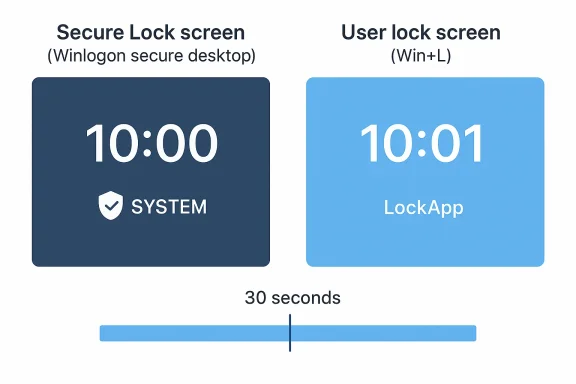 What Microsoft Is Actually Saying
Microsoft’s wording matters here becaus as expected behavior rather than a defect. The company explicitly says the Secure Lock screen clock may appear delayed by up to 30 seconds after the minute changes, and that this happens because the refresh interval is fixed at 30 seconds. That means the display is not synchronizing to the exact boundary of the minute; it is simply checking time at regular intervals and redrawing when its timer fires.The secure desktop distinction
The Secure Lock screen is not the same surface as the regular lock ntifies it as part of the Winlogon secure desktop, which is used during startup, sign-in, and the Ctrl+Alt+Delete sequence. Because that desktop runs under the SYSTEM account, it is intentionally insulated from the user session and from many of the dynamic behaviors that make normal UI feel snappier.That distinction is the key to understanding why this behavior is tolerated. The secure desktop is there to provide a trustw authentication, not to animate every widget in perfect sync. If a slightly delayed clock is the tradeoff for a more isolated logon path, Microsoft seems content to accept it. For most users, that is a reasonable exchange, even if the clock can look a bit lazy.
Why the “behind” label is misleading
Calling the display “30 seconds behind” sounds like a timekeeping error, but it is really a timing-dispsays both experiences use the same Windows kernel system clock, so the underlying time is consistent. The only difference is how often each surface asks for an update. That means the visible discrepancy is a UI artifact, not evidence that the device itself is drifting or that Windows time sync is failing.This distinction is important for troubleshooting. If the lock screen clock appears off by a few seconds, users may assume the system clock, NTP sync, or BIOS time isis case, though, the explanation is simpler and more specific: the clock is accurate enough, but the Secure Lock screen is not redrawing on minute boundaries. That is why Microsoft labels it by design rather than asking users to repair anything.
Secure Desktop vs. User Session
The most useful way to think about this issue is to compare the two Windows surfaces side by side. The Secure Lock screen is a privileged authentile the lock screen invoked by Windows key + L lives in the normal user session. Those are not interchangeable experiences, and the difference affects both responsiveness and refresh behavior.Why the user lock screen feels faster
Microsoft says the normal user lock screen uses LockApp, which runs in the user session and refreshes at the next minute boundary through a dynamic timer. That me immediate, because the clock is effectively waiting for the right moment instead of polling on a fixed cadence. In practice, the display usually updates almost as soon as the minute changes.That behavior is a good example of how the same feature can feel different depending on where it lives in the operating system. The user lock screen can afford to be a little more responsive because it is not sitting on top of ths of the sign-in stack. The secure logon surface has tighter constraints, so its update path is simpler and less synchronized.
What it means for everyday use
For most people, the difference is barely worth noticing unless they stare at the screen while a minute changes. The display is still close enough for practical purposes, and the gap is short enough that it does nout the discrepancy becomes visible during restart, wake-from-boot, or sign-in moments when the secure desktop is on view long enough for people to inspect it.That makes this a niche bug report, but a revealing one. It illustrates how Windows can have two seemingly identical clocks with different user experiences because they sit in different security contexts. It also shows why “why is my clock wrong?” can have an answer thatth time services at all.
- The secure desktop prioritizes isolation over cosmetic precision.
- The user-session lock screen can update at minute boundaries.
- The system clock itself remains consistent across both views.
- The visible lag is a refresh cadence issue, not a time source failure.
- The difference is smaonal.
Why the Refresh Interval Matters
A fixed 30-second refresh sounds crude in an age of high-frame-rate interfaces, but it makes sense when the job is simply to keep a lock-screen clock roughly current. The secure desktop is not a dashboard, and Microsoft clearly does not want to spend extra cycles or comppdate loop to every minute boundary. The result is a small amount of drift that is acceptable for a non-interactive display.Polling, timing, and alignment
The important technical detail is that the secure lock clock follows a polling interval. Polling is predictable and easy to manage, but it does not inherently know when a minute flips over. If the display checks at 12:00:05, it may still show 12:00 until 12:00:35, which is exactly the kind of ribing. That is why the clock can appear late even though the system time itself is fine.This kind of design is common in low-priority or security-constrained UI. Microsoft is not trying to deliver a perfect second-by-second face on the sign-in screen; it is trying to make sure the display remains stable, low-overhead, and separate from the user session. In that light, the 30-second cadence is less an error than a compromise.
Why the sometimes
Users generally notice the problem only if they happen to look right after the minute changes. If they glance at the screen 20 seconds later, the clock may already be updated, making the lag invisible. That intermittent visibility is part of why the issue generates confusion: it looks random until you realize the underlying timersional nature of the delay also explains why Microsoft can confidently say it is by design. If the clock were always wrong by 30 seconds, this would feel like a failure. Because it is merely bounded by a short interval, it reads more like a known imperfection in the display loop. That is a subtle but meaningful distinction.- Fixed polling is simple and reliable.
- Minute-boundary aliplexity.
- The delay becomes visible only at certain moments.
- The actual system time remains correct.
- The design favors security context separation over cosmetic precision.
Security Context and Why Windows Splits the Experience
The secure desktop exists because Windows needs a place where authentication can happen withothe normal desktop’s state. That means fewer moving parts, fewer dependencies, and less risk that an ordinary app or UI component interferes with sign-in. In return, Microsoft gives up some of the polish and responsiveness that users expect elsewhere.SYSons
Running the Secure Lock screen under the SYSTEM account is not a minor implementation detail. It changes the context in which the interface operates, and that context is deliberately constrained. Windows is not simply showing a clock in a normal shell; it is rendering a secure logon surface that must remain trustworthy even if the rest of the system is in a messy state.That is one reason Microsoft may prefer a simple. Every extra dependency on synchronization, background services, or user-session components adds complexity to a surface whose job is to be dependable before anything else. Reliability beats finesse on the logon path.
The LogonUI and LockApp split
Microsoft’s distinction between LogonUI and LockApp helps explain the user-visible difference. LogonUI handles the secure lock/sign-in surface, whilthe user session and can use more flexible timing logic. This is a textbook example of Windows dividing the same feature across two subsystems for different risk profiles.For users, the split can feel arbitrary because both screens look similar. But the operating system treats them verya secure boundary, the other is a session-facing convenience layer. The clock behavior is simply one of the places where that architectural split becomes obvious.
Why the distinction matters to IT
IT teams care about these details because they affect support expectations. A user may think the lock screen is “broken” when they first encounter the lag, but the correct response instead, support staff need to know that this behavior is expected on the secure sign-in surface and is not evidence of time synchronization failure.That matters in enterprise environments where inconsistent user reports can waste help-desk time. If the issue is misclassified as a clock drift or doministrators may go down the wrong troubleshooting path. Microsoft’s clarification helps prevent that unnecessary churn.
User Impact: Mostly Cosmetic, but Still Confusing
The clock lag does not break sign-in, and it does not change the actual time on the machine. Still, small UI inconsistencies are exactly the sort of thing that make users doubt a system’s correctness. If a clock minute flip on a screen that is supposed to feel authoritative, the experience can seem sloppy even when it is technically fine.Consumer perspective
For consumers, the practical effect is minimal. Most people will never notice it, and those who do are usually seeing a tiny gap on a sco bypass. The issue is more about perception than function, which is why Microsoft can safely leave it alone.That said, appearance matters in operating systems. Users often judge quality by visible cues, not internal architecture. A lock screen that shows the wrong minute for a few seconds can feel less polished, even if the rest of the system is working exactly as intended.
Enterprise perspective
In corporate is not that this clock lag will create a security gap. The concern is that it may trigger unnecessary reports from users who think the machine is behind or out of sync. That can lead to support tickets, time spent verifying NTP, and needless suspicion of broader time-service issues.The fact clock is used on both surfaces should reassure administrators. If the secure lock screen appears late, it does not mean the device is actually out of time. It means the display pipeline is intentionally conservative.
- The practical impact is tiny.
- The perception iman the technical impact.
- Enterprise help desks may still get tickets about it.
- The symptom is easy to misread as time sync trouble.
- Microsoft’s explanation helps narrow the troubleshooting scope.
Similarities to Other 30-Second Windows Quirks
Windows has a long history of 30-second behaviors that are not always intuitive. The platxed waits, logon delays, or other timing artifacts that come from its security model or its older compatibility layers. Microsoft’s current note about the Secure Lock screen fits into that larger pattern of “small delay, specific reason.”Histsoft has previously documented 30-second logon delays in older Windows versions under certain policy combinations, showing that the number itself is not unusual in Windows support history. Those older issues were about logon behavior rather than clock rendering, but they rein30-second windows often reflect deliberate implementation tradeoffs rather than random slowness.
That historical pattern makes the current Secure Lock screen behavior feel less surprising. Windows has repeatedly shown that some parts of the logon path are built around fixed intervals, cautious refreshes, or compatibility-first timing decisions. The clock issue is just the modern, more cosmetic version of that same design instinct.What has changed over time
The difference today is that users are far more likely to notice these small timing quirks because Windows has become more visually rich and more time-aware. Lock screens now show weather, status items, and other dynamic content, so the expectation of real-time behavior is higher. Microsoft’s own support pages for the lock screen emphasize personalization and dynamic updates, which only raises the bar for perceived responsiveness.That makes the secure desktop clock lag feel more notable even if it is harmless. Once users get used to live tiles, widgets, and dynamic status, a clock that updates only every 30 seconds can stand out. The issue is small, but modern UI expectations make small things easier to spot.
Why Microsoft keeps it simple
Microsoft’s decision is likely a balance between correctness, security, and code stability. The secure desktop needs to work early in the boot and sign-in lifecycle, and simplicity is often the safest path in that environment. A 30-second refresh may not be elegant, but it is probably robust.That robustness matters more than minute-perfect timing on a screen whose primary job is authentication. The display is informational, not transactional. Users do not sign in faster because the clock is more precise, so there is little incentive to complicate the code path for a cosmetic improvement.
- Windows has a long history of timing quirks at logon.
- Older 30-second delays were tied to policy and startup behavior.
- Modern lock screens make small delays easier to notice.
- Security and simplicity usually win over visual precision.
- The secure desktop is optimized for stability, not animation polish.
What This Means for Troubleshooting
The most useful thing users can take from Microsoft’s explanation is what not to do. If the Secure Lock screen clock looks late, there is no point in trying to repair the time service, recalibrate the system clock, or suspect an NTP failure. The disrding to its own timer, not revealing a timekeeping bug.What to ignore
If the clock is only late by a few seconds to half a minute on the sign-in surface, that is normal. If the underlying system time elsewhere in Windows is correct, the machine is fine. The issue is restricted to the secure log, so the sensible response is usually just to ignore it.That is especially true because Microsoft specifically contrasts the Secure Lock screen with the user lock screen, which behaves differently and usually updates more quickly. If one screen looks late and the other does not, that is a clue that the implementation paths differ, not that the PC is broken.
What to verify instead
If a user is genuinely worried about time accuracy, the better check is the normal Windows desktop or another session surface that uses the same kernel clock. If those are correct, the secure-screen display lag is just cosmetic. That is a far quicker diagnosis than chasing phantom synchronization problems.The distinction also matters in ros. A technician who sees a “wrong” clock on the lock screen could waste time investigating domain controllers, internet connectivity, or time-zone settings. Microsoft’s advisory makes that unnecessary.
Practical steps for users
- Confirm the system time is correct on the desktop or user lock screen.
- Treat the se delayed display, not a time source.
- Do not assume the issue indicates clock drift or network sync failure.
- If the time is correct elsewhere, no action is needed.
- Use the normal sign-in behavior as the reference point, not the secure screen alone.
Strengths and Opportunities
Microsoft’sue has one major strength: it is refreshingly direct. By saying the behavior is by design and explaining the timer model, the company prevents unnecessary troubleshooting and reduces confusion. That clarity is valuable because many Windows quirks are harder to explain than this one, and the simpler the message, the less support churn ir root-cause explanation** reduces support noise.- Separate security contexts are easier to reason about once documented.
- No functional impact means the issue can remain cosmetic.
- User-session lock screen responsiveness shows Windows can dters most.
- Stable secure-desktop design supports sign-in reliability.
- Help-desk clarity can avoid unnecessary investigations into time sync.
- Architectural transparency helps users understand why two similar screens behave differently.
Risks and Concerns
The main risk here is not technical failure but misinterpretation. A delayed clock on a sign-in screen is easy to mistake for a broken system clock, a sync problemnment bug, especially for users who do not know that Windowsand user-session lock paths. That confusion can waste time and generate avoida Misdiagnosis as NTP or time-zone trouble.- **Unnecessary s users who assume the OS is drifting.
- Perceived polish issues because visible lag underminectural opacity makes Windows harder to explain to casual users. n LockApp and LogonUI can lead to wrong assumptions.
- **Expectation mismatreens become more dynamic.
- Overreaction to cosmetic issues can distract from real security or ere is also a subtle product-risk angle. As Windows keeps adding richer content to lock and sign-in experiences, users will expect those surfaces to feel more live and more precise. A fixed 30-second refresh is unlikely to bother most people, but it does expose the limits of the secure desktop model in a world that increasingly expects instant feedback.
Looking Ahead
The likely dramatic redesign of the secure desktop clock but better explanation and continued separation of responsibilities. Microsoft has already done the important part by documenting the behavior plainly, and that should be enough for most users. The larger lesson is that as Windows becomes more visually dynamic, the company will need to keep clarifying where cosmetic smoothness ends and securiThe interesting question is whether Microsoft widize more of the lock-screen experience across secure and user-session contexcept small discrepancies in the name of reliability. For now, the ans the screen is part of the authentication boundary, trust and simplicity wond precision. That is not glamorous, but it is a sensible engineering choicft to keep the secure desktop conservative.
- Expect the normal lock screen to remain more dynamic.
- Expect more user-facing lock-screen content to raise expectations.
- Expect support documentatiourfaces diverge.
- Expect small timing quirks to remain part of the Windows experience.
Source: Microsoft Support Secure Lock Screen clock may appear up to 30 seconds behind - Microsoft Support
