Debloat Windows 11 Safely with Win11Debloat

  • Thread Author
Paul Thurrott’s short chapter on “De‑Enshittify an Existing Install of Windows 11” is a focused, practical walkthrough that hands users a low‑risk, high‑reward pathway for reclaiming control of an existing Windows 11 installation without wiping the machine. The chapter centers on one tool—Win11Debloat, a community‑maintained PowerShell utility with a GUI front end—which Thurrott demonstrates as a flexible, reversible way to remove unwanted apps, disable telemetry, and neutralize Microsoft’s aggressive service integrations like Copilot, Bing search, and forced update behaviors. His approach is conservative where it needs to be (don’t remove the Microsoft Store), pragmatic where it helps (create a restore point, update in‑box apps first), and repeatable for long‑term maintenance. / Overview
Windows 11 has evolved into a modern operating system that, by design, favors integrated services, online account flows, and a steady stream of in‑box apps and telemetry. For many users, that means a tradeoff: convenience and features versus bloat, tracking, and unexpected UI/behavior changes. The community response has been steady for years—tools, scripts, and custom ISOs that restore privacy and performance have matured into a pragmatic ecosystem of options. Thurrott frames this chapter as the post‑install option: if you don’t want to rebuild a Windows image from scratch (Tiny11, modified ISOs, or Rufus bypasses), you can still achieve most benefits by cleaning an existing install with a reputable debloat script.
Why this matters noividuals prefer an iterative, reversible approach that preserves apps, drivers, licenses, and custom data while removing the parts of Windows that are objectively harmful or unnecessary for their workflows. Win11Debloat aims to be that tool: transparent, scriptable, and auditable. The project is actively maintained and its README, wiki, and distribution pages describe both default safe behaviors and advanced options for more aggressive cleanup.
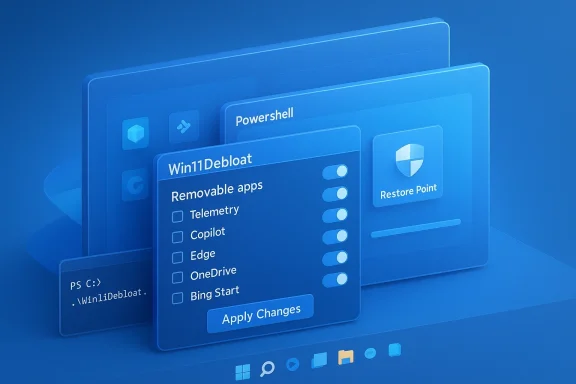
Blue 3D Windows-like UI for Win11 Debloat with toggle options and Apply Changes.Win11Debloat: What it is and how it works​

The architecture and design philosophy​

Win11Debloat is a PowerShell script that exposes a menu GUI by default and offers command‑line parameters for automation. It performs two kinds of operations:
  • App removal — uninstall built‑in and vendor apps (with special handling for OneDrive and Microsoft Edge).
  • System tweaks — change privacy-related registry values, disable telemetry pipelines, strip Copilot and Bing integrations, and apply UI tweaks (Explorer, Start menu, taskbar).
The script is intentionally open and auditable: you can read every action it will take before allowing it to run. That transparency is a cornerstone of its appeal: unlike closed binaries that make opaque changes, Win11Debloat scripts are plain text and documented. The project also provides undo guidance and a revert wiki so admins can understand restoration paths if they change their minds later.

Quick usage summary (as Thurrott documents)​

Thurrott’s walkthrough follows the script’s default “quick method”: invoke the download-and-run PowerShell one‑liner from an elevated Terminal, allow the GUI to open, and step through three main screens:
  • Start — begin the process and choose to continue.
  • App Removal — switch the view to “Only show installed apps” and choose what to remove.
  • System Tweaks — granular toggles for telemetry, ads, Copilot, Edge suggestions, Bing search in Start, updates behavior, and more.
  • Overview — confirm whether to apply tweaks to the current user or all users, whether to remove apps for all users, rre point, and optionally restart Explorer immediately. Then click “Apply Changes.”
Thurrott emphasizes two procedural safety points: (a) create a restore point, and (b) update all in‑box Microsoft Store apps first—otherwise the Store’s update mechanism may reinstall things you just removed. Both pieces of advice are practical and echoed by the community.

Deep dive: app removal, Edge, and OneDrive​

App removal behavior and safe defaults​

Win11Debloat offers a curated list of packages it can remove. The list intentionally excludes a few items that are either hard to replace or essential for certain scenarios—most notably, the Microsoft Store. The script and its documentation repeatedly warn: do not remove Store unless you understand the recovery steps, because reinstalling the Store can be non‑trivial and is sometimes prone to edge cases. The author’s wiki notes that nearly all removed apps are reinstallable from the Store or via winget, but the Microsoft Store itself and a couple of specialized overlays are exceptions.
Thurrott’s recommended uninstall candidates are the obvious “enshittified” offenders: Microsoft Edge (if you don’t want it), OneDrive (if you dislike forced cloud sync), Office Hub/Copilot prompts, Widgets Experience, Bing search/News integrations, and vendor junk like trial AVs or OEM AI assistants. He highled apps are harmless, but they clutter the Start menu and deliver low value to many users.

Microsoft Edge: why it’s special, and how Win11Debloat handles it​

Microsoft Edge is treated specially in the script for two reasons:
  • Edge has deep runtime integrations in Windows (protocol handlers, WebView2, and provisioning).
  • Microsoft has deliberately made Edge stubborn to remove to protect service integration and updates.
Win11Debloat attempts a standard uninstall via winget first, then—if that fails and you explicitly consent—it offers to forcefully uninstall Edge using a scripted sequence that modifies registry keys, creates a stub SystemApps folder, and invokes Edge’s uninstaller with a --force‑uninstall argument. That code path is explicit, interactive, and labeled “NOT RECOMMENDED” in the UI—yet it’s available for users who accept the risk. The script’s implementation is publicly viewable in its source.
Two practical notes Thurrott adds:
  • If you remove Edge, you must install another browser and set it as default. Windows may still try to route some links or web fragments via Edge or the Edge runtime unless you also address protocol associations and WebView2 behavior.
  • Some apps depend on the Edge WebView2 runtime; removing Edge itself does not necessarily remove WebView2, but some modern Store or web‑based apps may cause Edge to be reinstalled unless you install WebView2 runtime separately and then rerun the script. Microsoft’s documentation clarifies that WebView2 is a separate runtime that does not automatically change the default browser.

OneDrive removal​

OneDrive is simpler but still handled specially: the script uses winget when available to uninstall OneDrive cleanly. Thurrott points out that many users prefer local file management and that OneDrive’s default behavior (controlled sync, background uploads, and enforced account nudges) is a frequent complaint. Because OneDrive is less entangled than Edge, it’s generally safe to remove—just ensure you’ve synced or backed up any files you need first.

System tweaks: the privacy and behavior toggles you should care about​

Thurrott isolates a focused subset of system tweaks that he considers the core “de‑enshittify” moves. Theseoptions you should strongly consider toggling off:
  • Privacy & Suggested Content
  • Disable telemetry,ed ads.
  • Disable tips, tricks, and suggested content across Windows.
  • Disable lock screen tips and suggested content.
  • Hide Microsoft 365 ads iAI / Copilot
  • Disable Microsoft Copilot (if present).
  • Disable AI featu.
  • Windows Update
  • Prevent automatic restarts while signed in.
  • Disable delivery optimization that shares downloaded updates with other PCs.
  • Start Menu
  • Disable Bing web search and Copilot integration in Start.
These toggles address the most visible “enshittification” vectors: unsolicited content, telemetry pipelines, and automatic behaviors that interrupt workflows. Win11Debloat exposes these as discrete settings you can apply per‑user or across all users on the machine. That granularity is useful for multi‑user machines, lab images, or fleet deployments.

Safety, reversibility, and maintenance​

Restore points, undo files, and reinstallation paths​

Win11Debloat makes a point of creating an optional system restore point before applying sweeping changes. In addition, the project documents revert steps—registry undo files, guidance for reinstalling apps via Microsoft Store or winget, and special notes for components that are tricky to recover (Store itself, some Xbox overlays). Thurrott reiterates this advice: create a restore point and/or image backup, test a small batch of changes, and verify system behavior before performing broad removals.

Why you may need to reapply debloat after updates​

A persistent reality: Windows feature updates and monthly servicing sometimes reprovision built‑in apps, restore default settings, or change registry policies. Several community threads and the project documentation caution that debloating is not a once‑and‑forever job—after major updates you may need to reapply selected tweaks. Thurrott acknowledges this and recommends treating Win11Debloat as a repeatable maintenance step in your post‑update checklist.

Microsoft Store behavior: why update apps first​

Thurrott’s counterintuitive but sensible tip: update all in‑box Microsoft Store apps before running Win11Debloat. The rationale is that the Store will silently update apps in the background; if you remove an app before it has been updated, the Store can later reinstall or reprovision it when it next runs automatic updates. The wider platform context supports this caution: Microsoft has tightened how Store updates are applied (users now have limited long‑term ability to fully disable automatic Store updates), so synchronizing updates before removal reduces the risk of a reinstallation loop.

Practical checklist: how to run Win11Debloat safely​

  • Back up your data and create a disk image or VM snapshot if possible.
  • Ensure you have an alternative browser downloaded and an installer handy if you plan to remove Edge.
  • Open Microsoft Store and update all built‑in apps. Wait until Store shows no pending updates.
  • Run Win11Debloat from an elevated Terminal and step through the GUI:
  • Toggle “Only show installed apps” during the App Removal screen.
  • Uncheck the Microsoft Store—do not remove it.
  • Select OneDrive, Edge (if you know what you’re doing), and vendor crapware.
  • Apply the privacy/system tweaks you want (telemetry off, Copilot off, disable Bing in Start, disallow delivery optimization).
  • Create a restore point (Win11Debloat can do this) and choose whether changes apply to the current user or all users.
  • Click “Apply Changes” and watch the output. Reboot if prompted.
  • Verify essential functionality (printing, VPN, games, Office, enterprise apps) for 48–72 hours. If something breaks, consult the project’s Reverting Changes wiki.

Strengths: why Win11Debloat is a strong choice today​

  • Transparency and auditability. Everything Win11Debloat does is in plain PowerShell; you can read it, modify it, or run only the portions you trust. That level of visibility is rare among end‑user debloaters.
  • Granular controls. You can apply privacy tweaks without deleting apps, or vice versa, and choose per‑user vs. system‑wide effects. This is ideal for shared machines and imaging scenarios.
  • Active maintenance and community. The project is actively maintained, has extensive documentation, and offers restore guidance—important for tools that touch many OS subsystems.

Risks and caveats you must acknowledge​

  • Reprovisioning after major updates. Windows feature updates can undo some changes and reprovision apps. Be prepared to reapply your preferred configuration after major patches.
  • Edge and runtime entanglement. Forcefully uninstalling Edge is supported but risky. Some apps depend on Edge runtime behavior; removing Edge can lead to unexpected reinstallation or functional loss for apps that use WebView2. Microsoft documents that WebView2 is a separate runtime and should be used instead of removing runtime components casually, so take the extra step of installing or managing WebView2 if needed.
  • Microsoft Store is fragile to remove. Removing the Store can be hard to reverse and may leave the system unable to reinstall many in‑box apps automatically; the official guidance and community experience both warn against uninstalling the Store unless you have a robust recovery plan.
  • AV and enterprise policies. Aggressive system changes can trip endpoint protections or conflict with enterprise management policies. Validate on one machine before mass deployment.

How this fits with other de‑enshittify apprTiny11 Builder (rebuild approach):** Build a custom ISO that omits bloat from first boot. This is more thorough but more invasive and less easy to update. Use Tiny11 Builder when you want a fresh, minimal image for multiple machines.​

  • Rufus / installer tweaks: Create installation media that bypasses certain OOBE or hardware checks. Useful when installing from scratch on legacy hardware. Less relevant for post‑install cleanup.
  • O&O ShutUp10++ and privacy GUIs: Less invathat avoids app removal. Good for users who want to reduce telemetry without tampering with apps. Win11Debloat is broader in scope (apps + privacy).

Final assessment and recommendation​

Win11Debloat is a mature, well‑documented, and pragmatic tool for de‑enshittifying an existing Windows 11 installation. It’s the right balance for users who want a low‑friction, reversible way to reclaim privacy and remove bloat without rebuilding images or managing custom ISOs. Paul Thurrott’s chapter provides a calm, ush that respects safety (restore points, update first, don’t delete the Store) while explaining advanced options for power users.
If you follow a conservative process—backups, update Store apps first, test in Lite mode, and avoid removing the Microsoft Store—you can achieve the majority of the benefits Thurrott promises: a quieter, faster, less tracking‑heavy Windows 11 that behaves the way you want. For administrators, Win11Debloat’s parameterized modes (Sysprep, per‑user, defaults) make it suitable for imaging and deployment automation; for home users, the GUI and undo guidance remove much of the fear of irreversible change.

Actionable summary (short)​

  • Back up the device and update Microsoft Store apps first.
  • Run Win11Debloat from an elevated Terminal; use Lite mode first if unsure.
  • Avoid uninstalling the Microsoft Store. Create a restore point before any mass removals.
  • If you uninstall Edge, install an alternative browser, consider installing the WebView2 runtime, and expect to reapply settings after major updates.
Thurrott’s chapter gives you the map; Win11Debloat supplies a transparent, dependable set of tools to follow it. Use both thoughtfully, and your existing Windows 11 installation can be returned to a state that serves you—not the services.

Source: Thurrott.com De-Enshittify an Existing Install of Windows 11 ⭐
 

Secure remote access starts with tight control over who is allowed to log in — and on Windows that control point is most often the Remote Desktop Users group. Properly configuring that group, understanding how authentication flows differ across domain‑joined, workgroup, and Entra‑joined machines, and choosing the right management toolchain (UI, PowerShell, Intune or Azure RBAC) are the difference between a manageable environment and a risky one.

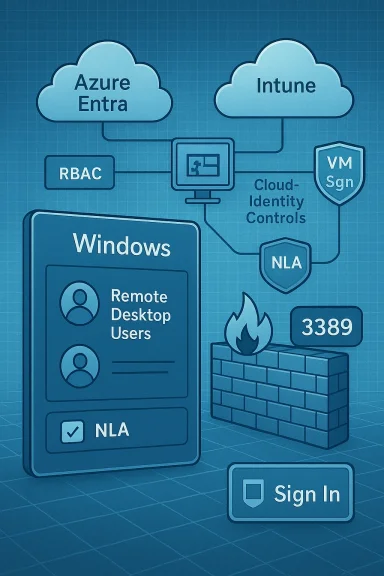
Diagram showing Azure Entra, Intune, and Cloud Identity Controls securing Windows RDP (port 3389) with NLA.Background / Overview​

Remote Desktop Protocol (RDP) is built into Windows editions used in business — Windows Pro, Enterprise, Education, and Windows Server — and it remains one of the most common tools for remote management. By default, members of the local Administrators group and members of the Local “Remote Desktop Users” group are allowed to sign in via RDP (subject to policy, firewall and Network Level Authentication). That makes the Remote Desktop Users group a high‑value control: adding or removing accounts here directly controls who can create a remote interactive session on a machine.
There are multiple layers to get right when you manage RDP access:
  • Device configuration (is RDP enabled? is the firewall open for 3389?)
  • Local group membership (Administrators or Remote Desktop Users)
  • Authentication and trust (domain controller reachability, Microsoft Entra/ Azure AD join state)
  • Gateway/conditional controls (RD Gateway, Conditional Access, Azure RBAC)
  • Management method and scale (local UI, PowerShell, Intune MDM, Azure RBAC for VMs)
Below I walk through the practical ways to configure the Remote Desktop Users group, call out platform‑specific caveats (especially for Microsoft Entra / Azure‑joined machines), validate key commands and policies, and provide a hardened, operational approach you can apply in production.

How RDP authentication works: essential points​

RDP access requires three basic things:
  • RDP enabled on the target machine (System → Remote settings → “Allow remote connections”).
  • Network connectivity and firewall rules that permit RDP traffic (TCP 3389; optionally UDP for newer clients).
  • A valid account that is allowed to sign in remotely — either a local or domain admin, or an account that is a member of the local Remote Desktop Users group.
The precise authentication path depends on how the machine is joined:
  • Domain‑joined machines authenticate with Active Directory — the VM needs to reach a domain controller for interactive sign‑in with domain credentials.
  • Workgroup or local (not joined) machines use local accounts (or local administrator) and require local membership in Remote Desktop Users.
  • Microsoft Entra (Azure AD) / Azure AD joined machines add another layer: Azure role assignments (RBAC) can be required to authorize sign‑in to Azure VMs even if the user appears in the local group; the VM must also be Entra/ Azure AD joined and have the agent/extension to support Entra sign‑in. Microsoft’s guidance clearly states that Entra role assignments (Virtual Machine User Login or Virtual Machine Administrator Login) are required for sign‑in to Entra‑joined Azure VMs.
Network Level Authentication (NLA) is strongly recommended for security because it forces credentials before session negotiation; however, NLA sometimes interacts badly with group enumeration for Entra groups and with older RDP clients, a nuance I’ll examine below. Microsoft documents both the NLA requirement and the Entra‑specific caveats.

Managing the Remote Desktop Users group: local options​

If you have local (console or admin) access to a machine, the simplest ways to manage Remote Desktop Users are the built‑in UI and local PowerShell/command‑line tools.

UI (best for single machines, quick edits)​

  • Open Computer Management → Local Users and Groups → Groups.
  • Open Remote Desktop Users → Add → choose the user or group.
This is the fastest for ad‑hoc changes on a single endpoint and what most desktop admins will reach for when troubleshooting user access.

PowerShell (scriptable and auditable)​

Use the LocalAccounts module commands on modern Windows:
  • Add a member:
    Add-LocalGroupMember -Group "Remote Desktop Users" -Member "DOMAIN\username"
  • Verify membership:
    Get-LocalGroupMember -Group "Remote Desktop Users"
If you prefer the classic command prompt:
  • net localgroup "Remote Desktop Users" "DOMAIN\username" /add
PowerShell and net localgroup work on local and domain accounts when used from an elevated session. These are standard, supported commands for administering membership.

Managing Remote Desktop Users at scale: Microsoft Intune​

For modern management and scale, Microsoft Intune (Microsoft Endpoint Manager) provides a native profile type: Local user group membership (sometimes marketed as Account protection → Local user group membership). This MDM profile lets you push membership changes to Windows 10/11 devices and is the recommended path if you manage many endpoints via Intune.
Key facts and constraints to be aware of:
  • In Intune, create an Endpoint security → Account protection → Local user group membership profile, choose Windows 10 and later and set the profile type to Local user group membership, then select the Remote Desktop Users local group and either Add or Replace the membership set. Microsoft documents the profile and supported groups (Administrators, Users, Guests, Power Users, Remote Desktop Users, Remote Management Users).
  • The Intune profile can add users or groups, but when dealing with Microsoft Entra groups you cannot rely on group enumeration for RDP sign‑in in all scenarios. Microsoft’s documentation notes that adding an Entra group to Remote Desktop Users on a device is not always honored for RDP sign‑in — in some cases the user who is a member of that Entra group will fail to authenticate via RDP. If that occurs, Microsoft’s guidance says Network Level Authentication should be disabled to allow the connection — a workaround that carries security risk.
  • Intune policy timing: the UI and guides often say the profile may take minutes to apply; in practice MDM policy propagation can range from minutes to hours depending on device check‑ins, network, and tenant size — plan for variability and validate by forcing a device sync. I recommend treating TechTarget’s 30–60 minute observation as a reasonable expectation for many environments, but not a guaranteed SLA; larger tenants or devices with intermittent connectivity can take longer. Always test in your environment and monitor the device’s Intune diagnostics. (Policy propagation times vary; Microsoft documentation and community experience note anything from a few minutes to several hours.)
Operational recommendation: If you must allow Entra group membership to control RDP and require NLA, plan for verification steps and, if necessary, deploy a short PowerShell script to add specific AzureADuser@domain.com entries to the local Remote Desktop Users group for those users who must RDP — this is a common pattern in production. Community examples and Microsoft docs show the net localgroup "Remote Desktop Users" /add "AzureAD\<userUPN>" approach used widely for Entra‑joined machines.

Azure VMs joined to Microsoft Entra (Azure AD): the RBAC wrinkle​

If the Windows machine lives in Azure and is joined to Microsoft Entra, there is an additional authorization layer beyond local group membership: Azure Role‑Based Access Control (RBAC) at the VM scope.
  • For Entra‑joined Azure VMs, Microsoft requires that the user be assigned one of two built‑in roles on the VM (scope can be VM, resource group or subscription): Virtual Machine User Login or Virtual Machine Administrator Login. Assigning one of those roles allows the Azure agent on the VM to provision the user into the local groups needed for sign‑in. This is a documented requirement; assigning Owner/Contributor on the subscription does not by itself grant interactive sign‑in.
  • Practical steps (high level):
  • Confirm the VM is Entra/Azure AD joined (run dsregcmd /status on the VM to check Join state).
  • Ensure the AADLoginForWindows or equivalent Azure extension is installed (Azure portal or az vm extension set).
  • Assign the user the Virtual Machine User Login role (for regular user rights) or Virtual Machine Administrator Login role (for admin rights) via Access Control (IAM). The VM agent honors the role and handles local provisioning for the sign‑in.
  • Caveat: even if you add an Entra group to the local Remote Desktop Users group, the RBAC role model and group enumeration limitations can still block RDP sign‑in. Many admins therefore manage Entra sign‑in by assigning the appropriate VM login role in Azure and then letting Azure handle local membership — that avoids the fragile case of relying on local group membership synchronization for cloud profiles.
Security note: Enforcing Conditional Access (MFA, device compliance) for VM sign‑in is supported, but some Conditional Access scenarios can block RDP flows if the client or session can’t present the right claims. Test attentively when Conditional Access policies are in play.

Common pitfalls and troubleshooting notes​

  • “There is no such global user or group”: When adding AzureAD accounts to a local group, you must use the proper prefix (AzureAD\<UPN>) and be running the command as a local administrator. If you get this error, double‑check the prefix and account string. Microsoft documents the net localgroup "Remote Desktop Users" /add "AzureAD\<userUPN>" pattern.
  • Entra groups in Remote Desktop Users won’t always be honored for RDP sign‑in. If your Intune policy adds an Entra group by SID or GUID, you may see that the group appears in local group membership but the RDP authentication path doesn’t evaluate the group membership for the remote session. In those cases, administrators have used a combination of:
  • Assigning the Azure RBAC VM login role for Azure VMs, or
  • Adding specific AzureADlocal Remote Desktop Users group (scripted), or
  • Temporarily disabling NLA to diagnose group enumeration errors (not recommended as a long‑term state).
  • Client compatibility: Older RDP clients or server OS builds may not support the authentication protocols required for Entra sign‑in (PKU2U, modern Windows Hello claims). Microsoft maintains a compatibility list—ensure your client OS builds meet the documented minimums before troures.

Security risks and real‑world attack patterns​

Because membership in Remote Desktop Users grants interactive remote access, it is an attractive target during intrusions. Attackers and malware frequently try to:
  • Create local accounts and add them to the Remote Desktop Users or Administrators group to obtain persistent remote access.
  • Alter firewall rules or disable host firewalls to enable external RDP. The malicious script examples recovered from incidents show precisely these behaviors: disabling firewalls, opening port 3389 and adding newly created accounts to both Administrators and Remote Desktop Users to guarantee remote access. You should treat any automated, unexpected change to local group membership or firewall state as a high‑priority alert.
Operational mitigations:
  • Monitor additions to local Administrator and Remote Desktop Users groups (audit events 4728/4732/4733 etc on domain; local eventing and endpoint telemetry on standalones).
  • Use EDR/endpoint detection to flag scripts that create accounts and modify firewall settings.
  • Enforce least privilege — avoid placing standard users in Administrator and avoid widely opening Remote Desktop Users membership.
  • Where possible, use Just‑In‑Time / Just‑Enough Administration (JIT/JEA) to limit standing privileges and reduce the window an attacker can exploit.

Practical, hardened configuration recipes​

Below are practical, repeatable approaches keyed to common environments.

1) On‑prem / domain‑joined servers (recommended approach)​

  • Keep RDP enabled only on management hosts and bastion jump boxes; avoid opening RDP on every server.
  • Add the managing admin group (a limited helpdesk group) to Remote Desktop Users (or use Administrators only when necessary).
  • Manage group membership with Group Policy or domain provisioning scripts (use Add‑LocalGroupMember in a Startup/Group Policy script if needed).
  • Enforce RBAC-like controls by combining AD groups, time‑bound membership (automation), and session recording if required.

2) Intune‑managed clients (Azure AD joined or hybrid)​

  • Use Intune Endpoint Security → Account protection → Local user group membership to push the needed users to the Remote Desktop Users group when applicable.
  • If targets are Entra joined, prefer adding individual AzureAD\<userUPN> entries rather than relying on Entra group enumeration for RDP. If you must use groups, expect troubleshooting and confirm NLA behavior.
  • Force a device sync and verify with Get‑LocalGroupMember on the device for auditability.
  • Consider pushing a PowerShell remediation script via Intune for windows versions where the Local user group profile has known limitations.
Example PowerShell snippet to add an AzureAD user (run elevated):
  • $user = "AzureADalice@contoso.com"
  • Add-LocalGroupMember -Group "Remote Desktop Users" -Member $user

3) Azure VMs joined to Microsoft Entra​

  • Confirm VM is Entra joined (dsregcmd /status).
  • Install AADLoginForWindows extension if required.
  • Assign Virtual Machine User Login or Virtual Machine Administrator Login to the user at VM scope via Access control (IAM). Let Azure handle the local provisioning rather than editing local groups directly.

Testing and verification checklist​

When you change RDP membership or policies, run these validation steps:
  • Verify local group membership (Get‑LocalGroupMember or Computer Management).
  • Verify firewall/NSG rules allow RDP (TCP 3389).
  • Confirm the client OS and server OS builds meet the Entra/PKU2U requirements if you rely on Entra authentication.
  • If using Intune, force a device sync and check the Intune debug logs / Event Viewer to ensure the policy applied.
  • Attempt RDP from a machine representative of the user’s client (domain joined, Entra joined, or registered) to reproduce the exact conditions of real users.

Recommendations — policies and governance​

  • Use the principle of least privilege: only add the accounts that absolutely need RDP to the Remote Desktop Users group; prefer scoped admin groups rather than broad membership.
  • Centralize remote access: favor jump hosts or RD Gateway/ bastion hosts to reduce exposed endpoints.
  • For Azure VMs, use RBAC roles (Virtual Machine User Login / Administrator Login) instead of manual local group edits; it’s auditable and designed for Entra scenarios.
  • Monitor changes: forward and alert on local group membership changes and new local account creation.
  • Avoid disabling NLA as a permanent workaround for group enumeration issues — treating it as a diagnostic step only.
  • Implement Just‑In‑Time access and temporary elevation when possible, and integrate Conditional Access to require compliant devices and strong authentication.

Final analysis: strengths, friction points and risk​

The Remote Desktop Users group is a small, high‑impact control. Its strength is simplicity — it’s trivial to add or remove users and to validate membership. Managed correctly, it enables efficient remote administration without over‑granting admin rights.
Where friction appears is in modern identity topologies:
  • Azure/Entra joined machines introduce RBAC and agent dependencies that are easy to miss and can silently block sign‑in if roles aren’t assigned. Relying on Azure RBAC for VM sign‑in is a robust, auditable pattern — but it’s a change from the classic “add the user to the local RDP group and you’re done.”
  • Intune simplifies fleet‑wide group membership but carries edge cases: Entra group enumeration for RDP behaves inconsistently and some admins must resort to per‑user local entries or RBAC for VMs. Expect to script and validate carefully for Entra scenarios.
  • From a security perspective, local group membership and firewall openings are frequently abused in attacks. You should treat unexpected local group changes or firewall modifications as possible indicators of compromise and instrument your endpoints to detect them. Real incident scripts have been seen adding accounts and enabling RDP remotely as part of an intrusion chain.

Remote desktop access is necessary; however, how you gate that access — local groups, Intune profiles, Azure RBAC — matters. Use the native tools for the scale of your environment, rely on Azure RBAC for Entra‑joined VMs, instrument and alert on local changes, and prefer temporary, just‑in‑time elevation over standing privileges. When in doubt, test on a small pilot group, validate the client and server build compatibility, and treat any workarounds (like disabling NLA) as temporary diagnostics only. By treating the Remote Desktop Users group as an auditable security control rather than an ad‑hoc convenience, IT teams can reduce risk without sacrificing remote management capabilities.

Source: TechTarget How to configure the Remote Desktop Users group in Windows | TechTarget
 

Back
Top