

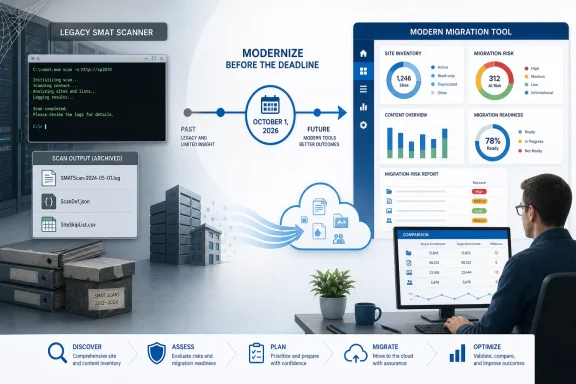
Microsoft’s SharePoint Migration Assessment Tool reaches end of support on October 1, 2026, leaving administrators with a practical choice: capture one final SMAT baseline now if existing migration runbooks depend on its configurable farm discovery, then move ongoing assessment work to SharePoint Migration Tool 4.0 or later. Organizations without a meaningful SMAT history should skip the extra ceremony and standardize immediately on SPMT as Microsoft’s supported pre-migration assessment path.
Microsoft documents the deadline on Microsoft Learn and directs customers to SPMT’s scan capability for assessing SharePoint Server sites. This is more than a routine tool retirement because SMAT and SPMT do not present assessment in exactly the same way: SMAT reflects the farm-era command-line workflow, while SPMT integrates scanning, inventory, migration risks, and reporting into the current migration tool.
Administrators who need a final SMAT assessment should not schedule it for the last week of September. Microsoft says a scan can take one to two days, and the result still needs to be reviewed, preserved, and compared with earlier output before the tool reaches end of support.
A sensible final-run procedure is:
The goal is not to keep SMAT alive indefinitely. It is to create a defensible closing record of what the established scanner examined, what it omitted, and what it reported before support ends.
The
Before retiring SMAT, administrators should preserve both files alongside the final logs. A report without its configuration context is incomplete evidence because another team may later assume that every available scan ran against every site.
This is especially important when a migration has changed owners, consultants have rotated, or documentation has fallen behind the scripts. The final SMAT run should expose the old runbook’s scope rather than silently carrying its assumptions into the next tool.
That makes configuration archaeology a legitimate part of the migration assessment. If nobody can explain why a scan was disabled or why a site appears in the skip list, that uncertainty should be documented and revisited in SPMT rather than treated as inherited policy.
The basic SPMT scanning path is straightforward:
Single-site scanning is useful for validation and pilot work. Bulk scanning is the more natural choice when administrators need repeatable coverage across a larger migration scope. In both cases, the inventory and migration-risk summary provide the starting point for deciding what can move, what requires remediation, and what needs further investigation.
The immediate standardization decision should therefore depend on whether the organization has SMAT history worth preserving. A team conducting its first serious assessment gains little from creating a temporary SMAT dependency only to remove it weeks later.
The useful comparison is at the scope and risk level:
Conversely, the presence of a finding in the final SMAT output does not establish that SPMT will describe it in the same format. Administrators should translate findings into remediation work items rather than tying project governance permanently to one report layout.
This transition is also a useful moment to remove abandoned exceptions. A site skipped years ago because it was supposedly being decommissioned should not remain invisible merely because its entry survived in a CSV file.
Organizations already using SPMT 4.0 or later successfully should avoid reopening SMAT merely to satisfy the calendar. They should verify that their SPMT scan coverage includes the necessary source sites and that downloaded reports are incorporated into remediation and migration planning.
Organizations with undocumented farms face the most urgent case. They need to inspect existing SMAT configuration immediately, because waiting until late September leaves little room for a one-to-two-day scan, failed runs, report review, or an orderly comparison with SPMT.
SharePoint 2010, 2013, and 2016 administrators should also resist treating assessment as proof of migration readiness. A scanner identifies inventory and potential risks; it does not make ownership decisions, validate every exception, or decide whether obsolete sites deserve migration.
The same lifecycle pressure is already visible across Microsoft environments, including the current retirement of SharePoint Online Alerts and the broader collection of Microsoft support deadlines arriving during 2026. The operational lesson is consistent: dependencies must be inventoried while the established tools and knowledgeable staff are still available, not after the supported path has closed.
Archive the tool’s outputs according to organizational policy, but do not confuse retention with continued operational dependence. New assessment procedures, automation, staff training, and project documentation should center on SPMT 4.0 or later.
The strongest transition package will contain the final SMAT logs, the applicable
Administrators have a little over two months before Microsoft’s October 1 deadline. That is enough time for one deliberate SMAT baseline and an orderly SPMT transition, but not enough to postpone the decision until the final maintenance window.
Microsoft documents the deadline on Microsoft Learn and directs customers to SPMT’s scan capability for assessing SharePoint Server sites. This is more than a routine tool retirement because SMAT and SPMT do not present assessment in exactly the same way: SMAT reflects the farm-era command-line workflow, while SPMT integrates scanning, inventory, migration risks, and reporting into the current migration tool.
 Run the Last Baseline Before the Deadline Becomes the Project
Administrators who need a final SMAT assessment should not schedule it for the last week of September. Microsoft says a scan can take one to two days, and the result still needs to be reviewed, preserved, and compared with earlier output before the tool reaches end of support.A sensible final-run procedure is:
- Confirm that the source environment is a supported English-language SharePoint 2010, SharePoint 2013, or SharePoint 2016 farm.
- Locate the established SMAT package, configuration files, scripts, scheduled tasks, and output retention process used by the organization.
- Review
ScanDef.jsonand document every scan that has been enabled, disabled, or otherwise configured. - Review
SiteSkipList.csvand record every site excluded from the report output, including the operational reason for its exclusion. - Run the assessment early enough to accommodate the documented one-to-two-day scan window.
- Preserve the complete contents of the
Logsdirectory rather than retaining only a manually prepared summary. - Record the run date, farm identity, configuration state, exclusions, and any differences from previous assessments.
- Begin an SPMT 4.0-or-later scan of a representative scope so the team can compare its inventory and migration-risk reporting with the final SMAT baseline.
-q switch for quiet operation. That matters for scheduled tasks and scripts because quiet mode avoids console output and interactive prompts.The goal is not to keep SMAT alive indefinitely. It is to create a defensible closing record of what the established scanner examined, what it omitted, and what it reported before support ends.
SMAT’s Configuration Is the Strongest Reason to Run It Again
SMAT’s lasting value is not simply that it produces reports. Its value lies in the assumptions organizations may have encoded around those reports over years of SharePoint farm administration.The
ScanDef.json file can enable or disable individual scans. An organization may have turned off checks it considered irrelevant, adjusted established assessment behavior, or built its remediation process around a specific selection of output. Those decisions can materially affect what administrators believe has been assessed.SiteSkipList.csv creates another important boundary by excluding specified sites from report output. A clean-looking report may therefore represent only the included portion of a farm, not every site that exists within it.Before retiring SMAT, administrators should preserve both files alongside the final logs. A report without its configuration context is incomplete evidence because another team may later assume that every available scan ran against every site.
This is especially important when a migration has changed owners, consultants have rotated, or documentation has fallen behind the scripts. The final SMAT run should expose the old runbook’s scope rather than silently carrying its assumptions into the next tool.
That makes configuration archaeology a legitimate part of the migration assessment. If nobody can explain why a scan was disabled or why a site appears in the skip list, that uncertainty should be documented and revisited in SPMT rather than treated as inherited policy.
SPMT Turns Assessment Into a Migration Workflow
SPMT 4.0 and later integrates SharePoint Server assessment directly into the SharePoint Migration Tool. According to Microsoft Learn, administrators can scan source sites, review assessment results, make changes, and then proceed toward migration within the same broader toolset.The basic SPMT scanning path is straightforward:
- Open SPMT and select Add new scan.
- Choose a scanning method, using either a single-site scan or a bulk approach as appropriate.
- Enter the source site location and start the scan, or save it to run later.
- Open the completed scan from the scan list.
- Review the dashboard’s site-content inventory and potential migration-risk summary.
- Download the detailed report for remediation, retention, and project tracking.
Single-site scanning is useful for validation and pilot work. Bulk scanning is the more natural choice when administrators need repeatable coverage across a larger migration scope. In both cases, the inventory and migration-risk summary provide the starting point for deciding what can move, what requires remediation, and what needs further investigation.
The immediate standardization decision should therefore depend on whether the organization has SMAT history worth preserving. A team conducting its first serious assessment gains little from creating a temporary SMAT dependency only to remove it weeks later.
The Reports Should Overlap, Not Be Treated as Identical
Running both tools during the transition does not mean their reports should be expected to match line for line. They represent different assessment experiences, and SMAT may have been altered through scan configuration and site exclusions.The useful comparison is at the scope and risk level:
- Confirm that the sites expected in the SMAT baseline are represented in the new assessment plan.
- Identify sites omitted through
SiteSkipList.csvand decide whether SPMT should now assess them. - Revisit checks disabled in
ScanDef.jsoninstead of assuming the old exception remains valid. - Compare major inventory findings and migration-risk categories for unexplained gaps.
- Preserve downloaded SPMT reports with enough run context to support later comparisons.
Conversely, the presence of a finding in the final SMAT output does not establish that SPMT will describe it in the same format. Administrators should translate findings into remediation work items rather than tying project governance permanently to one report layout.
This transition is also a useful moment to remove abandoned exceptions. A site skipped years ago because it was supposedly being decommissioned should not remain invisible merely because its entry survived in a CSV file.
Three Migration Positions Cover Most Farms
Organizations with previous SMAT reports, customizedScanDef.json settings, or meaningful skip lists should run and archive one final assessment. They should then reproduce the intended scope in SPMT and document differences before retiring the old process.Organizations already using SPMT 4.0 or later successfully should avoid reopening SMAT merely to satisfy the calendar. They should verify that their SPMT scan coverage includes the necessary source sites and that downloaded reports are incorporated into remediation and migration planning.
Organizations with undocumented farms face the most urgent case. They need to inspect existing SMAT configuration immediately, because waiting until late September leaves little room for a one-to-two-day scan, failed runs, report review, or an orderly comparison with SPMT.
SharePoint 2010, 2013, and 2016 administrators should also resist treating assessment as proof of migration readiness. A scanner identifies inventory and potential risks; it does not make ownership decisions, validate every exception, or decide whether obsolete sites deserve migration.
The same lifecycle pressure is already visible across Microsoft environments, including the current retirement of SharePoint Online Alerts and the broader collection of Microsoft support deadlines arriving during 2026. The operational lesson is consistent: dependencies must be inventoried while the established tools and knowledgeable staff are still available, not after the supported path has closed.
Support Ends, but Historical Evidence Still Matters
October 1, 2026, is the end of SMAT support, not a reason to discard its historical output. Final logs and configuration files may remain useful for explaining migration decisions, establishing what was assessed at a particular time, and identifying scope changes between discovery phases.Archive the tool’s outputs according to organizational policy, but do not confuse retention with continued operational dependence. New assessment procedures, automation, staff training, and project documentation should center on SPMT 4.0 or later.
The strongest transition package will contain the final SMAT logs, the applicable
ScanDef.json, the SiteSkipList.csv, a plain-language explanation of exclusions, and the first comparable SPMT report. That package turns a disappearing scanner into a documented handoff rather than an unexplained break in the migration record.Administrators have a little over two months before Microsoft’s October 1 deadline. That is enough time for one deliberate SMAT baseline and an orderly SPMT transition, but not enough to postpone the decision until the final maintenance window.
References
- Primary source: learn.microsoft.com
SharePoint Migration Assessment Tool - Migrate to Microsoft 365 | Microsoft Learn
Overview of the SharePoint Migration Assessment Tool (SMAT). A tool that helps identify the impact of migrating your server to SharePoint in Microsoft 365.learn.microsoft.com - Independent coverage: microsoft.com
- Independent coverage: support.microsoft.com
Using the SharePoint Migration Tool Reports | Microsoft Support
Using the SharePoint Migration Tool Reportssupport.microsoft.com - Independent coverage: barn2.com
SharePoint End of Life Timeline and Migration Options
Every SharePoint end of life deadline through July 2026 in one place, plus the migration options that make sense for your team and budget.barn2.com - Primary source: WindowsForum
SharePoint Online Alerts Retire July 2026: Scan and Replace Them | Windows Forum
SharePoint Online Alerts are now inside Microsoft’s July 2026 retirement window, and administrators should treat every remaining alert as a broken...windowsforum.com