

There is a good reason the humble pagefile.sys keeps showing up in Windows storage cleanups, and it is not just because it takes up space. Microsoft still treats the page file as a core part of the operating system’s memory and crash-dump strategy, which means where it lives, how large it is, and whether Windows manages it automatically can have real consequences for performance and troubleshooting. For many PCs, especially those with a cramped system SSD, moving the page file can be a sensible optimization — but only if you understand the trade-offs first.
Windows uses the page file as part of its virtual memory system, extending the amount of committed memory available to the machine when physical RAM starts to run short. Microsoft’s current documentation is explicit that page files are used to back system crash dumps and to extend the system commit limit, which is why they remain relevant even on machines with plenty of RAM. In other words, the page file is not a vestigial relic; it is still a practical part of how Windows balances memory pressure and recovery.
That distinction matters because a page file is not merely a place where Windows “spills over” in the casual sense. It is part of the commit model, which governs how much memory Windows can promise to applications at once. If the system commit limit is reached, applications can fail allocations even if some physical RAM remains available in theory. Microsoft describes that limit as the sum of installed memory and all page files combined, which makes page-file sizing a system-level decision rather than a cosmetic one.
The other major reason the page file exists is crash handling. Microsoft’s documentation on crash dumps says Windows uses a page file or a dedicated dump file to write the data needed for Memory.dmp, and different dump modes require different minimum sizes. That is why a large enough page file on the boot volume often remains the simplest way for Windows to preserve the information needed after a blue-screen event.
Historically, users were often told to manually size page files using old rules of thumb, such as “1.5x RAM,” but Microsoft’s current guidance is much more conditional. Automatic memory dump and system-managed page files are designed to adapt to crash-dump needs and memory pressure in a more dynamic way. That is a subtle but important shift: the modern recommendation is less about rigid formulas and more about letting Windows make a conservative default choice unless you have a specific reason to intervene.
For consumers, the page file’s value is usually invisible until something goes wrong. When a game stutters, a browser tab crashes under pressure, or an app refuses to allocate memory, the page file is often part of the safety net that prevents a hard failure. For enterprises, the stakes are higher because a misconfigured page file can complicate incident response and reduce the quality of crash diagnostics.
A hidden system file also has a storage-management downside. On systems with a small boot SSD, a system-managed page file can grow enough to surprise users who thought their free space was accounted for. That is especially frustrating on laptops and prebuilt desktops that ship with a modest primary drive and a larger secondary disk that sits underused.
Even with smaller dump modes, the requirements are not trivial. Microsoft’s troubleshooting documentation says a small memory dump needs only minimal space, but kernel and complete dumps depend on kernel usage and RAM size. That means “just make it tiny” is not a universal tuning strategy; it is a trade that may sacrifice the one artifact engineers need after a serious failure.
There is also a practical reason Windows prefers the default path. A page file on the system volume is easy for the operating system to find early in the boot and crash sequence, when services are limited and the machine may already be unstable. A secondary location can work, but it is more dependent on the storage topology and boot-time accessibility of that volume.
This is especially appealing when the secondary drive is also an SSD. In that case, you can reduce contention on the boot drive while keeping paging fast enough to avoid obvious stutter. If the alternative is a tiny system disk that is constantly full, relocating the page file can be a very rational compromise.
The scenario is weaker when the second drive is a mechanical HDD. Microsoft does not present HDDs as ideal paging targets, and common-sense performance rules say the slower drive can become the new bottleneck. In practice, moving the page file to an HDD may free space, but it can also make memory pressure more painful when Windows actually needs the file.
That risk is highest on systems where the boot volume is the only drive guaranteed to be available early in startup. On such machines, moving the page file elsewhere may be technically possible but operationally unwise. The more mission-critical the machine, the more attractive the boring default becomes.
There is also a supportability angle. Microsoft’s documentation and troubleshooting articles are written around a system-managed model, which means deviating from it can make third-party support harder if something goes wrong later. That does not make manual control wrong, but it does mean the burden of proof shifts to the person making the change.
After rebooting, Windows should recreate pagefile.sys on the selected drive. If you want to verify it, you can enable hidden items in File Explorer and, if necessary, show protected operating system files so the file becomes visible at the root of the destination volume. That confirmation step is worth doing because a typo or missed Set click can leave the system using the original configuration.
The SSD wear argument is usually overstated. Yes, the page file can see frequent writes, but modern SSD endurance is generally high enough that ordinary desktop paging is unlikely to be a dominant wear factor. In most consumer scenarios, preserving free space and reducing contention is a more compelling reason to move the file than trying to protect the flash cells from normal use.
On the other hand, performance penalties can become obvious if you move the file to a slower device. That is why the “secondary drive should be at least as fast as the original” rule is sound advice, even if Windows will not stop you from making a bad choice. The operating system can adapt, but it cannot make a slow disk act like a fast one.
Power users sit somewhere in the middle. They are more likely to run RAM-hungry workloads, use dedicated SSDs for games or scratch data, and care about micro-optimizations that normal users ignore. For them, a thoughtfully placed page file can be part of a broader storage layout strategy, especially if the system drive is small and the secondary drive is both fast and reliable.
The key is to treat the page file as infrastructure, not clutter. If you approach it with the same discipline you would apply to backup targets or system partitions, it becomes a manageable piece of the storage plan. If you treat it like junk to be exiled anywhere, it becomes a source of avoidable headaches.
The broader trend is clear: the page file is less about old-school “virtual memory tricks” and more about system reliability under modern workloads. As machines get faster and storage gets denser, many users will still benefit from moving the file — but only if they choose the right destination and preserve the ability to recover from a crash. That balance, not the move itself, is what makes the tweak worthwhile.
Source: MakeUseOf Your Windows page file might be on the wrong drive — here's how to move it where it belongs
 Background
Windows uses the page file as part of its virtual memory system, extending the amount of committed memory available to the machine when physical RAM starts to run short. Microsoft’s current documentation is explicit that page files are used to back system crash dumps and to extend the system commit limit, which is why they remain relevant even on machines with plenty of RAM. In other words, the page file is not a vestigial relic; it is still a practical part of how Windows balances memory pressure and recovery.That distinction matters because a page file is not merely a place where Windows “spills over” in the casual sense. It is part of the commit model, which governs how much memory Windows can promise to applications at once. If the system commit limit is reached, applications can fail allocations even if some physical RAM remains available in theory. Microsoft describes that limit as the sum of installed memory and all page files combined, which makes page-file sizing a system-level decision rather than a cosmetic one.
The other major reason the page file exists is crash handling. Microsoft’s documentation on crash dumps says Windows uses a page file or a dedicated dump file to write the data needed for Memory.dmp, and different dump modes require different minimum sizes. That is why a large enough page file on the boot volume often remains the simplest way for Windows to preserve the information needed after a blue-screen event.
Historically, users were often told to manually size page files using old rules of thumb, such as “1.5x RAM,” but Microsoft’s current guidance is much more conditional. Automatic memory dump and system-managed page files are designed to adapt to crash-dump needs and memory pressure in a more dynamic way. That is a subtle but important shift: the modern recommendation is less about rigid formulas and more about letting Windows make a conservative default choice unless you have a specific reason to intervene.
Why the Page File Still Matters
A lot of PC advice still frames the page file as a space-hogging nuisance, but that misses the main point. The file’s role in system commit means it can affect whether memory-heavy workloads behave predictably, especially when you are running modern browsers, VMs, creative apps, or games with background launchers and overlays. When the system commits memory beyond available RAM, Windows needs room to preserve those commitments somewhere, and the page file provides that room.Virtual memory is not the same as “swap and forget”
The page file is often compared to swap space on other operating systems, but that analogy can be misleading if taken too literally. Windows uses it as part of a larger commitment and crash-recovery model, not just as a dumping ground for cold pages. That is why completely removing it is sometimes possible, but rarely the best choice for a general-purpose desktop.For consumers, the page file’s value is usually invisible until something goes wrong. When a game stutters, a browser tab crashes under pressure, or an app refuses to allocate memory, the page file is often part of the safety net that prevents a hard failure. For enterprises, the stakes are higher because a misconfigured page file can complicate incident response and reduce the quality of crash diagnostics.
A hidden system file also has a storage-management downside. On systems with a small boot SSD, a system-managed page file can grow enough to surprise users who thought their free space was accounted for. That is especially frustrating on laptops and prebuilt desktops that ship with a modest primary drive and a larger secondary disk that sits underused.
- It supports committed memory, not just “extra RAM.”
- It helps Windows generate crash dumps after a stop error.
- It can expand dynamically when Windows decides that is necessary.
- It may consume meaningful SSD space on a cramped system drive.
- It is usually better left system-managed unless you have a clear reason to change it.
What Microsoft Actually Recommends
Microsoft’s current documentation leans heavily toward system-managed page files for most PCs. The reason is simple: Windows can size the file to support the configured crash-dump mode and adjust when memory demand changes. Automatic Memory Dump, for example, initially chooses a smaller paging file and can later increase it if repeated crashes suggest that more space is needed for kernel-memory capture.Crash dumps drive the sizing logic
This is where a lot of DIY tuning goes wrong. If you disable or shrink the page file too aggressively, you may still boot fine, but you can break or degrade crash-dump capture when you need it most. Microsoft’s guidance on complete memory dumps explicitly notes that they require a page file on the boot drive large enough to hold the system’s memory contents plus additional overhead.Even with smaller dump modes, the requirements are not trivial. Microsoft’s troubleshooting documentation says a small memory dump needs only minimal space, but kernel and complete dumps depend on kernel usage and RAM size. That means “just make it tiny” is not a universal tuning strategy; it is a trade that may sacrifice the one artifact engineers need after a serious failure.
There is also a practical reason Windows prefers the default path. A page file on the system volume is easy for the operating system to find early in the boot and crash sequence, when services are limited and the machine may already be unstable. A secondary location can work, but it is more dependent on the storage topology and boot-time accessibility of that volume.
- System-managed sizing is the default for a reason.
- Automatic Memory Dump can increase the paging file after repeated crashes.
- Crash-dump support often depends on the boot volume.
- Overly aggressive reduction can impair debugging and recovery.
- A dedicated dump file is an alternative, but it is still a deliberate configuration choice.
When Moving the Page File Makes Sense
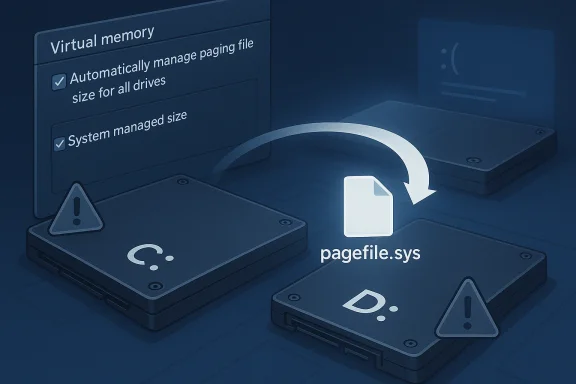
The strongest case for moving the page file is simple: your C: drive is too small, and your secondary drive is fast enough to handle the workload. Microsoft’s own guidance says dedicated dump files can live on any disk volume that can support a page file, and crash-dump documentation even discusses saving dump data to another local disk when appropriate. That makes the “must stay on C:” rule more folklore than law, though the boot volume still matters for some dump scenarios.The storage bottleneck problem
On modern laptops and compact desktops, the real issue is not raw disk speed but available headroom. A page file that grows under pressure can turn a drive with 20 or 30 GB free into a drive that feels perpetually squeezed, which in turn affects updates, temporary files, and the overall resilience of the operating system. Moving the page file to a larger secondary SSD can restore breathing room without forcing you to delete useful data.This is especially appealing when the secondary drive is also an SSD. In that case, you can reduce contention on the boot drive while keeping paging fast enough to avoid obvious stutter. If the alternative is a tiny system disk that is constantly full, relocating the page file can be a very rational compromise.
The scenario is weaker when the second drive is a mechanical HDD. Microsoft does not present HDDs as ideal paging targets, and common-sense performance rules say the slower drive can become the new bottleneck. In practice, moving the page file to an HDD may free space, but it can also make memory pressure more painful when Windows actually needs the file.
- Best case: a second SSD with ample free space.
- Acceptable case: a second HDD if the goal is mainly to free the system drive.
- Weak case: moving from SSD to HDD just to “save wear.”
- Poor idea: placing multiple page-file fragments on the same physical disk just for cleverness.
- Good goal: reduce contention and preserve boot-drive space without hurting responsiveness.
When You Should Not Move It
There are situations where leaving the page file alone is the smarter choice. If your system relies on Automatic Memory Dump or you regularly troubleshoot blue screens, keeping the paging file on the boot drive simplifies dump capture and aligns with Microsoft’s preferred defaults. That is particularly true for machines used in support roles or enterprise environments where postmortem analysis matters.Diagnostics come first
A lot of users think of the page file only as a performance lever, but its diagnostic role is just as important. Microsoft’s crash-dump guidance repeatedly emphasizes disk-space sufficiency for both the page file and the resulting MEMORY.DMP file. If you move the file without preserving enough space or without understanding the dump settings, you can quietly lose the evidence needed to investigate a crash.That risk is highest on systems where the boot volume is the only drive guaranteed to be available early in startup. On such machines, moving the page file elsewhere may be technically possible but operationally unwise. The more mission-critical the machine, the more attractive the boring default becomes.
There is also a supportability angle. Microsoft’s documentation and troubleshooting articles are written around a system-managed model, which means deviating from it can make third-party support harder if something goes wrong later. That does not make manual control wrong, but it does mean the burden of proof shifts to the person making the change.
- Keep it on C: if crash-dump reliability matters more than free space.
- Keep it system-managed if you do not have a specific reason to tune it.
- Avoid moving it on laptops with only one practical fast drive.
- Avoid moving it on troubleshooting or production systems without a recovery plan.
- Avoid shrinking it too far if memory-intensive apps are part of your daily workload.
How to Move the Page File Safely
If you do decide to move it, the process is straightforward, but the order matters. Windows exposes the controls through Advanced system settings, then Performance Options, then Virtual Memory. The important part is to make each change deliberately, click Set after each drive adjustment, and restart so Windows can rebuild the page file on the new volume.Step-by-step approach
- Open System and then Advanced system settings.
- In System Properties, open the Advanced tab and select Settings under Performance.
- In Performance Options, open Advanced and click Change under Virtual memory.
- Clear Automatically manage paging file size for all drives.
- Select C:, choose No paging file, and click Set.
- Select the destination drive, choose System managed size, and click Set.
- Confirm the changes, close the dialogs, and restart the computer.
After rebooting, Windows should recreate pagefile.sys on the selected drive. If you want to verify it, you can enable hidden items in File Explorer and, if necessary, show protected operating system files so the file becomes visible at the root of the destination volume. That confirmation step is worth doing because a typo or missed Set click can leave the system using the original configuration.
- Click Set after every drive change.
- Restart immediately after applying the settings.
- Verify the file is present on the target drive.
- Consider a small C: page file if you want crash-dump resilience.
- Create a backup first so you can revert if needed.
Performance, SSD Wear, and Real-World Impact
The phrase “faster SSD” is the critical qualifier here. A page file on a fast SSD is generally much less disruptive than one on a hard drive because paging patterns are irregular and latency-sensitive. When Windows needs memory quickly, it benefits more from low access latency than from raw sequential throughput, and SSDs are simply better at that kind of work.What changes you are likely to notice
For many users, the most obvious gain is not benchmark superiority but smoother multitasking under pressure. If the system can lean on a second SSD instead of a nearly full boot drive, app switching and temporary memory recovery tend to feel less congested. The change is often modest, but it can be meaningful on a machine that already tends to run close to the edge.The SSD wear argument is usually overstated. Yes, the page file can see frequent writes, but modern SSD endurance is generally high enough that ordinary desktop paging is unlikely to be a dominant wear factor. In most consumer scenarios, preserving free space and reducing contention is a more compelling reason to move the file than trying to protect the flash cells from normal use.
On the other hand, performance penalties can become obvious if you move the file to a slower device. That is why the “secondary drive should be at least as fast as the original” rule is sound advice, even if Windows will not stop you from making a bad choice. The operating system can adapt, but it cannot make a slow disk act like a fast one.
- SSD placement usually preserves responsiveness.
- HDD placement can introduce visible stutter under pressure.
- Wear reduction is a secondary benefit, not the main one.
- Freeing the boot drive often matters more than raw benchmark numbers.
- Modern SSD endurance makes normal paging less scary than many users assume.
Enterprise and Power-User Considerations
Enterprises approach page-file management differently because they care about repeatability, supportability, and forensic value. Microsoft’s server guidance explicitly frames the system-managed page file and automatic dump combination as a way to keep disk requirements low while preserving the ability to capture useful crash data. That is a very different objective from the average home user who mainly wants to recover space on a cramped drive.Why administrators are cautious
Administrators also have to think about storage topologies. A secondary drive may not be local, may not be guaranteed online early in boot, or may be part of a policy-managed volume that is not appropriate for crash artifacts. In those environments, relocating the page file for cosmetic space savings can create downstream operational problems that are harder to diagnose than the original issue.Power users sit somewhere in the middle. They are more likely to run RAM-hungry workloads, use dedicated SSDs for games or scratch data, and care about micro-optimizations that normal users ignore. For them, a thoughtfully placed page file can be part of a broader storage layout strategy, especially if the system drive is small and the secondary drive is both fast and reliable.
The key is to treat the page file as infrastructure, not clutter. If you approach it with the same discipline you would apply to backup targets or system partitions, it becomes a manageable piece of the storage plan. If you treat it like junk to be exiled anywhere, it becomes a source of avoidable headaches.
- Enterprises prioritize crash fidelity over marginal space savings.
- Power users can benefit from careful placement on a second SSD.
- Remote or managed storage can complicate boot-time availability.
- Policy and predictability matter more than anecdotal speed gains.
- The page file should be planned, not improvised.
Strengths and Opportunities
Moving the page file can be a smart cleanup move when the conditions are right, and the upside is usually more practical than dramatic. You gain space on your system volume, reduce the pressure on a crowded boot SSD, and may improve the feel of a machine that routinely leans on virtual memory. The strongest outcomes come when you pair the change with a healthy dose of restraint and keep Windows’ crash-dump needs in mind.- Frees space on the boot drive without uninstalling useful software.
- Reduces storage contention if the target drive is a second SSD.
- Preserves performance better than many other space-saving tricks.
- Can improve system resilience by keeping the OS volume less cramped.
- Supports a cleaner storage layout for users who separate OS and data volumes.
- Lets advanced users tune storage behavior without changing hardware.
- Works well with a system-managed target file rather than a rigid manual size.
Risks and Concerns
The biggest danger is not the move itself but the assumption that any move is automatically an upgrade. If you relocate the page file to a slower disk, under-size it, or remove it entirely without understanding dump requirements, you can make troubleshooting harder and memory pressure more visible. There is also a risk that a tidy storage decision today becomes a support headache tomorrow if a crash dump cannot be written when needed.- Slower drive placement can make paging feel worse, not better.
- Crash dumps may fail or be reduced if the configuration is too aggressive.
- Misclicks during setup can leave the original page file unchanged.
- Overconfidence in manual sizing can override Microsoft’s safer defaults.
- Drive failures or disconnects are more dangerous if the target drive is critical.
- Removing the boot-volume file entirely may reduce forensic options.
- Enterprise systems may become less supportable with nonstandard paging rules.
Looking Ahead
Windows is unlikely to stop relying on the page file anytime soon, because the feature serves both memory-management and crash-recovery needs. What may continue to evolve is how aggressively Windows sizes it automatically, especially as RAM capacities rise and crash-dump strategies become more adaptive. Microsoft’s recent documentation already reflects that direction, with automatic memory dump behavior designed to balance space use against diagnostics.The broader trend is clear: the page file is less about old-school “virtual memory tricks” and more about system reliability under modern workloads. As machines get faster and storage gets denser, many users will still benefit from moving the file — but only if they choose the right destination and preserve the ability to recover from a crash. That balance, not the move itself, is what makes the tweak worthwhile.
- Watch whether Windows continues to refine automatic sizing behavior.
- Expect crash-dump guidance to remain central to best practices.
- Look for more users to separate OS and paging workloads on dual-SSD systems.
- Treat very small system drives as the main use case for relocation.
- Assume supportability matters more as PC setups become more complex.
Source: MakeUseOf Your Windows page file might be on the wrong drive — here's how to move it where it belongs
