

Buy a Copilot+ PC now only if your current device is already due for replacement and you expect to use AI-assisted capture daily; otherwise, wait and keep using the standard Windows 11 Snipping Tool. Microsoft’s most interesting upcoming capture feature, perfect screenshot, is tied to Copilot+ PC hardware, but that does not turn a working Windows 11 laptop into e-waste or make a smarter crop button worth a premature replacement cycle.
The practical split is simple: Snipping Tool is already useful for everyday capture work, while perfect screenshot is part of Microsoft’s push to make Copilot+ PCs feel different in ordinary tasks. For most WindowsForum readers, the right answer is restraint: do not replace a reliable Windows 11 machine just to get smarter screenshot selection.
Snipping Tool survives because it does not ask much of the user. Press the shortcut, grab the thing on screen, mark it up, paste it into a ticket, an email, a Teams chat, or a knowledge-base article. That boring reliability is exactly why Microsoft’s redesign matters: a small change to a tiny utility can affect more daily workflows than a grand feature buried three menus deep.
The decision framework is straightforward. If you need screenshots, basic annotation, redaction, screen recording, or color picking, Windows 11 already gives you a capable built-in tool. If you specifically want Microsoft’s AI-assisted perfect screenshot feature, you are looking at Copilot+ PC territory, because Microsoft has described that feature as AI-powered and available on Copilot+ PCs.
That distinction should cool the upgrade impulse. A new PC is not a plugin, and Copilot+ hardware is not merely a license unlock for a toolbar button. It is a platform bet on local AI features arriving across Windows over time, with some likely to become useful and others likely to matter less depending on real-world behavior.
The buyer’s rule should be explicit: buy only if your current device is already due for replacement and you expect to use AI-assisted capture daily.
That description should stay modest. “Perfect screenshot” does not mean every capture will be perfect, and it should not be treated as proof that Windows understands every object, dialog, or layout on screen. Based on Microsoft’s own framing, the practical promise is narrower: more precise screenshot capture with less manual cropping or resizing afterward.
That still matters because screenshots are rarely about the whole display. People need the dialog box, the error message, the receipt block, the chart, the region of a web app, or the exact control a help-desk user cannot find.
Today, that often means drawing a rectangle slightly too large, opening the result, trimming it, realizing the crop missed something, and doing it again. A tool that reliably helps users capture the intended area could remove several small annoyances from dozens of daily interactions. For support desks, documentation writers, QA testers, educators, and anyone who lives in tickets and repro steps, those seconds can add up.
But that is also why Microsoft’s hardware limitation matters. If perfect screenshot is genuinely useful, it becomes one of the clearest everyday examples of the Copilot+ PC pitch: not a chatbot floating over the desktop, but local AI quietly improving a mundane action. If it is unreliable, inconsistent, or slower than dragging a rectangle, it becomes another reminder that AI branding does not automatically make a workflow better.
The feature’s value will come down to trust. Users will tolerate a smarter capture mode only if it is fast, predictable, and easy to override. The classic rectangle capture still has to remain one keyboard shortcut away.
For ordinary capture work, the fastest path remains the keyboard. Use Windows logo key + Shift + S for a screenshot capture overlay. Use Windows logo key + Shift + R for video capture. Open Snipping Tool directly when you want the full app interface, access to editing controls, or a more deliberate recording session.
That already handles a large share of the real-world use cases Windows users care about. A sysadmin can redact a username from a screenshot before posting it into an incident channel. A power user can grab a configuration dialog and annotate it before sending instructions to a family member. A trainer can capture a short clip of a UI path without installing a third-party recorder.
The basics — capture modes, cropping, video recording, markup, redaction, and quick sharing — are not the interesting part of this story. The interesting part is that Microsoft appears to be improving Snipping Tool in two directions at once: richer local capture for everyone, and AI-assisted capture for Copilot+ PC owners. Those are related strategies, but they do not produce the same upgrade argument.
If your current workflow is “capture, mark up, paste, move on,” the standard tool is already enough. If your workflow is “capture dozens of precise interface elements every day, clean them up, reuse them in documentation, and repeat,” perfect screenshot may eventually matter more.
That matters, but it should not be overstated. It does not prove that Snipping Tool is becoming a full workflow platform, and it does not automatically mean every app will integrate deeply with it. The concrete point is simpler: Microsoft is documenting ways to invoke Snipping Tool more deliberately for capture tasks.
For users, that can make Snipping Tool feel less like a loose accessory and more like a dependable Windows utility. For developers and IT pros, a documented capture path is preferable to a mess of random browser extensions, freeware screenshot apps, or unvetted screen recorders installed only because users need to show what happened.
It also hints at why Microsoft may be revisiting the interface now. A tool built only for manual screenshots can afford to be a small floating palette. A tool that handles image capture, video capture, app invocation, redaction, color picking, and AI-assisted selection needs a clearer hierarchy. Redesigning Snipping Tool is not just about making it prettier; it is about keeping a simple tool understandable as it gains more jobs.
That is the strongest version of Microsoft’s case: not AI for spectacle, but targeted assistance used where it reduces friction in a task users already perform.
Perfect screenshot is closer to that argument than many louder AI demos. It lives in a familiar app. It solves a common annoyance. It does not require users to rethink computing around a conversational assistant.
Still, that does not mean the feature alone justifies buying new hardware. A PC purchase should be based on the whole device: performance, battery life, compatibility, lifecycle needs, security posture, repairability, budget, and organizational timing. Perfect screenshot can be a useful tiebreaker. It should not be the sole reason a good Windows 11 machine goes into early retirement.
This is especially true for buyers who recently moved to a capable Windows 11 laptop or desktop. Even if perfect screenshot works well, the return on investment depends on repetition. A user who captures two images a week will not feel the same benefit as a documentation writer, QA tester, trainer, or support technician who captures dozens of screen regions a day.
The more honest pitch for Copilot+ PCs is cumulative. One useful AI feature may not justify the purchase, but several daily features across capture, search, image editing, accessibility, and productivity might. Perfect screenshot belongs in that larger basket. It should not carry the whole upgrade argument by itself.
The safer point is this: Snipping Tool works best when intelligence is attached to the capture task itself, not when the app becomes another place to advertise a branded assistant. A screenshot tool does not need to lecture users about AI. It needs to capture the right pixels quickly, keep manual control intact, and avoid adding friction to a task that is often performed under pressure.
That distinction is important for WindowsForum readers. AI as a local capability inside a specific workflow can be helpful. AI as a generic button inside every familiar app can feel like promotion. Perfect screenshot is more credible if Microsoft treats it as a capture feature rather than a Copilot billboard.
Users do not need a new mental model when they press Windows logo key + Shift + S. They need the right area, captured quickly, with manual control still available.
Long recordings are one pressure point. Snipping Tool’s video capture is convenient for short demonstrations, but “quick clip” and “robust recording workflow” are not the same thing. Users who need polished exports, long sessions, careful audio handling, or repeatable production settings may still find themselves looking elsewhere.
Export polish is another. In many workflows, the capture is only half the job. The rest is naming, saving, compressing, copying, redacting, and getting the file into the right destination without creating desktop clutter. Better launch behavior may help in some cases, but users will judge the redesign by whether it reduces handoffs.
Reliability is the unforgiving standard. A screenshot tool that is clever most of the time and unpredictable at the wrong moment is worse than a simple rectangle users can trust. AI-assisted capture will need to be fast, understandable in the moment, and easy to override. The escape hatch matters as much as the magic.
Defaults matter too. A redesigned Snipping Tool should not bury the fastest manual path under AI suggestions, promotional surfaces, or mode confusion. The classic rectangle capture must remain immediate. The app can become smarter without becoming slower.
That is where Microsoft has to be careful. Snipping Tool is not a blank canvas for product experimentation. It is muscle memory. If the redesign adds visual clutter, changes expected behavior, or pushes users into a more complicated flow, many will reject it no matter how clever the underlying feature is.
The same applies in managed environments. IT departments are generally more tolerant of new features when old muscle memory remains intact. If the redesign changes visible behavior without clear policy controls, documentation, or predictable rollout timing, it will create avoidable help-desk noise.
There is also a trust angle. Screenshots often contain sensitive data: names, account IDs, internal URLs, system details, chat excerpts, and customer information. AI-assisted capture needs clear boundaries. Users should not have to wonder whether a local capture action is being turned into a cloud interaction.
The best implementation would make the AI assistance feel optional and obvious: visible when useful, silent when unnecessary, and never a barrier to the manual capture path.
In WindowsForum’s report on the revamped Windows 11 Start menu, the central idea was a familiar one: Microsoft is trying to streamline app access and reduce friction in a place users visit constantly. That same theme applies here. A better Snipping Tool is not important because screenshots are glamorous; it is important because capture is one of those small tasks that interrupts real work when it is clumsy.
WindowsForum’s coverage of Microsoft To Do in Windows 11 made a similar point from a productivity angle. The app was framed as a quiet, free, cross-platform task hub rather than a flashy reinvention of work. That is the useful lens for Snipping Tool too. Built-in utilities win when they reduce the need to hunt for third-party apps, remember extra accounts, or add another paid tool to a basic workflow.
WindowsForum readers have also followed Microsoft’s AI work in Paint, Notepad, and Snipping Tool. Those reports described Microsoft bringing smarter automation into classic utilities that many users still treat as simple, dependable tools. That balance is the whole challenge. Paint, Notepad, and Snipping Tool are not prestige apps, but they are habit-forming. They are trusted because they are immediately available and easy to understand.
The same caution applies to File Explorer. WindowsForum’s reporting on AI-enhanced File Explorer captured Microsoft’s larger ambition to embed intelligence into familiar parts of Windows. But File Explorer also shows the risk: when Microsoft changes a core surface, users judge the result by speed, clarity, and control, not by the size of the AI label.
That is the standard Snipping Tool has to meet. When Microsoft improves these utilities thoughtfully, Windows feels better without demanding a new mental model. When it clutters them with branding, prompts, or half-finished integrations, Windows feels like it is arguing with the user.
The best version of the Snipping Tool redesign is therefore modest in presentation and meaningful in use. It should make capture faster for people who do it constantly, stay out of the way for people who only need a quick rectangle, and give organizations enough control to trust it.
Support desks should treat perfect screenshot as a possible time-saver, not a procurement trigger. The feature could help with tickets, walkthroughs, and repro documentation if it makes capture more precise with less cleanup. But support work also depends on consistency. If manual rectangle capture is faster and more predictable, it should remain the default.
Creators, trainers, and documentation writers should think in terms of repetition. If you capture screen regions constantly for tutorials, bug reports, product walkthroughs, app comparisons, or forum posts, perfect screenshot could become a meaningful quality-of-life feature. Even then, the right move is to evaluate the whole machine. A Copilot+ PC may make sense if you also want newer hardware, better battery life, and access to Microsoft’s AI-capable Windows features. It makes less sense if your only motivation is a single Snipping Tool feature.
IT admins should treat the Snipping Tool changes as part of Windows 11 app modernization, not as a reason to panic-buy hardware. Start by identifying who actually depends on screen capture. Support teams, trainers, QA testers, documentation writers, and field technicians may benefit most from smarter capture. General office users may not care.
Admins should also separate app evaluation from device procurement. A user already due for replacement and doing screen-heavy work may be a strong Copilot+ PC candidate. A user with a recent, stable Windows 11 device should not be rushed into an upgrade because one capture feature is hardware-gated.
Current Copilot+ PC buyers are in the easiest position: test the feature when it is available to you, but do not abandon the manual workflow. The key comparison is not whether perfect screenshot sounds smarter. It is whether it is faster than dragging a rectangle, more accurate than your usual crop, and reliable enough to become muscle memory.
Ask five practical questions:
What to do now:
The practical split is simple: Snipping Tool is already useful for everyday capture work, while perfect screenshot is part of Microsoft’s push to make Copilot+ PCs feel different in ordinary tasks. For most WindowsForum readers, the right answer is restraint: do not replace a reliable Windows 11 machine just to get smarter screenshot selection.
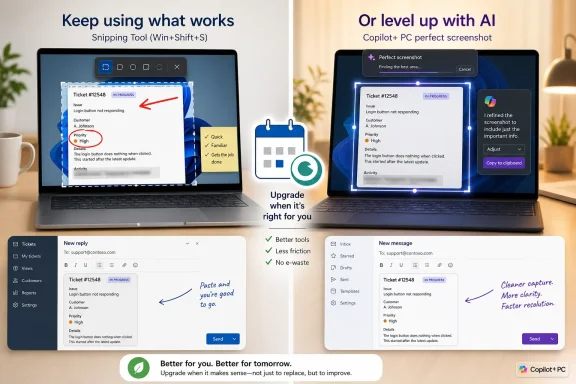 The Sensible Answer Is to Separate the Tool From the PC
Snipping Tool survives because it does not ask much of the user. Press the shortcut, grab the thing on screen, mark it up, paste it into a ticket, an email, a Teams chat, or a knowledge-base article. That boring reliability is exactly why Microsoft’s redesign matters: a small change to a tiny utility can affect more daily workflows than a grand feature buried three menus deep.The decision framework is straightforward. If you need screenshots, basic annotation, redaction, screen recording, or color picking, Windows 11 already gives you a capable built-in tool. If you specifically want Microsoft’s AI-assisted perfect screenshot feature, you are looking at Copilot+ PC territory, because Microsoft has described that feature as AI-powered and available on Copilot+ PCs.
That distinction should cool the upgrade impulse. A new PC is not a plugin, and Copilot+ hardware is not merely a license unlock for a toolbar button. It is a platform bet on local AI features arriving across Windows over time, with some likely to become useful and others likely to matter less depending on real-world behavior.
The buyer’s rule should be explicit: buy only if your current device is already due for replacement and you expect to use AI-assisted capture daily.
Quick Decision Framework
| User type | Best action | Why |
|---|---|---|
| Home user | Wait unless you already need a new PC | Standard Snipping Tool already handles everyday screenshots, markup, quick sharing, and short captures. |
| Support desk | Pilot before buying broadly | Smarter capture could help with tickets, repro steps, and user guidance, but reliability and privacy behavior matter more than novelty. |
| Creator, trainer, or documentation writer | Consider Copilot+ only if replacing hardware anyway | Perfect screenshot may save time if you capture precise interface regions constantly, but the whole machine still has to justify the purchase. |
| IT admin | Separate app evaluation from device procurement | Test the redesigned tool with screen-heavy users, review controls and privacy details, and let refresh timing drive hardware decisions. |
| Current Copilot+ buyer | Try it, but keep manual capture habits | You are already in the target hardware category, so evaluate whether perfect screenshot is faster than the classic rectangle workflow. |
Perfect Screenshot Is the Feature That Changes the Buying Math
The feature to watch is not another pen color or a nicer toolbar. It is perfect screenshot, which Microsoft has described in Windows Insider messaging as an AI-powered way to capture screen content more precisely without needing to crop or resize afterward. In plain English, Microsoft wants Snipping Tool to help select the right area of the screen so users do less cleanup after the capture.That description should stay modest. “Perfect screenshot” does not mean every capture will be perfect, and it should not be treated as proof that Windows understands every object, dialog, or layout on screen. Based on Microsoft’s own framing, the practical promise is narrower: more precise screenshot capture with less manual cropping or resizing afterward.
That still matters because screenshots are rarely about the whole display. People need the dialog box, the error message, the receipt block, the chart, the region of a web app, or the exact control a help-desk user cannot find.
Today, that often means drawing a rectangle slightly too large, opening the result, trimming it, realizing the crop missed something, and doing it again. A tool that reliably helps users capture the intended area could remove several small annoyances from dozens of daily interactions. For support desks, documentation writers, QA testers, educators, and anyone who lives in tickets and repro steps, those seconds can add up.
But that is also why Microsoft’s hardware limitation matters. If perfect screenshot is genuinely useful, it becomes one of the clearest everyday examples of the Copilot+ PC pitch: not a chatbot floating over the desktop, but local AI quietly improving a mundane action. If it is unreliable, inconsistent, or slower than dragging a rectangle, it becomes another reminder that AI branding does not automatically make a workflow better.
The feature’s value will come down to trust. Users will tolerate a smarter capture mode only if it is fast, predictable, and easy to override. The classic rectangle capture still has to remain one keyboard shortcut away.
The Existing Snipping Tool Is Already Good Enough for Most Work
The case against upgrading is not ideological. It is practical. Windows 11’s Snipping Tool already covers the core jobs most people need: screenshots, annotation, redaction, screen recording, and color picking. Those are not speculative features waiting for a product cycle; they are the working set users can build around today.For ordinary capture work, the fastest path remains the keyboard. Use Windows logo key + Shift + S for a screenshot capture overlay. Use Windows logo key + Shift + R for video capture. Open Snipping Tool directly when you want the full app interface, access to editing controls, or a more deliberate recording session.
That already handles a large share of the real-world use cases Windows users care about. A sysadmin can redact a username from a screenshot before posting it into an incident channel. A power user can grab a configuration dialog and annotate it before sending instructions to a family member. A trainer can capture a short clip of a UI path without installing a third-party recorder.
The basics — capture modes, cropping, video recording, markup, redaction, and quick sharing — are not the interesting part of this story. The interesting part is that Microsoft appears to be improving Snipping Tool in two directions at once: richer local capture for everyone, and AI-assisted capture for Copilot+ PC owners. Those are related strategies, but they do not produce the same upgrade argument.
If your current workflow is “capture, mark up, paste, move on,” the standard tool is already enough. If your workflow is “capture dozens of precise interface elements every day, clean them up, reuse them in documentation, and repeat,” perfect screenshot may eventually matter more.
Microsoft Is Redesigning Around Familiar Workflows
The underappreciated signal is Microsoft’s newer Snipping Tool launch protocol. Microsoft’s tips page describes ways to launch Snipping Tool for image and video capture, including options that let apps open Snipping Tool in particular capture modes. That is the safe conclusion: Microsoft is giving users and apps more direct ways to start capture flows.That matters, but it should not be overstated. It does not prove that Snipping Tool is becoming a full workflow platform, and it does not automatically mean every app will integrate deeply with it. The concrete point is simpler: Microsoft is documenting ways to invoke Snipping Tool more deliberately for capture tasks.
For users, that can make Snipping Tool feel less like a loose accessory and more like a dependable Windows utility. For developers and IT pros, a documented capture path is preferable to a mess of random browser extensions, freeware screenshot apps, or unvetted screen recorders installed only because users need to show what happened.
It also hints at why Microsoft may be revisiting the interface now. A tool built only for manual screenshots can afford to be a small floating palette. A tool that handles image capture, video capture, app invocation, redaction, color picking, and AI-assisted selection needs a clearer hierarchy. Redesigning Snipping Tool is not just about making it prettier; it is about keeping a simple tool understandable as it gains more jobs.
That is the strongest version of Microsoft’s case: not AI for spectacle, but targeted assistance used where it reduces friction in a task users already perform.
Copilot+ PCs Still Need a Better Everyday Pitch
The Copilot+ PC category has a messaging problem. Microsoft can talk about NPUs, local models, and AI experiences, but most buyers do not purchase a laptop because a processor block has a fashionable acronym. They buy because something they do every day becomes faster, easier, or newly possible.Perfect screenshot is closer to that argument than many louder AI demos. It lives in a familiar app. It solves a common annoyance. It does not require users to rethink computing around a conversational assistant.
Still, that does not mean the feature alone justifies buying new hardware. A PC purchase should be based on the whole device: performance, battery life, compatibility, lifecycle needs, security posture, repairability, budget, and organizational timing. Perfect screenshot can be a useful tiebreaker. It should not be the sole reason a good Windows 11 machine goes into early retirement.
This is especially true for buyers who recently moved to a capable Windows 11 laptop or desktop. Even if perfect screenshot works well, the return on investment depends on repetition. A user who captures two images a week will not feel the same benefit as a documentation writer, QA tester, trainer, or support technician who captures dozens of screen regions a day.
The more honest pitch for Copilot+ PCs is cumulative. One useful AI feature may not justify the purchase, but several daily features across capture, search, image editing, accessibility, and productivity might. Perfect screenshot belongs in that larger basket. It should not carry the whole upgrade argument by itself.
The Copilot Context Should Be Treated Carefully
It is tempting to frame every Windows AI change as part of a single sweeping Copilot strategy, but that can get sloppy quickly. Microsoft has adjusted Copilot placement and AI features across Windows experiences over time, yet broad claims about a specific “2026 pullback” need precise scope and dates before they are useful.The safer point is this: Snipping Tool works best when intelligence is attached to the capture task itself, not when the app becomes another place to advertise a branded assistant. A screenshot tool does not need to lecture users about AI. It needs to capture the right pixels quickly, keep manual control intact, and avoid adding friction to a task that is often performed under pressure.
That distinction is important for WindowsForum readers. AI as a local capability inside a specific workflow can be helpful. AI as a generic button inside every familiar app can feel like promotion. Perfect screenshot is more credible if Microsoft treats it as a capture feature rather than a Copilot billboard.
Users do not need a new mental model when they press Windows logo key + Shift + S. They need the right area, captured quickly, with manual control still available.
The Pain Points Microsoft Still Has to Prove It Can Solve
The current Snipping Tool is useful, but it is not flawless. The areas that matter most are not glamorous: long recordings, export polish, reliability, predictable defaults, and administrative clarity. These are the places where working users feel the tool’s limits.Long recordings are one pressure point. Snipping Tool’s video capture is convenient for short demonstrations, but “quick clip” and “robust recording workflow” are not the same thing. Users who need polished exports, long sessions, careful audio handling, or repeatable production settings may still find themselves looking elsewhere.
Export polish is another. In many workflows, the capture is only half the job. The rest is naming, saving, compressing, copying, redacting, and getting the file into the right destination without creating desktop clutter. Better launch behavior may help in some cases, but users will judge the redesign by whether it reduces handoffs.
Reliability is the unforgiving standard. A screenshot tool that is clever most of the time and unpredictable at the wrong moment is worse than a simple rectangle users can trust. AI-assisted capture will need to be fast, understandable in the moment, and easy to override. The escape hatch matters as much as the magic.
Defaults matter too. A redesigned Snipping Tool should not bury the fastest manual path under AI suggestions, promotional surfaces, or mode confusion. The classic rectangle capture must remain immediate. The app can become smarter without becoming slower.
The Default Experience Will Decide Whether Users Embrace It
Windows utilities live or die by defaults. Most users will not study a changelog, dig through settings, or memorize three new modes. They will press the shortcut they already know and decide within seconds whether the new experience helped or got in the way.That is where Microsoft has to be careful. Snipping Tool is not a blank canvas for product experimentation. It is muscle memory. If the redesign adds visual clutter, changes expected behavior, or pushes users into a more complicated flow, many will reject it no matter how clever the underlying feature is.
The same applies in managed environments. IT departments are generally more tolerant of new features when old muscle memory remains intact. If the redesign changes visible behavior without clear policy controls, documentation, or predictable rollout timing, it will create avoidable help-desk noise.
There is also a trust angle. Screenshots often contain sensitive data: names, account IDs, internal URLs, system details, chat excerpts, and customer information. AI-assisted capture needs clear boundaries. Users should not have to wonder whether a local capture action is being turned into a cloud interaction.
The best implementation would make the AI assistance feel optional and obvious: visible when useful, silent when unnecessary, and never a barrier to the manual capture path.
The WindowsForum Angle Is Familiar: Microsoft Is Rebuilding the Small Stuff
This Snipping Tool story fits a broader Windows 11 pattern WindowsForum readers have been tracking across several everyday surfaces. Microsoft is not only changing headline features; it is revisiting the small utilities and inbox experiences people touch constantly.In WindowsForum’s report on the revamped Windows 11 Start menu, the central idea was a familiar one: Microsoft is trying to streamline app access and reduce friction in a place users visit constantly. That same theme applies here. A better Snipping Tool is not important because screenshots are glamorous; it is important because capture is one of those small tasks that interrupts real work when it is clumsy.
WindowsForum’s coverage of Microsoft To Do in Windows 11 made a similar point from a productivity angle. The app was framed as a quiet, free, cross-platform task hub rather than a flashy reinvention of work. That is the useful lens for Snipping Tool too. Built-in utilities win when they reduce the need to hunt for third-party apps, remember extra accounts, or add another paid tool to a basic workflow.
WindowsForum readers have also followed Microsoft’s AI work in Paint, Notepad, and Snipping Tool. Those reports described Microsoft bringing smarter automation into classic utilities that many users still treat as simple, dependable tools. That balance is the whole challenge. Paint, Notepad, and Snipping Tool are not prestige apps, but they are habit-forming. They are trusted because they are immediately available and easy to understand.
The same caution applies to File Explorer. WindowsForum’s reporting on AI-enhanced File Explorer captured Microsoft’s larger ambition to embed intelligence into familiar parts of Windows. But File Explorer also shows the risk: when Microsoft changes a core surface, users judge the result by speed, clarity, and control, not by the size of the AI label.
That is the standard Snipping Tool has to meet. When Microsoft improves these utilities thoughtfully, Windows feels better without demanding a new mental model. When it clutters them with branding, prompts, or half-finished integrations, Windows feels like it is arguing with the user.
The best version of the Snipping Tool redesign is therefore modest in presentation and meaningful in use. It should make capture faster for people who do it constantly, stay out of the way for people who only need a quick rectangle, and give organizations enough control to trust it.
What Different Users Should Do
Home users should not buy a Copilot+ PC just for Snipping Tool. If your current Windows 11 device is reliable, keep using the built-in capture shortcuts and wait for the redesigned experience to mature. Use the standard Snipping Tool for grabbing receipts, saving error messages, annotating screenshots for family tech support, or recording short clips of an app problem. Those are exactly the kinds of jobs the existing tool already handles well.Support desks should treat perfect screenshot as a possible time-saver, not a procurement trigger. The feature could help with tickets, walkthroughs, and repro documentation if it makes capture more precise with less cleanup. But support work also depends on consistency. If manual rectangle capture is faster and more predictable, it should remain the default.
Creators, trainers, and documentation writers should think in terms of repetition. If you capture screen regions constantly for tutorials, bug reports, product walkthroughs, app comparisons, or forum posts, perfect screenshot could become a meaningful quality-of-life feature. Even then, the right move is to evaluate the whole machine. A Copilot+ PC may make sense if you also want newer hardware, better battery life, and access to Microsoft’s AI-capable Windows features. It makes less sense if your only motivation is a single Snipping Tool feature.
IT admins should treat the Snipping Tool changes as part of Windows 11 app modernization, not as a reason to panic-buy hardware. Start by identifying who actually depends on screen capture. Support teams, trainers, QA testers, documentation writers, and field technicians may benefit most from smarter capture. General office users may not care.
Admins should also separate app evaluation from device procurement. A user already due for replacement and doing screen-heavy work may be a strong Copilot+ PC candidate. A user with a recent, stable Windows 11 device should not be rushed into an upgrade because one capture feature is hardware-gated.
Current Copilot+ PC buyers are in the easiest position: test the feature when it is available to you, but do not abandon the manual workflow. The key comparison is not whether perfect screenshot sounds smarter. It is whether it is faster than dragging a rectangle, more accurate than your usual crop, and reliable enough to become muscle memory.
The Upgrade Decision Comes Down to Practical Tests
Before buying hardware for a redesigned Snipping Tool, treat the decision like any other Windows productivity upgrade: define the job, confirm the dependency, and avoid paying for a promise you will not use. The dividing line is not whether AI is exciting. It is whether AI-assisted capture removes enough friction from your real work to influence a PC purchase.Ask five practical questions:
- Is your current PC already due for replacement?
If not, stop there. A working Windows 11 machine should not be replaced just because one capture feature is interesting. - Do you capture precise screen regions every day?
Perfect screenshot matters most for people who repeatedly capture UI elements, dialogs, error messages, and documentation images. - Would fewer crop-and-resize steps save real time?
If screenshots are occasional, the benefit is minor. If they are part of your job, the feature deserves attention. - Does the Copilot+ PC make sense without this one feature?
Performance, battery life, compatibility, budget, lifecycle, and support needs should decide the hardware purchase. - Can you keep manual capture as a fallback?
Any AI-assisted capture tool must be easy to override. The classic rectangle workflow should remain the safety net.
Frequently Asked Questions
Should I buy a Copilot+ PC just for the new Snipping Tool features?
No. Buy a Copilot+ PC only if your current device is already due for replacement and you expect to use AI-assisted capture often enough to matter. A smarter screenshot feature is not a good reason to retire a reliable Windows 11 PC early.What does perfect screenshot actually do?
Microsoft has described perfect screenshot as an AI-powered way to capture screen content more precisely without needing to crop or resize afterward. In plain terms, it is meant to help you select the useful area of the screen with less cleanup after the capture. It should be judged by how well it does that simple job.Is perfect screenshot available on every Windows 11 PC?
No. Microsoft has tied perfect screenshot to Copilot+ PCs. Standard Windows 11 PCs still have the regular Snipping Tool experience for screenshots, markup, redaction, screen recording, and color picking.Is the current Snipping Tool still worth using?
Yes. For most users, the current Windows 11 Snipping Tool is already good enough. It handles everyday screenshots, quick markup, short recordings, and sharing without requiring third-party software.Who benefits most from perfect screenshot?
The likely winners are people who capture screen regions repeatedly: support technicians, documentation writers, QA testers, trainers, creators, educators, and power users who produce guides or bug reports. Occasional home users are less likely to feel a major difference.Should IT departments buy Copilot+ PCs because of Snipping Tool?
Not by itself. IT admins should pilot the redesigned Snipping Tool with screen-heavy users, review privacy and policy details, and let normal hardware refresh timing drive purchases. The feature may be useful, but it should not override lifecycle planning.Does this mean AI is finally useful in Windows?
It means this is one of the more practical kinds of AI feature: assistance inside a task users already perform. Whether it is actually useful depends on execution. If it captures the right area faster than manual selection, it helps. If it adds uncertainty or delay, users will ignore it.What should I do if I need better screen capture today?
Use the built-in Snipping Tool first. Learn the keyboard shortcuts, use annotation and redaction where needed, and use screen recording for short clips. If your work requires long recordings, advanced export controls, or production-grade editing, keep a specialized tool in your workflow.Final Answer: Wait Unless You Were Already Buying
The direct answer is simple: do not buy a Copilot+ PC solely for perfect screenshot or the redesigned Snipping Tool. Buy one only if your current PC is already due for replacement and the whole device makes sense for your workload, budget, and support needs. Perfect screenshot may become a genuinely useful everyday feature, especially for people who capture screen content constantly, but it should be a tiebreaker — not the reason a reliable Windows 11 machine gets replaced.What to do now:
- If your PC is working well: keep it and use the current Snipping Tool.
- If you are already shopping for a laptop: include Copilot+ features in the comparison, but judge the whole machine.
- If you run a support desk or documentation team: pilot the feature with screen-heavy users before changing procurement plans.
- If you already own a Copilot+ PC: test perfect screenshot when available and compare it against manual rectangle capture.
- If you only take occasional screenshots: wait; the standard Windows 11 tool is enough.