

Linux taught me how to think about an operating system as a toolbox, and those lessons have quietly reshaped the way I use Windows every day. The small but powerful shifts — adopting package managers, trusting the terminal, treating customization as a productivity affordance, taking security and patching seriously, automating repetitive work, and watching system resources — add up to a markedly better Windows experience, not by abandoning Microsoft’s platform but by bringing Linux-born habits to it. The original How‑To Geek reflection that sparked this conversation lays out these exact six lessons and shows how practical cross‑pollination between OS cultures produces measurable gains in control and efficiency.
Linux and Windows have long occupied different roles in the desktop ecosystem: Linux as the playground for tinkers, servers, and people who want full control; Windows as the mainstream, broad‑compatibility desktop with polished consumer features. That divide is narrowing in practice even if the markets remain distinct, thanks to tools like Windows Subsystem for Linux (WSL), modern Windows terminals, and command-line package managers. The author’s experience — switching from a GUI-first Windows workflow to one informed by Linux habits — is both typical and instructive. The idea isn’t to turn Windows into Linux, but to import a few robust workflows that pay big dividends for productivity and security.
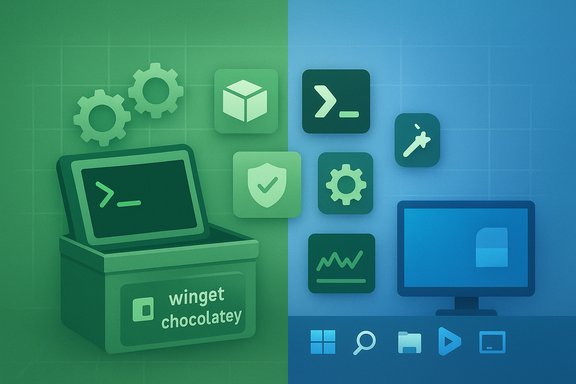
On Linux, package managers such as apt, dnf, and pacman centralize installation, dependency resolution, and updates. That model eliminates hunting for installers, dodging adware bundles, and juggling manual updates. When applied to Windows, the same principle dramatically reduces friction: tools like winget and Chocolatey let you script installs and upgrades from a trusted command line, turning a multi‑step GUI task into a reproducible one-liner (for example, winget install VLC or winget upgrade --all). The How‑To Geek author credits this mental model shift with saving time and giving a stronger sense of control over software maintenance.
Why this matters
What changed for the author was less about learning specific commands and more about adopting a command-first approach: instead of hunting through menus, consider whether a one-line command or script can do the job. Familiar Unix concepts like grep (text search) and top (system monitors) have functional equivalents in Windows — findstr and Get-Process — and become far more useful once you stop seeing the command line as a fallback device. The How‑To Geek piece spotlights a PowerShell pipeline that renames many files at once as an example of the power unlocked by this shift.
Examples you’ll use immediately
What the author did
Concrete changes the author adopted
Real example from the field
Key practices to borrow
What WSL gives you
The How‑To Geek author’s account is a practical case study: modest changes like adopting winget, learning PowerShell pipelines, customizing the desktop, hardening privilege use, automating launch steps, and monitoring resources produced clear, repeatable benefits. That outcome is backed up by community and technical analyses that emphasize both the upside and the caveats, especially around bootloader and WSL caveats — advice that should temper enthusiastic hacking with sensible backups and patch diligence.
Embracing Linux lessons on Windows is not an act of platform betrayal; it’s an exercise in selective adaptation. Take the package manager, keep Windows for what it excels at, use WSL where it helps, and treat the desktop as a work surface you’re allowed to improve. Those six lessons — package management, terminal fluency, customization, security habits, automation, and resource awareness — will make anyone a measurably better Windows user.
By deliberately adopting these practices and keeping a cautious respect for edge‑cases and update cycles, a Windows setup becomes faster, safer, and more pleasant to use — precisely the practical payoff the original How‑To Geek reflection describes.
Source: How-To Geek Using Linux made me a better Windows user, here's how
 Background / Overview
Linux and Windows have long occupied different roles in the desktop ecosystem: Linux as the playground for tinkers, servers, and people who want full control; Windows as the mainstream, broad‑compatibility desktop with polished consumer features. That divide is narrowing in practice even if the markets remain distinct, thanks to tools like Windows Subsystem for Linux (WSL), modern Windows terminals, and command-line package managers. The author’s experience — switching from a GUI-first Windows workflow to one informed by Linux habits — is both typical and instructive. The idea isn’t to turn Windows into Linux, but to import a few robust workflows that pay big dividends for productivity and security.Package management: turn chaos into control
One of the clearest, most immediately useful lessons Linux teaches is the value of a single, auditable package manager.On Linux, package managers such as apt, dnf, and pacman centralize installation, dependency resolution, and updates. That model eliminates hunting for installers, dodging adware bundles, and juggling manual updates. When applied to Windows, the same principle dramatically reduces friction: tools like winget and Chocolatey let you script installs and upgrades from a trusted command line, turning a multi‑step GUI task into a reproducible one-liner (for example, winget install VLC or winget upgrade --all). The How‑To Geek author credits this mental model shift with saving time and giving a stronger sense of control over software maintenance.
Why this matters
- Consistency: One interface to install, update, and remove apps across machines.
- Security: Reduced reliance on ad‑supported third‑party installer sites and fewer opportunities for bundled junk.
- Automation: Easily run the same setup script across new systems or VMs.
- Install winget (it ships in recent Windows releases) or Chocolatey if you prefer its ecosystem.
- Build a small setup script listing your typical apps:
- winget install --id=VideoLAN.VLC
- winget install --id=Git.Git
- Store the script in version control and run it whenever you provision a machine.
- Repositories and package metadata on Windows are not as mature or uniform as the largest Linux distributions’ repos; verify package maintainers when possible.
The terminal isn’t scary — it’s leverage
Using the terminal on Linux forces you to think in commands and pipelines, and that mindset transfers cleanly to PowerShell and the new Windows Terminal.What changed for the author was less about learning specific commands and more about adopting a command-first approach: instead of hunting through menus, consider whether a one-line command or script can do the job. Familiar Unix concepts like grep (text search) and top (system monitors) have functional equivalents in Windows — findstr and Get-Process — and become far more useful once you stop seeing the command line as a fallback device. The How‑To Geek piece spotlights a PowerShell pipeline that renames many files at once as an example of the power unlocked by this shift.
Examples you’ll use immediately
- Bulk rename files in PowerShell:
Get-ChildItem -Path "C:\MyFiles" -Filter ".txt" | ForEach-Object { Rename-Item $.FullName -NewName ("new*" + $_.Name) } - Find a string across files:
Select-String -Pattern "needle" -Path C:\path\to*.log
- Speed: Tasks that take many clicks can take a single, repeatable command.
- Traceability: Commands and scripts can be versioned and audited.
- Resilience: CLI workflows often work in recovery shells and remote SSH sessions.
- Mistyped commands can have destructive consequences; use dry‑run flags and test scripts on safe directories first.
Customization: make Windows work the way you think
Linux desktops are notorious for customization depth. That experience teaches you to treat the desktop as a work surface to optimize, not a fixed product. While Windows doesn’t offer the same granular control, a range of tools lets you safely reshape the experience.What the author did
- Adopted Rainmeter to add desktop widgets (system monitors, weather, clocks) and recreate Linux Conky‑style dashboards.
- Used ExplorerPatcher, StartAllBack, and Open‑Shell to restore or replace Start Menu and Taskbar behaviors.
- Applied Oh My Posh to style the terminal prompt and used custom icon packs to create a cohesive visual language on the desktop.
- Cognitive ergonomics: A consistent layout and visual language reduce friction when switching tasks.
- Information at a glance: Desktop widgets can present critical metrics without opening a monitoring app.
- Aesthetics meet productivity: A workspace you enjoy reduces friction and increases the odds you’ll automate and optimize other tasks.
- Third‑party shell and start menu replacements can occasionally conflict with Windows updates or system integrity checks. Keep a restore point or system image before applying invasive changes, and prefer projects with active maintenance. Community reflections and forums repeatedly warn about bootloader and UI‑replacement pitfalls — backup before you experiment.
Security awareness: less privilege, more habit
Linux communities tend to internalize a security posture: limited privilege by default, frequent system updates, and care about package provenance. Bringing that discipline to Windows produces immediate benefits.Concrete changes the author adopted
- Limit running apps as Administrator; use elevated privileges only when required.
- Prefer verified sources (Microsoft Store, official vendor GitHub releases, reputable repos) over random download pages.
- Treat updates as first‑class security hygiene — install patches promptly rather than postponing them.
- Least privilege reduces blast radius: Running daily apps with standard rights limits the damage a compromised app can do.
- Timely patching prevents exploitation: The Linux habit of frequent updates reverses the common Windows pattern of deferring patches.
- Multiple community analyses point out that WSL and Windows components introduce additional attack surface that must be managed; treat WSL like another component to be patched and audited. Recent technical writeups emphasize keeping WSL and Windows updated and avoiding unsafe driver practices.
- Relying solely on store apps is not a panacea; vet publishers and update channels. Use package manager checksums when available.
Automating tasks: one click to rule them all
Automation on Linux is often the gateway drug to efficiency: shell scripts, cron jobs, and small utilities remove repetitive friction. The same approach on Windows — batch files, PowerShell scripts, scheduled tasks — repays effort quickly.Real example from the field
- The author converted a multi‑step local web app startup (set env vars, start local server, open browser) into a single script that runs everything, saving minutes each time and reducing error.
- Identify repeatable workflows that take more than three steps.
- Script them using PowerShell (or bash inside WSL if tooling depends on Linux).
- Add logging and idempotence checks so the script can be run safely multiple times.
- Schedule routine tasks with Task Scheduler or a background service.
- Reliability: Scripts reduce human error.
- Portability: A startup script makes on‑boarding a new machine fast.
- Observability: Scripts with clear logs help diagnose failures faster.
- Scripts that make system changes should include confirmations or dry‑run flags. Keep an exported copy under version control for rollback capability.
Managing system resources: monitor, trim, optimize
Linux users routinely consult tools like htop and iostat to understand what’s actually using CPU, memory, and I/O. That habit of observability transferred to Windows for the author, who began using Resource Monitor, Process Monitor, and other diagnostic tools to keep the system lean. The result: measurable improvements in performance and battery life.Key practices to borrow
- Monitor background services and autoruns and remove or disable what you don’t need.
- Use Process Explorer / Resource Monitor for per‑process insight.
- Watch disk I/O and background tasks — heavy indexing or scheduled scans can plague responsiveness.
- Open Resource Monitor to view real‑time I/O and memory consumers.
- Use Autoruns (Sysinternals) to audit startup items.
- Install a light background monitor (or Rainmeter widget) for CPU/temperature awareness.
- Community writeups highlight the concrete benefits of running lean and explain why Windows users often benefit from turning off or replacing resource-hungry OEM utilities.
WSL and hybrid workflows: the pragmatic bridge
One of the biggest structural changes in recent years is that you no longer need to choose between native Linux and Windows for much of your tooling. WSL (especially WSL2) provides a lightweight Linux kernel and userland inside Windows, delivering near‑native compatibility for many development workflows. The How‑To Geek author and community analyses agree: WSL is a practical bridge, not a perfect substitution for a full Linux desktop, but it’s transformational for developer productivity.What WSL gives you
- Native Linux shells and package managers without rebooting.
- GUI app support (WSLg) for many Linux graphical tools.
- Integration with VS Code via Remote‑WSL for editing in the Linux environment while keeping UI on Windows.
- Use WSL2 rather than WSL1 for better compatibility and performance.
- Keep active projects inside the WSL filesystem (e.g., /home) for best I/O characteristics; using /mnt/c can degrade performance for heavy workloads.
- Treat WSL like a system component: patch it and follow vendor GPU driver guidance if you rely on GPU compute — do not install Linux GPU drivers inside WSL.
- High‑throughput I/O, production database workloads, and some GPU‑heavy use cases still prefer native Linux for maximum predictability and throughput. Use WSL for rapid iteration and prototyping, and reserve native installs for heavy production tasks.
Practical, safe steps to bring Linux habits to Windows
Below is a concise playbook for readers who want to adopt the six core lessons without destabilizing their main Windows workstation.- Package management
- Install winget and/or Chocolatey.
- Create a setup script and store it in your dotfiles repo.
- Command-line fluency
- Install Windows Terminal and PowerShell 7.
- Learn 10 PowerShell commands you’ll use weekly (Get-Process, Get-Service, Get-EventLog/Select-String equivalents).
- Safe customization
- Start with Rainmeter themes and minimal Start/Taskbar tweaks.
- Make a system image before applying kernel-level or shell replacements.
- Security hygiene
- Audit admin rights and remove unnecessary elevated accounts.
- Subscribe to Windows update notifications and apply critical patches promptly.
- Automation
- Replace any three-step manual workflow with a script; test and log.
- Resource measurement
- Use Resource Monitor / Process Explorer weekly and keep autoruns tidy.
- WSL as needed
- Install WSL2 and a favored distro.
- Place projects in the WSL fs and use VS Code Remote‑WSL for editing.
Risks, trade-offs, and what to watch for
The cross‑platform lessons carry practical risks which deserve explicit mention.- Third‑party UI tools can break with major Windows updates and sometimes require uninstall/restore steps to recover. Maintain recovery points and backups when experimenting with UI replacements. Community forums repeatedly report bootloader and UI conflicts when users pursue aggressive customizations.
- WSL adds complexity and a new attack surface. Keep it patched and follow vendor guidance for GPU and driver installs. Recent technical guidance explicitly warns against installing Linux GPU drivers inside WSL and recommends keeping both Windows and WSL updated.
- Automation can be dangerous if scripts are not idempotent or lack validation. Always test scripts in a safe environment first.
- Package manager ecosystems on Windows are improving but are not yet identical in maturity to the largest Linux distributions’ repositories; verify packages and checksums when security is critical.
Closing analysis: why this fusion matters
Linux doesn’t simply teach different commands — it instills a pattern of thinking: prefer auditable, repeatable workflows; minimize unnecessary privilege; observe your system; and automate where it reduces risk. When these habits migrate to Windows they don’t just make one machine marginally faster — they change how you reason about computing. That mental model rewards curiosity and reduces surprises.The How‑To Geek author’s account is a practical case study: modest changes like adopting winget, learning PowerShell pipelines, customizing the desktop, hardening privilege use, automating launch steps, and monitoring resources produced clear, repeatable benefits. That outcome is backed up by community and technical analyses that emphasize both the upside and the caveats, especially around bootloader and WSL caveats — advice that should temper enthusiastic hacking with sensible backups and patch diligence.
Embracing Linux lessons on Windows is not an act of platform betrayal; it’s an exercise in selective adaptation. Take the package manager, keep Windows for what it excels at, use WSL where it helps, and treat the desktop as a work surface you’re allowed to improve. Those six lessons — package management, terminal fluency, customization, security habits, automation, and resource awareness — will make anyone a measurably better Windows user.
By deliberately adopting these practices and keeping a cautious respect for edge‑cases and update cycles, a Windows setup becomes faster, safer, and more pleasant to use — precisely the practical payoff the original How‑To Geek reflection describes.
Source: How-To Geek Using Linux made me a better Windows user, here's how
