

Microsoft’s quiet about-face on Smart App Control (SAC) has finally addressed one of the feature’s most user‑hostile design choices — you can now toggle SAC from inside Windows without permanently locking it off — but the reality on the ground remains messy: depending on which Windows 11 build or channel you’re on, and whether your device was clean‑installed or upgraded, you may still need to reset or reinstall to get SAC working reliably. This gap between Microsoft’s announcement, Insider previews, and what most users actually see deserves scrutiny because SAC sits at the crossroads of usability, security, and trust for Windows 11 users and IT teams alike.
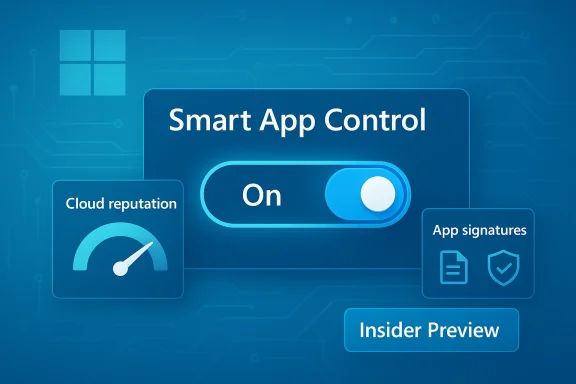
Smart App Control debuted as a proactive, “default‑deny”‑style application control for Windows 11: it checks an app’s cloud reputation and signatures before allowing it to run, blocking untrusted or unknown binaries before they execute. That approach is more preventative than traditional antivirus, which largely reacts after a file runs. Microsoft positioned SAC as a consumer‑friendly enforcement of Windows Defender Application Control (WDAC) principles — effectively a WDAC “light” that works out of the box for typical users. Microsoft’s own documentation explains how SAC evaluates apps and why it was originally only available on clean installs of Windows 11, to ensure the baseline system is free of existing untrusted binaries before an enforcement profile is applied.
But the original lifecycle created a serious adoption problem: if you turned SAC off, or if you upgraded your PC from an earlier Windows build, SAC stayed off and could not be re‑enabled without wiping or resetting the machine. That all‑or‑nothing lifecycle pushed many users to simply avoid the feature altogether. Independent explainers and how‑to guides documented the problem early and repeatedly, and community forums filled with workarounds — some supported, some risky.
Independent outlets and coverage followed quickly, confirming the change in Insider builds and reporting Microsoft’s stated goal: remove the clean‑install barrier so regular users and IT pilots can test SAC without nuking their machines. WindowsLatest and other outlets confirmed the feature is in preview and that Microsoft expected a broader rollout in 2026.
Microsoft’s staged rollout continued into Release Preview and further Insider updates: subsequent optional updates and KBs (for example, KB5074105 and related releases) explicitly list SAC improvements and note the removal of the clean‑install limitation in specific preview channels. That means the code and UI change exist in Microsoft’s staged releases — but staged availabilityre the core reason many machines still show the old behavior.
At the same time, community threads and aggregated content captured the user experience: many users reported that until the preview bits reached their channel, SAC still behaved as before — off if the device was upgraded, or requiring a reset to re‑enable. The conversation around SAC in user forums underscores how Microsoft’s messaging and server‑side gates can diverge from what the average user sees.
That design choice had real consequences:
Key points:
That said, the tradeoffs are material:
Community threads and monitoring show users still encountering the old behavior on production images even after Microsoft’s announcement. That mismatch between blog posts and end‑user realities is a well‑known feature of Microsoft’s staged delivery model — watch your update catalog and KB release notes for the specific builds (KB5070300, KB5074105, and subsequent packages) that enable the toggle on your SKU.
If you value the security SAC offers, plan tests on Insider or Release Preview hardware, use audit policies to understand potential breakage, and coordinate with vendors whose installers you rely on. For organizations, proper WDAC deployment remains the supported, durable path where deterministic behavior and manageability matter. And for everyday users, keep an eye on Windows Update and Microsoft’s release notes: when the toggle reaches your channel, the balance between safety and flexibility will finally tilt in your favor — but until then, treat SAC’s availability as a staged feature and test thoroughly before flipping the switch.
Source: Windows Report https://windowsreport.com/smart-app...-windows-11-install-after-microsoft-reversal/
 Background / Overview
Smart App Control debuted as a proactive, “default‑deny”‑style application control for Windows 11: it checks an app’s cloud reputation and signatures before allowing it to run, blocking untrusted or unknown binaries before they execute. That approach is more preventative than traditional antivirus, which largely reacts after a file runs. Microsoft positioned SAC as a consumer‑friendly enforcement of Windows Defender Application Control (WDAC) principles — effectively a WDAC “light” that works out of the box for typical users. Microsoft’s own documentation explains how SAC evaluates apps and why it was originally only available on clean installs of Windows 11, to ensure the baseline system is free of existing untrusted binaries before an enforcement profile is applied.But the original lifecycle created a serious adoption problem: if you turned SAC off, or if you upgraded your PC from an earlier Windows build, SAC stayed off and could not be re‑enabled without wiping or resetting the machine. That all‑or‑nothing lifecycle pushed many users to simply avoid the feature altogether. Independent explainers and how‑to guides documented the problem early and repeatedly, and community forums filled with workarounds — some supported, some risky.
What changed — and where the statements actually came from
Microsoft announced a change to SAC inside Windows Insider Preview Build 26220.7070 (KB5070300): Insiders in Dev and Beta channels would see a toggle in Windows Security to turn SAC on or off without requiring a clean install. That announcement appeared in the Windows Insider blog and is explicit about the new toggle.Independent outlets and coverage followed quickly, confirming the change in Insider builds and reporting Microsoft’s stated goal: remove the clean‑install barrier so regular users and IT pilots can test SAC without nuking their machines. WindowsLatest and other outlets confirmed the feature is in preview and that Microsoft expected a broader rollout in 2026.
Microsoft’s staged rollout continued into Release Preview and further Insider updates: subsequent optional updates and KBs (for example, KB5074105 and related releases) explicitly list SAC improvements and note the removal of the clean‑install limitation in specific preview channels. That means the code and UI change exist in Microsoft’s staged releases — but staged availabilityre the core reason many machines still show the old behavior.
At the same time, community threads and aggregated content captured the user experience: many users reported that until the preview bits reached their channel, SAC still behaved as before — off if the device was upgraded, or requiring a reset to re‑enable. The conversation around SAC in user forums underscores how Microsoft’s messaging and server‑side gates can diverge from what the average user sees.
Why Microsoft made the original decision — and why it mattered
Microsoft’s original design — only enable SAC on a clean install and make it hard to re‑enable — was a risk‑avoidance strategy. SAC’s enforcement blocks unsigned and low‑reputation binaries by default; if an existing system already ran unsigned code or legacy installers, turning SAC on retroactively could break legitimate user scenarios. Microsoft chose conservatism to avoid creating a poor out‑of‑box experience for developers, enterprises with legacy line‑of‑business apps, and power users. The company documented these tradeoffs in official FAQs and OOBE privacy statements, which also note SAC’s dependency on diagnostic data and evaluation mode behavior.That design choice had real consequences:
- Many users simply avoided SAC because they couldn’t risk losing app functionality.
- IT teams faced a painful pilot model: either wipe and provision devices to test SAC at scale, or accept that testing would be incomplete.
- Security benefits were confined to a subset of users — those who could or would clean‑install Windows.
The technical reality: When SAC still requires a clean install (and when it does not)
There’s no single “yes/no” answer that applies to every machine today. The lifecycle now depends on two things:- The Windows build and servicing channel your machine is on (Insider Dev/Beta vs Release Preview vs general public).
- Whether SAC was ever enabled, disabled, or the device was upgraded vs clean‑installed.
- Microsoft’s Insider announcement (Build 26220.7070 / KB5070300) adds a toggle that allows SAC to be turned on or off without reinstalling — for Insiders getting that build.
- Coverage from technology press confirms the toggle landed in Insider builds and that Microsoft said a broader rollout would follow in 2026. That rollout is staged, not instantaneous.
- Release Preview channel updates (for example, KB5074105) also list Smart App Control improvements and assert the clean‑install limitation no longer applies in those preview builds — evidence that the change is passing additional quality gates. But this still means mainstream consumers on stable channels may not see the toggle until Microsoft flips rollout switches.
- Microsoft’s FAQ and OOBE privacy statements remain authoritative about SAC’s historic behavior (clean‑install requirement, evaluation mode, and diagnostic data dependencies), and they still describe scenarios where SAC is unavailable without reinstalling or resetting the device. That language is a warning: server‑side gating, device eligibility checks, and privacy choices continue to affect availability.
Practical guidance: how to check SAC status and what to expect
If you want to know exactly where your machine stands, follow these steps (short, actionable):- Open Settings > Privacy & security > Windows Security.
- Click App & Browser Control > look for Smart App Control. The control will show one of three states: On, Evaluation, or Off. Microsoft documents this workflow.
- Are you on an Insider, Release Preview, or stable channel? Insiders are the first to receive the new toggle.
- Was your system upgraded from a prior Windows version rather than clean‑installed? Upgraded systems historically show SAC as Off.
- Do you have diagnostic data turned off? Microsoft’s FAQ notes SAC depends on diagnostic data being enabled in some scenarios. Turning optional diagnostic data on during setup is part of the historic requirement; the FAQ still mentions it as a gating factor. Consider the privacy trade‑offs before changing this setting.
Workarounds, registry hacks, and why many are a bad idea
Because SAC’s lifecycle was strict, the community produced registry workarounds and WinRE tricks to flip SAC state. Guides and forums document registry edits that attempt to manipulate WDAC keys, and Microsoft Learn explicitly warns about using the registry for testing only. Editing registry values to force SAC modes can leave devices in unsupported states, reduce protection, or break updates. Use caution.Key points:
- Microsoft Learn: registry edits are allowed only for testing and can compromise protection. Use audit policies and the citool to test safely.
- Community posts show multiple manual procedures for “re‑enabling” SAC from WinRE or by loading the SYSTEM hive, but these steps are brittle and not supported; they may yield short‑term success but create longer term maintenance or support issues.
Security analysis: benefits, tradeoffs, and risk management
Smart App Control promises real security upside: it prevents unknown or low‑reputation binaries from launching, providing a strong barrier against many commodity threats and zero‑day exploits delivered via unsigned installers. When SAC is active and tuned for your environment, it reduces exposure to malware that depends on execution rather than persistence or signed drivers.That said, the tradeoffs are material:
- Compatibility risk — SAC can block legitimate tools (especially developer tools, installers, and unsigned agents). Enterprises with legacy apps will experience friction. Microsoft designed SAC’s evaluation mode to identify poor candidates, but that relies on good telemetry and device eligibility.
- Operational risk — if SAC blocks a critical installer in production and you cannot re‑enable it easily, recovery path complexity increases. Microsoft’s move to make SAC toggleable in Insider builds mitigates this risk, but only after the toggle becomes widely available does the operational risk truly fall.
- Telemetry and privacy tradeoffs — SAC uses cloud reputation signals. Some of those protections require diagnostic/telemetry data to be enabled during setup or evaluation. Users and admins must weigh privacy policy and compliance demands against security gains. The Microsoft OOBE privacy notes and SAC FAQ document this relationship clearly.
- Use WDAC policies (full WDAC, not just SAC) where you need deterministic, auditable control over allowed code.
- Pilot SAC on a controlled cohort where the toggle is available, or use VMs to simulate clean install behavior.
- Combine SAC with other protections (Microsoft Defender, SmartScreen, EDR) rather than treating it as a complete replacement. Microsoft’s guidance and third‑party analysis both characterize SAC as complementary to existing protections.
What administrators and IT teams should do now
- Inventory: identify apps that rely on unsigned binaries or non‑standard installers. Those are the prime candidates for breakage under SAC. Use test VMs with SAC in Evaluation mode to generate audit logs and see what would be blocked. Microsoft Learn documents how to use audit policies and citool for this purpose.
- Pilot: enroll a subset of non‑critical devices into Insider or Release Preview channels if you need to validate the toggle behavior now. That gives you first‑hand experience of the new toggle before it lands on the stable channel.
- Policy: if you manage fleets, consider a proper WDAC policy for critical endpoints while you evaluate SAC for broader usage; WDAC gives granular, enterprise‑grade controls that SAC intentionally abstracts away. Microsoft’s documentation and enterprise guidance around Application Control and WDAC remain the right operational model for managed environments.
- Communication: tell users what to expect — if SAC is enabled, explain the process to request blocked apps to be reviewed (Feedback Hub and Microsoft review processes exist), and set expectations on telemetry/diagnostic settings if your privacy policy allows.
The rollout timeline and what to watch
Microsoft made the technical change in November 2025 (Insider build 26220.7070 / KB5070300) and continued to stage it into Release Preview and other preview KBs in late 2025 and early 2026 (for example, KB5074105). That means code and UI changes are in place for preview testers — but staged rollouts, server‑side eligibility checks, and device gating mean many mainstream users will only see the change when Microsoft flips broader distribution switches. If your priority is immediate testing, enroll test hardware in Insider or Release Preview. If you’re in the stable channel and SAC remains unavailable or tied to a clean install, expect the official gradual rollout to continue through 2026.Community threads and monitoring show users still encountering the old behavior on production images even after Microsoft’s announcement. That mismatch between blog posts and end‑user realities is a well‑known feature of Microsoft’s staged delivery model — watch your update catalog and KB release notes for the specific builds (KB5070300, KB5074105, and subsequent packages) that enable the toggle on your SKU.
Bottom line — is SAC broken, fixed, or in transition?
- Fixed (technically): Microsoft implemented the toggle in Insider and Release Preview builds. The engineering change exists.
- Not universally available (operationally): Many users on stable channels still face the historic clean‑install constraint or gated availability, so the experience is inconsistent. Microsoft’s staged rollout approach explains that inconsistency.
- Actionable advice: If you need SAC now, test in Insider/Release Preview or in lab VMs. If you’re an IT admin, treat SAC as an additional tool alongside WDAC and standard endpoint controls. If you’re a privacy‑conscious user, read Microsoft’s diagnostic data notes and weigh the tradeoffs before changing telemetry settings.
Conclusion
Smart App Control remains one of Windows 11’s most promising user‑facing security features: it pushes enforcement closer to the “deny‑first” model that mitigates many delivery‑based threats. Microsoft’s change to allow toggle control without a clean reinstall resolves a major usability failure. But the feature’s real‑world utility depends on rollout cadence, device eligibility checks, and enterprise compatibility needs — and those variables mean that as of this writing the ecosystem is in transition, not closure.If you value the security SAC offers, plan tests on Insider or Release Preview hardware, use audit policies to understand potential breakage, and coordinate with vendors whose installers you rely on. For organizations, proper WDAC deployment remains the supported, durable path where deterministic behavior and manageability matter. And for everyday users, keep an eye on Windows Update and Microsoft’s release notes: when the toggle reaches your channel, the balance between safety and flexibility will finally tilt in your favor — but until then, treat SAC’s availability as a staged feature and test thoroughly before flipping the switch.
Source: Windows Report https://windowsreport.com/smart-app...-windows-11-install-after-microsoft-reversal/
