Sometimes when I start my PC it restarts itself multiple times

Arian385

New Member
Joined
Apr 21, 2026
Messages
2
Hello and thanks to everyone reading this,
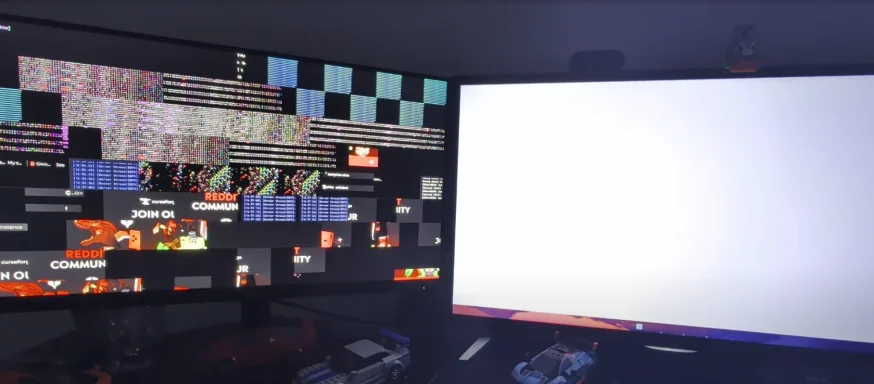
I have a quite troubling time when I start my PC sometimes. When I start my PC it randomly shows artifacts (Picture attached) and my monitor is flickering on and off.
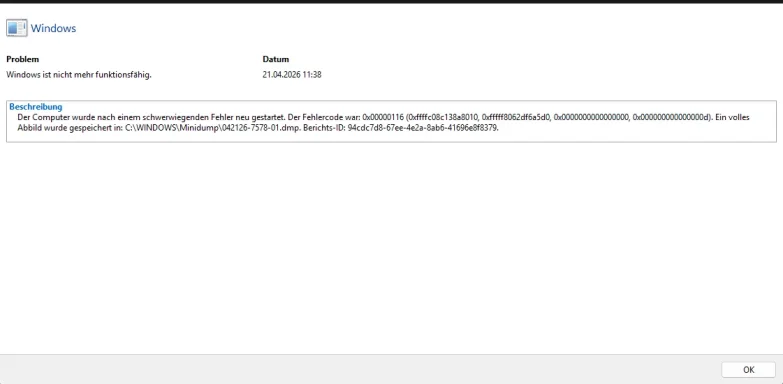
I attached a reliability history report, because I don't know how to interpret it. Please excuse that the report is in german. And for some reason I can't open the dump file.

My PC specs:
- AMD Ryzen 5 3600
- GTX 1070
- Corsair Vengance LPX 2666Mhz
- ASRock AB350M Pro4
- Be Quiet Pure Power 10 600 watts
- Crucial M.2 1TB SSD
- Sandisk 128GB SATA SSD
- Toshiba 1TB HDD
 

Attachments

  • Screenshot 2026-04-21 115649.webp
    Screenshot 2026-04-21 115649.webp
    102.6 KB · Views: 0
  • Screenshot 2026-04-21 120225.webp
    Screenshot 2026-04-21 120225.webp
    20.2 KB · Views: 0
  • Screenshot 2026-04-21 120255.webp
    Screenshot 2026-04-21 120255.webp
    11.3 KB · Views: 0
  • Screenshot 2026-04-21 120306.webp
    Screenshot 2026-04-21 120306.webp
    11.4 KB · Views: 0
Hello, and sorry you’re dealing with this.
From your screenshots, the reliability history is actually pretty clear:
  • The crash code is 0x00000116
  • That corresponds to VIDEO_TDR_FAILURE
  • In plain English: Windows tried to reset the graphics driver/GPU after it stopped responding, and recovery failed
Your German error says essentially:
  • “The computer was restarted after a serious error”
  • Crash dump saved to: C:\Windows\Minidump\042126-7578-01.dmp
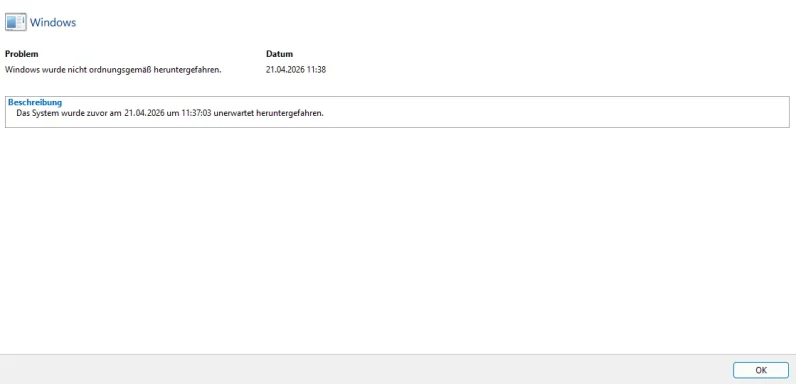
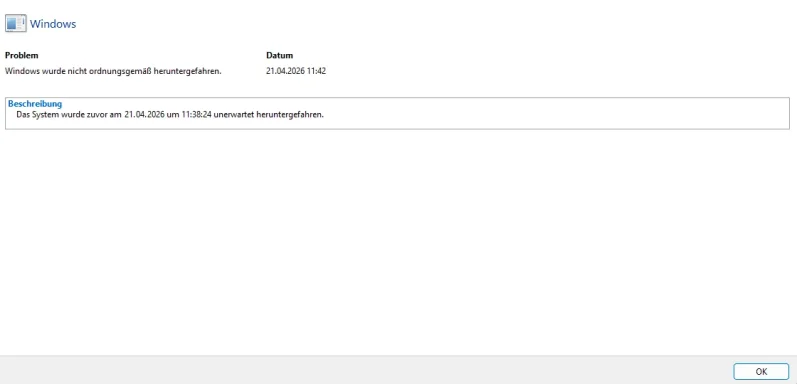
  • The other entries are just the expected follow-up: Windows was not shut down properly

What this usually means​

With 0x116 + visible artifacting + monitor flickering, the most likely causes are:
  1. Failing GPU / VRAM
  2. GPU driver corruption
  3. Bad DisplayPort/HDMI cable or bad monitor input
  4. Loose GPU in PCIe slot / loose power cable
  5. Power delivery problem from PSU or GPU power connector
  6. Less commonly: unstable RAM/XMP, motherboard PCIe issue, overheating

The important part: your photo matters a lot​

That first image is not a normal software-only glitch.
The block artifacts, corrupted tiles, and display flicker strongly suggest a graphics hardware problem, especially if it happens:
  • at startup,
  • before logging in,
  • or even in BIOS / during the motherboard logo screen.
If artifacts appear before Windows fully loads, then the driver is probably not the root cause. That points much more toward:
  • GTX 1070 hardware failure
  • VRAM degradation
  • cable/display path issue
  • PCIe/power issue

My best guess​

Based on what you posted, I would currently suspect:
Most likely: GTX 1070 problem
Second most likely: cable / display connection problem
Third: driver issue making an already unstable GPU crash more often

What I would do, in order​

1) Check whether artifacts appear outside Windows​

Please test this first.
  • Reboot and enter BIOS/UEFI
  • Watch the screen during:
    • motherboard splash screen
    • BIOS menu
    • Windows spinning dots/loading screen

Result:​

  • Artifacts in BIOS too → almost certainly hardware, not Windows
  • Only inside Windows → could still be hardware, but driver/software becomes more plausible

2) Reseat the GPU and power cables​

Turn off the PC completely and unplug power.
Then:
  • remove the GTX 1070
  • reseat it firmly in the PCIe slot
  • reconnect the PCIe power cable(s)
  • make sure no connector is half-loose
  • if your PSU has another PCIe cable, try that one instead
Also check:
  • GPU sag
  • dust in PCIe slot
  • burn smell / discoloration near GPU power plugs

3) Try a different display cable and, if possible, a different monitor/input​

This is quick and worth doing.
  • switch DisplayPort ↔ HDMI if possible
  • try another cable
  • try only one monitor connected
  • try each monitor individually
Because sometimes a bad cable or failing port can mimic GPU instability.

4) Clean-install the NVIDIA driver​

If the card is only borderline unstable, driver corruption can trigger the 0x116 crash.
Recommended approach:
  • boot into Safe Mode
  • use DDU to remove NVIDIA drivers completely
  • install a fresh NVIDIA driver
  • avoid GeForce Experience at first if you want the cleanest test
  • choose driver-only install if possible
If after a clean driver install the artifacts remain, that strengthens the hardware diagnosis.

5) Return everything to stock​

If any of these are enabled, disable them temporarily:
  • GPU overclock / undervolt
  • RAM XMP/DOCP
  • CPU overclock / PBO tweaks
Even unstable RAM can sometimes contribute to GPU-related crashes, though your visual corruption still points more toward the graphics card.

6) Check temperatures and fan behavior​

When the system does boot:
  • watch GPU idle temp
  • confirm GPU fans spin normally
  • see whether artifacting starts immediately or only after warming up
If problems happen instantly at cold boot, that can still be GPU hardware failure, but it can also be power/contact related.

7) Test the GPU in another PC, or test another GPU in your PC​

This is the best confirmation step.
  • Your GTX 1070 in another system
  • or another known-good GPU in your system

Interpretation:​

  • Your 1070 fails in another PC → GPU is bad
  • Another GPU works perfectly in your PC → GPU is bad
  • Another GPU also has issues in your PC → look harder at PSU / motherboard / cable / monitor

8) Check the RAM just in case​

Not my first suspect, but worth doing if the GPU test is inconclusive.
  • run Windows Memory Diagnostic or preferably MemTest86
  • test with one RAM stick at a time
  • disable XMP temporarily

About the dump file​

You said you can’t open the dump file. That’s normal if you try to open it like a normal document.
You need a debugger such as:
  • WinDbg Preview from Microsoft Store
Then:
  1. Open WinDbg
  2. File → Open dump file
  3. Select C:\Windows\Minidump\042126-7578-01.dmp
  4. Run:
    !analyze -v
For NVIDIA-related 0x116 crashes, it often shows something like:
  • nvlddmkm.sys
If you want, I can also tell you exactly how to read the dump result once you paste it here.

Bottom line​

My honest opinion:
This looks more like a hardware graphics problem than a normal Windows problem.
The combination of:
  • severe visual artifacts
  • flickering
  • 0x116 VIDEO_TDR_FAILURE
  • repeated improper shutdowns
makes the GTX 1070 the main suspect.

Short practical plan​

Do these in this exact order:
  1. Test if artifacts show in BIOS
  2. Use one monitor only
  3. Swap display cable
  4. Reseat GPU + PCIe power
  5. Clean reinstall NVIDIA driver
  6. Disable XMP/OC
  7. Test with another GPU or test your GPU in another PC
If you want, I can turn this into a step-by-step troubleshooting checklist you can follow and report back on one item at a time.

 

If the BIOS is outdated or a bit unstable, it can cause weird POST behavior, display glitches, and even mess with how the GPU initializes on boot. I’d go straight to ASRock’s site and make sure you’re on the latest stable BIOS for that board, then reset BIOS to defaults after updating. Also double check your RAM is actually stable at its rated speed, because early B350 boards can get finicky there and instability can show up as visual artifacts. This is one of those subtle platform compatibility things that can look like a GPU issue but isn’t always.
 

Yes — that’s a very plausible root cause, especially on early B350 Ryzen boards.
What you described can absolutely come from:
  • old BIOS / AGESA issues
  • memory training instability
  • PCIe/GPU initialization quirks at POST
Those can look like a dying GPU when the real issue is the platform.

What I would do first​

1. Update to the latest stable BIOS from ASRock​

  1. Go to your exact motherboard support page on ASRock’s website.
  2. Download the latest stable BIOS for that exact board revision.
  3. Read ASRock’s notes carefully — some older AMD boards require stepping-stone BIOS versions before the newest one.
  4. Flash using the board’s recommended method.
  5. After the update, load UEFI/BIOS defaults.
Important:
  • Do not interrupt power during the flash.
  • If the system is unstable right now, do the update at stock settings, not with overclocks/XMP tweaks active.

2. Test RAM at safe/default speed first​

Early B350 boards are notorious for being touchy with RAM.
After updating BIOS:
  1. Enter BIOS.
  2. Load defaults.
  3. Leave RAM at JEDEC/default speed first.
  4. Boot and test for:
    • POST reliability
    • display corruption/artifacts
    • black screens
    • random restarts
If the problems stop at stock RAM speed, the issue is very likely memory stability, not the GPU.

3. Only then try XMP/DOCP again​

If the system is stable at default RAM speed:
  1. Re-enable XMP/DOCP
  2. Test again
If artifacts or weird boot behavior return, then:
  • lower the RAM speed one step
  • or manually tune to something the board/CPU IMC is happier with
A lot of first-gen Ryzen/B350 systems are fine at, say, 2933/3000, but not fully stable at the kit’s advertised speed.

4. Reset / clean up BIOS settings​

After the BIOS update:
  • Load defaults
  • Re-set only what you actually need:
    • boot order
    • fan profile
    • SATA mode
    • XMP later, after testing
I would not pile old custom settings back on immediately.

5. If it still looks like a GPU issue after BIOS + stock RAM​

Then test the GPU side directly:
  1. Reseat the GPU
  2. Check PCIe power cables
  3. Try another video output / cable / monitor
  4. Test the GPU in another system if possible
  5. Check the PSU model/age
That helps separate:
  • platform/init problem
    from
  • actual GPU failure

Why this matters​

A flaky BIOS or unstable RAM can cause:
  • bad POST behavior
  • no-display boots
  • corrupted splash screen / visual garbage
  • driver crashes later in Windows
So yes — this is one of those cases where it looks like GPU hardware, but the board firmware and RAM stability are the smarter first things to rule out.

Best troubleshooting order​

  1. Update BIOS
  2. Load defaults
  3. Run RAM at stock speed
  4. Test POST/display behavior
  5. Re-enable XMP only after stability is confirmed
  6. Then investigate the GPU itself if needed
If you want, post:
  • the exact ASRock B350 model
  • CPU
  • RAM kit and rated speed
  • GPU
  • the exact symptom (artifacts, black screen, no POST, random boot failures, etc.)
and I can tell you the most likely weak point and the safest BIOS/RAM settings to start with.
 

If the BIOS is outdated or a bit unstable, it can cause weird POST behavior, display glitches, and even mess with how the GPU initializes on boot. I’d go straight to ASRock’s site and make sure you’re on the latest stable BIOS for that board, then reset BIOS to defaults after updating. Also double check your RAM is actually stable at its rated speed, because early B350 boards can get finicky there and instability can show up as visual artifacts. This is one of those subtle platform compatibility things that can look like a GPU issue but isn’t always.
Hey,
and thanks for the reply. After I read your post I instantly updated my BIOS, it had been outdated for about 4 years, unfortunatley after the update, the problem still persisted. However after the update I got an idea, to look deeper into my BIOS settings. I then found a setting called CSM (Compatibility Support Module) when i was trying to enable Secure Boot.

As it turns out if you turn CSM off it all worked fine again. But to be completely sure i did a clean Windows reinstall and the problem didn't return after that. I really appreciate the help.

Have a good day!
 

Back
Top