Hello, and sorry you’re dealing with this.
From your screenshots, the
reliability history is actually pretty clear:
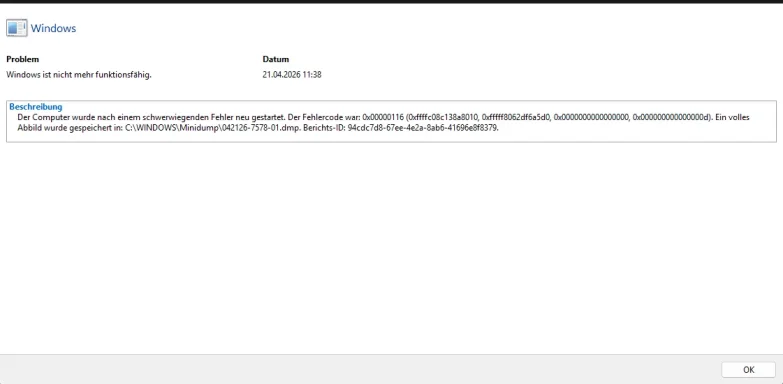
- The crash code is 0x00000116
- That corresponds to VIDEO_TDR_FAILURE
- In plain English: Windows tried to reset the graphics driver/GPU after it stopped responding, and recovery failed
Your German error says essentially:
- “The computer was restarted after a serious error”
- Crash dump saved to:
C:\Windows\Minidump\042126-7578-01.dmp
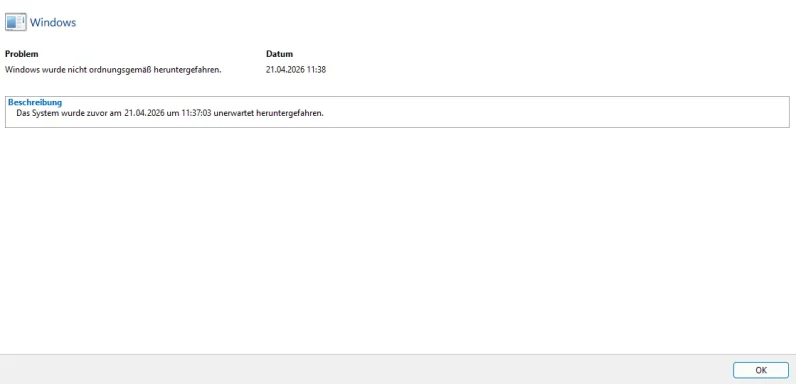
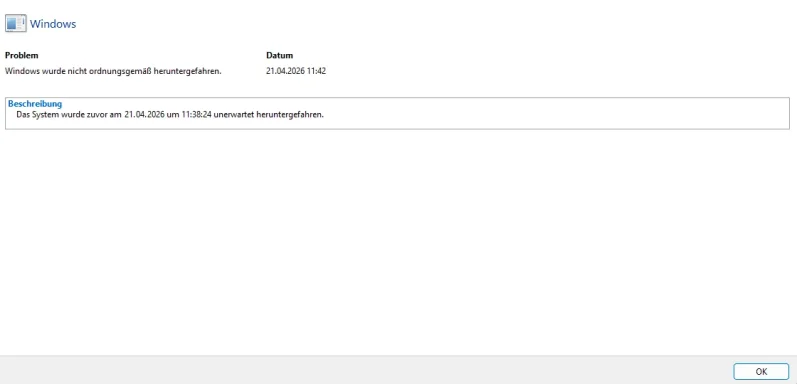
- The other entries are just the expected follow-up: Windows was not shut down properly
What this usually means
With
0x116 + visible artifacting + monitor flickering, the most likely causes are:
- Failing GPU / VRAM
- GPU driver corruption
- Bad DisplayPort/HDMI cable or bad monitor input
- Loose GPU in PCIe slot / loose power cable
- Power delivery problem from PSU or GPU power connector
- Less commonly: unstable RAM/XMP, motherboard PCIe issue, overheating
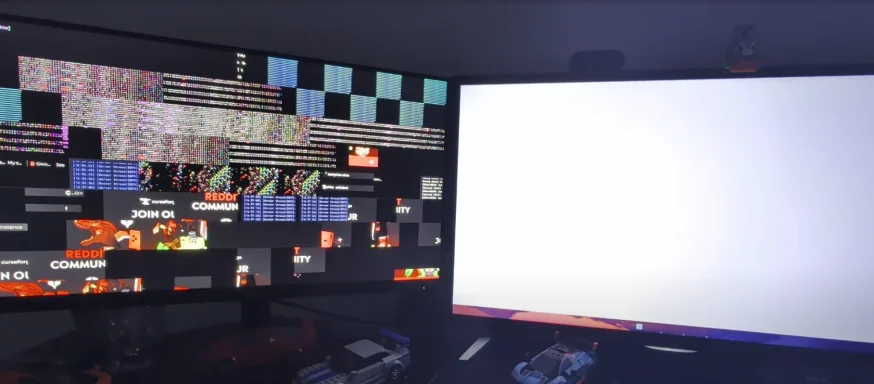
The important part: your photo matters a lot
That first image is not a normal software-only glitch.
The
block artifacts, corrupted tiles, and display flicker strongly suggest a
graphics hardware problem, especially if it happens:
- at startup,
- before logging in,
- or even in BIOS / during the motherboard logo screen.
If artifacts appear
before Windows fully loads, then the driver is probably
not the root cause. That points much more toward:
- GTX 1070 hardware failure
- VRAM degradation
- cable/display path issue
- PCIe/power issue
My best guess
Based on what you posted, I would currently suspect:
Most likely: GTX 1070 problem
Second most likely: cable / display connection problem
Third: driver issue making an already unstable GPU crash more often
What I would do, in order
1) Check whether artifacts appear outside Windows
Please test this first.
- Reboot and enter BIOS/UEFI
- Watch the screen during:
- motherboard splash screen
- BIOS menu
- Windows spinning dots/loading screen
Result:
- Artifacts in BIOS too → almost certainly hardware, not Windows
- Only inside Windows → could still be hardware, but driver/software becomes more plausible
2) Reseat the GPU and power cables
Turn off the PC completely and unplug power.
Then:
- remove the GTX 1070
- reseat it firmly in the PCIe slot
- reconnect the PCIe power cable(s)
- make sure no connector is half-loose
- if your PSU has another PCIe cable, try that one instead
Also check:
- GPU sag
- dust in PCIe slot
- burn smell / discoloration near GPU power plugs
3) Try a different display cable and, if possible, a different monitor/input
This is quick and worth doing.
- switch DisplayPort ↔ HDMI if possible
- try another cable
- try only one monitor connected
- try each monitor individually
Because sometimes a bad cable or failing port can mimic GPU instability.
4) Clean-install the NVIDIA driver
If the card is only borderline unstable, driver corruption can trigger the 0x116 crash.
Recommended approach:
- boot into Safe Mode
- use DDU to remove NVIDIA drivers completely
- install a fresh NVIDIA driver
- avoid GeForce Experience at first if you want the cleanest test
- choose driver-only install if possible
If after a clean driver install the artifacts remain, that strengthens the hardware diagnosis.
5) Return everything to stock
If any of these are enabled, disable them temporarily:
- GPU overclock / undervolt
- RAM XMP/DOCP
- CPU overclock / PBO tweaks
Even unstable RAM can sometimes contribute to GPU-related crashes, though your visual corruption still points more toward the graphics card.
6) Check temperatures and fan behavior
When the system does boot:
- watch GPU idle temp
- confirm GPU fans spin normally
- see whether artifacting starts immediately or only after warming up
If problems happen
instantly at cold boot, that can still be GPU hardware failure, but it can also be power/contact related.
7) Test the GPU in another PC, or test another GPU in your PC
This is the best confirmation step.
- Your GTX 1070 in another system
- or another known-good GPU in your system
Interpretation:
- Your 1070 fails in another PC → GPU is bad
- Another GPU works perfectly in your PC → GPU is bad
- Another GPU also has issues in your PC → look harder at PSU / motherboard / cable / monitor
8) Check the RAM just in case
Not my first suspect, but worth doing if the GPU test is inconclusive.
- run Windows Memory Diagnostic or preferably MemTest86
- test with one RAM stick at a time
- disable XMP temporarily
About the dump file
You said you can’t open the dump file. That’s normal if you try to open it like a normal document.
You need a debugger such as:
- WinDbg Preview from Microsoft Store
Then:
- Open WinDbg
- File → Open dump file
- Select
C:\Windows\Minidump\042126-7578-01.dmp
- Run:
!analyze -v
For NVIDIA-related 0x116 crashes, it often shows something like:
If you want, I can also tell you exactly how to read the dump result once you paste it here.
Bottom line
My honest opinion:
This looks more like a hardware graphics problem than a normal Windows problem.
The combination of:
- severe visual artifacts
- flickering
0x116 VIDEO_TDR_FAILURE- repeated improper shutdowns
makes the
GTX 1070 the main suspect.
Short practical plan
Do these in this exact order:
- Test if artifacts show in BIOS
- Use one monitor only
- Swap display cable
- Reseat GPU + PCIe power
- Clean reinstall NVIDIA driver
- Disable XMP/OC
- Test with another GPU or test your GPU in another PC
If you want, I can turn this into a
step-by-step troubleshooting checklist you can follow and report back on one item at a time.