

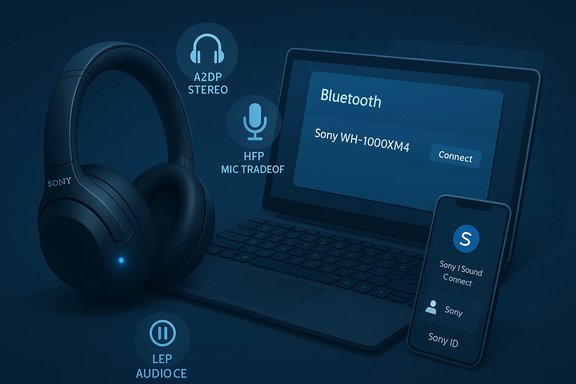
Sony's headphone ecosystem remains tightly mobile-first — the official Sony | Headphones Connect (now Sony | Sound Connect) app is only available for iOS and Android, and Windows users must rely on the OS Bluetooth stack and built-in pairing tools to connect and manage most functions. For Windows 11, 10 and 8.1 the connection flow is straightforward, but there are important limitations: advanced features (EQ presets, firmware updates, spatial audio tuning and listening history) and some cloud-linked services require the mobile app and a Sony account (Sony ID). This article walks readers through the complete pairing procedure for Windows 11, Windows 10 and Windows 8.1, explains the technical details behind codec and profile behavior, outlines practical troubleshooting steps, and analyzes the risks and trade-offs of managing Sony headphones on a Windows PC versus a smartphone.
Sony's headphone line — from budget in-ear buds to flagship WH-1000XM series — uses standard Bluetooth pairing for Windows PCs, and Sony's support documentation lists Windows 11, Windows 10 and Windows 8.1 explicitly as supported computer platforms for Bluetooth pairing. The company’s mobile app (formerly Headphones Connect, now marketed as Sony | Sound Connect) remains a smartphone-only utility; Sony's documentation and store pages repeatedly state the app is not compatible with desktop operating systems. That means features accessible through the app on iPhone or Android are generally unavailable on a Windows PC. At the same time Sony has centralized account access under the Sony account (Sony ID), retiring third‑party sign‑in routes such as Google, Apple or Facebook for many device services. If you use the mobile app to update firmware, personalize sound, or use cloud services, you'll sign in with a Sony ID; Sony has outlined a migration from other identity providers to the Sony account model. For Windows users, note that Sony ID is primarily relevant for mobile app functions (account-based backups, cloud features, firmware update tracking) rather than the core Bluetooth pairing itself.
Source: Born2Invest https://born2invest.com/?b=style-334325912/
 Background / Overview
Sony's headphone line — from budget in-ear buds to flagship WH-1000XM series — uses standard Bluetooth pairing for Windows PCs, and Sony's support documentation lists Windows 11, Windows 10 and Windows 8.1 explicitly as supported computer platforms for Bluetooth pairing. The company’s mobile app (formerly Headphones Connect, now marketed as Sony | Sound Connect) remains a smartphone-only utility; Sony's documentation and store pages repeatedly state the app is not compatible with desktop operating systems. That means features accessible through the app on iPhone or Android are generally unavailable on a Windows PC. At the same time Sony has centralized account access under the Sony account (Sony ID), retiring third‑party sign‑in routes such as Google, Apple or Facebook for many device services. If you use the mobile app to update firmware, personalize sound, or use cloud services, you'll sign in with a Sony ID; Sony has outlined a migration from other identity providers to the Sony account model. For Windows users, note that Sony ID is primarily relevant for mobile app functions (account-based backups, cloud features, firmware update tracking) rather than the core Bluetooth pairing itself. What you need before pairing
- A Windows PC or laptop running Windows 11, Windows 10, or Windows 8.1 with Bluetooth hardware enabled. If your PC lacks Bluetooth, you'll need a USB Bluetooth adapter that supports the Bluetooth version required by your headphones.
- The Sony headphones charged and able to enter pairing mode (each model has a slightly different method—refer to the device manual; standard methods include holding Power for 5–10 seconds or a model-specific touch gesture).
- Optional: A smartphone with the Sony | Sound Connect app for firmware updates, EQ, and advanced features (requires Sony ID). The app is only on iOS / Android.
Pairing procedure — Windows 11 (step-by-step)
1. Put the headphones into pairing mode
Most Sony models enter pairing mode when powered on for the first time, or by pressing and holding the power/Bluetooth button for 5–7 seconds until the indicator flashes blue. If your model uses touch controls (true wireless earbuds), follow the manual’s press‑and‑hold sequence. If pairing times out, restart the headphones and try again.2. Use Swift Pair (if available) or Settings
Windows 11 supports Swift Pair, which lets the OS detect nearby Swift Pair-capable devices and present a notification to connect. If your Sony device advertises Swift Pair (not all do), a popup will appear — choose Connect and follow the prompts. If no Swift Pair prompt appears:- Open Settings → Bluetooth & devices → turn Bluetooth on.
- Click Add device → Bluetooth.
- Wait for your headphone model name to appear in the list, then click it.
- If prompted for a passkey/PIN, use 0000 (standard default for most Bluetooth headsets).
3. Confirm sound device selection
After pairing, open Settings → System → Sound and confirm the newly paired device is selected as the output (and input if you plan to use the headset mic). Windows 11 unifies A2DP and HFP endpoints differently than Windows 10, so you’ll usually see a single device entry. Set the output to the "Stereo" or "Headphones" endpoint when playing media for best audio quality.Pairing procedure — Windows 10 (step-by-step)
- Put the headphones into pairing mode (Power button 5–7 seconds or device-specific method).
- Open Settings → Devices → Bluetooth & other devices → Add Bluetooth or other device → Bluetooth.
- Select your headphone entry from the list. If asked for a PIN, enter 0000.
- After connection, open Control Panel → Sound to set the Stereo (A2DP) endpoint as the default playback device if Windows defaults to the Hands‑Free endpoint. This avoids the low-quality "hands-free" sound during media playback.
Pairing procedure — Windows 8.1 (step-by-step)
Windows 8.1 uses the legacy Control Panel flow; Sony’s support guides explicitly include Windows 8.1 in their “pair to computer” instructions:- Enter pairing mode on the headphones.
- Open Control Panel → Devices and Printers → Add a device.
- Select the headphones when they appear and complete pairing (PIN 0000 if requested).
- Set sound output in the Sound control panel to the correct stereo endpoint if needed.
Advanced settings, codecs and audio profiles — what Windows actually does
Understanding Windows’ Bluetooth audio behavior helps explain sometimes‑surprising audio quality changes.- A2DP (Advanced Audio Distribution Profile) is the high‑quality playback profile used for music and videos. When active, stereo audio is used and playback quality is good.
- HFP/HSP (Hands‑Free/Headset Profile) is a lower‑quality mono profile that provides microphone support for calls. When Windows activates HFP for microphone use, audio quality may drop dramatically. This is a longstanding behavior on Windows and is often the root cause of “muffled” Bluetooth audio while using the headset mic.
Troubleshooting common problems (step-by-step fixes)
- Headphones don’t appear in Windows’ Add device list
- Ensure headphones are actually in pairing mode and within 1–2 meters of the PC. Try restarting both the headphones and the PC’s Bluetooth radio. If you have an external USB Bluetooth dongle, try a different USB port. Sony’s help pages and model guides emphasize correct pairing mode entry and retrying if pairing times out.
- Paired but no sound, or only “Hands‑Free” audio shows
- Open Control Panel → Sound: choose the "Stereo" or "Headphones" endpoint and set it as Default Device. Disable the Hands‑Free endpoints if you never use the headset mic. This forces Windows to use A2DP for playback. Windows 10 and 11 behave differently in endpoint creation, so the exact menu names vary.
- Mic causes audio quality to drop during calls
- Use a dedicated USB or built‑in laptop microphone for calls instead of the headset mic, or update your PC’s Bluetooth drivers. Windows 11’s LE Audio improvements reduce this trade‑off when your PC and headset both support it. Otherwise, disabling Hands‑Free Telephony in the device's Services (in Devices and Printers) prevents Windows from switching to HFP but removes microphone functionality through the headset.
- Pairing repeatedly fails or device shows as unknown
- Remove the device from Bluetooth settings on both PC and headphone (clear pairing records), then initialize the headphones (model-dependent reset procedure) and start over. If firmware is outdated, update via the Sony mobile app if possible. Many user reports confirm that applying firmware updates via the smartphone app resolves stubborn pairing quirks.
- Windows doesn’t show high‑quality codecs (AAC / aptX)
- Update the Bluetooth chipset driver from the PC/motherboard vendor and check Microsoft’s Bluetooth audio codec support table; codec support is a function of both the host (PC) and the accessory. If your PC’s Bluetooth stack is old, it may not present modern codecs even if the headset supports them.
Firmware updates, Sony | Sound Connect app, and Sony ID
- Firmware updates for Sony headphones are released by Sony and are generally applied through the mobile app (Sony | Sound Connect / Sony | Sound Connect). The app also provides equalizer presets, adaptive noise cancellation tuning, 360 spatial sound personalization and usage statistics — features unavailable through Windows alone. In short: firmware updates and many personalization features require the mobile app.
- Sony ID (Sony account): Sony has consolidated its sign‑in services; the mobile app and cloud features ask you to sign in with a Sony account. If your account was using Google, Apple, Facebook or Amazon sign‑in, Sony directed users to migrate to a Sony account as part of its consolidation process. This is relevant if you rely on Sony’s cloud services or want to back up listening profiles. Signing in is optional for Bluetooth audio on PC, but mandatory for cloud services and some features in the mobile app.
Workarounds and unofficial options (pros and cons)
- Android emulators (e.g., BlueStacks) or installing the mobile APK on a PC may allow the Sony mobile app to run on a desktop and detect the headphones, but this is unsupported and often unreliable — virtualized Bluetooth access is limited and firmware updates performed through an emulator can fail or brick devices. Community discussion warns that the emulator route can work intermittently but carries risk. Use this only as a last resort and accept the risk.
- Some users have found USB Bluetooth adapters with vendor drivers that implement additional codecs or Swift Pair behaviors, improving compatibility. Buy adapters only from reputable vendors and ensure Windows driver support for your OS version before purchasing.
Security, privacy and the data angle
- The Sony mobile app collects usage and diagnostics information, and its App Store listing shows categories of data access including identifiers, usage data and location in some settings. If you use the mobile app to update firmware or personalize sound you implicitly share some device telemetry with Sony. Review and configure app permissions on your phone and the Sony account privacy settings before enabling cloud features.
- Bluetooth pairing itself uses a pairing passkey and the standard Bluetooth security model. Avoid pairing in public places and confirm device names before pairing to reduce the risk of connecting to an unintended accessory. For corporate environments, review IT policies regarding Bluetooth device pairing—some enterprises disable Swift Pair or block peripheral pairing via policy.
Practical recommendations for Windows users with Sony headphones
- For media playback on a PC, use the Windows stereo/A2DP output and disable the hands‑free profile if you don't need the headset mic. This produces the best audio quality for music and movies.
- Keep a smartphone handy for firmware updates and complex personalization. Sony’s strongest feature set (EQ, noise cancellation tuning, firmware) lives behind the mobile app and a Sony account. If you own inexpensive Sony headsets that don't require frequent firmware updates, a PC-only flow will be fine; for premium models keep the mobile option available.
- Update PC Bluetooth drivers and check for Windows updates. Newer Windows 11 updates include LE Audio and improved codec support; these OS and driver updates often resolve quality and connectivity issues.
- If you rely on call quality, test the headset mic in your actual applications (Teams, Zoom, Discord) and prefer dedicated microphones if audio quality is critical. Until LE Audio is ubiquitous across PC and headset hardware, the classic A2DP/HFP trade‑off will still surface.
Strengths and limitations — a critical analysis
Sony has built a broadly consistent Bluetooth experience across large headphone families, and its official documentation covers Windows pairing specifics for Windows 11, 10 and 8.1. The brand’s firmware feature set — delivered via the mobile app — is powerful and well maintained. At the same time, the mobile-first approach is a limitation: Windows users cannot access the full feature set directly on a PC. This bifurcation forces a hybrid workflow (PC for listening, phone for updates/personalization) that is inconvenient for users who primarily use their headphones with desktop machines. Microsoft and the broader Bluetooth ecosystem are closing capability gaps with LE Audio and OS-level codec improvements; these are meaningful wins for PC users, but the benefits require both headset and PC hardware to support LE Audio and updated drivers. Until LE Audio is broadly supported by both PCs and headphone models, users should expect occasional quality trade-offs and driver‑related quirks. Finally, account migration to Sony ID improves long‑term account control for Sony services but centralizes user identity under a new account namespace — something users should consider for privacy and single‑sign‑on hygiene. The app’s telemetry and permissions are typical for a feature-rich hardware companion app; users who care about privacy should audit the app permissions and Sony account privacy settings.Quick reference: Pairing checklist (compact)
- Charge headphones and put them in pairing mode (5–10s hold on power/Bluetooth).
- On Windows: Settings → Bluetooth & devices → Add device → Bluetooth (or accept Swift Pair popup).
- If asked for PIN, use 0000.
- Set Playback device to the Stereo/A2DP endpoint in Sound settings for best music quality.
- For firmware and EQ, use the Sony | Sound Connect app on iOS/Android and sign in with Sony ID if required.
Conclusion
Connecting Sony headphones to Windows 11, 10 or 8.1 is reliable for audio playback and general use, but it’s not feature parity with the mobile experience. The Sony | Sound Connect app and Sony ID remain the gatekeepers for firmware updates, advanced personalization and cloud services — and the official stance is that those functions belong on smartphones, not PCs. For Windows users who prioritize high‑quality playback, the key is to understand the A2DP vs HFP behavior, keep Bluetooth drivers current, and use the mobile app for updates. Microsoft’s efforts to modernize Windows’ Bluetooth audio (LE Audio, improved codecs) point toward a more seamless future, but real-world improvements depend on both PC and headset hardware arriving at the same time. Until then, the best Windows experience is a mix of native Bluetooth pairing for playback and the Sony mobile app for maintenance and deep customization.Source: Born2Invest https://born2invest.com/?b=style-334325912/
